
1. Introduction
The Carpuride W502b is a 5-inch waterproof touchscreen designed for motorcycles, offering wireless CarPlay and Android Auto integration. It provides access to navigation, phone calls, music, and messaging directly from your motorcycle's display, enhancing safety and convenience on the road. This manual provides detailed instructions for setup, operation, and maintenance of your Carpuride W502b device.

Figure 1.1: Carpuride W502b Motorcycle CarPlay Screen. This image shows the device's main interface with various application icons, indicating its functionality for navigation, music, and communication.
2. Safety Information
- Ensure the device is securely mounted before riding to prevent detachment.
- The device is IP67 waterproof, suitable for use in rain, but avoid prolonged submersion.
- Operate the device within the specified temperature range of -20°C to 70°C (-4°F to 158°F).
- Do not attempt to disassemble or repair the device yourself. Refer to qualified service personnel.
- Always prioritize road safety. Avoid excessive interaction with the device while riding. Utilize voice commands for hands-free operation.
3. What's in the Box
Verify that all components are present in the package:
- Carpuride W502b Main Unit
- U-shaped Support Rod
- Special Bracket for BMW Motorcycles
- USB Boost Voltage Cable
- Power Line
- User Manual
- 64GB TF Card (pre-installed or included separately)
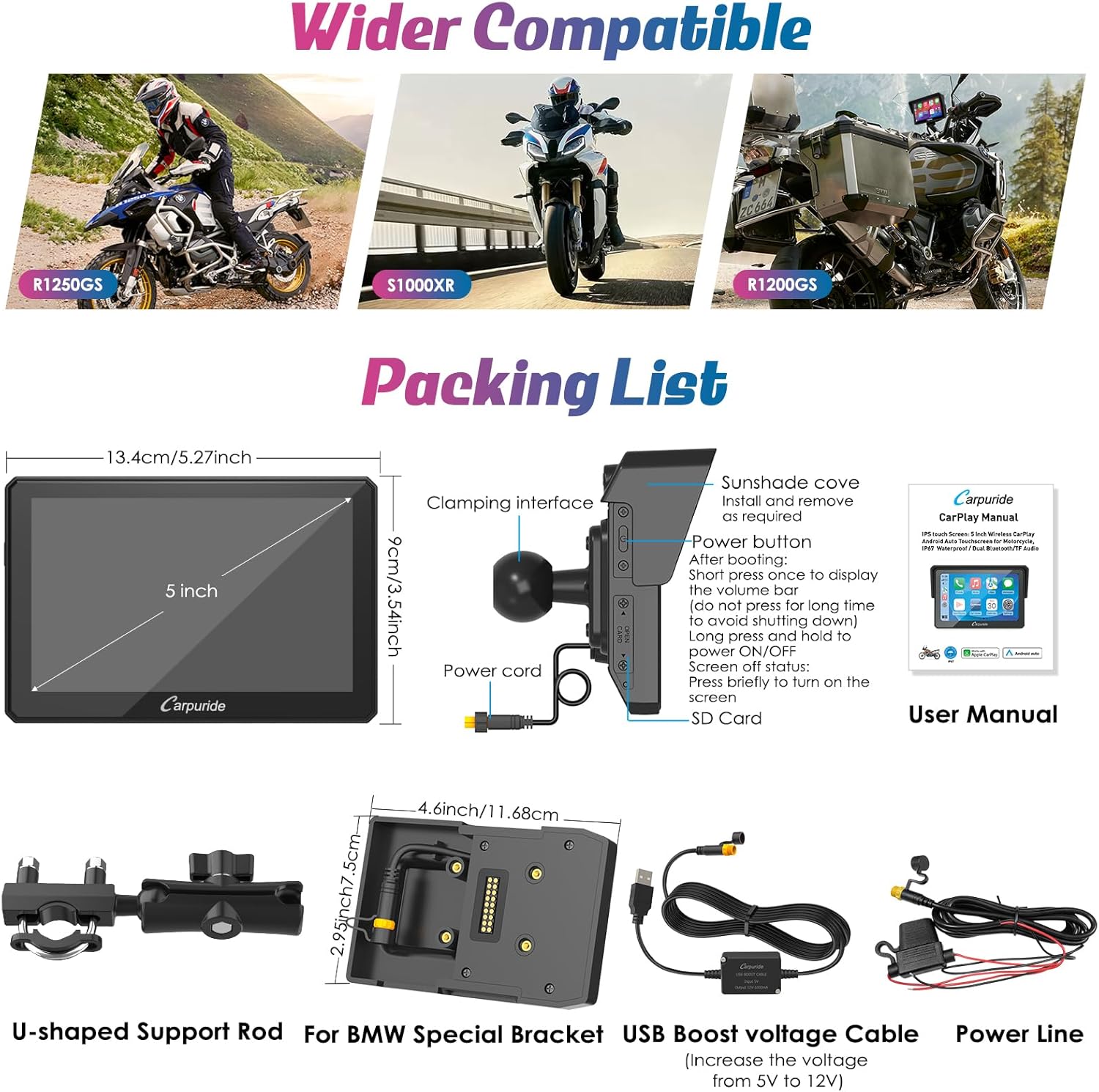
Figure 3.1: Package Contents. This image displays all items included with the Carpuride W502b, such as the main unit, mounting hardware, power cables, and documentation.
4. Setup
4.1 Physical Installation
The Carpuride W502b offers two primary installation methods, including a custom mount specifically designed for BMW motorcycles (R1200GS, R1250GS, S1000XR) that utilize an original navigation base. Ensure you have the correct bracket for your motorcycle.
Method 1: Using Original BMW Navigation Base
- Ensure your BMW motorcycle has the original navigation base.
- Install the BMW bracket to the motorcycle CarPlay screen.
- Follow the steps to install the unit onto the original BMW navigation base.
- The installation is complete and ready for use.

Figure 4.1.1: BMW Installation Mode. This diagram illustrates the three steps for mounting the Carpuride W502b onto a BMW motorcycle's existing navigation base.
Method 2: Using Motorcycle Mobile Phone Navigation Bracket
This method is suitable for most motorcycle phone brackets.
- Install the BMW bracket to the motorcycle CarPlay screen.
- Follow the steps to install the unit onto your mobile phone holder.
- The installation is complete and ready for use.

Figure 4.1.2: Motorcycle Mobile Phone Navigation Bracket Installation Mode. This diagram shows the process of attaching the Carpuride W502b to a standard motorcycle phone bracket.

Figure 4.1.3: Installation Diagram. This image illustrates the wiring connection from the motorcycle's power source to the Carpuride screen, highlighting the waterproof and detachable connectors.
4.2 Power Connection Options
The W502b offers flexible power connection methods:
- Original BMW Motorcycle Bracket: Powers the device directly if your BMW motorcycle bracket provides power.
- Motorcycle Power Line: Connect the device using the motorcycle's power line, ensuring 12V and 1A output to the battery.
- Motorcycle USB Port with USB Boost Cable: If your motorcycle's USB port provides 5V and 2.5A or higher, use the included USB boost cable to connect directly. The W502b has built-in reverse protection.

Figure 4.2.1: How to Use USB Boost Cable. This image illustrates the various power connection methods, including direct battery connection and USB boost cable usage, with important voltage and current requirements.
5. Operating Instructions
5.1 Wireless CarPlay and Android Auto Connection
The Carpuride W502b supports wireless Apple CarPlay and Android Auto, allowing seamless integration with your smartphone.
Connecting Apple CarPlay:
- Open the "i-Play" application on the Carpuride screen.
- On your iPhone, search for the Carpuride Bluetooth device (e.g., "carpuride-xxxx") and pair.
- Confirm the pairing request and allow contacts/favorites sync if prompted.
- The connection should now be successful, and CarPlay will launch.

Figure 5.1.1: Apple CarPlay Connection. This image provides a visual guide to connecting your iPhone to the Carpuride W502b for wireless CarPlay functionality.
Connecting Android Auto:
- Open the "A-Auto" application on the Carpuride screen.
- On your Android phone, find the connected devices in Bluetooth settings.
- Add a new device (e.g., "carpuride-xxxx") and click "Pair".
- The connection should now be successful, and Android Auto will launch.

Figure 5.1.2: Android Auto Connection. This image illustrates the steps required to connect your Android phone to the Carpuride W502b for wireless Android Auto functionality.
For a visual demonstration of the wireless connection process, please refer to the video below:

Video 5.1.3: How to connect moto carplay wirelessly. This video demonstrates the process of wirelessly connecting your smartphone to the Carpuride W502b for CarPlay or Android Auto.
5.2 Audio Output and Bluetooth Helmet Pairing
The W502b features dual Bluetooth for connecting to your smartphone and a Bluetooth-enabled helmet or headphones.
Pairing with Bluetooth Helmet/Headphones:
- Successfully connect Carpuride Moto CarPlay or Android Auto with your phone.
- On the Carpuride screen, click on "Audio Output" and select "iplay/auto".
- Connect your phone to Bluetooth earphones to play audio.
Alternatively, for BT Trans mode:
- Go to the "Audio Output" and enter the BT Trans interface.
- Select BT Trans, turn on your cycling helmet's Bluetooth, and click "Carpuride Moto BT search" to find and pair.
- Clicking "Disconnect" and seeing "Connected" indicates a successful connection.
- If using BT Trans output, ensure your phone is not connected to BT earphones. If it is, disconnect and delete pairing records from the BT earphones in your phone's Bluetooth list.

Figure 5.2.1: 2 Ways Setup Bluetooth Helmet. This image details the two methods for connecting your Carpuride W502b to a Bluetooth helmet or headphones for audio output.
5.3 Voice Control
With CarPlay and Android Auto, you can utilize voice assistants like Siri or Google Assistant for hands-free control. This allows you to navigate, make calls, send messages, and play music without taking your hands off the handlebars.
- Activate Siri or Google Assistant through the screen or your connected phone.
- Examples: "Hey Siri, navigate to [destination]", "Hi Google, call [contact name]", "Play [song name]".

Figure 5.3.1: Voice Control. This image demonstrates the hands-free voice control capabilities of the Carpuride W502b, allowing riders to interact with navigation, calls, and messages using Siri or Google Assistant.
5.4 Navigation
Access your preferred navigation apps (e.g., Apple Maps, Google Maps, Waze) directly on the Carpuride screen via CarPlay or Android Auto. The high-definition IPS screen provides clear visibility even in bright sunlight.

Figure 5.4.1: Navigation. This image displays the Carpuride screen showing a navigation map and icons for various mapping applications, highlighting its utility for motorcycle navigation.
5.5 Music and Media Playback
Enjoy your favorite music and media through the Carpuride W502b. It supports various streaming services via CarPlay/Android Auto and local playback from the included 64GB TF card.
- Built-in EQ: Customize your audio experience with the preset EQ or the 16-band HD EQ with 12 adjustable frequency sections.
- TF Card Playback: The 64GB TF card supports storing music and videos for local playback.

Figure 5.5.1: Music Playback. This image shows the music interface on the Carpuride W502b, indicating support for various streaming platforms and local music playback.

Figure 5.5.2: Support 64G TF Card. This image highlights the device's capability to play videos and music directly from a 64GB TF card, offering entertainment on the go.
5.6 Screen Features and Durability
The W502b features a 5-inch HD IPS touch screen with 1024x600 resolution and up to 1000nit peak brightness for clear visibility in various conditions. Its IP67 waterproof rating ensures durability.

Figure 5.6.1: Fit for All Riding Environments. This image showcases the Carpuride W502b's resilience in various weather conditions, including rain, bright sun, and snow, due to its IP67 waterproof and durable design.
For a demonstration of the Carpuride W502b in various riding conditions, please watch the video below:

Video 5.6.2: Carpuride Moto CarPlay Road Cycling. This video provides a dynamic view of the Carpuride W502b in use during motorcycle road cycling, demonstrating its performance and visibility.
6. Maintenance
- Cleaning: Use a soft, damp cloth to clean the screen and device body. Avoid abrasive cleaners or solvents.
- Storage: When not in use for extended periods, store the device in a cool, dry place away from direct sunlight.
- Firmware Updates: Periodically check the manufacturer's website for firmware updates to ensure optimal performance and new features. Note that the accessory 64G TF card does not support software upgrades; use a smaller capacity (4GB, 8GB, 16GB, or 32GB) card for updates.
7. Troubleshooting
- Device Not Powering On:
- Check all power connections.
- Ensure the motorcycle's power line provides 12V, 1A.
- If using USB, ensure the USB port outputs 5V, 2.5A or higher. Insufficient voltage/current can cause automatic shutdown.
- Wireless CarPlay/Android Auto Disconnection:
- Ensure your phone supports wireless CarPlay or Android Auto.
- Verify that your phone's Wi-Fi (5GHz for Android Auto) and Bluetooth are enabled.
- Restart both the Carpuride unit and your smartphone.
- For Android Auto, ensure your phone is running Android 11 or above and the Android Auto app is updated.
- Note: Not perfectly compatible with Samsung Note and S series phones.
- No Audio Output to Helmet:
- Ensure your helmet/headphones are properly paired with the Carpuride unit or your phone (depending on the audio output mode selected).
- If using BT Trans, ensure your phone is not simultaneously connected to other Bluetooth earphones.
- Screen Visibility Issues in Sunlight:
- The screen has up to 1000nit peak brightness, but extreme direct sunlight can still affect visibility. Adjust viewing angle if possible.
8. Specifications
| Feature | Specification |
|---|---|
| Model Name | w502B |
| Display Size | 5 Inches |
| Resolution | 1024*600 |
| Brightness | Up to 1000nit peak brightness |
| Waterproof Rating | IP67 |
| Operating Temperature | -20°C to 70°C (-4°F to 158°F) |
| Connectivity | Wireless Apple CarPlay, Wireless Android Auto, Dual Bluetooth |
| Storage | Supports 64G TF Card (included) |
| Power Input | 12V 1A (motorcycle power line), 5V 2.5A or higher (USB port with boost cable) |
| Dimensions | 5.3 x 1.08 x 3.5 inches |
| Item Weight | 1.74 pounds |
9. Warranty and Support
- Warranty: The Carpuride W502b comes with a 1-year warranty from the date of purchase.
- Return Policy: A 30-day unconditional return policy is typically offered. Please refer to your purchase platform's specific return guidelines.
- Customer Service: For technical support, troubleshooting assistance, or warranty claims, please contact Carpuride customer service. Contact information can usually be found on the product packaging or the official Carpuride website.