
Introduction
Welcome to your new Amazon Fire TV 50-inch Omni QLED Series smart television. This manual provides essential information for setting up, operating, maintaining, and troubleshooting your device. Please read these instructions carefully to ensure optimal performance and longevity of your television.
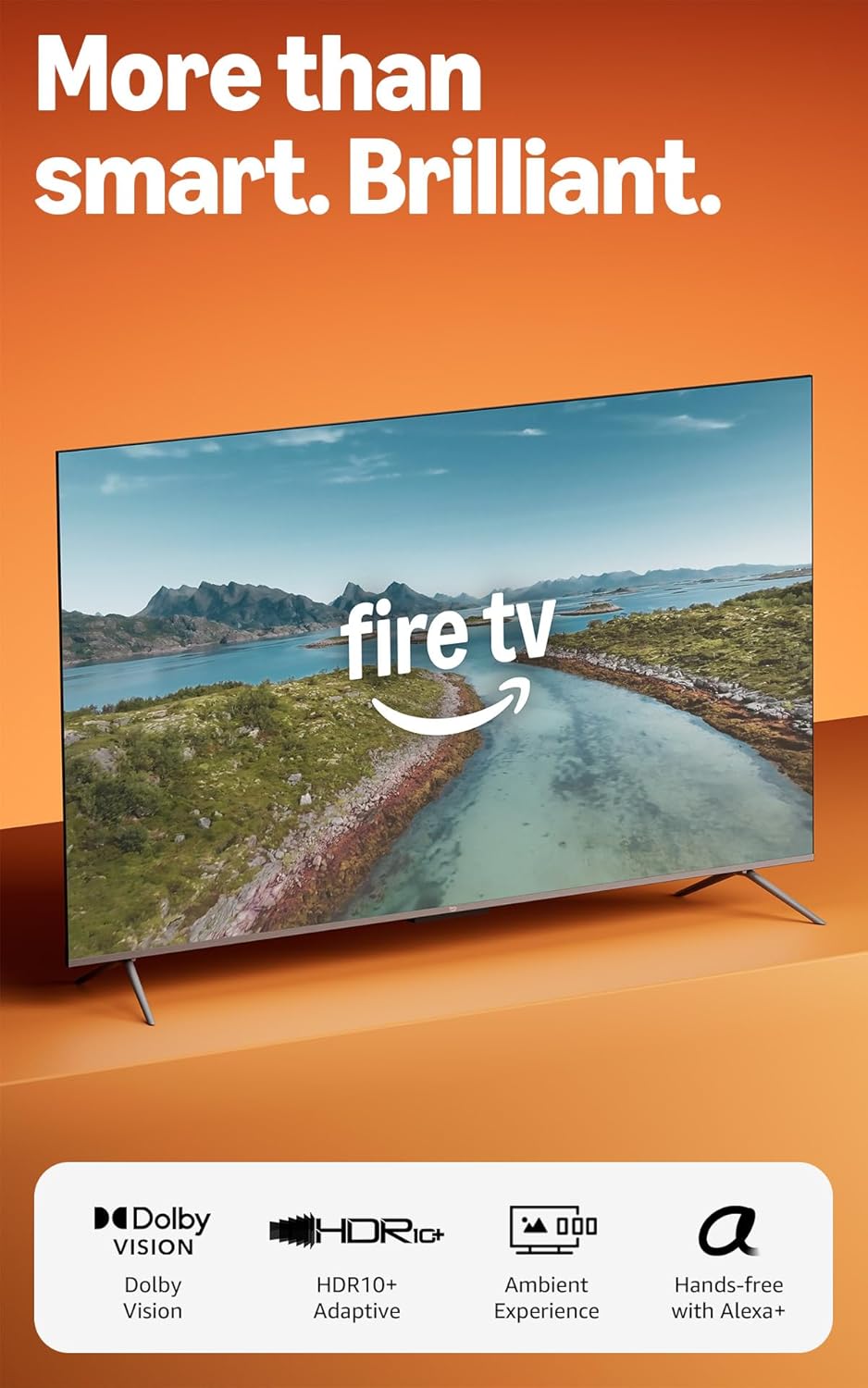
Image: The Amazon Fire TV Omni QLED Series television, showcasing its sleek design and vibrant display with a scenic image.
Setup
1. Unpacking and Assembly
Carefully remove all components from the packaging. Ensure you have all items listed in the 'Included in the Box' section.
- TV Stand Assembly: Attach the two TV stand legs to the television using the four provided screws. Ensure they are securely fastened.
- Power Connection: Connect the power cord to the TV and then to a wall outlet.
- Remote Setup: Insert the two AAA batteries into the Alexa Voice Remote Enhanced.
2. Initial Power On and Network Connection
Upon first power-on, the TV will guide you through the initial setup process. This includes selecting your language, connecting to a Wi-Fi network, and signing in with your Amazon account.
- Wi-Fi Connection: Select your Wi-Fi network from the list and enter the password. The TV supports Wi-Fi 6 for fast and stable connectivity.
- Ethernet Connection: For a wired connection, connect an Ethernet cable from your router to the Ethernet port on the TV.
3. Connecting External Devices
Your Fire TV Omni QLED Series includes multiple ports for connecting external devices.
- HDMI Ports: Connect soundbars, gaming consoles, Blu-ray players, and other devices to the four HDMI inputs (3 HDMI 2.0 + 1 HDMI 2.1 with eARC).
- USB Port: Use the USB 3.0 port for connecting storage devices or other compatible accessories.
- Digital Optical Audio Output: Connect to external audio systems using the digital optical audio port.
Operating Your Fire TV
1. Picture and Sound Quality
Experience stunning visuals with the 4K QLED display, enhanced by Dolby Vision and HDR10+ Adaptive for vibrant colors and deep contrast in any lighting condition. Dolby Audio provides rich sound.

Image: An illustration demonstrating the enhanced contrast achieved through local dimming zones, showing how individual sections of the backlight can be controlled for deeper blacks and brighter whites.
2. Smart Features and Navigation
The Fire TV Omni QLED Series runs on Fire OS, offering a fast and intuitive user interface. A quad-core processor ensures smooth app loading and navigation.
- Hands-Free Alexa: Control your TV, find content, manage smart home devices, and more using just your voice. Say "Alexa" followed by your command, even when the screen is off.
- Alexa Voice Remote Enhanced: Alternatively, press the Alexa button on your remote to issue commands.
- Content Discovery: Easily find movies, TV episodes, and free content from various streaming services. Subscriptions may apply for certain services.
- Gaming: Play games instantly with Amazon Luna and Xbox Game Pass without needing a console.
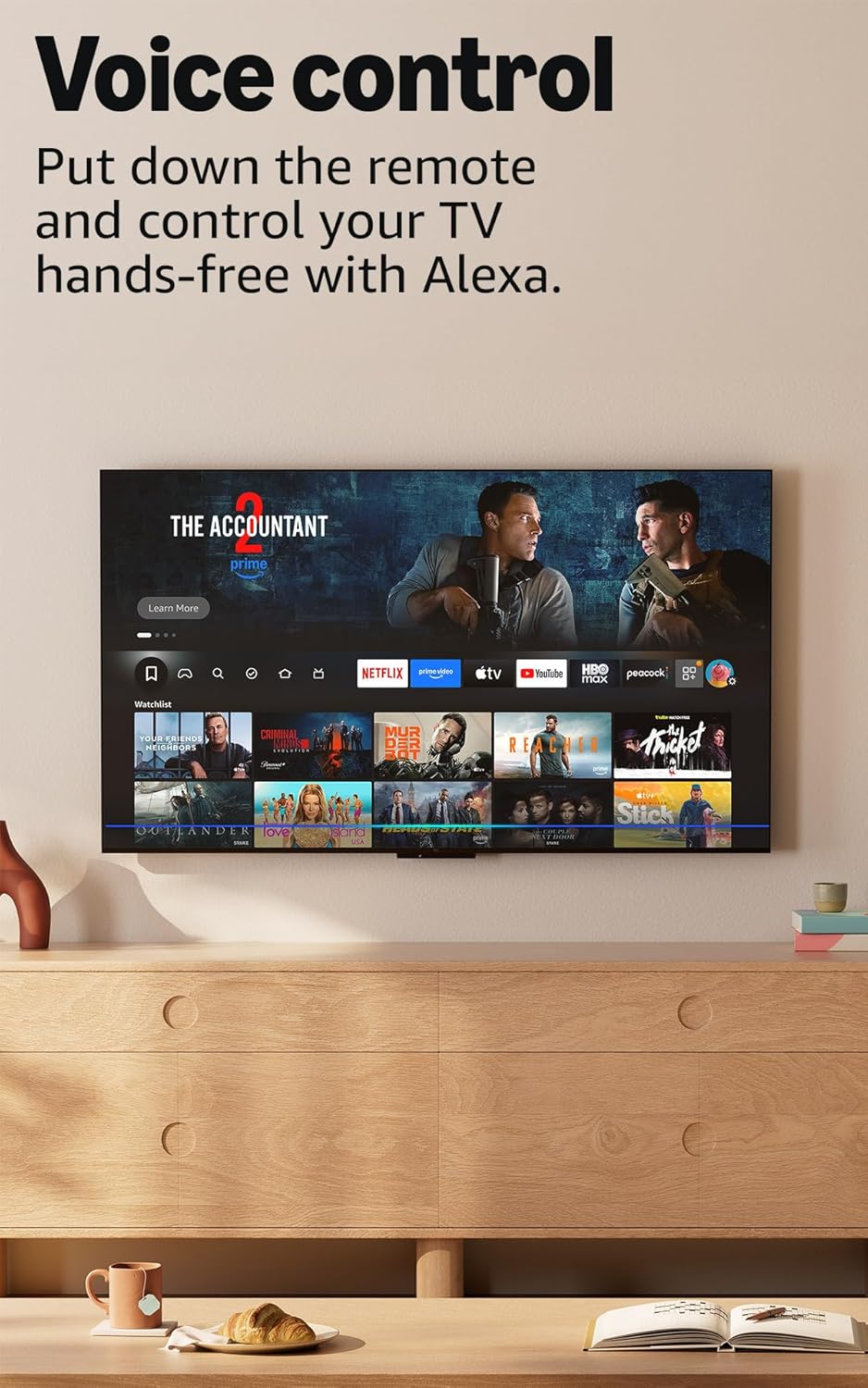
Image: The Fire TV interface showing various streaming applications and content, highlighting the hands-free voice control feature with Alexa.
3. Omnisense Technology and Ambient Experience
Built-in sensors detect your presence, waking the display instantly to show artwork or allow quick access to your content.

Image: The Fire TV in ambient mode, displaying a piece of art on the screen, demonstrating the 'Instantly On' feature where sensors activate the display when someone is nearby.
4. Accessibility Features
The Fire TV Omni QLED Series includes several accessibility options:
- VoiceView Screen Reader: Provides audio feedback for navigation and content for users who are blind or visually impaired.
- Screen Magnifier: Allows zooming in and out, and panning across the screen.
- Text Banner: Consolidates on-screen text into a compact, customizable banner.
- Closed Captioning: Available for videos and TV shows where supported.
- Audio Description: Provides verbal descriptions of on-screen actions, facial expressions, and scene changes (availability varies by content).
- Bluetooth Hearing Aids/Headphones: Supports audio streaming to compatible Bluetooth hearing aids and headphones for private listening.
Maintenance
1. Cleaning Your Television
To maintain the clarity of your screen, gently wipe the display with a soft, dry, lint-free cloth. For stubborn marks, lightly dampen the cloth with water or a screen-safe cleaning solution. Avoid harsh chemicals or abrasive materials.
2. Privacy Controls
Your Fire TV is designed with privacy protections. Utilize the physical switch to electronically disconnect the microphones when hands-free Alexa is not desired.
Troubleshooting
1. Picture or Audio Issues
- Stuttering/Audio Desync: If content stutters or audio desyncs, especially within streaming apps, try restarting the app or the television. Ensure your internet connection is stable and sufficient for streaming 4K content.
- Audio Output: If audio sounds incomplete or incorrect without an external sound system, check your audio settings within the streaming service or TV settings. Streaming audio may default to 5.1 surround sound; adjust to stereo if you are using the TV's internal speakers.
2. User Interface Lag or Glitches
- Menu Responsiveness: If menus lag or the system hangs, try restarting the TV. Ensure the TV's software is up to date.
- HDMI Input Lock: If the TV gets stuck on the HDMI input menu, try pressing the 'Home' button on your remote or using a voice command to navigate to the home screen.
3. General Performance
- Slow App Loading: Ensure your Wi-Fi signal is strong or use a wired Ethernet connection. Close unused applications running in the background.
- Remote Not Responding: Check the batteries in your Alexa Voice Remote Enhanced. If issues persist, try re-pairing the remote according to the Quick Start Guide.
Specifications
| Feature | Detail |
|---|---|
| Resolution | 3840 x 2160 (4K UHD) |
| High Dynamic Range (HDR) format | HDR10, HLG, HDR10+ Adaptive, Dolby Vision |
| Backlight type | Direct LED |
| Refresh rate | 60Hz |
| Screen size | 50” (Viewable display size: 49.5“) |
| HDMI ports | 3 HDMI 2.0 + 1 HDMI 2.1 with eARC |
| Wi-Fi & Ethernet connectivity | Wi-Fi 6 + 1 Ethernet port |
| USB | 1 USB 3.0 |
| Digital Optical Audio Output | 1 Digital Optical Audio Port |
| Voice support | Hands-free with Alexa, press and ask Alexa with Fire TV Alexa Voice Remote Enhanced or free Fire TV app |
| Audio support | Dolby Digital Plus with passthrough of Dolby-encoded audio |
| Audio power | 10W + 10W |
| Operating System (OS) | Fire OS |
| Product size with stand | 43.7” x 28.6” x 11.1” |
| Weight (with stand) | 19.0 lbs |
| VESA Wall Mount Standard | 300 mm x 300 mm |
| SKU number | K7Q3MT |
| Included in the box | Fire TV Omni QLED TV, Alexa Voice Remote Enhanced, TV stand (2 legs, 4 screws), power cord, 2 AAA batteries, Quick Start Guide |
Warranty and Support
1. Product Warranty
Your Amazon Fire TV Omni QLED Series includes a 1-year limited warranty and service. Optional 3-Year and 4-Year Extended Warranties are available for U.S. customers and sold separately. Use of Fire TV is subject to the terms found here.
2. Software Security Updates
Information regarding software security updates can be found here. If you already own a Fire TV, visit Manage Your Content and Devices for device-specific information.
3. Content Availability
Please note that certain apps and services are subject to change or withdrawal at any time. They may not be available in all areas and languages, and may require separate subscriptions.


