1. Introduction
This manual provides detailed instructions for the setup, operation, customization, and maintenance of your CHERRY XTRFY M50 Wireless Gaming Mouse. Please read this manual thoroughly to ensure optimal performance and longevity of your device.
1.1. Package Contents
- CHERRY XTRFY M50 Wireless Gaming Mouse
- USB-C to USB-A Charging Cable
- USB Wireless Receiver (2.4 GHz)
- Quick Start Guide
2. Setup
2.1. Connecting the Mouse
The CHERRY XTRFY M50 Wireless Gaming Mouse offers multiple connectivity options: 2.4 GHz wireless via USB receiver, Bluetooth, and wired via USB-C cable.
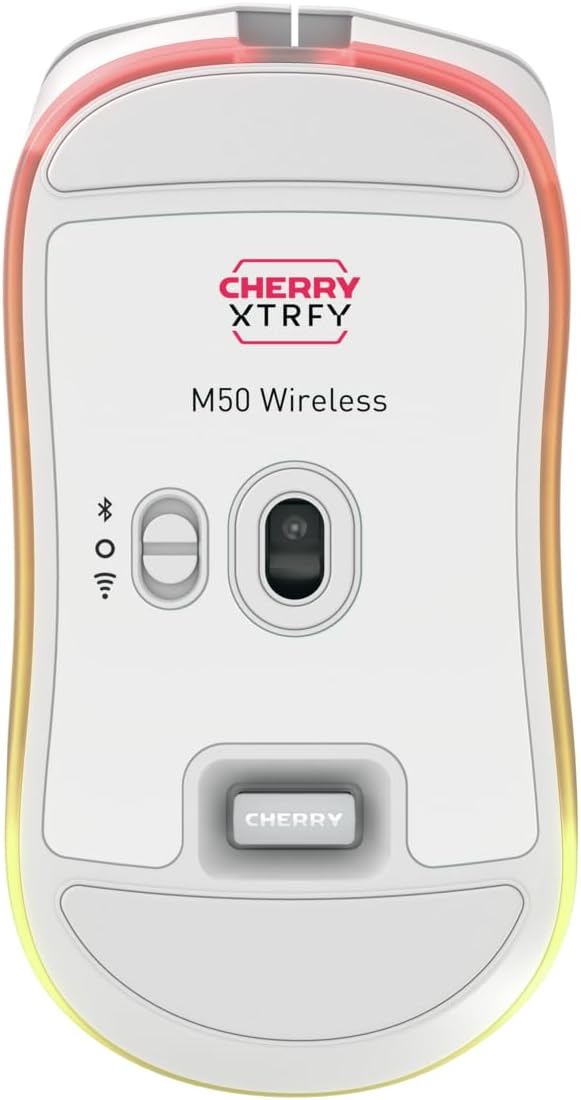
Image: Bottom view of the M50 Wireless mouse, highlighting the sensor and the connectivity mode switch.
2.1.1. 2.4 GHz Wireless Connection
- Locate the USB wireless receiver. It is typically stored in a compartment on the underside of the mouse.
- Plug the USB wireless receiver into an available USB-A port on your computer.
- On the underside of the mouse, slide the switch to the '2.4 GHz' position (often indicated by a wireless icon).
- The mouse should automatically connect to your computer.
2.1.2. Bluetooth Connection
- On the underside of the mouse, slide the switch to the 'Bluetooth' position (often indicated by a Bluetooth icon).
- On your computer, navigate to Bluetooth settings and enable Bluetooth.
- Select 'Add a device' or 'Pair new device'.
- The mouse should appear as 'CHERRY XTRFY M50' or similar. Select it to pair.
2.1.3. Wired Connection
- Connect the USB-C end of the charging cable to the front port of the mouse.
- Connect the USB-A end of the charging cable to an available USB-A port on your computer.
- The mouse will function in wired mode and charge simultaneously.

Image: The M50 Wireless mouse connected via its USB-C charging cable, illustrating wired mode and charging.
2.2. Charging the Mouse
To charge the M50 Wireless mouse, connect the provided USB-C cable to the mouse and the USB-A end to a powered USB port on your computer or a USB wall adapter. The RGB lighting may indicate charging status.
3. Operating Instructions
The CHERRY XTRFY M50 Wireless Gaming Mouse features an ergonomic design for comfortable use and precise control.

Image: Front view of the M50 Wireless mouse, displaying its main buttons and scroll wheel.
3.1. Basic Functions
- Left Click: Primary action button.
- Right Click: Secondary action button, typically for context menus.
- Scroll Wheel: Used for vertical scrolling. The 4D tilt wheel also supports horizontal scrolling.
- DPI Button: Located behind the scroll wheel, this button cycles through pre-set CPI (Counts Per Inch) levels.
- Side Buttons: Typically used for 'forward' and 'back' navigation in web browsers or customizable in software.
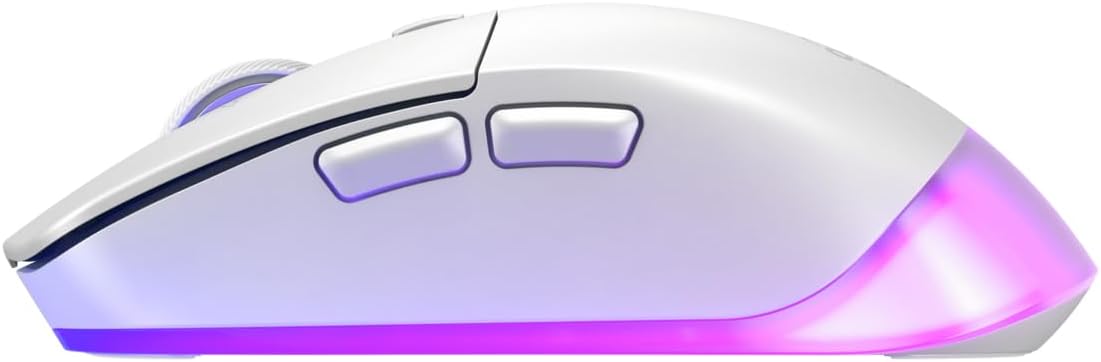
Image: Side view of the M50 Wireless mouse, showing the ergonomic curve and the two side buttons.
4. Customization (CHERRY UTILITY Software)
The CHERRY XTRFY M50 Wireless Gaming Mouse features 5 customizable on-board profiles. To unlock the full potential of your mouse, download and install the CHERRY UTILITY software from the official CHERRY XTRFY website.
4.1. Software Features
With the CHERRY UTILITY software, you can:
- Adjust CPI (Counts Per Inch) sensitivity levels.
- Configure Polling Rate.
- Assign macros to buttons.
- Remap button functions.
- Customize RGB illumination effects and colors.
- Create and manage up to 5 on-board profiles, which are stored directly on the mouse.
5. Maintenance
5.1. Cleaning
To maintain optimal performance and appearance:
- Ensure the mouse is disconnected from your computer or powered off before cleaning.
- Use a soft, lint-free cloth lightly dampened with water or a mild cleaning solution.
- Avoid using harsh chemicals, abrasive materials, or excessive moisture.
- Clean the sensor area gently with a cotton swab if tracking issues occur.
5.2. Storage
When not in use for extended periods, store the mouse in a dry, cool environment away from direct sunlight and extreme temperatures.
6. Troubleshooting
6.1. Connectivity Issues
- Mouse not responding (2.4 GHz): Ensure the USB receiver is securely plugged into a working USB port. Check that the mouse's mode switch is set to 2.4 GHz. Try a different USB port.
- Mouse not responding (Bluetooth): Ensure Bluetooth is enabled on your computer and the mouse's mode switch is set to Bluetooth. Re-pair the device if necessary.
- Intermittent connection: Move the mouse closer to the receiver or Bluetooth adapter. Avoid sources of interference (e.g., other wireless devices, large metal objects).
6.2. Tracking Issues
- Clean the mouse sensor with a cotton swab.
- Ensure you are using the mouse on a suitable surface (e.g., a mouse pad).
- Adjust CPI settings via the DPI button or CHERRY UTILITY software.
6.3. Charging Problems
- Ensure the USB-C cable is properly connected to both the mouse and a powered USB port.
- Try a different USB port or charging cable.
7. Specifications
| Brand | CHERRY XTRFY |
| Model Name | M50 Wireless |
| Model Number | JW-5000-0 |
| Connectivity Technology | 2.4 GHz Wireless, Bluetooth, USB Wired |
| Movement Detection Technology | Laser |
| Special Feature | Lightweight, Adjustable RGB Illumination, 4D Tilt Wheel |
| Color | White |
| Approximate Package Dimensions (L x W x H) | 7.2 x 4.09 x 2.72 inches |
8. Warranty and Support
For warranty information and technical support, please refer to the official CHERRY XTRFY website or contact their customer service. Keep your proof of purchase for warranty claims.
Website: www.cherryxtrfy.com


