
Arylic Arylic A30+
Contents
Arylic A30+ Wireless Audio Amplifier User Manual
Model: A30+
Introduction
The Arylic A30+ is a versatile WiFi and Bluetooth 5.0 sound power amplifier designed to transform your existing audio systems into a high-fidelity wireless streaming network. It enables multiroom audio control, allowing you to stream different tracks or synchronize sound across multiple units within the same network. With support for various lossless audio formats and multiple music services, the A30+ provides a comprehensive solution for modern home audio.
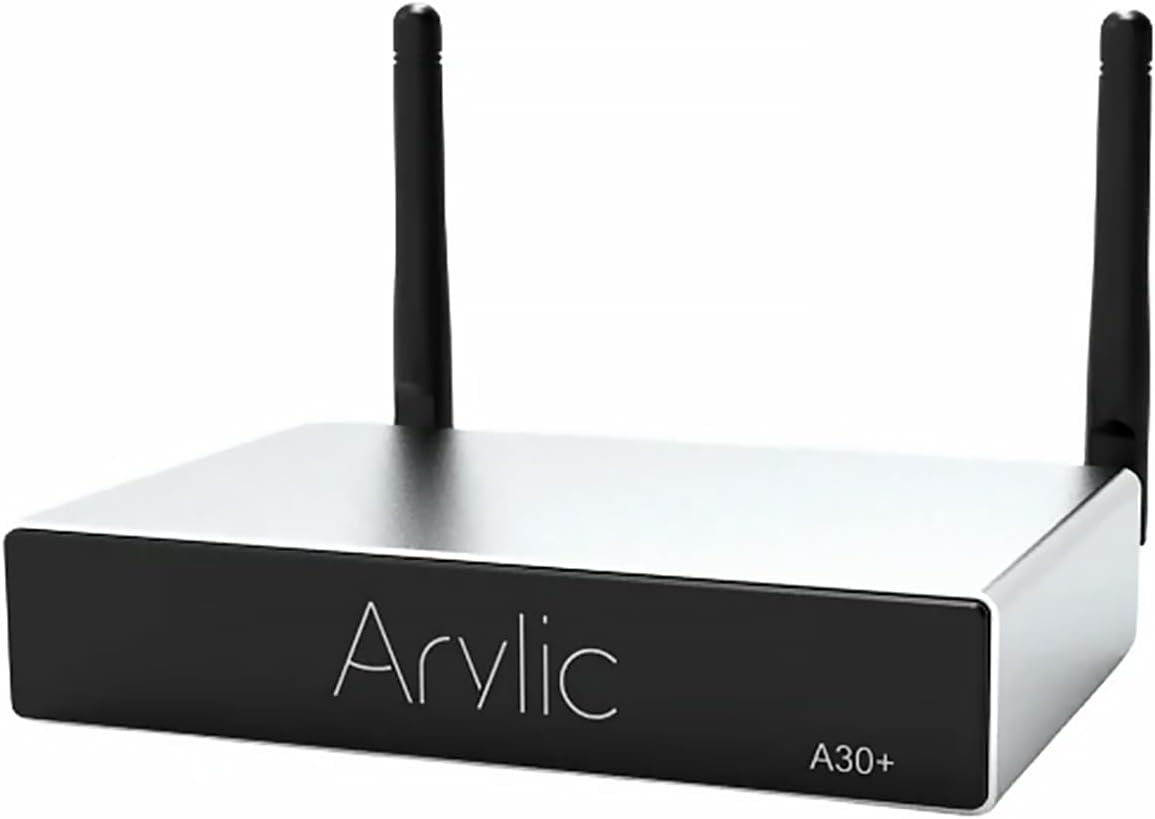
Image: Front view of the Arylic A30+ Wireless Audio Amplifier. The device is a compact, rectangular unit with a silver top and black front panel, featuring the 'Arylic' logo and 'A30+' model designation. Two black antennas are visible on the rear.
What's in the Box
Please check the package contents to ensure all items are present:
- Arylic A30+ Main Unit
- Remote Control
- Power Adapter (DC 18V/4A)
- Power Cord
- RCA Cable
- Speaker Connector (Phoenix connector)
- Screwdriver (for speaker connector)
- Wi-Fi Antennas (2 units)
- User Manual (this document)

Image: All components included in the Arylic A30+ package laid out. These include the amplifier unit, remote control, power adapter, power cord, RCA cable, speaker connector, screwdriver, two antennas, and a printed user manual.
Product Overview
Front Panel

Image: Diagram of the Arylic A30+ front panel, highlighting input indicators and the IR sensor. Indicators for WiFi, Bluetooth, Line In, USB, and USB DAC are shown, along with the IR sensor for remote control.
- Input Indicators: LEDs indicating the currently active input source (WiFi, Bluetooth, Line In, USB, USB DAC).
- IR Sensor: Receives signals from the remote control.
Rear Panel

Image: Diagram of the Arylic A30+ rear panel, detailing all ports and connections. Labels include WiFi Antenna, Power/Reset Button, RJ45 LAN Port, USB, Micro USB, AUX IN, Speaker Out (L-, L+, R-, R+), DC Input (12V-18V), and Bluetooth Antenna. A separate inset shows the dimensions of the DC input jack (2.1mm inner, 5.5mm outer).
- WiFi Antenna Connector: For connecting the Wi-Fi antenna.
- Power/Reset Button: Press to power on/off, long press to reset.
- RJ45 LAN Port: For wired network connection.
- USB Port: For connecting USB storage devices.
- Micro USB Port: For connecting to a computer as a USB DAC.
- AUX IN: 3.5mm stereo input for external audio sources.
- Speaker Out: Phoenix connector for connecting passive speakers (L-, L+, R-, R+).
- DC Input (12V-18V): Power input jack.
- Bluetooth Antenna Connector: For connecting the Bluetooth antenna.
Setup
1. Physical Connections
- Connect Antennas: Screw the provided Wi-Fi and Bluetooth antennas onto their respective connectors on the rear panel.
- Connect Speakers: Use the provided speaker connector (Phoenix connector) to connect your passive speakers. Ensure correct polarity (L+, L-, R+, R-). Use a small screwdriver to secure the speaker wires.
- Connect Power: Plug the power adapter into the DC Input port on the rear panel, then connect the power cord to an electrical outlet.
- Optional: Wired Network: For a stable network connection, connect an Ethernet cable from your router to the RJ45 LAN port.
- Optional: AUX Input: Connect external audio devices (e.g., CD player, TV) to the AUX IN port using a 3.5mm audio cable.
- Optional: USB Storage: Insert a USB flash drive with audio files into the USB port.

Image: An Arylic A30+ amplifier connected to a pair of bookshelf speakers and a laptop. The image demonstrates a typical setup for audio playback, showing the amplifier's rear connections to speakers and a source device.
2. Network Setup (Wi-Fi)
- Power On: Press the Power/Reset button on the rear panel to turn on the A30+.
- Download App: Download the "4STREAM" app from the Apple App Store (for iOS) or Google Play Store (for Android).
- Connect to Device Wi-Fi: On your smartphone or tablet, go to Wi-Fi settings and connect to the network named "SoundSystem_XXXX" (XXXX will be a unique identifier for your device).
- Open 4STREAM App: Launch the 4STREAM app. It will guide you through connecting the A30+ to your home Wi-Fi network. Select your home Wi-Fi network and enter the password.
- Device Renaming: Once connected, you can rename your device within the app for easier identification (e.g., "Living Room Amplifier").
Note: If you are using a wired Ethernet connection, the device should automatically connect to your network and appear in the 4STREAM app.
Operating Instructions
1. Basic Audio Playback
- Via 4STREAM App:
- Open the 4STREAM app and select your Arylic A30+ device.
- Choose a music source from the app (e.g., online music services, local music, USB, AUX).
- Select your desired audio and begin playback.
- Bluetooth Playback:
- Ensure the A30+ is powered on and the Bluetooth indicator is active (or switch to Bluetooth input via app/remote).
- On your mobile device, enable Bluetooth and search for "Arylic A30+".
- Pair with the device. Once connected, you can stream audio from your device.
- AUX Input:
- Connect an audio source to the AUX IN port.
- Switch the A30+ input to AUX using the 4STREAM app or remote control.
- USB Playback:
- Insert a USB flash drive containing audio files into the USB port.
- Select USB as the input source in the 4STREAM app.
2. Multiroom Control
The Arylic A30+ supports multiroom audio, allowing you to group multiple Arylic devices on the same network.
- Group Devices: In the 4STREAM app, drag and drop devices to create groups. Audio played on the master device will synchronize across all grouped devices.
- Independent Playback: Each device can also play different audio independently.

Image: Screenshot of the 4STREAM mobile application interface demonstrating multiroom audio control. The screen shows a "Device List" with different rooms (Living Room, Kitchen, Bedroom, Bathroom) and controls for volume and playback, illustrating the ability to manage multiple Arylic devices simultaneously.
3. Music Sources & Protocols
The A30+ supports a wide range of music sources and streaming protocols:
- Online Music Services: Spotify, TuneIn, iHeartRadio, Himalaya, QQ Music, TIDAL, Napster, Qobuz, QQFM, and more.
- Protocols: AirPlay1, Qplay, DLNA, UPnP.
- Local Sources: Music stored on your phone/tablet, USB flash drives, NAS (Network Attached Storage), and Line Input (AUX).
Note: Due to recent iOS updates, direct streaming of online content from Apple Music is not supported; only music stored on your phone can be played via AirPlay.
4. App & Web Control
- 4STREAM App: Provides comprehensive control over your audio experience, including:
- Selecting music sources
- Controlling playback (play/pause, skip)
- Adjusting volume
- Setting EQ (Equalizer)
- Managing multi-room or standalone playback
- Setting alarms
- Configuring Wi-Fi settings
- Updating firmware
- Web Browser Control: You can also control the device by entering its IP address into a web browser on any device connected to the same network. This provides an alternative interface for managing settings and playback.
5. Remote Control
The included remote control provides convenient access to basic functions:
- Power On/Off
- Volume Up/Down
- Play/Pause
- Next/Previous Track
- Input Source Selection (OPT IN, BT, WiFi, AUX IN)
- EQ Presets (BASS+, TREBLE+, FLAT)
- Number buttons (for specific functions or presets, refer to app for configuration)
Maintenance
- Cleaning: Use a soft, dry cloth to clean the exterior of the amplifier. Do not use liquid cleaners or aerosols.
- Ventilation: Ensure the amplifier has adequate ventilation. Do not block any ventilation openings.
- Placement: Place the amplifier on a stable, flat surface away from direct sunlight, heat sources, and moisture.
- Firmware Updates: Regularly check for and install firmware updates via the 4STREAM app to ensure optimal performance and access to new features.
Troubleshooting
| Problem | Possible Cause / Solution |
|---|---|
| No Power |
|
| No Sound |
|
| Cannot Connect to Wi-Fi |
|
| Bluetooth Disconnects Frequently |
|
| App Not Detecting Device |
|
Specifications
| Model Number | Arylic A30+ |
| Product Dimensions | 4.57 x 2.52 x 0.87 inches (11.6 x 6.4 x 2.2 cm) |
| Item Weight | 7.1 ounces (201 grams) |
| Connectivity | Wi-Fi, Bluetooth 5.0, Ethernet (RJ45), USB, AUX In |
| Audio Output | Speaker Out (30W x 2) |
| Supported Audio Formats | MP3, APE, FLAC, WAV (Lossless and High-Resolution) |
| Power Input | DC 12V-18V |
| Manufacturer | HonkweDirect |
Warranty and Support
For detailed warranty information and technical support, please refer to the official Arylic website or contact the manufacturer, HonkweDirect, directly. Warranty terms and conditions may vary by region and retailer.
It is recommended to register your product on the manufacturer's website, if applicable, to receive updates and support notifications.
Documents and downloads
Ask a question about this manual
Ask about setup, troubleshooting, compatibility, parts, safety, or missing instructions. Manuals+ will review the question and use this page’s manual context to help answer it.