1. Introduction
This manual provides detailed instructions for the setup, operation, maintenance, and troubleshooting of your Beelink EQR5 Mini PC. The Beelink EQR5 is a compact and powerful mini computer designed for various applications, from office work and design to entertainment and light gaming. It features an AMD Ryzen 5 5500U processor, 16GB DDR4 RAM, and a 500GB M.2 SSD, offering efficient performance in a small form factor.
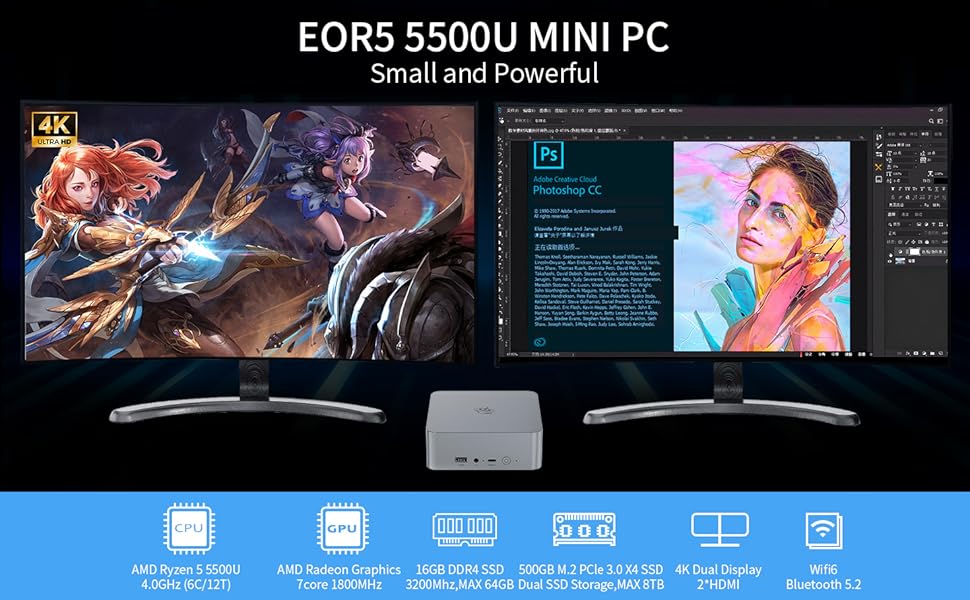
Image: The Beelink EQR5 Mini PC connected to dual 4K monitors, showcasing its capability for both gaming and professional design tasks.
2. Package Contents
Verify that all items are present in the package before proceeding with the setup.
- 1x Beelink EQR5 5500U Mini PC
- 1x HDMI Cable
- 1x AC Cable (Power Adapter)
- 1x User Manual
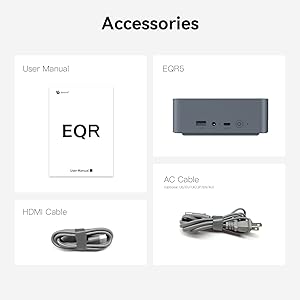
Image: A visual representation of the items included in the Beelink EQR5 Mini PC package.
3. Product Overview
3.1. Physical Dimensions and Design
The Beelink EQR5 Mini PC is designed for minimal desk footprint, measuring approximately 4.96 x 4.96 x 1.74 inches (126 x 126 x 44.2 mm) and weighing 2.09 pounds. Its compact size allows for versatile placement.
3.2. Ports and Interfaces
The device features a comprehensive set of ports for connectivity with various peripherals and displays.
- Front Ports: 1x USB3.0 10Gbps, 1x 3.5mm Audio Jack, 1x USB-C 10Gbps, Power Button, CLR CMOS button.
- Rear Ports: 2x USB3.0 10Gbps, 1x USB2.0 480Mbps, 2x HDMI (Max 4K 60Hz), 2x LAN (1000M), AC Power Input.
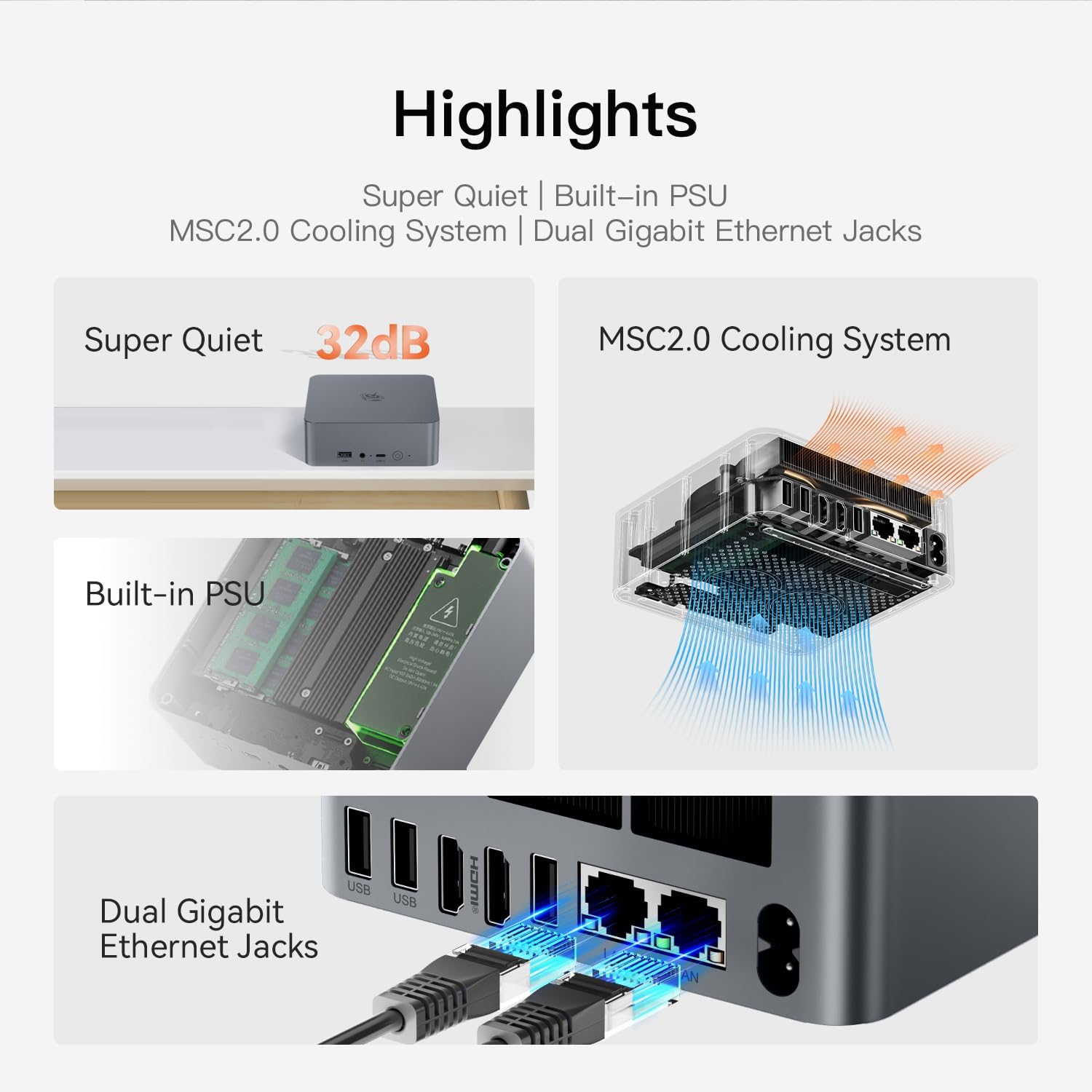
Image: Detailed view of the front and rear interfaces of the Beelink EQR5 Mini PC, highlighting USB, HDMI, LAN, and other connections.
3.3. Key Features
- Processor: AMD Ryzen 5 5500U (6 Cores/12 Threads, up to 4.0GHz)
- Graphics: Integrated AMD Radeon Graphics (7 Cores, 1800 MHz)
- Memory: 16GB DDR4-3200MHz RAM (2 SO-DIMM slots, upgradable to 64GB)
- Storage: 500GB M.2 PCIe 3.0 x4 2280 SSD (supports dual-channel, upgradable to 8TB)
- Display Output: Dual 4K HDMI outputs
- Wireless Connectivity: WiFi 6 (802.11ax), Bluetooth 5.2
- Wired Connectivity: Dual 1000Mbps LAN ports
- Cooling System: Advanced MSC 2.0 for efficient heat dissipation and quiet operation (32dB)
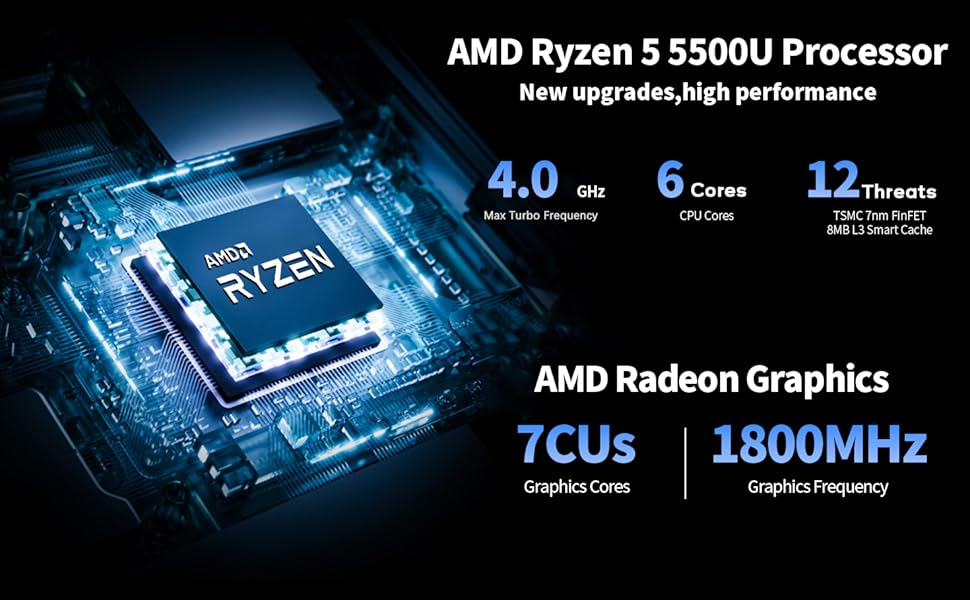
Image: An illustration detailing the AMD Ryzen 5 5500U processor and integrated Radeon Graphics specifications.
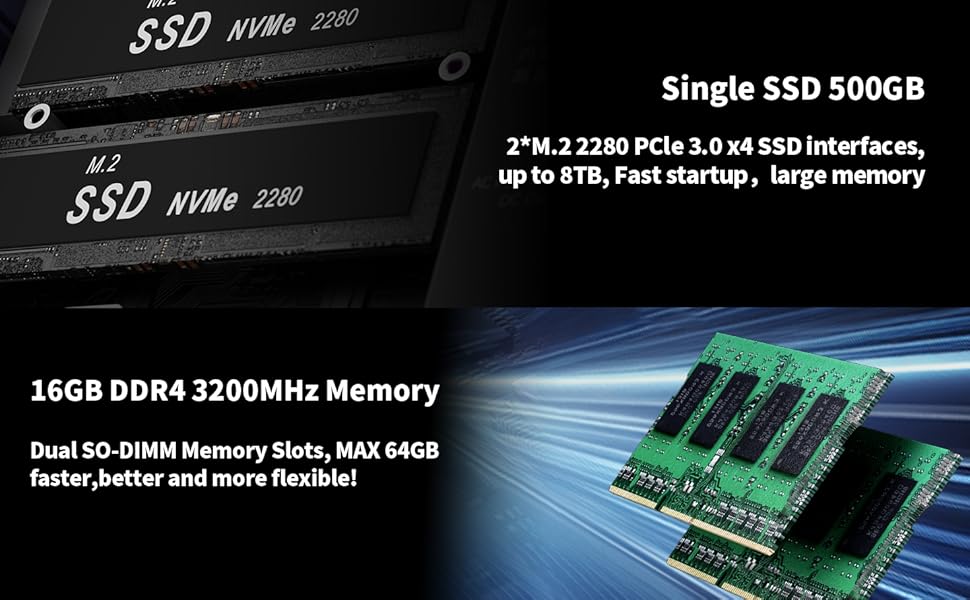
Image: Visual representation of the 16GB DDR4 memory modules and the 500GB M.2 NVMe SSD, highlighting upgrade potential.
4. Setup Guide
4.1. Connecting Peripherals
- Connect Display: Use the provided HDMI cable to connect your monitor(s) to the HDMI ports on the rear of the Mini PC. The EQR5 supports dual 4K displays.
- Connect Keyboard and Mouse: Plug your USB keyboard and mouse into the available USB ports (USB3.0 or USB2.0) on the front or rear of the Mini PC.
- Connect Network (Optional): For a wired internet connection, connect an Ethernet cable from your router/modem to one of the LAN ports on the rear. For wireless, ensure your WiFi network is available during initial setup.
- Connect Power: Plug the AC cable into the power input on the rear of the Mini PC, then connect the other end to a power outlet.

Image: The Beelink EQR5 Mini PC connected to a power source, illustrating its built-in 85W Power Supply Unit (PSU).
4.2. Powering On and Initial Setup
- Press the power button on the front of the Mini PC. The power indicator light will illuminate.
- Follow the on-screen instructions to complete the initial setup of the operating system (Windows 11 is typically pre-installed). This includes selecting language, region, and setting up user accounts.
5. Operating Instructions
5.1. Basic Usage
Once the initial setup is complete, your Beelink EQR5 Mini PC is ready for use. You can install applications, browse the internet, and perform various computing tasks.

Image: The Beelink EQR5 Mini PC demonstrating its capability to handle multiple applications for work and entertainment, including Office, Gaming, Design, and Video Editing.
5.2. Dual Display Setup
To utilize the dual display feature, connect two monitors to the two HDMI ports on the rear of the Mini PC. The operating system will automatically detect both displays. You can configure display settings (e.g., extend, duplicate) through your operating system's display settings.
5.3. Network Connectivity
- WiFi 6: Access wireless networks through the built-in WiFi 6 module. Configure WiFi settings in your operating system.
- Bluetooth 5.2: Connect Bluetooth-enabled devices such as headphones, speakers, or input devices.
- Dual 1000Mbps LAN: For high-speed wired network connections, use the two Gigabit Ethernet ports.

Image: The Beelink EQR5 Mini PC with dual Gigabit Ethernet jacks connected, emphasizing its robust network capabilities including WiFi 6 and Bluetooth 5.2.
5.4. Special Functions
The Beelink EQR5 supports several advanced functions:
- Wake On LAN (WOL): Allows the Mini PC to be powered on remotely over a network.
- PXE Boot: Enables booting from a network server.
- RTC Wake: Allows the Mini PC to power on at a scheduled time.
- Auto Power On: Configures the Mini PC to automatically power on after a power outage. For specific instructions on enabling Auto Power On, contact Beelink technical support with the barcode on the bottom of your device.
6. Maintenance
6.1. Cleaning
Regularly clean the exterior of the Mini PC with a soft, dry cloth. Ensure ventilation openings are free from dust to maintain optimal cooling performance. Do not use liquid cleaners directly on the device.
6.2. Storage and Memory Upgrades
The Beelink EQR5 allows for memory and storage upgrades:
- RAM: The two DDR4 SO-DIMM slots can be upgraded to a maximum of 64GB (32GB per slot).
- SSD: The 500GB M.2 PCIe 3.0 x4 2280 SSD can be upgraded, and the system supports dual-channel storage up to 8TB.
For detailed instructions on how to perform upgrades, refer to the official Beelink support resources or consult a qualified technician.
6.3. Software Updates
Keep your operating system and drivers updated to ensure optimal performance and security. Check for updates regularly through your operating system's settings.
7. Troubleshooting
If you encounter issues with your Beelink EQR5 Mini PC, refer to the following common troubleshooting steps:
- No Power: Ensure the AC cable is securely connected to both the Mini PC and the power outlet. Try a different power outlet.
- No Display: Verify that the HDMI cable(s) are securely connected to both the Mini PC and the monitor(s). Ensure the monitor is set to the correct input source. Try a different HDMI cable or monitor if possible.
- No Network Connection: For wired connections, check the Ethernet cable and router status. For wireless, ensure WiFi is enabled and you are connected to the correct network with the correct password.
- System Unresponsive: Press and hold the power button for 5-10 seconds to force a shutdown, then restart the device. If the issue persists, use the CLR CMOS button (located on the front panel) to reset BIOS settings (consult support if unsure).
For further assistance, please contact Beelink technical support.
8. Specifications
| Feature | Detail |
|---|---|
| Processor | AMD Ryzen 5 5500U (6C/12T, up to 4.0GHz) |
| Graphics | AMD Radeon Graphics (7 Cores, 1800 MHz) |
| RAM | 16GB DDR4-3200MHz (Max 64GB) |
| Storage | 500GB M.2 PCIe 3.0 x4 2280 SSD (Max 8TB) |
| Display Output | 2x HDMI (Max 4K 60Hz) |
| Wireless Network | WiFi 6 (Intel AX200) |
| Bluetooth | Bluetooth 5.2 |
| LAN | 2x 1000Mbps Gigabit Ethernet |
| USB Ports | 3x USB3.0 10Gbps, 1x USB2.0 480Mbps, 1x USB-C 10Gbps |
| Audio Jack | 1x 3.5mm Audio Jack |
| Operating System | OS (typically Windows 11 pre-installed) |
| Dimensions (LxWxH) | 4.96 x 4.96 x 1.74 inches (126 x 126 x 44.2 mm) |
| Weight | 2.09 pounds |
| Additional Functions | Wake On LAN, PXE Boot, RTC Wake, Auto Power On |

Image: A summary of the Beelink EQR5 Mini PC's technical specifications.
9. Warranty and Support
Beelink is committed to providing excellent customer service and support for your Mini PC.
- Warranty: The product includes 1 year of free maintenance.
- Technical Support: Lifetime technical support is provided.
- Customer Service: Available 7 days a week, 24 hours a day.
- Contacting Support: For assistance, log in to your Amazon account, navigate to 'Your Account' > 'Your Orders', and click 'Get Help' for your purchase.

Image: Summary of Beelink's after-sales service and support commitments.
10. Official Product Video
Video: An introductory video for the Beelink EQR5 5500U 16G 500GB Mini PC, showcasing its features and design. This video is provided by Beelink-shop.


