
1. Product Overview
The VECHTEL Android 15 Double Din Car Stereo is an advanced in-car entertainment and navigation system designed for select Volkswagen, SEAT, and Skoda vehicles. It features a 7-inch HD IPS touchscreen, an Android 15 operating system, and extensive connectivity options to enhance your driving experience.
Key features include wireless Carplay and Android Auto, GPS navigation, Wi-Fi connectivity, Bluetooth 5.0, FM/RDS radio, and a 32-band equalizer for audio customization. The system also supports steering wheel controls and includes a backup camera for improved safety.
2. Compatibility
This car stereo is designed for specific models of Volkswagen, SEAT, and Skoda vehicles. Please verify your vehicle's compatibility before installation. The package includes 36PIN and 40PIN wiring harnesses. If your vehicle requires a 52PIN connector, please contact customer support for assistance.

This image illustrates the range of compatible vehicle models for the car stereo, including Volkswagen (Sagitar, Jetta, Passat, Golf, Touran, Tiguan, Sharan, Caddy, Polo, Eos, Beetle, Amarok), SEAT (Altea, Toledo, Leon, Altea XL, Alhambra), and Skoda (Fabia, Practic, Roomster, Yeti).

This diagram details the wiring harness compatibility, indicating that 36-pin and 40-pin connectors are supported, while 52-pin connectors are not directly compatible and require contacting support. It also provides guidance on connecting the CANBUS adapter for general and highly equipped car players.
3. What's in the Box
The product package typically includes the following components:
- VECHTEL Android 15 Car Stereo Unit
- Power Cable(s) (36-pin and 40-pin)
- CANBUS Box
- GPS Antenna
- RCA Cable
- Rear Camera Input Cable
- USB Cable(s)
- User Manual
- Rear Camera
- Radio Antenna
- Microphone (MIC)

This image displays the car stereo unit with its dimensions and a visual representation of all components included in the package, ensuring users can verify contents upon receipt.
4. Setup & Installation
Installation of the VECHTEL Android 15 Car Stereo involves removing the existing head unit and connecting the new unit with the provided wiring harnesses and accessories. Professional installation is recommended if you are unfamiliar with car audio system wiring.
General Steps:
- Carefully remove the trim panel around your existing car stereo using a plastic pry tool.
- Unscrew and remove the old head unit.
- Disconnect all wiring from the old head unit.
- Connect the appropriate power harness (36-pin or 40-pin) to the new VECHTEL stereo.
- Connect the CANBUS box if your vehicle requires it for steering wheel controls or other integrated features.
- Connect the GPS antenna, radio antenna, and any other accessory cables (e.g., USB, RCA, backup camera).
- Carefully slide the new stereo into the dashboard opening.
- Secure the stereo with screws.
- Reattach the trim panel.
- Test all functions before finalizing the installation.
Installation Video Guide:
For a detailed visual guide on removing and installing the head unit in a Volkswagen vehicle, please refer to the official installation video below:
This video provides a step-by-step demonstration of how to remove an existing Volkswagen head unit and install the new VECHTEL car stereo, including wiring connections.
5. Operating Instructions
5.1 Wireless Carplay / Android Auto
Connect your compatible iOS or Android smartphone wirelessly via Bluetooth to access Carplay or Android Auto. This allows for voice control, navigation, music playback, and other smartphone features directly on the stereo's screen.
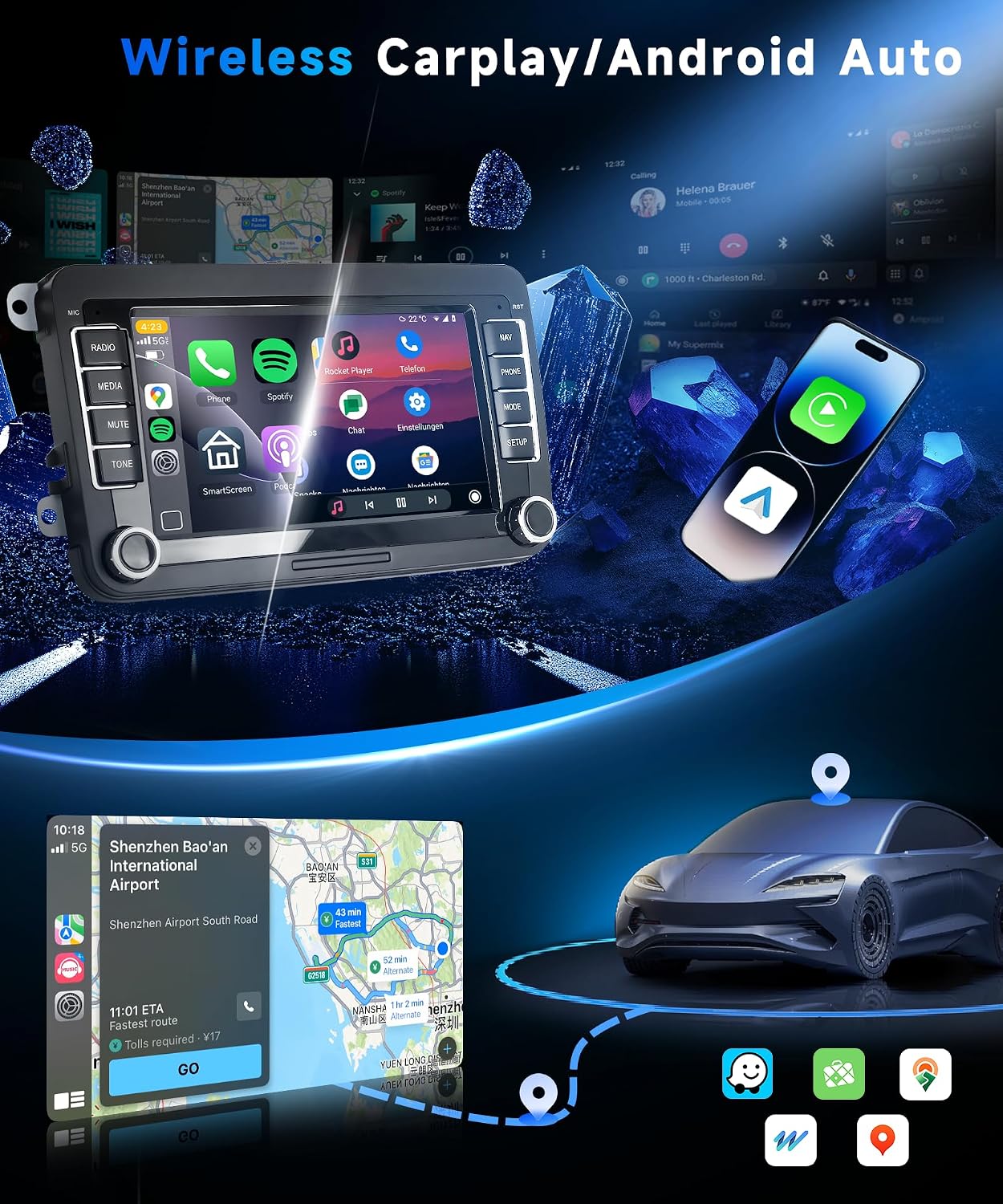
This image illustrates the seamless integration of Wireless Carplay and Android Auto, displaying common app icons and navigation on the stereo screen.

This image demonstrates the split-screen functionality, allowing users to run multiple applications simultaneously, such as navigation and music.
5.2 GPS Navigation & WiFi
The stereo supports both online and offline GPS navigation. Connect to Wi-Fi to browse the web, download applications, and use online maps. Offline maps can be downloaded via applications like Herewego.

This image highlights the GPS navigation capabilities, showing both online and offline map options, as well as the Wi-Fi feature for accessing online content and the Mirror Link function.
5.3 Bluetooth 5.0
Utilize Bluetooth 5.0 for hands-free calling, accessing your phonebook, and streaming audio from your mobile device.

This image displays the Bluetooth 5.0 interface for hands-free calls and music streaming, along with the 32-band equalizer and the high-definition screen.
5.4 FM/RDS Radio
Access various radio stations with the built-in FM/RDS tuner. The RDS (Radio Data System) feature displays station information where available.

This image illustrates the FM/RDS radio interface, showing frequency tuning and station information, as well as the split-screen function for using radio and navigation concurrently.
5.5 Steering Wheel Control (SWC)
The head unit supports steering wheel control functions, allowing you to manage music playback and volume directly from your steering wheel for convenience and safety.

This image shows the steering wheel control interface, highlighting buttons for volume, track changes, and call management, alongside the backup camera display.
5.6 Backup Camera
The included backup camera provides a clear view of the area behind your vehicle when reversing, enhancing safety and ease of parking. It features HD imaging, IP69 waterproof rating, wide-angle view, and night vision capabilities.

This image details the backup camera's features, including its waterproof design, wide-angle lens, and night vision, with a visual of its output on the stereo screen.
This diagram provides clear instructions for wiring the backup camera, indicating connections to the reverse light power supply and the stereo's trigger wire.
5.7 Mirror Link
Synchronize your smartphone's screen to the car stereo display using the Mirror Link function, allowing you to view videos and other content on the larger screen.
5.8 Audio Equalizer (32 EQ)
Customize your audio experience with the 32-band equalizer, allowing for precise adjustments to match your preferred music styles and acoustic environment.
6. Specifications
| Feature | Detail |
|---|---|
| Brand | VECHTEL |
| Model Number | 6cdf08b8-bc94-4fa2-93c1-a7c89558ae2c |
| Operating System | Android 15 |
| Processor | 8 CORE |
| RAM | 4G |
| ROM | 64G |
| Screen Size | 7 Inch |
| Screen Resolution | 720*1280 HD IPS |
| Connectivity | Bluetooth 5.0, USB, Wi-Fi |
| Special Features | Wireless CarPlay, Android Auto, Touchscreen, GPS Navigation, FM/RDS Radio, 32 EQ, Mirror Link, Steering Wheel Control |
| Compatible Devices | iOS and Android smartphones |
| Audio Output Mode | Stereo (2.0 Surround Sound Channel Configuration) |
| Output Power | 180 Watts (4 Channels) |
| Built-In Media | Backup Camera, CANBUS box, GPS Antenna, Power Harness |

This image emphasizes the high-definition IPS screen with its 1280x720P resolution, providing clear visuals.
7. Maintenance
To ensure the longevity and optimal performance of your VECHTEL car stereo, follow these maintenance guidelines:
- Screen Cleaning: Use a soft, lint-free cloth to gently wipe the touchscreen. For stubborn smudges, slightly dampen the cloth with water or a screen-safe cleaner. Avoid harsh chemicals or abrasive materials.
- Software Updates: Periodically check for software updates through the system settings or the manufacturer's website to ensure you have the latest features and security patches.
- Cable Connections: Ensure all cables are securely connected. Loose connections can lead to intermittent functionality.
- Environmental Conditions: Avoid exposing the unit to extreme temperatures, direct sunlight for prolonged periods, or excessive moisture.
8. Troubleshooting
If you encounter any issues with your car stereo, refer to the following common troubleshooting steps:
- No Power:
- Check all power connections to ensure they are secure.
- Verify the vehicle's fuse for the stereo is intact.
- Ensure the ignition is on.
- No Sound:
- Check volume levels on the stereo and your connected device.
- Ensure speaker wires are correctly connected.
- Verify the audio source is selected correctly.
- Touchscreen Unresponsive:
- Restart the stereo unit.
- Ensure the screen is clean and free of debris.
- GPS Not Working:
- Ensure the GPS antenna is properly installed and has a clear view of the sky.
- Check GPS settings within the system.
- Carplay/Android Auto Connection Issues:
- Ensure Bluetooth is enabled on both the stereo and your smartphone.
- Forget and re-pair the device.
- Update your smartphone's operating system.
- Steering Wheel Controls Not Working:
- Verify the CANBUS box is correctly installed and connected.
- Check the steering wheel control settings in the stereo's menu.
If the issue persists after attempting these steps, please contact VECHTEL customer support.
9. Warranty & Support
The VECHTEL Android 15 Double Din Car Stereo comes with a 2-year warranty from the date of purchase, covering manufacturing defects and malfunctions under normal use. Please retain your proof of purchase for warranty claims.
For technical assistance, troubleshooting, or warranty inquiries, please contact VECHTEL customer support. You can typically find contact information on the product packaging, the official VECHTEL website, or through the retailer where you purchased the product.
If you purchased through Amazon, you can contact VECHTEL support by navigating to the product page, clicking on "Sold by VECHTEL", and then selecting "Ask a question".

This image provides a visual guide on how to access VECHTEL customer support via the Amazon platform.