1. Introduction
This manual provides essential information for setting up, operating, and maintaining your MINISFORUM Mini PC AD69. Please read this guide thoroughly before using the device to ensure optimal performance and longevity.
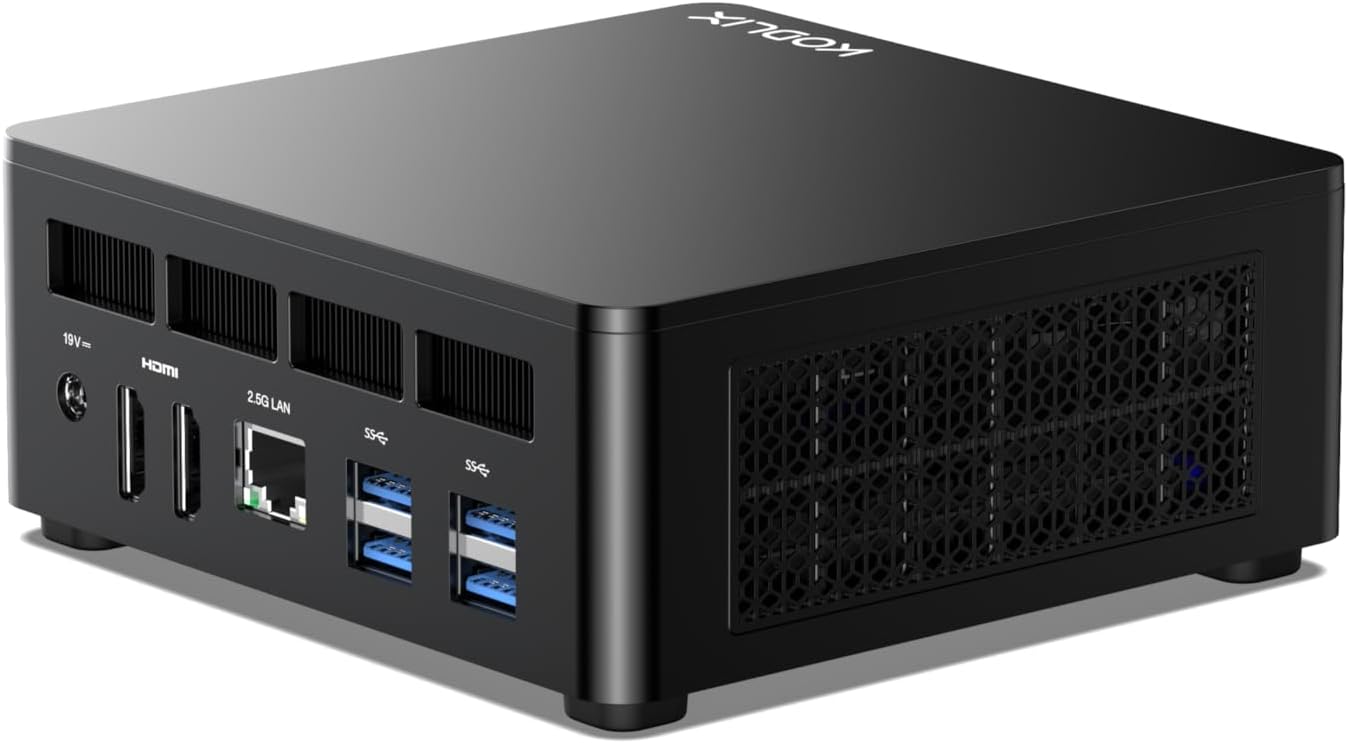
Image 1.1: The MINISFORUM Mini PC AD69, a compact desktop computer.
The MINISFORUM Mini PC AD69 is a high-performance compact desktop computer designed for various applications, including business, education, and gaming. It features an AMD Ryzen 9 6900HX processor, DDR5 memory, and PCIe 4.0 SSD for fast and efficient operation.
2. Setup
2.1 Package Contents
Verify that all items are present in the package:
- MINISFORUM Mini PC AD69
- Power Adapter
- HDMI Cable
- User Manual (this document)
- Mounting Bracket (optional, for VESA mounting)
2.2 Connecting Peripherals
Before powering on, connect your peripherals to the Mini PC. Refer to the port diagram below for connection points.

Image 2.1: Front and rear view of the Mini PC AD69, highlighting available ports.
- Power Input: Connect the DC 19V power adapter to the power input port.
- Display: Connect your monitor(s) using the HDMI 2.1 ports or USB4 ports. The device supports up to four displays simultaneously.
- USB Devices: Connect your keyboard, mouse, and other USB devices to the USB 3.2 Gen2 Type-A ports or USB4 ports.
- Network: For a wired connection, connect an Ethernet cable to the RJ45 2.5 Gigabit Ethernet Port.
- Audio: Connect headphones or speakers to the 3.5mm Audio Jack.
2.3 Powering On
- Ensure all necessary peripherals are connected.
- Connect the power adapter to a power outlet.
- Press the Power Button located on the front of the Mini PC. The power indicator light will illuminate.
2.4 Mounting Options
The Mini PC AD69 can be mounted behind a monitor or TV using the included VESA mounting bracket (if applicable) to save desk space.

Image 2.2: The Mini PC AD69 shown mounted on the back of a monitor, demonstrating its space-saving design.
3. Operating Instructions
3.1 Initial Boot and Operating System
Upon first boot, the Mini PC will guide you through the operating system setup process. Follow the on-screen instructions to configure your preferences.
3.2 Display Configuration
The Mini PC AD69 supports up to four independent displays. Connect your monitors to the available HDMI 2.1 and USB4 ports. The operating system will automatically detect the connected displays. You can configure display settings (resolution, orientation, extended/duplicated desktop) through the operating system's display settings menu.

Image 3.1: The Mini PC AD69 connected to four monitors, demonstrating its quad display capability.
3.3 Network Connectivity
- Wired Connection: Connect an Ethernet cable to the RJ45 2.5 Gigabit Ethernet port for a stable, high-speed wired network connection.
- Wireless Connection: The Mini PC supports Wi-Fi 6E. To connect to a wireless network, navigate to the network settings in your operating system, select your desired Wi-Fi network, and enter the password.
3.4 Bluetooth Devices
The Mini PC AD69 includes Bluetooth 5.3 for connecting wireless peripherals such as keyboards, mice, and headphones. To pair a Bluetooth device, go to the Bluetooth settings in your operating system, enable Bluetooth, and follow the pairing instructions for your device.
4. Maintenance
4.1 Cleaning
Regularly clean the exterior of the Mini PC with a soft, dry cloth. Avoid using liquid cleaners or abrasive materials. Ensure the ventilation grilles are free from dust and obstructions to maintain proper airflow.
4.2 Heat Dissipation
The Mini PC AD69 features an efficient heat dissipation system, including a large heatsink, quiet fan, and liquid metal thermal interface material, to ensure stable performance. To prevent overheating:
- Place the Mini PC in a well-ventilated area.
- Do not block the ventilation openings.
- Avoid placing the device on soft surfaces that can obstruct airflow.

Image 4.1: Diagram illustrating the efficient heat dissipation design of the Mini PC AD69, showing airflow and internal cooling components.
4.3 Storage Expansion
The Mini PC AD69 supports storage expansion with additional M.2 2280 PCIe 4.0 SSDs and RAM upgrades up to 64GB DDR5. Refer to the internal component diagram for slot locations. It is recommended to consult a qualified technician for hardware upgrades to avoid damage.

Image 4.2: Internal view of the Mini PC AD69, showing the dual-channel DDR5 memory slots and dual M.2 PCIe 4.0 SSD slots.
5. Troubleshooting
If you encounter issues with your Mini PC, refer to the following common problems and solutions:
- No Power:
- Ensure the power adapter is securely connected to both the Mini PC and a working power outlet.
- Verify the power outlet is functional by plugging in another device.
- Press the power button firmly.
- No Display:
- Check that the HDMI or USB4 cable is securely connected to both the Mini PC and the monitor.
- Ensure the monitor is powered on and set to the correct input source.
- Try a different display cable or monitor if available.
- No Internet Connection (Wi-Fi):
- Verify that Wi-Fi is enabled in the operating system settings.
- Ensure you are connected to the correct network and have entered the password correctly.
- Restart your router and the Mini PC.
- No Internet Connection (Wired):
- Check that the Ethernet cable is securely connected to both the Mini PC and the router/modem.
- Verify that your router/modem is working correctly.
- Try a different Ethernet cable.
- Peripheral Not Detected:
- Ensure the peripheral is properly connected to a USB port.
- Try connecting the peripheral to a different USB port.
- Check if the peripheral requires specific drivers and install them if necessary.
6. Specifications
| Feature | Specification |
|---|---|
| Processor | AMD Ryzen 9 6900HX (8 Cores/16 Threads, up to 4.9 GHz) |
| Graphics | AMD Radeon 680M (Integrated) |
| RAM | 32GB DDR5 (Dual Channel, 4800MHz, expandable to 64GB) |
| Storage | 512GB PCIe 4.0 SSD (M.2 2280) |
| Display Output | 2x HDMI 2.1 (up to 7680x4320), 2x USB4 (up to 8K@60Hz) |
| USB Ports | 4x USB 3.2 Gen2 Type-A, 2x USB4 (40Gbps) |
| Network | RJ45 2.5 Gigabit Ethernet, Wi-Fi 6E |
| Bluetooth | Bluetooth 5.3 |
| Audio | 3.5mm Audio Jack |
| Operating System | OS (Pre-installed) |
| Dimensions | Approx. 5 x 5 x 2 inches (12.7 x 12.7 x 5.08 cm) |
| Weight | Approx. 3.21 pounds (1.45 kg) |
7. Warranty and Support
7.1 Warranty Information
MINISFORUM products typically come with a limited warranty. The duration and terms of the warranty may vary by region and product. Please refer to the warranty card included with your product or visit the official MINISFORUM website for detailed warranty information.
Keep your proof of purchase (receipt or invoice) as it will be required for any warranty claims.
7.2 Technical Support
For technical assistance, troubleshooting beyond this manual, or warranty inquiries, please contact MINISFORUM customer support. Support is primarily provided via email.
Contact Information:
- Refer to the official MINISFORUM website for the most current support contact details.
- When contacting support, please provide your product model (AD69), serial number, and a clear description of the issue.


