
1. Introduction
This manual provides detailed instructions for the installation, operation, and maintenance of your Y-METDRIVING KP006 Portable Wireless Apple Carplay Screen. This device offers wireless Apple CarPlay and Android Auto functionality, a 7-inch non-air-gap colorful touchscreen, and includes a backup camera. It is designed to enhance your driving experience with modern connectivity and safety features.
Key features include:
- Wireless Apple CarPlay and Android Auto for seamless smartphone integration.
- Compatibility with a wide range of vehicles.
- Easy installation process.
- Integrated 1080P dash cam and backup camera for enhanced safety.
- High-quality display and audio output options.
- Customizable start-up logo.
2. What's in the Box
Please verify that all items listed below are included in your package:
- Portable Wireless Apple Carplay Screen (KP006)
- Vertical bracket
- Specialized Steering Wheel Remote Control
- Backup camera
- 12V Cigarette Lighter Power Cord
- Reversing Adapter Cable
- AUX Cable
- Monitor base
- Backup Camera Cable
- User Manual

Image: Illustration of all components included in the product package, including the screen, cables, camera, and mounting accessories.
3. Setup and Installation
The Y-METDRIVING KP006 is designed for straightforward installation, requiring minimal technical expertise.
3.1 Screen Installation
- Attach the monitor base to the back of the KP006 screen.
- Secure the vertical bracket to the monitor base.
- Clean the desired mounting surface on your car's dashboard.
- Peel off the adhesive backing from the bracket and firmly press it onto the dashboard. Ensure a stable and secure placement.
- Adjust the screen angle for optimal viewing.

Image: The KP006 screen securely mounted on a car dashboard, displaying a navigation map.
3.2 Power Connection
Connect the 12V Cigarette Lighter Power Cord to the designated power input on the KP006 unit and then plug it into your vehicle's cigarette lighter port. This will power on the device.
3.3 Backup Camera Installation
The included backup camera provides a 170° wide vision and night vision capabilities. Follow the diagram below for wiring:

Image: A detailed wiring diagram showing connections for the rear view camera, including power from the reverse light and video signal to the main unit.
Connect the camera's power wire to your vehicle's reverse light power source. Connect the video cable from the camera to the 'CAM-R' input on the KP006 unit using the Reversing Adapter Cable.
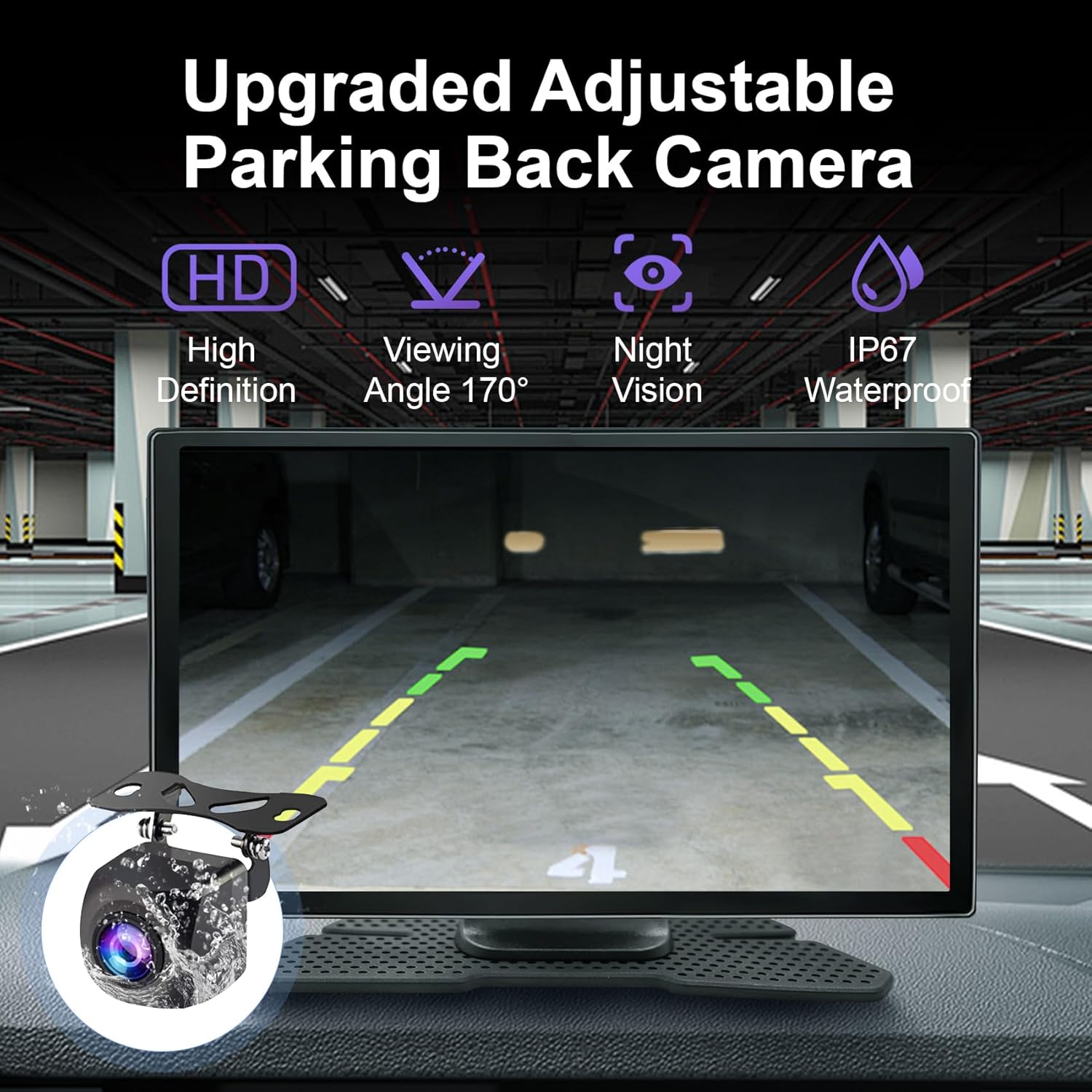
Image: The KP006 screen displaying the view from the upgraded adjustable parking back camera, showing parking guidelines.
4. Operating Instructions
4.1 Wireless Apple CarPlay & Android Auto
The KP006 supports wireless Apple CarPlay and Android Auto. To connect your smartphone:
- Ensure Bluetooth and Wi-Fi are enabled on your smartphone.
- On the KP006 screen, select the 'CarPlay' or 'Android Auto' icon.
- Follow the on-screen prompts to pair your phone via Bluetooth. Once paired, the system will automatically establish a Wi-Fi connection for CarPlay/Android Auto.
- You can now access phone contacts, navigation, music, and other compatible apps directly from the KP006 screen.

Image: The KP006 display showing the Apple CarPlay interface with various app icons like Phone, Music, Maps, and Messages.

Image: An illustrative image highlighting the wireless CarPlay and Android Auto capabilities, showing a smartphone connected to the screen.
4.2 Navigation and Voice Control
Utilize your smartphone's navigation apps through CarPlay or Android Auto. The KP006 supports intelligent voice assistants like Siri or Google Assistant for hands-free control.
- Activate your voice assistant by pressing the voice command button on the screen or steering wheel remote, or by saying the wake word (e.g., "Hey Siri" or "OK Google").
- Issue commands for navigation, making calls, playing music, and more.

Image: The KP006 screen displaying a navigation map with a voice command bubble, illustrating voice control for GPS and other functions.
4.3 Sound Playback Options
The KP006 offers multiple ways to output audio:
- Bluetooth: Connect your phone via Bluetooth for audio streaming.
- FM Transmitter: Transmit audio to your car's FM radio by tuning both devices to the same frequency.
- Built-in Speaker: The unit has an integrated speaker for direct audio output.
- AUX Connection: Use the provided AUX cable to connect to your car's AUX input for high-quality audio.

Image: A collage illustrating four sound playback methods: Bluetooth, FM Transmitter, Built-in Speaker, and AUX Connection.
4.4 Dash Cam Functionality
The KP006 includes a 1080P dash cam that provides continuous loop recording of the front view. This feature offers peace of mind during your drives.
- The dash cam supports a 140° wide lens for comprehensive coverage.
- Recorded footage is stored on a TF card (not included). Ensure a compatible TF card is inserted.

Image: The KP006 screen displaying a dash cam view of a road, highlighting 1080P dual recording and a 140-degree wide lens.
4.5 Intelligent Light Sensor
The device is equipped with a light-sensitive sensor that automatically adjusts screen brightness based on ambient light conditions. This ensures consistent color display and readability in various environments.

Image: An illustration showing the KP006 screen automatically adjusting its brightness in response to changing light conditions, from bright to dim.
5. Maintenance
To ensure the longevity and optimal performance of your KP006 unit, follow these maintenance guidelines:
- Cleaning: Use a soft, dry cloth to clean the screen and exterior. Avoid abrasive cleaners or solvents that may damage the surface.
- Temperature: Avoid exposing the unit to extreme temperatures, both hot and cold, for extended periods.
- Power: Disconnect the power cord when the unit is not in use for a prolonged time.
- Firmware Updates: Periodically check for firmware updates to ensure the best performance and compatibility. Contact customer service for information on updates.
6. Troubleshooting
If you encounter issues with your KP006 unit, refer to the following common problems and solutions:
- No Power: Ensure the 12V Cigarette Lighter Power Cord is securely plugged into both the unit and the vehicle's cigarette lighter port. Check if the vehicle's cigarette lighter fuse is intact.
- No CarPlay/Android Auto Connection: Verify that Bluetooth and Wi-Fi are enabled on your smartphone. Ensure the phone is paired correctly via Bluetooth and that the KP006 is selected as the device. Restart both the KP006 and your smartphone.
- No Sound: Check the selected audio output method (Bluetooth, FM Transmitter, Built-in Speaker, AUX). If using FM Transmitter, ensure the KP006 and your car radio are on the same frequency. If using AUX, ensure the cable is properly connected to both the KP006 and your car's AUX input.
- Backup Camera Not Displaying: Confirm that the camera is correctly wired according to the diagram in Section 3.3. Ensure the vehicle is in reverse gear to activate the camera signal.
- Screen Unresponsive: Try restarting the unit by disconnecting and reconnecting the power. If the issue persists, a factory reset might be necessary (refer to on-screen settings or contact support).
For further assistance, please contact our customer service team via Amazon Email.
7. Specifications
| Feature | Detail |
|---|---|
| Model Number | KP006 |
| Brand | Y-METDRIVING |
| Screen Size | 7 inches |
| Display Type | Non-air-Gap Colorful Touchscreen, Fully laminated IPS Screen (1280x720 resolution) |
| Connectivity Technology | Auxiliary, Bluetooth, USB, TF Card |
| Controller Type | Hand Control, Remote |
| Special Features | Wireless Android Auto, Wireless Apple CarPlay, Built-In Bluetooth, 1080P Dash Cam, Backup Camera, Intelligent Light Sensor |
| Compatible Devices | Smartphone |
| Audio Output Mode | Stereo (2 Surround Sound Channels) |
| Video Encoding | H.264, MPEG-4 |
| Color | Black |
| Item Weight | 2.18 pounds |
| Package Dimensions | 8.82 x 6.14 x 5.28 inches |
| Manufacturer | Y-METDRIVING |
| Date First Available | August 13, 2024 |
8. Warranty and Customer Support
Y-METDRIVING is committed to providing high-quality products and excellent customer service. Each product undergoes rigorous aging tests before leaving the factory to ensure reliability.
- Customer Service: If you encounter any problems during purchase or use, please contact our customer service team via Amazon Email. We are available to assist you with any inquiries or issues.
- Custom Start-up Logo: If you wish to use a personalized image as the start-up logo, please email us through Amazon. We will provide the necessary upgraded software within 2-3 days.
Your satisfaction is our priority, and we are dedicated to resolving any concerns you may have.