1. Setup and Installation
1.1 Package Contents
Before beginning installation, please verify that all components are present in the package:
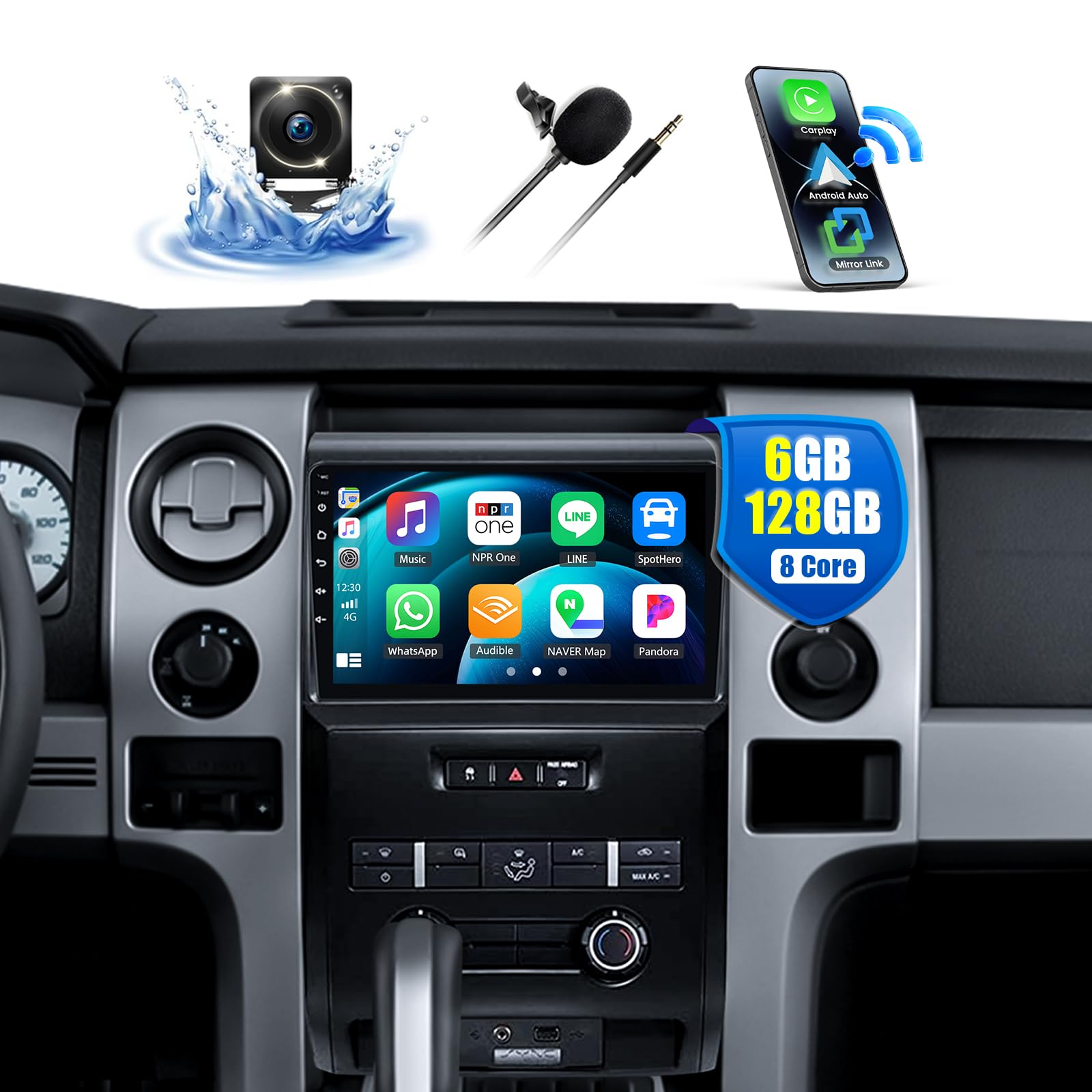
- 1 x Android Head Unit
- 1 x AHD Backup Camera
- 1 x External Microphone
- 1 x Protocol Box (Canbus)
- 1 x GPS Antenna
- 1 x Power Cable
- 1 x Rear Camera Input Cable
- 1 x RCA Cable
- 2 x USB Cables
- 1 x Radio Cable
- 1 x Small Bracket
- 1 x Instruction Manual

Image: A flat lay of the CAMECHO Android Head Unit along with all its included accessories and cables, such as USB cables, RCA cables, GPS antenna, microphone, and the backup camera.
1.2 Vehicle Compatibility
This head unit is specifically designed for Ford F-150 models from 2009 to 2012 (Low-End Version). Ensure your vehicle's dashboard matches the compatible configurations shown below.

Image: Visual representation of compatible Ford F-150 dashboard layouts (2009-2012) that support the CAMECHO Android Head Unit installation.
1.3 Wiring and Connections
Follow these guidelines for proper wiring and connection of the head unit. Refer to the included instruction manual for detailed diagrams.
Canbus Connection
If your vehicle uses a Canbus system (medium/high configuration), connect the protocol box as instructed. After connecting, set the protocol correctly in the unit's factory settings (Password: 1234) to enable steering wheel controls. Select 'Ford' for your car model.

Image: Diagram illustrating the wiring connections for the Canbus protocol box, showing how to connect it to the head unit and vehicle harness for Ford F-150 models.
Audio Output (If No Sound)
If you experience no sound after installation, ensure the AUX R/L and AUDIO OUT R/L from the RCA cable are connected to AUX IN R/L from the Power harness. For external amplifiers, connect the AMP cable from the RCA to the AMP cable of the power harness, and ensure the amplifier's power cable is connected to ACC (Red) and Ground (Black) from the power harness.

Image: Detailed wiring instructions for resolving no-sound issues, including connections for AUX, RCA, and external amplifiers.
Rear Camera Installation
Connect the AHD backup camera by plugging the reversing input into the main device. Connect the positive pole of the camera's reversing light to the positive pole of the car's reversing light, and the negative pole to the negative pole. The reversing trigger is controlled by the stereo and does not require a separate connection. If the camera does not work, adjust the backup camera resolution via Settings > Factory Settings (Password: 1234) > Video Source.

Image: Step-by-step wiring guide for installing the AHD reverse camera, showing connections to the head unit and vehicle's reversing lights.
1.4 Installation Videos
Installation Guide for Ford F150
Video: A detailed installation guide for the car radio stereo in a Ford F-150, demonstrating the physical steps and connections.
Car Radio Installation
Video: General car radio installation steps, useful for understanding the process of replacing a factory head unit.
2009-2014 Ford F-150 Radio Unboxing
Video: An unboxing video for a Ford F-150 radio, showing the components and initial setup.
Car Radio Replacement for Ford F150 2009 to 2012
Video: A comprehensive video demonstrating the replacement process for a car radio in a Ford F-150 (2009-2012).
2. Operating Instructions
2.1 Core System Features
The CAMECHO head unit operates on an 8-Core CPU with Android 15, 6GB RAM, and 128GB ROM, providing a responsive and efficient user experience.
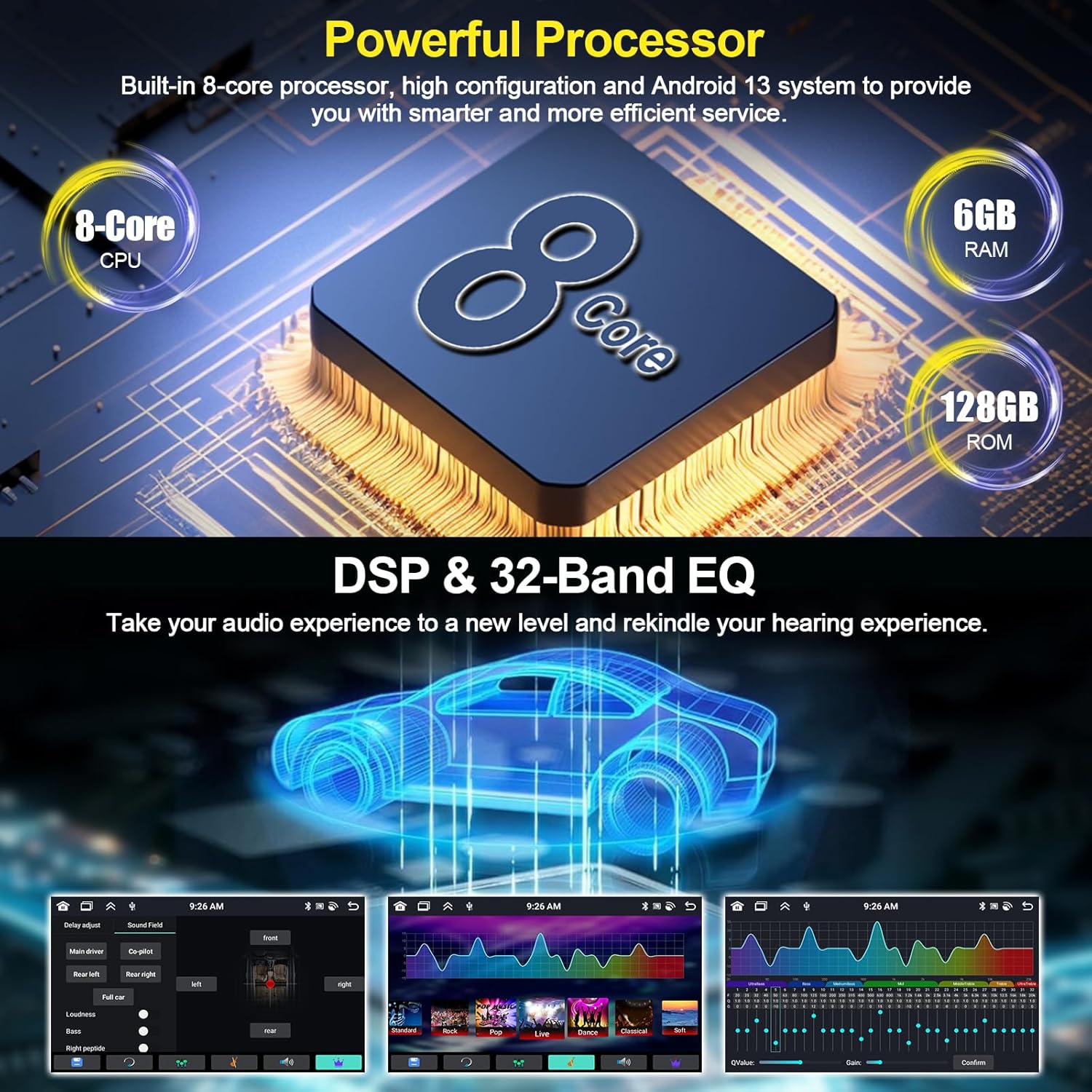
Image: Infographic detailing the powerful internal specifications of the head unit, including its 8-Core CPU, memory, storage, and audio processing capabilities.
2.2 Wireless Apple CarPlay & Android Auto
Enjoy seamless integration with your smartphone using built-in wireless Apple CarPlay and Android Auto. Access navigation, messages, phone calls, and music directly from the head unit's 9-inch IPS touchscreen.

Image: The head unit's screen showing the user interface for both Wireless Apple CarPlay and Android Auto, with various app icons visible.

Image: A view of the Wireless Apple CarPlay interface on the head unit, showing navigation, music, and communication apps.

Image: A view of the Wireless Android Auto interface on the head unit, showing maps, music, and other Android apps.
Connection Procedure for Wireless CarPlay & Android Auto
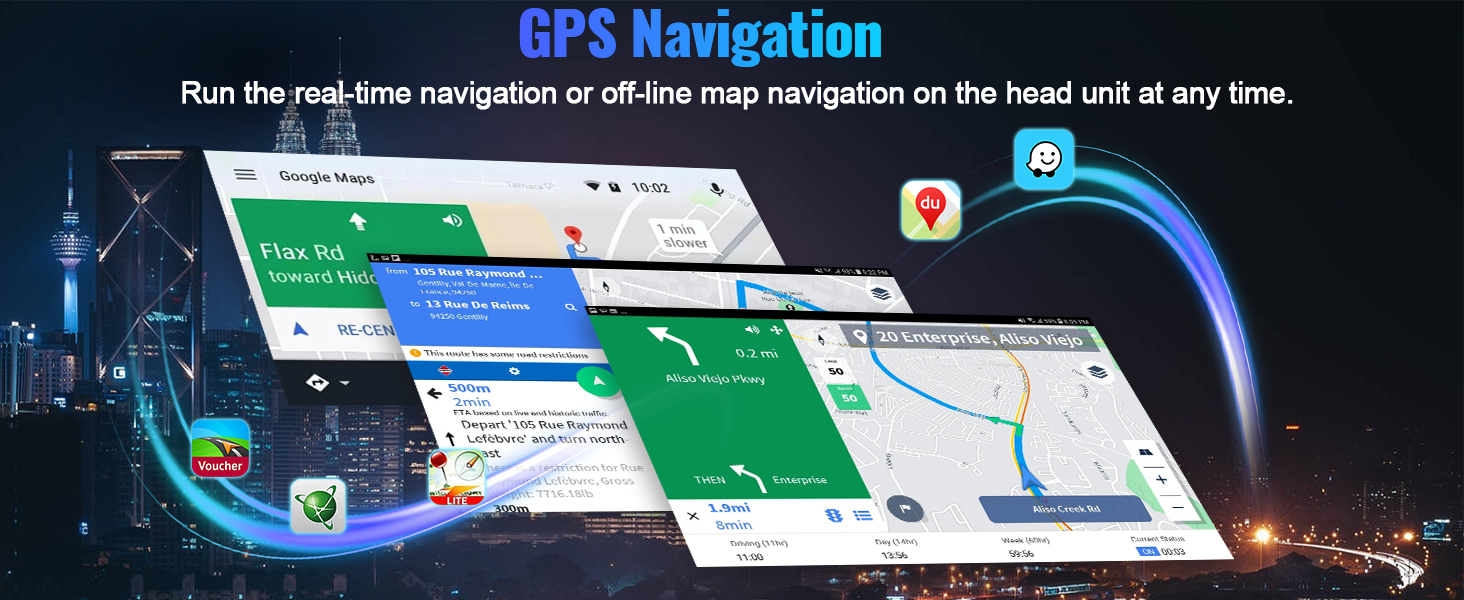
Image: Visual guide for connecting mobile phones to the head unit via Wireless Apple CarPlay and Android Auto, highlighting the steps for Bluetooth pairing and app access.
- For Wireless Apple CarPlay: Connect car radio Bluetooth (Bluetooth name "Car BT0", PIN: 1234). Ensure "phone audio, music audio" mean succeed. Click "S-Play". Allow Contacts and Favorites Sync. Allow "Use CarPlay with S-Play". Wait for connection.
- For Wireless Android Auto: Click "S-Play". Connect your phone via 4-pin USB port with original data cable. Allow USB debugging. Wait for connection.
Wireless Carplay & Android Auto Connection Operation
Video: Demonstrates the process of connecting and operating Wireless CarPlay and Android Auto with the head unit.
Smart Car Multimedia Player For F150 2009-2014
Video: Overview of the smart multimedia player features, including navigation, music, and app usage on the Ford F-150 head unit.
CYA 8-Core 4G+64G CarPlay Android Auto Android Car Stereo
Video: A brief demonstration of the 8-Core Android car stereo, highlighting its CarPlay and Android Auto functionalities.
2.3 GPS Navigation & WiFi Connection
The unit features a built-in GPS receiver for offline maps and is compatible with popular navigation apps like Waze and Yandex Map. Connect to WiFi via your phone's hotspot to download apps, stream movies, or watch YouTube videos.

Image: The head unit's screen showing GPS navigation with map applications and various streaming/social media apps accessible via WiFi.

Image: Visuals demonstrating the GPS navigation capabilities and WiFi connectivity for online content and app downloads.
2.4 Bluetooth 5.0 & FM/RDS Radio
Enjoy stable wireless audio streaming and hands-free calling with Bluetooth 5.0. The FM/RDS radio supports 18 station presets for news, music, and sports updates.
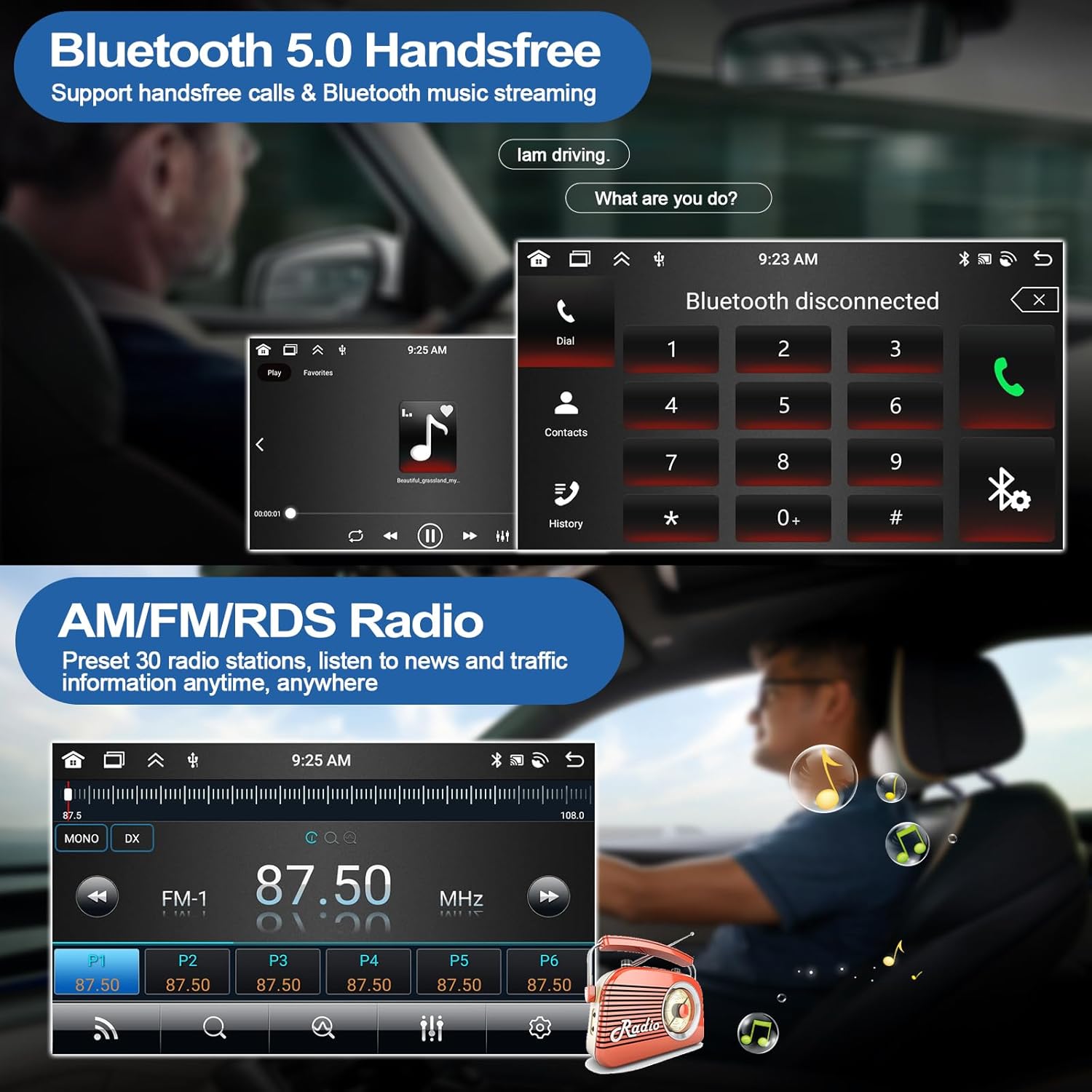
Image: The head unit's screen showing the Bluetooth dialing interface and the FM radio tuner with station presets.

Image: Illustration of Bluetooth 5.0 functionality for hands-free communication and wireless music playback.
2.5 Audio System (DSP 32EQ)
Experience dynamic sound quality with the built-in DSP 32EQ. Adjust audio settings to your preference for an enhanced listening experience.

Image: The head unit's screen displaying the DSP (Digital Sound Processor) interface with various equalizer and sound field adjustments.
2.6 User Interface and Display
The 9-inch IPS touchscreen offers a 1280x720 resolution for clear visuals. Customize your home screen with 59 multiple UI themes. The unit supports 1080P video playback and features split-screen functionality.

Image: The head unit's display highlighting its 9-inch IPS touchscreen with high resolution and a variety of customizable user interface themes.

Image: A visual demonstrating the customizable home screen app layout, allowing users to personalize their interface.
2.7 Steering Wheel Control & Mirror-Link
Maintain control with original steering wheel buttons for safe operation. Use Mirror-Link to cast your phone's screen to the head unit for convenient viewing.

Image: Depiction of steering wheel control functionality and the Mirror-Link feature for screen casting from a mobile phone to the head unit.
3. Maintenance
To ensure optimal performance and longevity of your CAMECHO Android Head Unit, follow these general maintenance tips:
- Keep the screen clean using a soft, lint-free cloth. Avoid abrasive cleaners.
- Ensure all connections are secure and free from corrosion.
- Regularly update the system software to benefit from the latest features and security patches.
- Avoid exposing the unit to extreme temperatures or direct sunlight for prolonged periods.
4. Troubleshooting
If you encounter issues with your CAMECHO Android Head Unit, refer to the following common troubleshooting steps:
| Problem | Possible Cause | Solution |
|---|---|---|
| No Power | Incorrect wiring; Blown fuse. | Check power cable connections (ACC, B+, GND). Inspect vehicle fuses. |
| No Sound Output | Incorrect audio output connections; Amplifier issues. | Verify RCA and AUX connections. Ensure external amplifier (if used) is correctly wired and powered. Refer to "Audio Output (If No Sound)" section in Setup. |
| Backup Camera Not Displaying | Incorrect camera wiring; Resolution mismatch. | Check rear camera input cable and power connections. Adjust camera resolution in Factory Settings (Password: 1234). Refer to "Rear Camera Installation" section in Setup. |
| Steering Wheel Controls Not Working | Canbus not correctly configured. | Ensure the protocol box is connected and configured for 'Ford' in Factory Settings (Password: 1234). |
| Wireless CarPlay/Android Auto Connection Issues | Bluetooth pairing failure; Incorrect app settings. | Re-pair Bluetooth. Ensure "S-Play" app settings are correct and permissions are granted. Try connecting via USB first. |
| GPS Signal Weak/Lost | GPS antenna placement; Environmental interference. | Ensure GPS antenna has a clear view of the sky and is securely connected. |
For further assistance, please contact customer support.
5. Specifications
| Feature | Detail |
|---|---|
| Operating System | Android 15 |
| CPU | 8-Core |
| RAM | 6GB |
| ROM | 128GB |
| Screen Size | 9 Inches |
| Display Type | IPS Touch Screen |
| Resolution | 1280*720 |
| Connectivity Technology | Bluetooth 5.0, WiFi |
| Special Features | Wireless Apple CarPlay, Android Auto, DSP 32EQ, GPS Navigation, AHD Backup Camera, FM/RDS Radio, Steering Wheel Control, Mirror-Link, Split Screen, Multiple UI Themes |
| Item Weight | 4.31 pounds |
| Product Dimensions | 9.96 x 1.58 x 14.96 inches |
| Model Number | 97d1d662-0e25-4a81-868f-9a8f6738bf2b |
6. Warranty Information
The CAMECHO Android Head Unit comes with a 1-Year Warranty from the date of purchase. This warranty covers manufacturing defects and malfunctions under normal use. Please retain your proof of purchase for any warranty claims.
For detailed warranty terms and conditions, please refer to the official product documentation or contact customer support.
7. Customer Support
Should you require further assistance, have questions regarding installation, operation, or troubleshooting, please do not hesitate to contact our customer support team.
Email Support:

Image: Customer support representative with contact email for assistance.


