1. Setup and Installation
This section provides instructions for the initial setup and installation of your GOHHDL Android 13 Car Stereo.
1.1 Compatibility Check
The GOHHDL Android 13 Car Stereo (Model A7025A3453H1MI2) is designed for Ford Fusion Mondeo vehicles manufactured between 2013 and 2019. Before installation, ensure your vehicle's center control panel matches the compatible configuration shown in the image below. If your panel differs, contact customer service for assistance.

1.2 Package Contents
Verify that all components are present in the package:
- 1 x Android 13 Car Stereo for Ford Fusion Mondeo 2013-2019
- 1 x Power Cable
- 1 x Radio Antenna
- 1 x Canbus Decoder
- 1 x Installation Tool
- 1 x Parts Kit
- 1 x Original USB Cable
- 1 x GPS Antenna
- 1 x Rear Camera Input Cable
- 1 x RCA Cable
- 2 x USB Cables
- 1 x AHD Backup Camera
- 1 x Microphone
- 1 x User Manual

1.3 Installation Process
The car stereo is designed for plug-and-play installation, including the necessary frame and cables for compatible Ford Fusion Mondeo models. Professional installation is recommended if you are unfamiliar with car audio system wiring.
- Remove Original Unit: Carefully remove the existing car stereo and trim from your vehicle's dashboard.
- Connect Wiring Harness: Connect the provided power cable, radio antenna, and Canbus decoder to the corresponding ports on the new stereo and your vehicle's wiring harness. Ensure all connections are secure.
- GPS Antenna: Mount the GPS antenna in a location with a clear view of the sky, typically on the dashboard or under the windshield.
- USB Cables: Route the USB cables to an accessible location, such as the glove compartment or center console.
- Microphone: Install the external microphone in a suitable position for clear voice input.
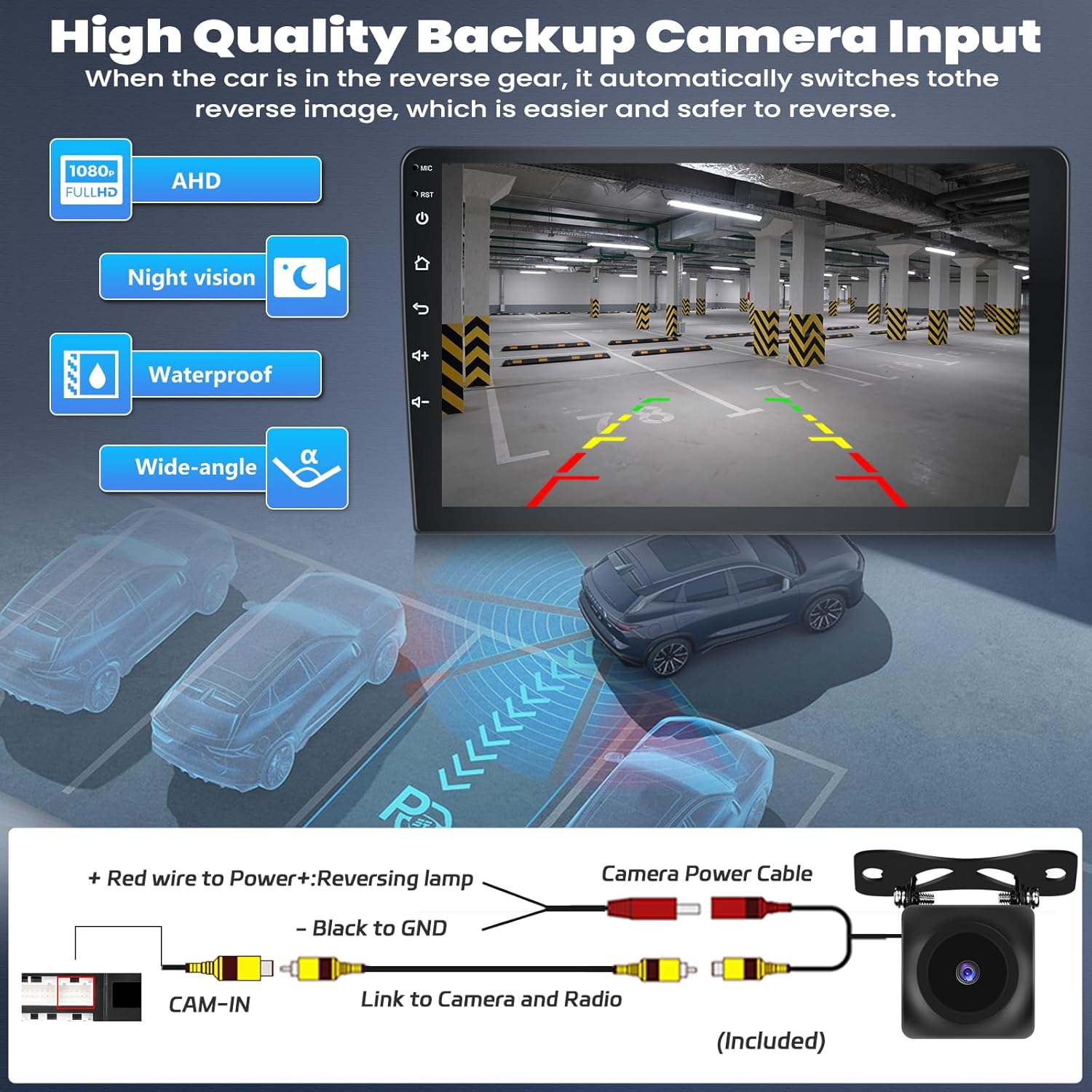
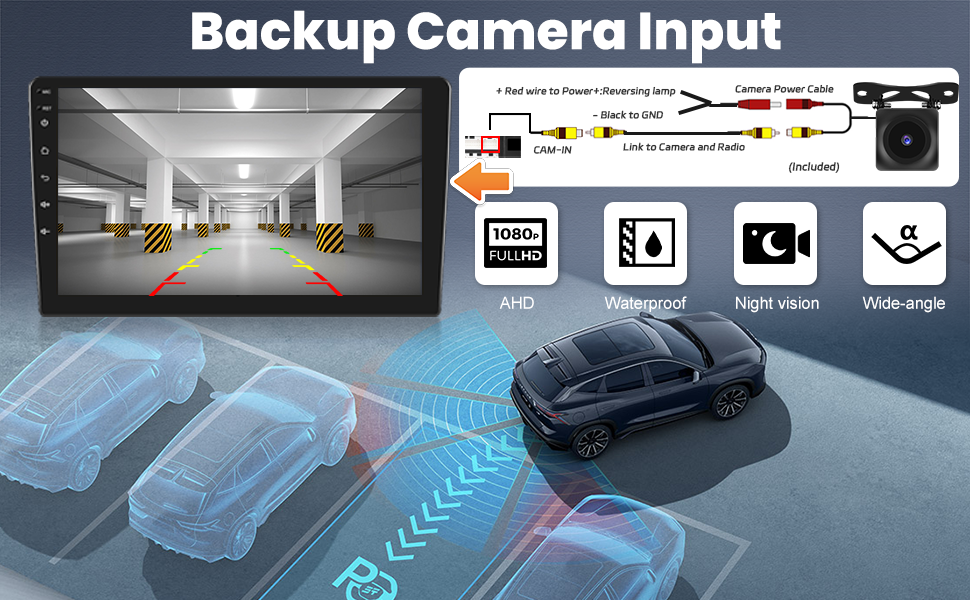
- Backup Camera (Optional): If installing the AHD backup camera, connect it according to the wiring diagram provided below. The camera automatically activates when the vehicle is in reverse gear. Note that the system does not support the original factory camera.
- Mount New Unit: Secure the new car stereo unit into the dashboard opening using the provided frame and installation tools.
- Test Functionality: Before fully reassembling the dashboard, power on the vehicle and test all functions of the new stereo.

2. Operating Instructions
This section details the various functions and features of your GOHHDL Android 13 Car Stereo.
2.1 Wireless CarPlay and Android Auto
The unit supports both Wireless CarPlay and Android Auto. Connect your smartphone via Bluetooth and Wi-Fi for seamless integration. For Android Auto, ensure the Android Auto application is installed on your phone. This feature allows access to navigation, music, messages, and voice commands (Siri or Google Assistant) directly from the car stereo.

2.2 Phone Mirror Link
Utilize the Mirror Link function to display your smartphone's screen directly on the car stereo. This feature is compatible with both iOS and Android devices via Wi-Fi or USB cable. For Android devices, certain permissions may need to be enabled in developer options before connecting.

2.3 GPS Navigation and Wi-Fi/Hotspot
The stereo comes with Google Maps pre-installed. Connect to Wi-Fi to access real-time traffic conditions and download additional map data for offline navigation. The Wi-Fi/Hotspot feature also enables access to online streaming services like Spotify and YouTube, and allows for downloading other applications. The built-in split-screen function allows two applications to run simultaneously.


2.4 Bluetooth 5.0
The integrated Bluetooth system and microphone facilitate hands-free calling and Bluetooth music streaming. The system can automatically load your phone book for easy contact access.

2.5 FM/RDS Radio
The high-quality FM/RDS radio features automatic channel search and supports frequencies from 87.5-108 FM. You can preset up to 18 favorite channels.

2.6 DSP and EQ Settings
The Digital Sound Processor (DSP) tuning technology allows for customizable audio settings. Adjust frequency, Acoustic Environment (AE), and utilize the 32-band or 10-band equalizer to optimize your listening experience.

2.7 Steering Wheel Control (SWC)
The system supports the use of your vehicle's original steering wheel buttons to control audio functions, allowing for quick and safe adjustments while driving.
2.8 UI Desktop Themes
Customize the appearance of your car stereo with a selection of 59 UI desktop themes.

2.9 Rear View Camera
The included AHD backup camera features a 170-degree ultra-wide angle and waterproof design. When the vehicle is shifted into reverse, the stereo automatically displays the camera feed, assisting with safe parking. Night vision is also supported.
2.10 Product Features Overview Video
Watch this video for a visual demonstration of the car stereo's user interface, CarPlay, Android Auto, Bluetooth connectivity, GPS navigation, and rear view camera functionality.
3. Maintenance
Proper maintenance ensures the longevity and optimal performance of your car stereo.
3.1 Cleaning the Display
- Use a soft, lint-free cloth to gently wipe the touchscreen.
- For stubborn smudges, slightly dampen the cloth with water or a screen-safe cleaning solution.
- Avoid using harsh chemicals, abrasive cleaners, or solvents, as these can damage the screen and finish.
3.2 Software Updates
Periodically check the manufacturer's website or the device settings for available software updates. Updates can provide new features, performance improvements, and bug fixes. Follow the on-screen instructions carefully when performing updates.
4. Troubleshooting
If you encounter issues with your car stereo, refer to the following common troubleshooting steps. For complex problems, contact customer support.
- No Power: Ensure all power cables are securely connected. Check the vehicle's fuse box for any blown fuses related to the stereo.
- No Sound: Verify speaker connections. Check volume levels and mute settings. Ensure the correct audio source is selected.
- Bluetooth Connection Issues: Ensure Bluetooth is enabled on both the stereo and your smartphone. Delete previous pairings and attempt to re-pair. Check for interference from other devices.
- GPS Signal Loss: Ensure the GPS antenna has a clear view of the sky. Move the vehicle to an open area if signal is weak.
- Touchscreen Unresponsive: Try restarting the unit. If the issue persists, a factory reset might be necessary (note: this will erase all user data).
- CarPlay/Android Auto Not Connecting: Verify that the respective apps are installed and updated on your phone. Ensure proper USB or wireless connection. For Android, check developer options for necessary permissions.
5. Specifications
Key technical specifications for the GOHHDL Android 13 Car Stereo:
| Feature | Specification |
|---|---|
| Item Weight | 4.02 pounds |
| Package Dimensions | 14.41 x 12.91 x 6.42 inches |
| Item Model Number | A7025A3453H1MI2 |
| Display Size | 9 Inches |
| Voice Command | Touchscreen |
| Manufacturer | GOHHDL |
| Brand | GOHHDL |
| Model Name | GOHHDL 4+64G 8-Core Android 13 Car Stereo for Ford Fusion Mondeo 2013-2019 |
| Vehicle Service Type | Car |
| Screen Size | 9 Inches |
| Special Features | 59 UI Desktop Themes, 1080P HD Video Playback, Split Screen, Apple CarPlay, Android Auto, Mirror Link, Bluetooth Function, Steering Wheel Control, Weather Forecast, FM RDS Radio, Online & Offline Maps, USB Input, DSP 32EQ-Audio, WiFi/Hotspots, GPS Navigation |
| Connectivity Technology | Bluetooth, USB, Wi-Fi |
| Map Type | Worldwide |
| Audio Output Mode | Stereo |
| Mounting Type | Dashboard Mount |
6. Warranty and Support
GOHHDL is committed to providing reliable products and customer service.
6.1 Product Warranty
The GOHHDL Android 13 Car Stereo comes with a one-year warranty from the date of purchase. Additionally, a 30-day money-back service is offered. Please retain your proof of purchase for warranty claims.
6.2 Technical Support
For any installation or operation questions, technical support is available 7 days a week, 16 hours a day (excluding weekends). You can reach our support team via email for assistance.
