
1. Introduction
This manual provides essential information for the operation and maintenance of your DEERTiME E6 Android 14 Tablet. The tablet features a 10.1-inch HD IPS display, powered by an Octa-Core processor, and runs on the latest Android 14 operating system. It is equipped with 22GB RAM (6GB physical + 16GB virtual) and 128GB ROM, expandable up to 1TB via TF card. Key features include an 8000mAh battery, dual cameras (5MP front, 8MP rear), Widevine L1 support for high-definition streaming, and dual-band Wi-Fi (2.4G+5G) with Bluetooth 5.0 connectivity.

Image: The DEERTiME E6 Android 14 Tablet shown with its included accessories: charger, USB-C cable, screen protector, and protective case.
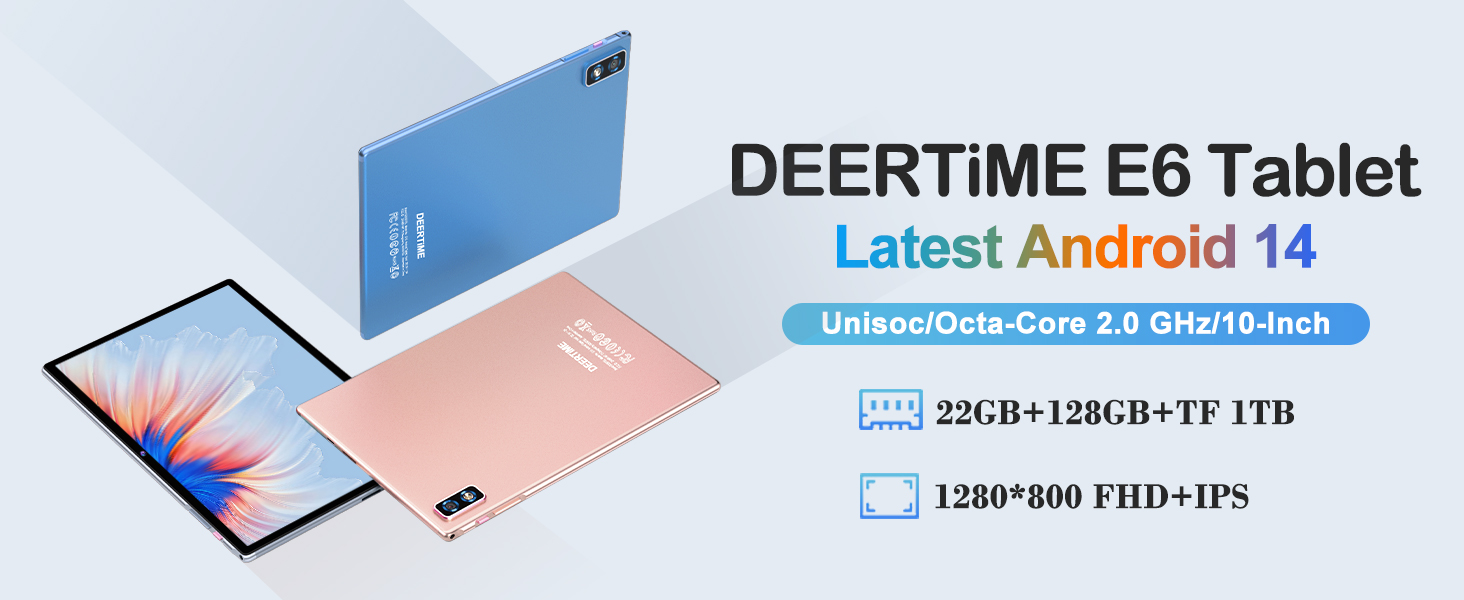
Image: An overview of the DEERTiME E6 Tablet highlighting its Android 14 OS, Unisoc Octa-Core 2.0 GHz processor, 10-inch display, 22GB RAM, 128GB ROM, 1TB TF expansion, and 8000mAh battery.
2. What's in the Box
Upon unboxing your DEERTiME E6 Tablet, please verify that all the following items are included:
- DEERTiME E6 Android 14 Tablet
- Protective Case
- Screen Protector
- Charger
- USB-C Cable
3. Setup
3.1 Initial Charging
Before first use, fully charge the tablet using the provided charger and USB-C cable. Connect the USB-C cable to the tablet's charging port and the charger to a power outlet. The charging indicator will typically illuminate during charging and turn off or change color when fully charged.
3.2 Power On/Off
- To Power On: Press and hold the Power button (located on the side) until the DEERTiME logo appears on the screen.
- To Power Off: Press and hold the Power button until the power options menu appears. Select "Power off" and confirm.
- To Restart: From the power options menu, select "Restart".
3.3 Initial Setup Wizard
Upon first power-on, the tablet will guide you through an initial setup wizard. This includes:
- Selecting your language.
- Connecting to a Wi-Fi network.
- Setting up your Google account (recommended for full access to Google Play Store and services).
- Setting up screen lock (PIN, pattern, password, or Face Unlock).
- Reviewing privacy settings.
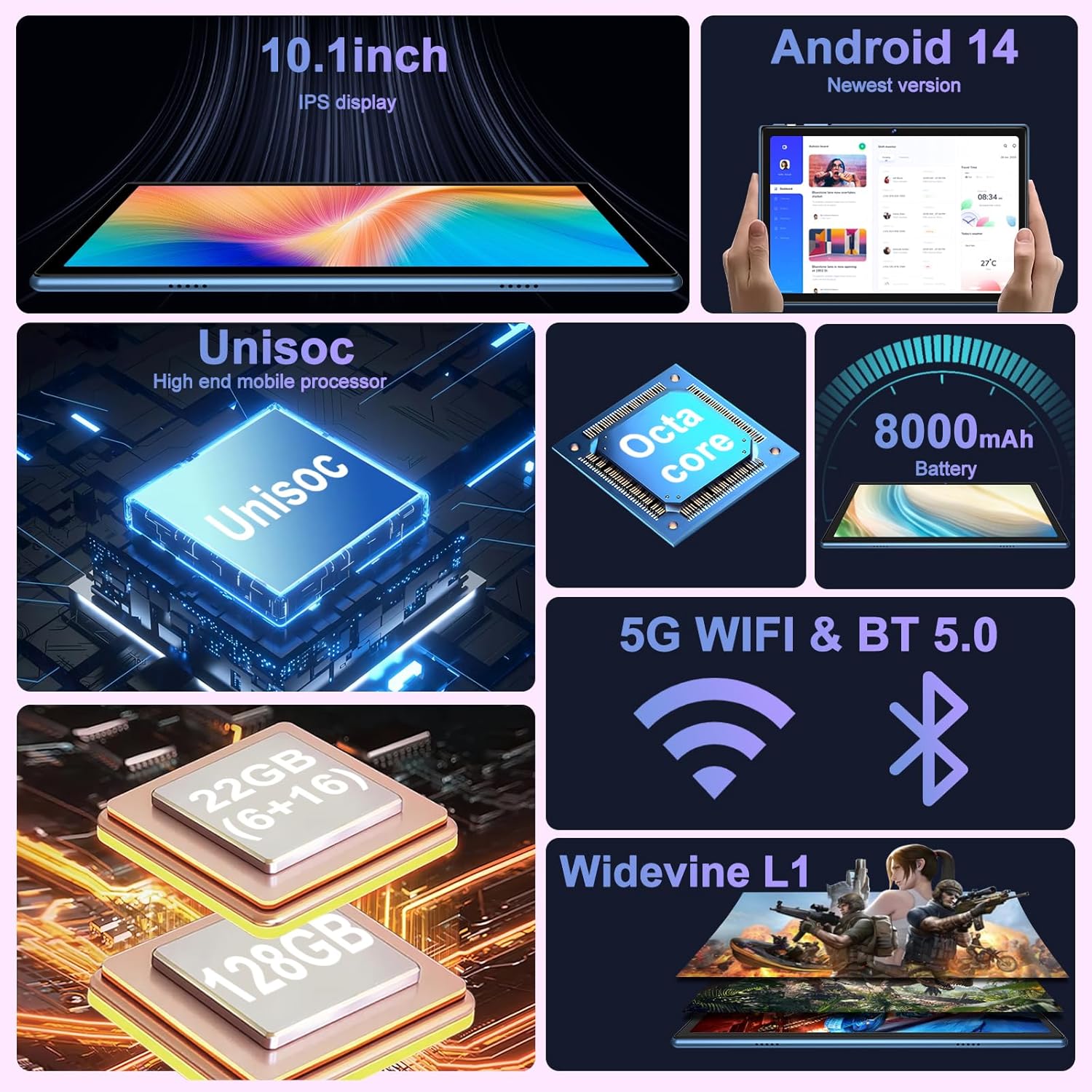
Image: A visual representation of the tablet's internal components and features, including the Unisoc Octa-Core processor, Android 14 operating system, 8000mAh battery, 5G Wi-Fi, and Bluetooth 5.0.
4. Operating the Tablet
4.1 Navigation
The Android 14 interface is intuitive. Use gestures or the navigation bar at the bottom of the screen for Home, Back, and Recent Apps functions.
4.2 Applications
Access and manage applications through the app drawer (swipe up from the home screen) or by placing app shortcuts on your home screens. Download new applications from the Google Play Store.

Image: Depicts the Android 14 operating system with features like Play Store access, convenient multitasking via Taskbar, enhanced Privacy & Security controls, and Parental Control options.
4.3 Connectivity
- Wi-Fi: Go to Settings > Network & internet > Wi-Fi to connect to available networks. The tablet supports 2.4G and 5G Wi-Fi for stable and fast connections.
- Bluetooth: Go to Settings > Connected devices > Connection preferences > Bluetooth to pair with Bluetooth devices like headphones or speakers.
- GPS: The built-in GPS allows for navigation and location-based services. Ensure location services are enabled in Settings for optimal performance.
4.4 Multimedia
The tablet features a 10.1-inch 1280x800 tempered glass display and Widevine L1 support, enabling high-definition streaming from platforms like TikTok, YouTube, and Amazon Prime Video at 1080P resolution. Dual speakers provide stereo sound, and a 3.5mm headphone jack is available for private listening.

Image: Illustrates the tablet's Widevine L1 support, allowing for 1080P high-definition video playback from popular streaming services compared to L3 (720P).

Image: Highlights the tablet's audio features, including built-in dual speakers for immersive sound and a 3.5mm headphone jack for private audio experiences.
4.5 Cameras
The tablet is equipped with a 5MP front camera and an 8MP rear camera for capturing photos and videos, as well as for video calls.

Image: Showcases the tablet's camera capabilities, featuring a 5MP front camera and an 8MP rear camera for capturing moments.
5. Maintenance
5.1 Battery Care
- Avoid extreme temperatures (hot or cold) as they can degrade battery life.
- Do not let the battery completely drain frequently.
- Use only the provided charger or a certified compatible charger.
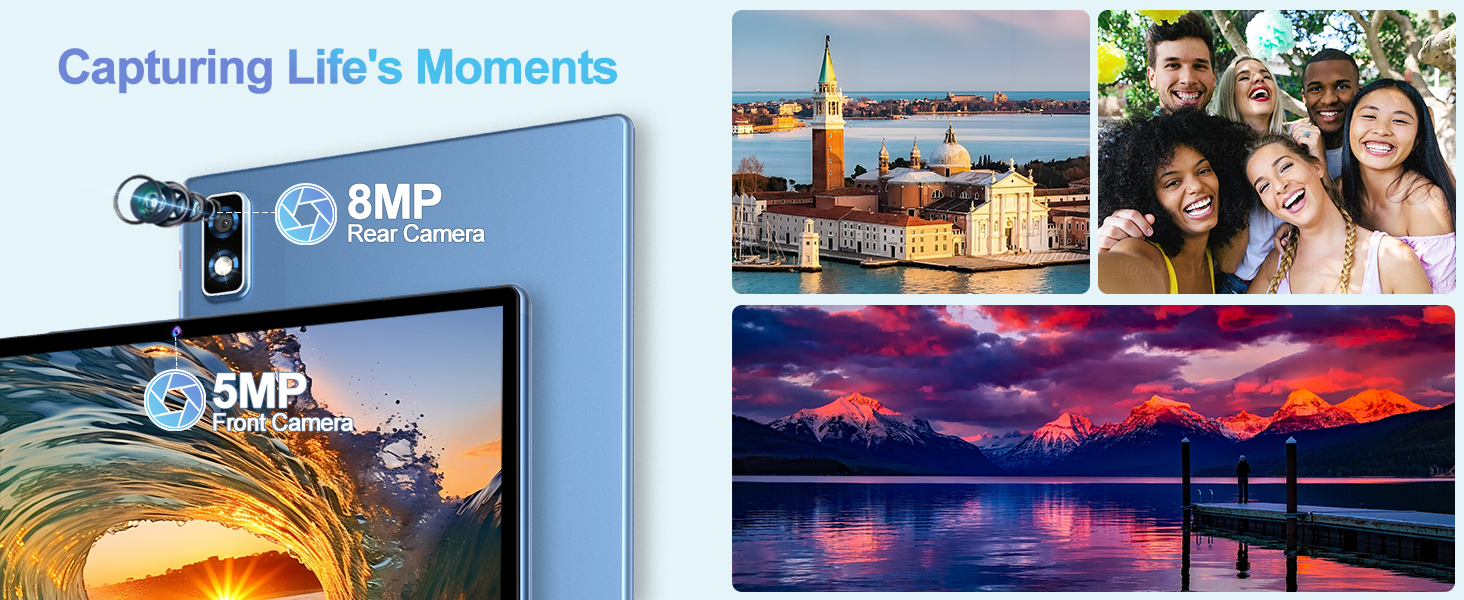
Image: Illustrates the tablet's 8000mAh high-capacity battery, emphasizing its long battery life for various uses, with Type-C charging and OTG support.
5.2 Cleaning
Use a soft, lint-free cloth to clean the screen and body of the tablet. Avoid using harsh chemicals or abrasive materials.
5.3 Software Updates
Periodically check for system updates in Settings > System > System update to ensure your tablet has the latest features and security patches.
6. Troubleshooting
6.1 Tablet Not Turning On
- Ensure the tablet is sufficiently charged. Connect it to the charger for at least 30 minutes.
- Press and hold the Power button for 10-15 seconds to force a restart.
6.2 Wi-Fi Connection Issues
- Toggle Wi-Fi off and on in Settings.
- Restart your Wi-Fi router.
- Forget the network and reconnect.
6.3 Apps Crashing or Freezing
- Clear the cache and data of the problematic app in Settings > Apps > [App Name] > Storage.
- Uninstall and reinstall the app.
- Ensure your tablet's software is up to date.
6.4 Slow Performance
- Close unused background applications.
- Clear cached data regularly.
- Consider uninstalling rarely used apps to free up storage.
7. Specifications
| Feature | Detail |
|---|---|
| Model Name | E6 |
| Operating System | Android 14 |
| Processor | Octa-Core 2.0GHz (Unisoc Chipset) |
| RAM | 22GB (6GB physical + 16GB virtual) |
| Internal Storage (ROM) | 128GB |
| Expandable Storage | Up to 1TB via TF Card |
| Screen Size | 10.1 inches |
| Screen Resolution | 1280 x 800 pixels (HD IPS) |
| Display Technology | G+G Tempered Glass |
| Widevine Support | L1 |
| Battery Capacity | 8000mAh |
| Front Camera | 5MP |
| Rear Camera | 8MP |
| Connectivity | 2.4G+5G Wi-Fi, Bluetooth 5.0, GPS |
| Audio | Dual Speakers, 3.5mm Headphone Jack |
| Dimensions (LxWxH) | 9.6 x 0.4 x 6.3 inches |
| Item Weight | 2.33 pounds |
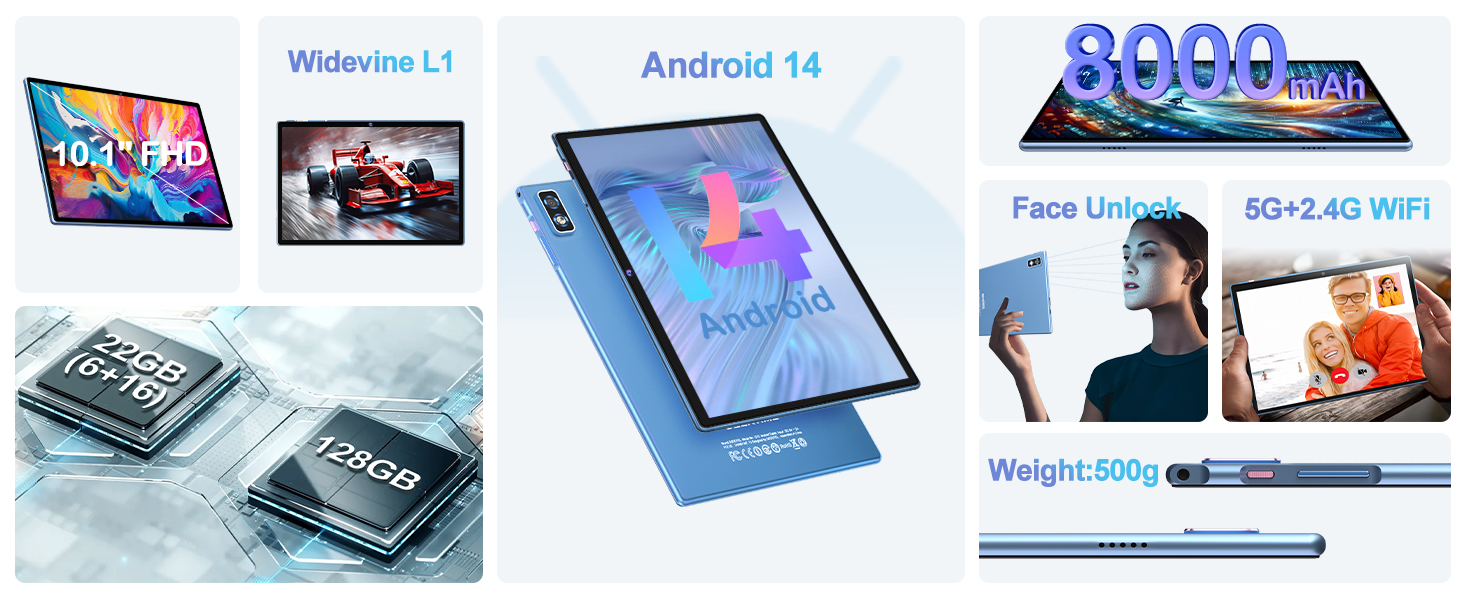
Image: Highlights the tablet's memory and storage capabilities, including 22GB RAM (6GB physical + 16GB virtual), 128GB ROM, and support for up to 1TB Micro SD card expansion.
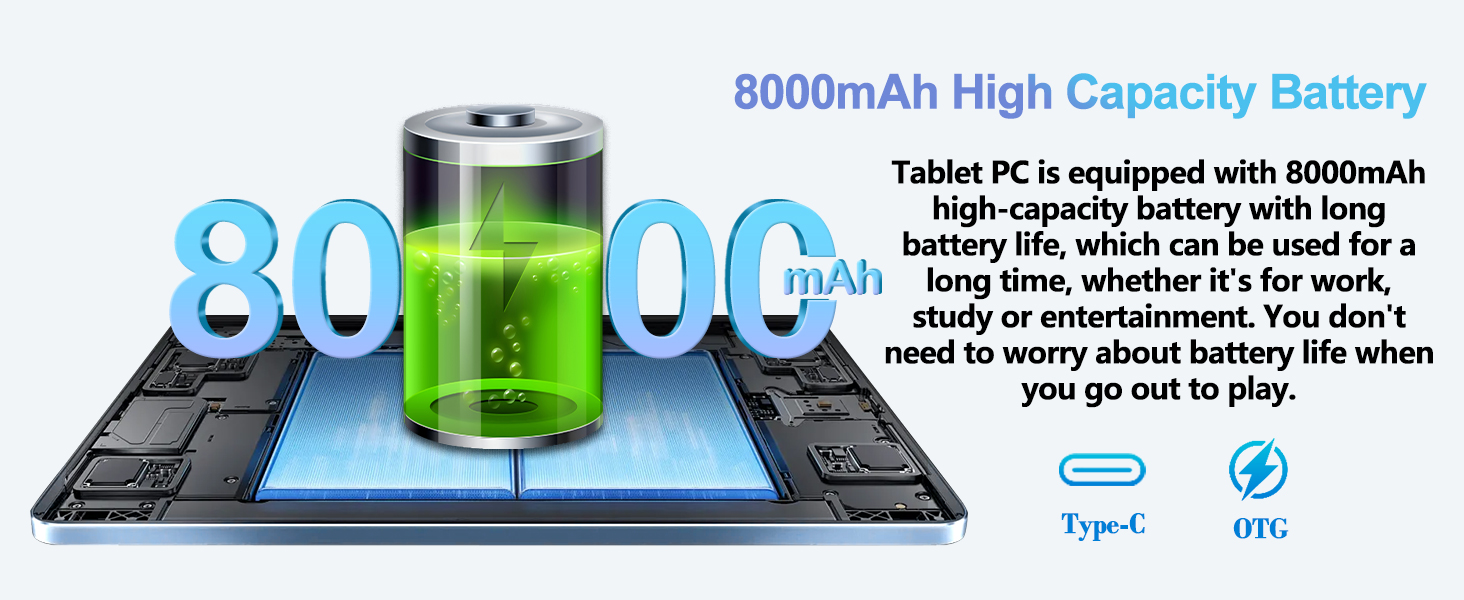
Image: Focuses on the tablet's 10-inch IPS display with 1280x800 resolution and a 16:10 aspect ratio, designed for efficient viewing.

Image: Showcases the tablet's sleek design, highlighting its ultra-slim 7.0 mm body and lightweight build of approximately 500g.
8. Official Product Video
Video: An official product video from DEERTiME showcasing the 10-inch Android 14 tablet, its design, and key features, including the included case and 128GB storage.
9. Warranty and Support
For warranty information and customer support, please refer to the documentation included with your product or visit the official DEERTiME website. You may also contact the seller directly for assistance.
Protection plans are available for purchase separately to extend coverage for your device. Please check the product listing or contact your retailer for details on available protection plans.
