
1. Introduction
The AMHVMU H4-1 is a GPS Head-Up Display (HUD) designed to project essential driving information onto your car's windshield. This device enhances driving safety by allowing you to view your speed and other data without diverting your eyes from the road. It features a large, clear color display and is compatible with all vehicle types due to its GPS-based operation.
2. Product Overview
2.1 Key Features
- GPS Speedometer: Displays real-time vehicle speed accurately using GPS signals.
- Compass Function: Integrated compass for directional guidance.
- Large Color Display: Features a clear, large-font color display for enhanced readability.
- Automatic Brightness Adjustment: Equipped with light-sensitive components for automatic adjustment to ambient light, ensuring visibility day and night without glare.
- Overspeed Alarm: Provides an audible alert if a preset speed limit is exceeded.
- Plug and Play: Simple installation via USB port, no complex wiring required.
- Universal Compatibility: Suitable for all car models, including new energy vehicles, hybrids, fuel-efficient vehicles, buses, trucks, and motorcycles.
- Unit Switching: Easily switch between MPH and KM/H display units.
2.2 Package Contents
Verify that all components are present in the package:
- AMHVMU H4-1 HUD Unit
- 2.5M USB Cable
- Reflective Film
- 3M Adhesive Pad
- User Manual

3. Setup Instructions
The AMHVMU H4-1 HUD is designed for quick and easy installation. Follow these steps:
- Placement: Choose a suitable flat surface on your dashboard where the HUD unit can sit securely and project clearly onto the windshield. Ensure it does not obstruct your view of the road.
- Secure the Unit: Use the provided 3M adhesive pad to secure the HUD unit to the dashboard. Clean the dashboard surface thoroughly before applying the adhesive for optimal adhesion.
- Connect Power: Connect the supplied 2.5M USB cable to the HUD unit and plug the other end into a USB port in your vehicle (e.g., car charger, infotainment system USB port). The device will power on automatically.
- Apply Reflective Film (Optional): If the projection on your windshield is not clear or appears as a double image, apply the reflective film to the windshield. Clean the windshield area thoroughly, spray a little water, and then carefully apply the film. Smooth out any air bubbles.

4. Operating Instructions
4.1 Initial Power On
Once connected to power, the HUD will automatically turn on and begin searching for GPS signals. This may take a few moments. Once a signal is acquired, the speed and compass information will be displayed.
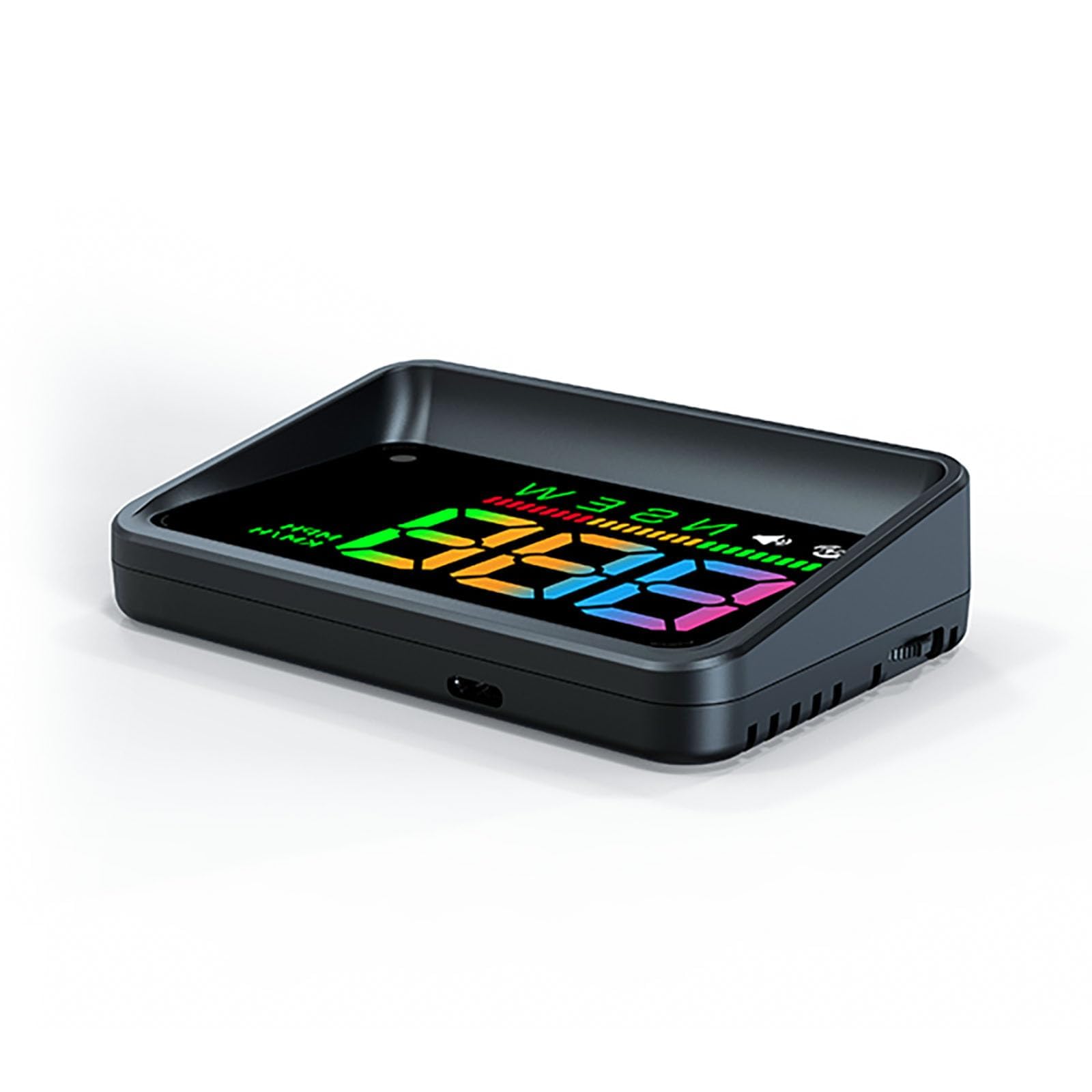
4.2 Display Functions
The H4-1 HUD primarily displays:
- Current Speed: Shown in large, clear digits.
- Compass: Indicates driving direction (N, S, E, W).
- Speed Unit: MPH or KM/H.
- Overspeed Alarm Indicator: Visual and audible alerts.

4.3 Automatic Brightness
The HUD features an integrated light sensor that automatically adjusts the display brightness based on ambient light conditions. This ensures the display is clearly visible during the day and not overly bright or distracting at night.


4.4 Overspeed Alarm
The device includes an overspeed alarm function. If your vehicle exceeds a user-defined speed, the HUD will emit an audible beep to alert you. This feature can be configured in the settings.

4.5 Settings and Unit Switching
The H4-1 HUD has control buttons for adjusting settings and switching units. Refer to the diagram below for button identification:

- Entering Settings: Press the central key (labeled '2' in Figure 8) vertically inward for 3 seconds to enter the settings menu.
- Switching Units (MPH/KM/H): Press the 'down' key (labeled '3' in Figure 8) for 3 seconds to toggle between MPH and KM/H display units.
- Adjusting Values: Use the 'up' (labeled '4') and 'down' (labeled '3') keys to adjust values within the settings menu.
5. Maintenance
To ensure the longevity and optimal performance of your AMHVMU H4-1 HUD, follow these maintenance guidelines:
- Cleaning: Use a soft, dry cloth to clean the display and exterior of the unit. Avoid abrasive cleaners or solvents that could damage the surface.
- Avoid Extreme Temperatures: Do not expose the device to extreme heat or cold for prolonged periods, as this can affect its electronic components.
- Secure Placement: Ensure the unit remains securely attached to the dashboard to prevent movement or damage during driving.
- Cable Care: Handle the USB cable carefully to avoid kinks or damage to the connectors.
6. Troubleshooting
If you encounter issues with your AMHVMU H4-1 HUD, refer to the following common troubleshooting steps:
| Problem | Possible Cause | Solution |
|---|---|---|
| No display/Unit does not power on | No power supply or faulty USB connection. | Check if the USB cable is securely connected to both the HUD and the car's USB port. Try a different USB port or power adapter. Ensure the vehicle's ignition is on. |
| No speed display / GPS signal not found | Weak or no GPS signal. | Ensure the vehicle is outdoors with a clear view of the sky. Avoid areas with tall buildings or tunnels. It may take a few minutes for the device to acquire a GPS signal upon startup. |
| Display is blurry or double image | Windshield reflection issues. | Apply the provided reflective film to the windshield where the image is projected. Adjust the angle of the HUD unit. |
| Overspeed alarm beeps constantly | Overspeed limit set too low or a software glitch. | Enter the settings menu (press central key for 3 seconds) and adjust the overspeed limit. If the issue persists, try resetting the device (refer to manual for reset procedure, if available). |
| Inaccurate speed reading | GPS signal interference or calibration needed. | Ensure a strong GPS signal. Some devices allow for speed calibration in the settings menu; consult the detailed manual for specific steps if available. |
7. Specifications
| Specification | Detail |
|---|---|
| Model Number | H4-1 |
| Brand | AMHVMU |
| Dimensions (L x W x H) | 6.5 x 10 x 2 cm (2.56 x 3.92 x 0.79 inches) |
| Weight | 100 Grams |
| Material | Polycarbonate (PC) |
| Voltage | 5-25V (USB powered) |
| Operating Temperature | -20°C to +85°C |
| Display Function | Speed, Compass, Speed Alarm |
| Included Components | HUD unit, USB cable, manual, anti-slip mat, reflective film |
| Country of Origin | China |
8. Warranty and Support
AMHVMU provides excellent after-sales service. If you have any questions or encounter issues with your H4-1 HUD, please contact AMHVMU customer support. Spare parts availability is guaranteed for 2 years.
For support, please refer to the contact information provided with your purchase or visit the official AMHVMU website.