
Keychron KYCN-K13M-H3
Keychron K13 Max Wireless RGB Mechanical Keyboard User Manual
Model: KYCN-K13M-H3
1. Introduction
Thank you for choosing the Keychron K13 Max Wireless RGB Mechanical Keyboard. This manual provides detailed instructions on setting up, operating, maintaining, and troubleshooting your new keyboard. Please read this manual thoroughly to ensure optimal performance and longevity of your device.
The Keychron K13 Max is a high-performance 80% layout (TKL) mechanical keyboard designed for both productivity and gaming. It offers triple connectivity modes: ultra-low latency 2.4 GHz wireless, stable Bluetooth 5.1, and reliable wired USB Type-C. With QMK/VIA programmability, hot-swappable Gateron low-profile mechanical switches, and vibrant RGB backlighting, it provides a customizable and comfortable typing experience across macOS, Windows, and Linux systems.
2. Product Overview
The Keychron K13 Max features a compact 80% layout, retaining essential keys while saving desk space. It comes equipped with Gateron low-profile mechanical switches and durable double-shot PBT keycaps. The keyboard's internal structure includes advanced IXPE acoustic foam and latex foam for a quiet and comfortable typing sound profile.
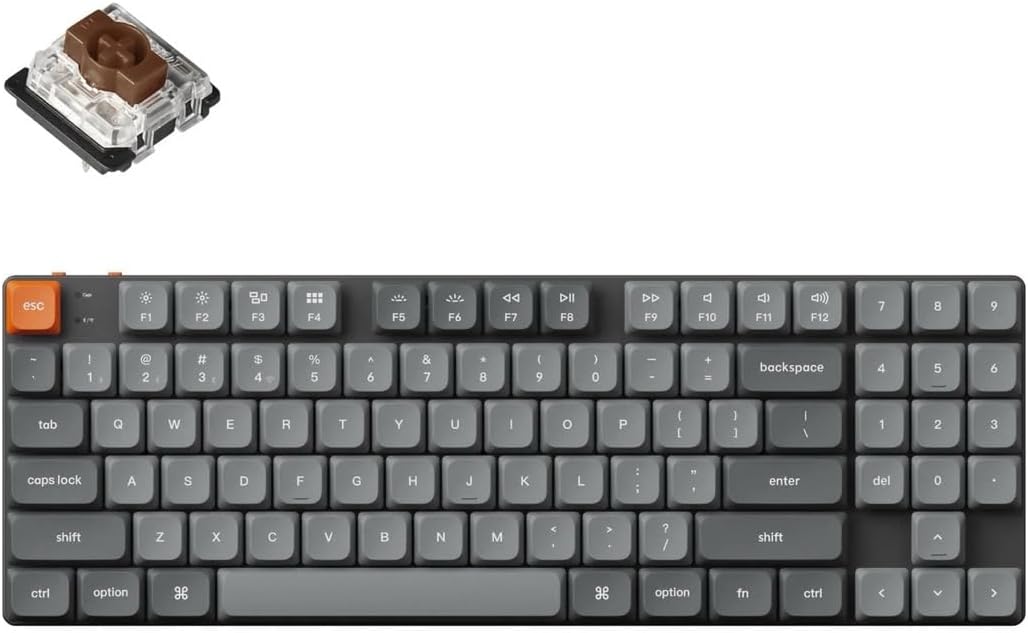
Image: Keychron K13 Max keyboard with a detached Gateron low-profile switch, illustrating the full keyboard layout and the hot-swappable switch mechanism.
Key Features:
- Triple Connectivity: 2.4 GHz Wireless, Bluetooth 5.1, and Wired USB Type-C.
- QMK/VIA Programmability: Full key remapping, macros, and shortcuts via open-source firmware.
- Hot-Swappable Switches: Easily change Gateron low-profile mechanical switches without soldering.
- RGB Backlighting: 22 types of RGB backlight options for personalized aesthetics.
- Multi-OS Compatibility: Seamlessly switch between macOS, Windows, and Linux.
- Acoustic Foam: IXPE and latex foam for enhanced typing sound and feel.

Image: A studio shot of the Keychron K13 Max keyboard, highlighting its sleek design and compact form factor.
3. Setup
Initial Charging:
Before first use, it is recommended to fully charge the keyboard. Connect the provided USB Type-C cable to the keyboard's Type-C port and the other end to a USB power source (e.g., computer USB port, wall adapter). The charging indicator light will show the charging status.
Connecting Your Keyboard:
The K13 Max supports three connection modes:
- 2.4 GHz Wireless Connection:
- Locate the 2.4 GHz receiver (dongle) included with your keyboard.
- Plug the 2.4 GHz receiver into an available USB port on your computer.
- On the keyboard, slide the mode switch (usually on the top left side) to the '2.4G' position.
- The keyboard should automatically connect. If not, press Fn + 4 (for 2.4G pairing) for 4 seconds until the indicator light flashes rapidly, then release.
- Bluetooth Connection:
- Slide the mode switch on the keyboard to the 'BT' position.
- To enter pairing mode, press and hold Fn + 1 (for Bluetooth device 1), Fn + 2 (for Bluetooth device 2), or Fn + 3 (for Bluetooth device 3) for 4 seconds until the indicator light flashes rapidly.
- On your computer or device, enable Bluetooth and search for 'Keychron K13 Max'.
- Select the keyboard and complete the pairing process.
- You can switch between paired Bluetooth devices by pressing Fn + 1, Fn + 2, or Fn + 3 briefly.
- Wired USB Type-C Connection:
- Connect the provided USB Type-C cable from the keyboard to your computer's USB port.
- Slide the mode switch on the keyboard to the 'Cable' position.
- The keyboard will be recognized as a standard USB keyboard.
Operating System Switch:
The K13 Max has a switch to toggle between macOS and Windows/Android layouts. Ensure this switch is set to your operating system for correct key functionality (e.g., Alt/Option, Win/Command keys).

Image: Side view of the Keychron K13 Max keyboard, demonstrating the two adjustable typing angles for ergonomic comfort.
4. Operating the Keyboard
Multimedia Keys:
The K13 Max includes 12 dedicated multimedia keys (F1-F12) accessible via the Fn key. These keys control media playback, volume, and other system functions. Refer to the keycap legends for specific functions.
RGB Backlighting Control:
The keyboard offers 22 types of RGB backlight effects. Use the dedicated backlight key (usually Fn + Lightbulb icon) to cycle through effects. Use Fn + Arrow keys or other designated keys to adjust brightness, speed, and color of the backlighting.
QMK/VIA Programming:
The Keychron K13 Max is fully compatible with QMK firmware and VIA software, allowing for advanced customization of key assignments, macros, and lighting effects. To use VIA:
- Download the VIA software from the official Keychron website or use the web-based VIA application.
- Connect the keyboard to your computer via the wired USB Type-C connection.
- Open the VIA application. It should automatically detect your K13 Max keyboard.
- You can now remap keys, create macros, and customize lighting layers directly within the VIA interface. Changes are saved directly to the keyboard's firmware.

Image: The Keychron K13 Max keyboard in a typical desk setup, demonstrating its integration into a workspace.
5. Maintenance
Cleaning:
To clean your keyboard, first disconnect it from all power sources. Use a soft, lint-free cloth slightly dampened with water or a mild cleaning solution to wipe down the keycaps and frame. For dust and debris between keys, use compressed air or a small brush. Avoid using harsh chemicals or abrasive materials.
Hot-Swapping Switches:
The K13 Max features hot-swappable sockets, allowing you to change switches without soldering. Use the provided switch puller tool to carefully remove existing switches. Align the pins of the new switch with the holes on the PCB and gently press down until it clicks into place. Ensure the switch is fully seated to avoid bent pins.
6. Troubleshooting
Keyboard Not Responding:
- Ensure the keyboard is charged.
- Check the mode switch (2.4G/BT/Cable) is set correctly for your connection type.
- For 2.4G, ensure the dongle is securely plugged in.
- For Bluetooth, re-pair the device if necessary.
- Try connecting via wired USB Type-C to rule out wireless issues.
Keys Not Registering:
- If a specific key is not working, try hot-swapping the switch with a known working one to determine if the switch or the socket is faulty.
- Ensure the switch is fully seated in its socket.
- Check for any debris under the keycap or around the switch.
Bluetooth Disconnection Issues:
- Ensure the keyboard is within range of your device.
- Check for interference from other wireless devices.
- Update your device's Bluetooth drivers.
- Re-pair the keyboard with your device.
7. Specifications

Image: Detailed diagram showing the physical dimensions of the Keychron K13 Max keyboard and its low-profile Gateron switch.
| Feature | Description |
|---|---|
| Model Name | Keychron K13 Max |
| Model Number | KYCN-K13M-H3 |
| Layout | 80% TKL, QWERTY ANSI US (90 keys) |
| Switches | Gateron Low-Profile Mechanical (Hot-Swappable) |
| Keycap Material | Low-Profile Double-Shot PBT |
| Frame Material | ABS + Aluminum Frame |
| Connectivity | 2.4 GHz Wireless, Bluetooth 5.1, Wired USB Type-C |
| Polling Rate (2.4Ghz & Wired) | 1000Hz |
| Polling Rate (Bluetooth) | 90Hz |
| N-Key Rollover (NKRO) | Yes (Wireless & Wired Modes) |
| Backlight | 22 Types of RGB Backlight |
| Battery | 2000 mAh Rechargeable Li-Polymer |
| Wireless Working Time (Backlight Off) | Up to 154 hours |
| Compatible System | macOS / Windows / Linux |
| Dimensions | 346 x 118.5 mm (13.62 x 4.66 inches) |
| Weight | 600 g / 1.32 lbs |
| Typing Angle | 3.37º, 4.2º, and 6.7º |
| MCU | ARM Cortex-M4 32-bit STM32F402 (256KB Flash) |
8. Warranty and Support
Keychron products typically come with a limited warranty. For specific warranty terms and conditions, please refer to the warranty card included with your product or visit the official Keychron website. Keep your proof of purchase for warranty claims.
For technical support, troubleshooting assistance, or to inquire about replacement parts, please visit the Keychron support page on their official website. You can usually find FAQs, driver downloads, and contact information for customer service there.
Related documentsKYCN-K13M-H3


Ask a question about this manual
Ask about setup, troubleshooting, compatibility, parts, safety, or missing instructions. Manuals+ will review the question and use this page’s manual context to help answer it.