
1. Introduction
This manual provides detailed instructions for the setup, operation, maintenance, and troubleshooting of your ProtoArc EKM01 Plus Ergonomic Wireless Keyboard and Mouse Combo. Please read this manual thoroughly before use to ensure optimal performance and longevity of your device.

Image 1.1: The ProtoArc EKM01 Plus Ergonomic Wireless Keyboard and Mouse Combo. This image displays the full keyboard with its split, curved design and integrated wrist rest, alongside the ergonomic mouse.
2. Package Contents
Verify that all items are present in the package:
- ProtoArc EKM01 Plus Ergonomic Wireless Keyboard
- ProtoArc Ergonomic Wireless Mouse
- USB Receiver (stored in the keyboard or mouse)
- USB-C Charging Cable
- User Manual (this document)
3. Setup Instructions
3.1 Charging the Devices
Both the keyboard and mouse are equipped with built-in 500mAh lithium batteries. Before initial use, it is recommended to fully charge both devices using the provided USB-C cable.
- Connect the USB-C end of the charging cable to the charging port on the keyboard and mouse.
- Connect the USB-A end of the charging cable to a powered USB port (e.g., computer, wall adapter).
- The charging indicator light will illuminate. Once fully charged, the light will change or turn off (refer to device-specific indicators).
The devices can be used while charging.
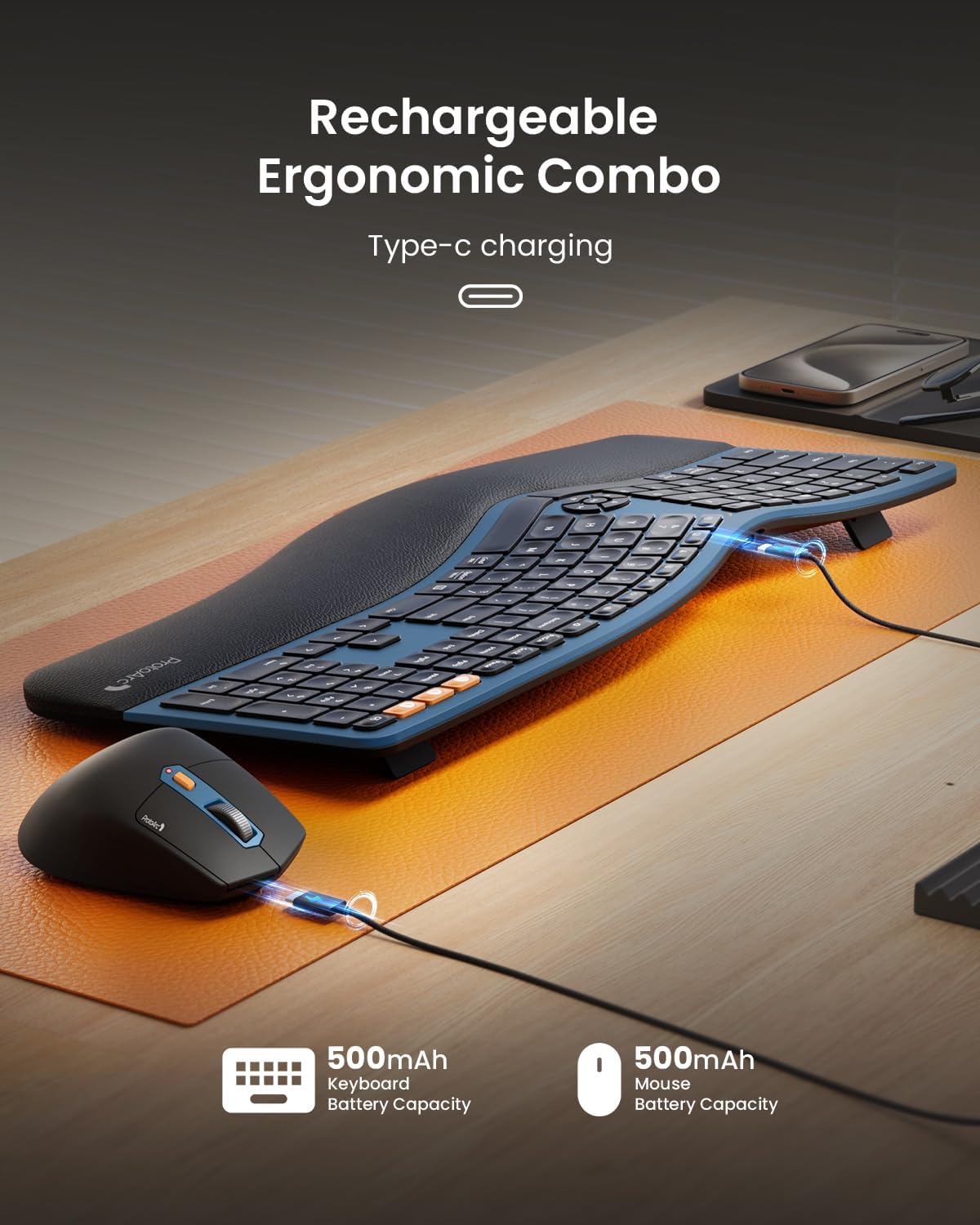
Image 3.1: The keyboard and mouse connected via USB-C cables for charging. This image illustrates the Type-C charging ports and the charging process for both devices.
3.2 Connecting to Your Device
The combo supports connection via a 2.4GHz USB receiver or Bluetooth, allowing connection to up to three devices simultaneously.
3.2.1 2.4GHz USB Receiver Connection
- Locate the USB receiver. It is typically stored in a magnetic compartment underneath the keyboard or in a cavity under the mouse's logo sticker.
- Plug the USB receiver into an available USB port on your computer.
- Turn on the keyboard and mouse using their respective power switches.
- The devices should automatically connect. If not, press the 2.4G mode switch button on the keyboard/mouse to activate the 2.4G connection.
3.2.2 Bluetooth Connection (Up to 2 Devices)
- Turn on the keyboard and mouse.
- On the keyboard, press and hold either the BT1 or BT2 button for 3-5 seconds until the indicator light flashes, indicating pairing mode.
- On the mouse, press the mode switch button until the white LED flashes for BT1 or BT2, then press and hold for 3-5 seconds to enter pairing mode.
- On your computer or mobile device, open Bluetooth settings and search for new devices.
- Select "ProtoArc EKM01 Plus Keyboard" and "ProtoArc EKM01 Plus Mouse" from the list to pair.
- Repeat for a second Bluetooth device using the other BT button.
3.3 Ergonomic Adjustments
The keyboard features adjustable tilt legs and an integrated wrist rest for enhanced comfort.
- Adjustable Tilt Legs: Flip out the legs located on the underside of the keyboard to adjust the typing angle. This helps maintain a natural wrist posture whether seated or standing.
- Cushioned Wrist Rest: The integrated curved wrist rest with a soft memory foam layer provides support and reduces wrist bending.

Image 3.2: The ProtoArc EKM01 Plus keyboard with its adjustable tilt legs extended, showing the elevated typing angle. This feature allows users to customize the keyboard's incline for ergonomic comfort.
4. Operating Instructions
4.1 Keyboard Usage
The EKM01 Plus keyboard features a full-size, curved, and split keyframe design to promote a natural, relaxed posture for your wrists and forearms. Scooped keys are designed to match fingertip contours for comfortable typing.
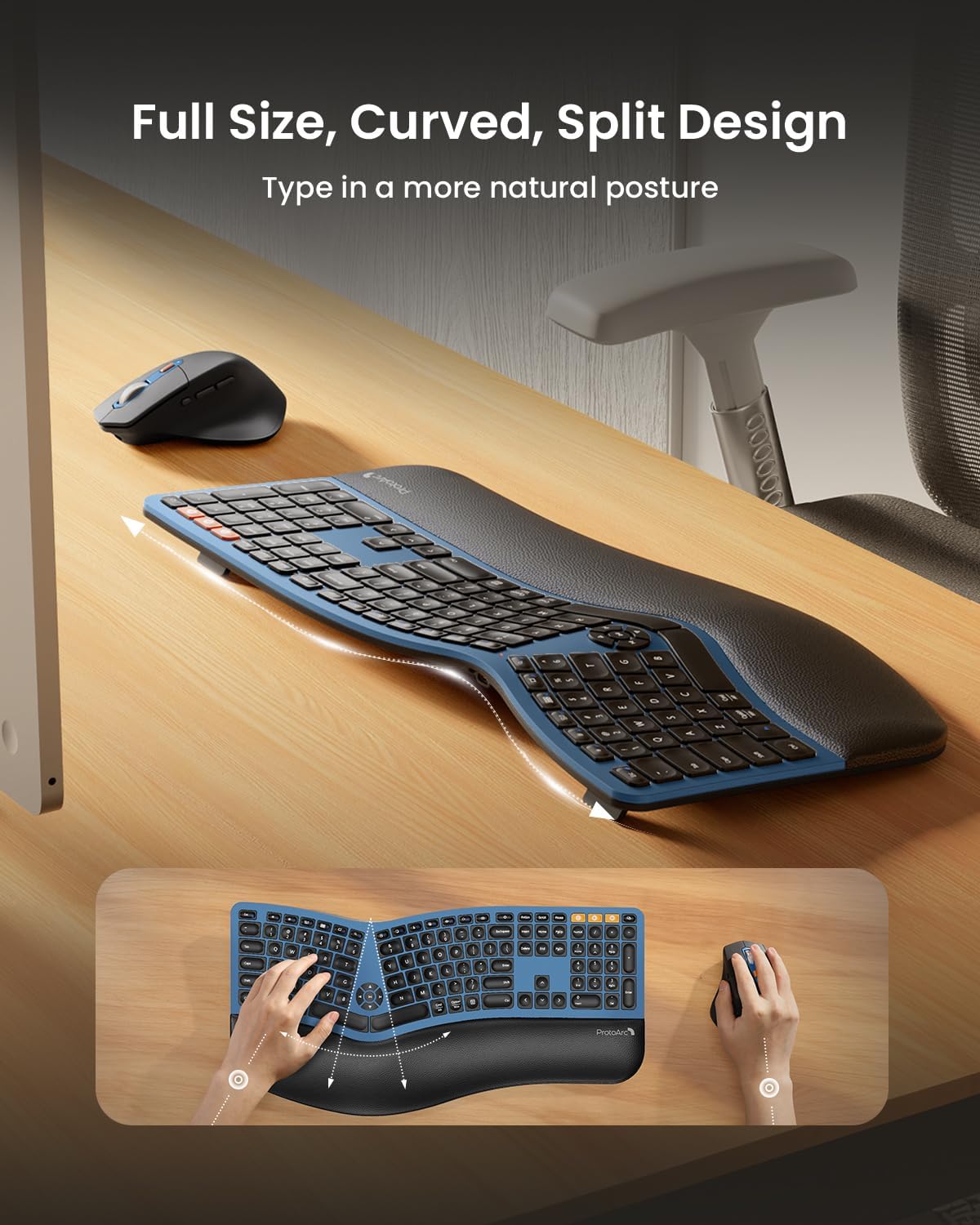
Image 4.1: An overhead view of the ProtoArc EKM01 Plus keyboard, highlighting its full-size, curved, and split design. This layout is engineered to encourage a more natural hand and wrist position during typing.
4.1.1 Media and Function Keys
The keyboard includes dedicated media control keys and function keys. Refer to the keycap legends for specific functions such as volume control, play/pause, and other shortcuts.
4.2 Mouse Usage
The ergonomic mouse is designed with a contoured shape, including a palm and thumb rest, to provide better wrist support and maintain a natural hand position, reducing strain.
- DPI Adjustment: The mouse features adjustable DPI settings (800/1300/2000 DPI) for precise control. Press the DPI button to cycle through the settings. The indicator light will flash once for 800 DPI, twice for 1300 DPI, and three times for 2000 DPI.
- Navigation Buttons: Forward and backward buttons are conveniently located for web page browsing and other navigation tasks.

Image 4.2: A close-up of the ProtoArc EKM01 Plus ergonomic mouse, showcasing its contoured shape designed for comfortable hand placement. The image highlights the thumb rest and the overall ergonomic form factor.
4.3 Multi-Device Switching
Effortlessly switch between up to three connected devices (one 2.4GHz USB receiver, two Bluetooth) by pressing the corresponding mode switch buttons on the keyboard (2.4G, BT1, BT2) and mouse.

Image 4.3: The ProtoArc EKM01 Plus keyboard and mouse in a multi-device setup, connected to a laptop, monitor, and tablet. This image demonstrates the ability to switch between up to three devices for a seamless workflow.
5. Maintenance
5.1 Battery Management
The keyboard and mouse feature rechargeable batteries. To prolong battery life:
- Recharge when the low battery indicator appears.
- Avoid fully discharging the battery frequently.
- The devices enter an auto-sleep mode after 30 minutes of inactivity to conserve power. Press any key or move the mouse to wake them up.
5.2 Cleaning
To clean your keyboard and mouse:
- Disconnect the devices from power and your computer.
- Use a soft, lint-free cloth slightly dampened with water or a mild cleaning solution.
- Avoid harsh chemicals, abrasives, or excessive moisture.
- For debris between keys, use compressed air.
6. Troubleshooting
If you encounter issues with your ProtoArc EKM01 Plus combo, refer to the following common solutions:
| Problem | Possible Cause | Solution |
|---|---|---|
| Keyboard/Mouse not responding | Low battery; Not powered on; Connection issue; USB receiver not detected. |
|
| Lag or intermittent connection | Interference; Distance from receiver/device; Low battery. |
|
| Keys not typing correctly (e.g., 'W' key) | Software issue; Physical obstruction; Defective key. |
|
| Mouse cursor erratic | Dirty sensor; Uneven surface; Low battery. |
|
7. Specifications
| Feature | Detail |
|---|---|
| Model Number | EKM01 Plus |
| Connectivity Technology | Bluetooth, 2.4GHz USB |
| Keyboard Layout | Full-size, Ergonomic Split Design |
| Special Features | Ergonomic Split Design, Full-size, Wrist Rest, Multi-Device Support, Rechargeable |
| Compatible Devices | Laptop, Personal Computer (Windows 7/8/10, Mac OS X 10.12+, Android 4.3+) |
| Keyboard Battery Capacity | 500mAh Lithium Battery |
| Mouse Battery Capacity | 500mAh Lithium Battery |
| Mouse DPI | 800/1300/2000 DPI |
| Item Weight | 4.04 pounds (approx. 1.83 kg) |
| Package Dimensions | 21.6 x 13 x 2.9 inches (approx. 54.9 x 33 x 7.4 cm) |
8. Warranty and Support
For warranty information and customer support, please refer to the documentation included with your product or visit the official ProtoArc website. Keep your purchase receipt for warranty claims.


