
Introduction
The Rii RKM709 is an ultra-slim 2.4 Gigahertz wireless keyboard and mouse combo designed for comfortable and efficient use with PCs, laptops, and desktops. This manual provides detailed instructions for setting up, operating, maintaining, and troubleshooting your new wireless combo.

Figure 1: Rii RKM709 Wireless Keyboard and Mouse Combo
1. Setup and Connection
1.1. Unpacking and Battery Installation
Carefully remove the keyboard and mouse from their packaging. The USB receiver for the combo is conveniently stored in the battery compartment of the wireless mouse. You will need to provide your own batteries:
- Mouse: Requires one (1) AAA battery.
- Keyboard: Requires two (2) AAA batteries.
Open the battery compartments on both the keyboard and mouse, insert the batteries according to the polarity indicators, and close the covers. Retrieve the USB receiver from the mouse's battery compartment.

Figure 2: Battery Compartments and USB Receiver Location
1.2. Connecting to Your Device
The RKM709 combo utilizes 2.4G wireless technology for a stable connection. It is plug-and-play, requiring no additional drivers.
- Turn on the power switch located on the underside of both the keyboard and the mouse.
- Insert the retrieved 2.4G USB Nano receiver into an available USB port on your PC, laptop, Android TV Box, PS3, PS4, or Raspberry Pi.
- The system will automatically detect and install the necessary drivers. Your keyboard and mouse should be ready for use within a few seconds.
The wireless transmission distance is up to 10 meters (approximately 33 feet), providing flexibility in your workspace.

Figure 3: 2.4G USB Nano Receiver and Connection Range
2. Operating Your RKM709 Combo
2.1. Keyboard Functions
The RKM709 keyboard features a compact design with a scissor-switch key structure for a comfortable and responsive typing experience. It includes 12 easy-to-reach function keys for multimedia control and other shortcuts.
- Multimedia Keys: Access functions like volume control (VOL+, VOL-, Mute), media playback (Play/Pause, Previous, Next), and more directly from the F-keys.
- Standard-by/Sleep Mode: Use the dedicated key to put your device into sleep mode.
- Power Switch: A power switch is available on the keyboard for manual power control.

Figure 4: RKM709 Keyboard Layout and Function Keys
2.2. Mouse Functions
The wireless mouse is designed with a slim, ergonomic profile for comfortable handling and smooth tracking. It features adjustable DPI settings and additional buttons for enhanced productivity.
- Adjustable DPI: Cycle through 1600, 2400, and 3200 DPI settings to adjust cursor sensitivity for precise control on various surfaces.
- 6 Buttons: In addition to the standard left, right, and scroll wheel buttons, the mouse includes dedicated forward and backward buttons for convenient web browsing or file navigation.
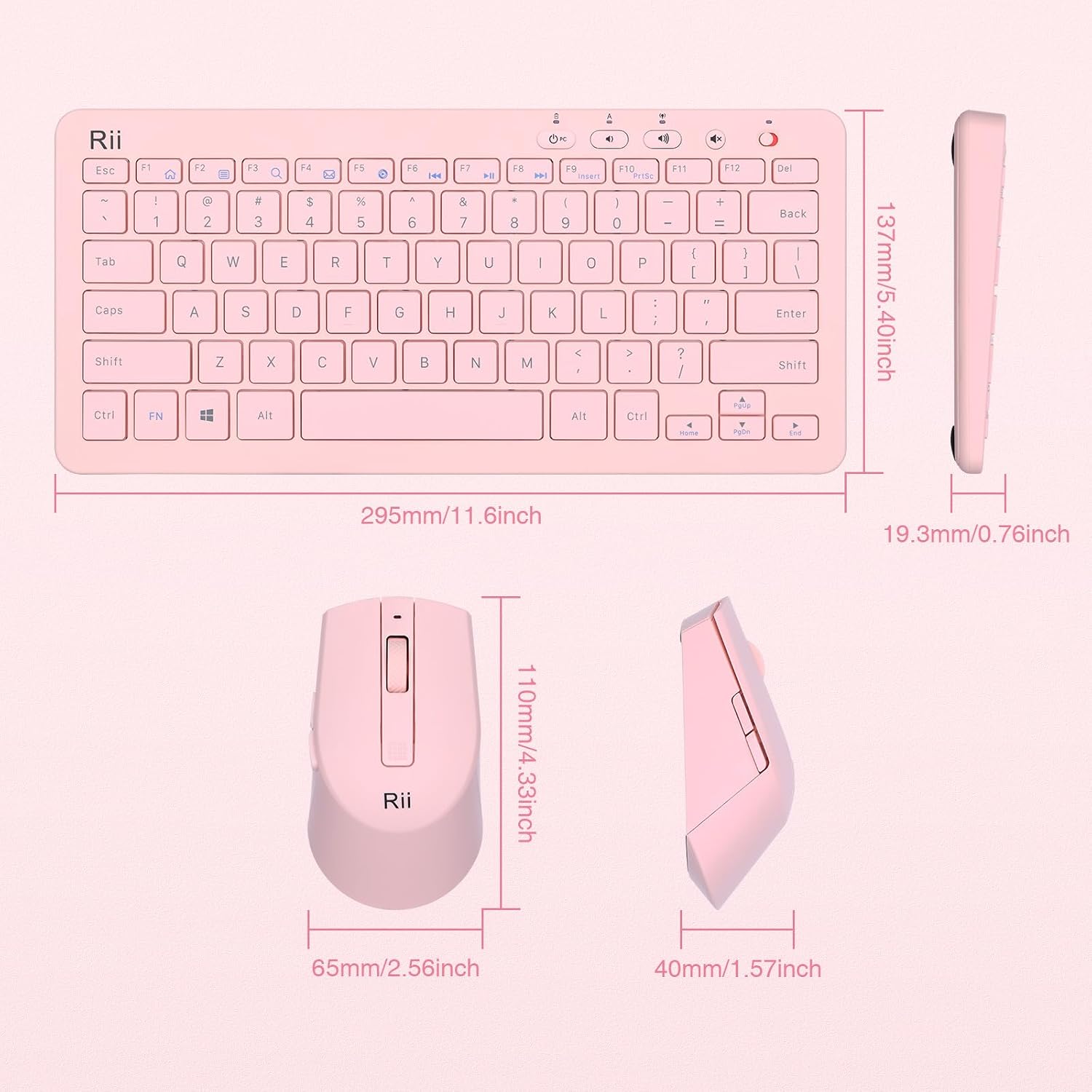
Figure 5: RKM709 Mouse Features
2.3. Power Management
Both the keyboard and mouse are equipped with manual On/Off switches to conserve battery life when not in use. The devices also feature an automatic shut-off function to enter a low-power state after a period of inactivity.
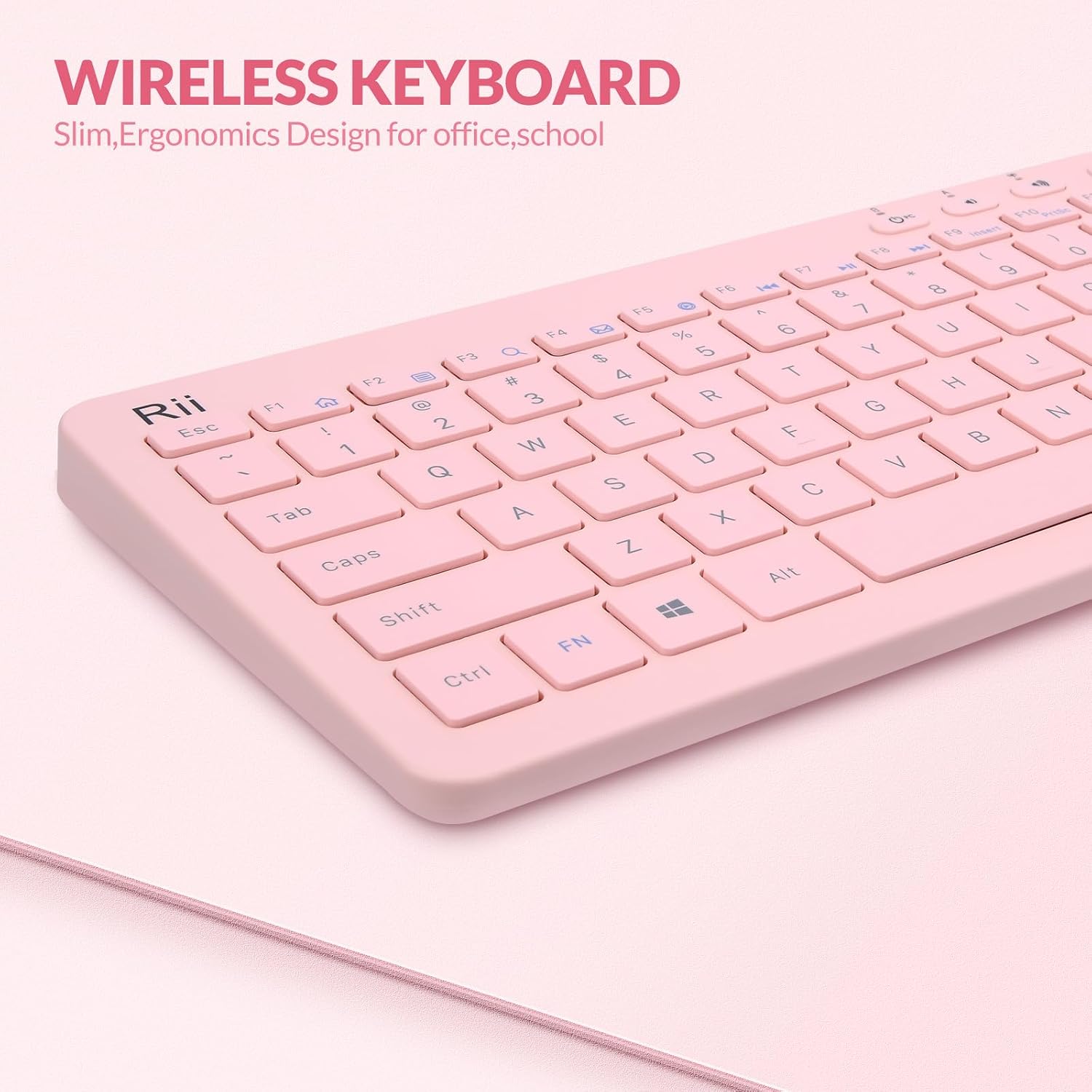
Figure 6: Mouse On/Off Switch
3. Maintenance and Care
To ensure the longevity and optimal performance of your Rii RKM709 combo, follow these maintenance guidelines:
- Cleaning: Use a soft, dry cloth to clean the surfaces of the keyboard and mouse. For stubborn dirt, slightly dampen the cloth with water or a mild cleaning solution. Avoid harsh chemicals or abrasive materials.
- Battery Replacement: Replace batteries promptly when performance degrades. Always use new, high-quality AAA batteries.
- Storage: When not in use for extended periods, turn off both the keyboard and mouse using their respective power switches. Store the USB receiver in the mouse's battery compartment to prevent loss.
- Environment: Avoid exposing the devices to extreme temperatures, direct sunlight, high humidity, or dusty environments.
4. Troubleshooting Common Issues
If you encounter problems with your Rii RKM709 wireless combo, try the following solutions:
- No Connection/Unresponsive:
- Ensure both the keyboard and mouse are turned ON.
- Check if the batteries are correctly installed and have sufficient charge. Replace if necessary.
- Verify that the USB receiver is securely plugged into a working USB port on your device. Try a different USB port.
- Move the keyboard and mouse closer to the USB receiver to rule out range issues.
- Keyboard/Mouse Lag or Intermittent Connection:
- Ensure there are no strong electromagnetic interferences (e.g., other 2.4GHz wireless devices, large metal objects) between the devices and the receiver.
- Try re-pairing the devices. For the keyboard, press 'K' + 'ESC' buttons simultaneously for 2 seconds until the indicator light remains solid.
- Mouse Cursor Jumps or is Inaccurate:
- Clean the optical sensor on the underside of the mouse.
- Try using the mouse on a different surface or a mouse pad.
- Adjust the DPI setting using the DPI button on the mouse.

Figure 7: Keyboard Repair Method (K + ESC)
5. Product Specifications
| Feature | Specification |
|---|---|
| Brand | Rii |
| Model | RKM709 |
| Connectivity Technology | 2.4G Wireless (USB Receiver) |
| Keyboard Key Structure | Scissor-Switch |
| Mouse DPI Settings | 1600 / 2400 / 3200 |
| Mouse Buttons | 6 (Left, Right, Scroll, DPI, Forward, Backward) |
| Wireless Range | Up to 10 meters (33 feet) |
| Compatible Devices | PC, Laptop, Android TV Box, PS3, PS4, Raspberry Pi |
| Keyboard Power | 2 x AAA Batteries (not included) |
| Mouse Power | 1 x AAA Battery (not included) |
| Package Dimensions | 14.96 x 5.79 x 1.85 inches |
| Item Weight | 1.28 pounds |
| Color | Pink |

Figure 8: RKM709 Keyboard and Mouse Dimensions
6. Warranty and Support
Rii provides friendly customer service and a worry-free 1-year product service for the RKM709 Wireless Keyboard and Mouse Combo. If you encounter any problems during use, please send a message to the support team for assistance.
For further support or inquiries, please refer to the contact information provided with your product packaging or visit the official Rii website.