1. Introduction
This manual provides detailed instructions for the E-YOOSO X-45 Ergonomic Vertical Mouse. Designed for comfort and versatility, this mouse offers multiple connectivity options and adjustable sensitivity to enhance your computing experience. Please read this manual thoroughly before using the product to ensure proper operation and longevity.
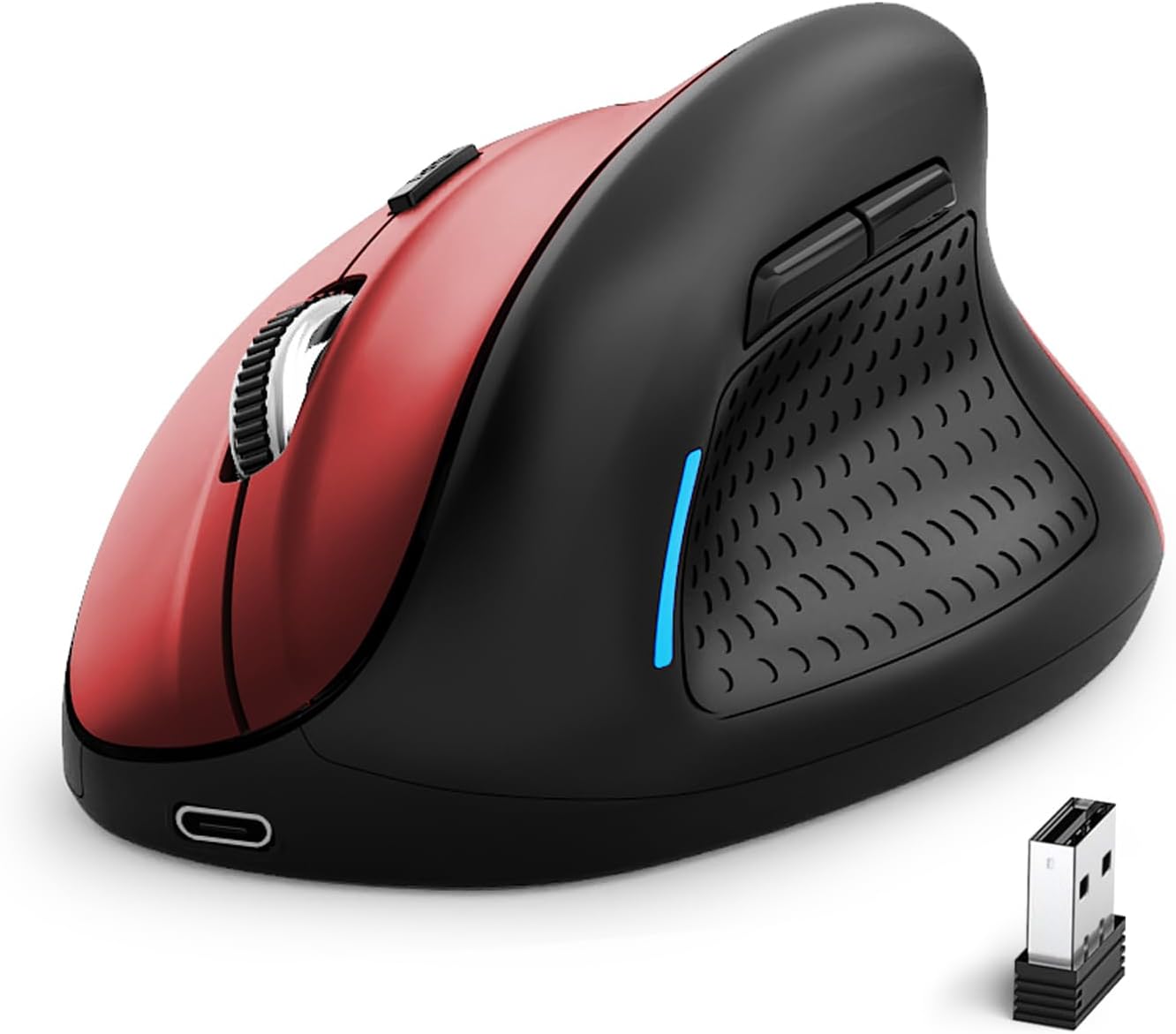
Image 1: E-YOOSO X-45 Ergonomic Vertical Mouse (Red Black)
2. Package Contents
Verify that all items are present in your package:
- 1 x E-YOOSO X-45 Ergonomic Vertical Mouse
- 1 x USB Receiver (2.4G)
- 1 x USB-C Charging Cable
- 1 x User Manual (this document)
3. Product Overview
Familiarize yourself with the various components of your E-YOOSO X-45 mouse:

Image 2: Labeled components of the E-YOOSO X-45 Vertical Mouse
- Left Button: Standard left-click function.
- DPI Switch Button: Adjusts cursor sensitivity (DPI levels).
- Scroll Wheel: For vertical scrolling and middle-click.
- Right Button: Standard right-click function.
- USB Receiver: Stores the 2.4G wireless dongle (located on the bottom of the mouse).
- Forward Button: Navigates forward in web browsers or file explorers.
- Backward Button: Navigates backward in web browsers or file explorers.
- Power/Mode Switch Button: Turns the mouse on/off and switches between connection modes.
- Pairing Button: Initiates Bluetooth pairing mode.
4. Setup
4.1 Charging the Mouse
The E-YOOSO X-45 mouse features a rechargeable battery. Use the provided USB-C cable to charge the mouse. A full charge typically takes 2-3 hours and can provide power for 2-3 months of usage, depending on usage patterns.
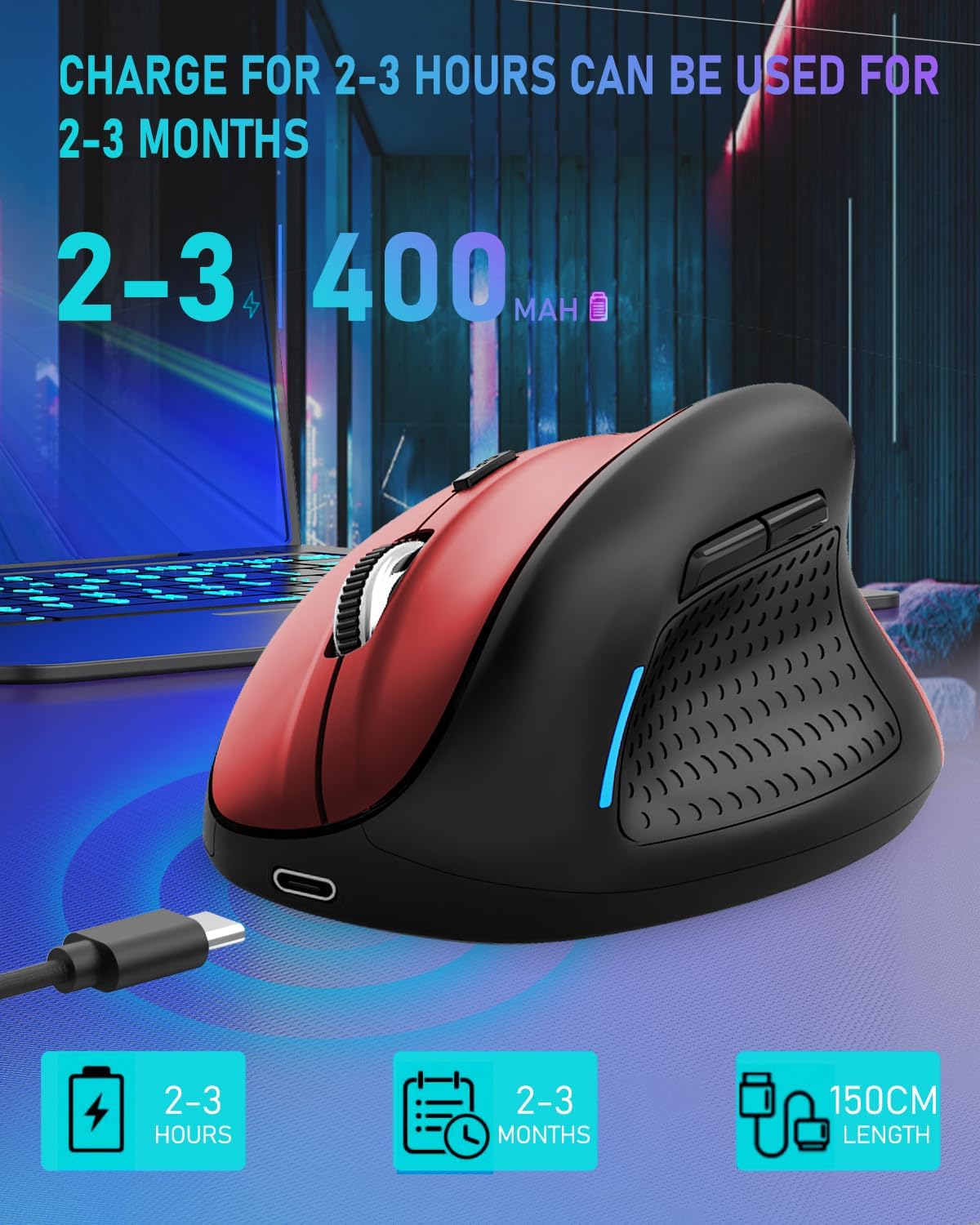
Image 3: Charging the E-YOOSO X-45 mouse
4.2 Connectivity Modes
The mouse supports three connection modes: 2.4G Wireless, Bluetooth, and Wired.

Image 4: Tri-Mode Connection Options
4.2.1 2.4G Wireless Connection
- Locate the USB receiver stored in the compartment on the bottom of the mouse.
- Plug the USB receiver into an available USB port on your computer.
- Turn on the mouse using the Power/Mode Switch button on the bottom. Select the 2.4G mode.
- The mouse should connect automatically.
4.2.2 Bluetooth Connection
- Turn on the mouse using the Power/Mode Switch button on the bottom. Select one of the Bluetooth modes (BT1 or BT2).
- Press and hold the Pairing Button (9) on the bottom of the mouse until the indicator light flashes, indicating it is in pairing mode.
- On your device (computer, tablet, smartphone), go to Bluetooth settings and search for new devices.
- Select "E-YOOSO X-45" (or similar name) from the list of available devices to pair.
- Once paired, the indicator light will stop flashing.
4.2.3 Wired Connection
- Connect the USB-C end of the charging cable to the mouse and the USB-A end to your computer.
- The mouse will automatically switch to wired mode and function without needing a battery or wireless connection.
5. Operating Instructions
5.1 DPI Adjustment
The mouse features 5 adjustable DPI (Dots Per Inch) levels, allowing you to customize cursor sensitivity. Press the DPI Switch Button (2) to cycle through the following settings:
- 800 DPI
- 1200 DPI
- 1600 DPI
- 2000 DPI
- 4800 DPI
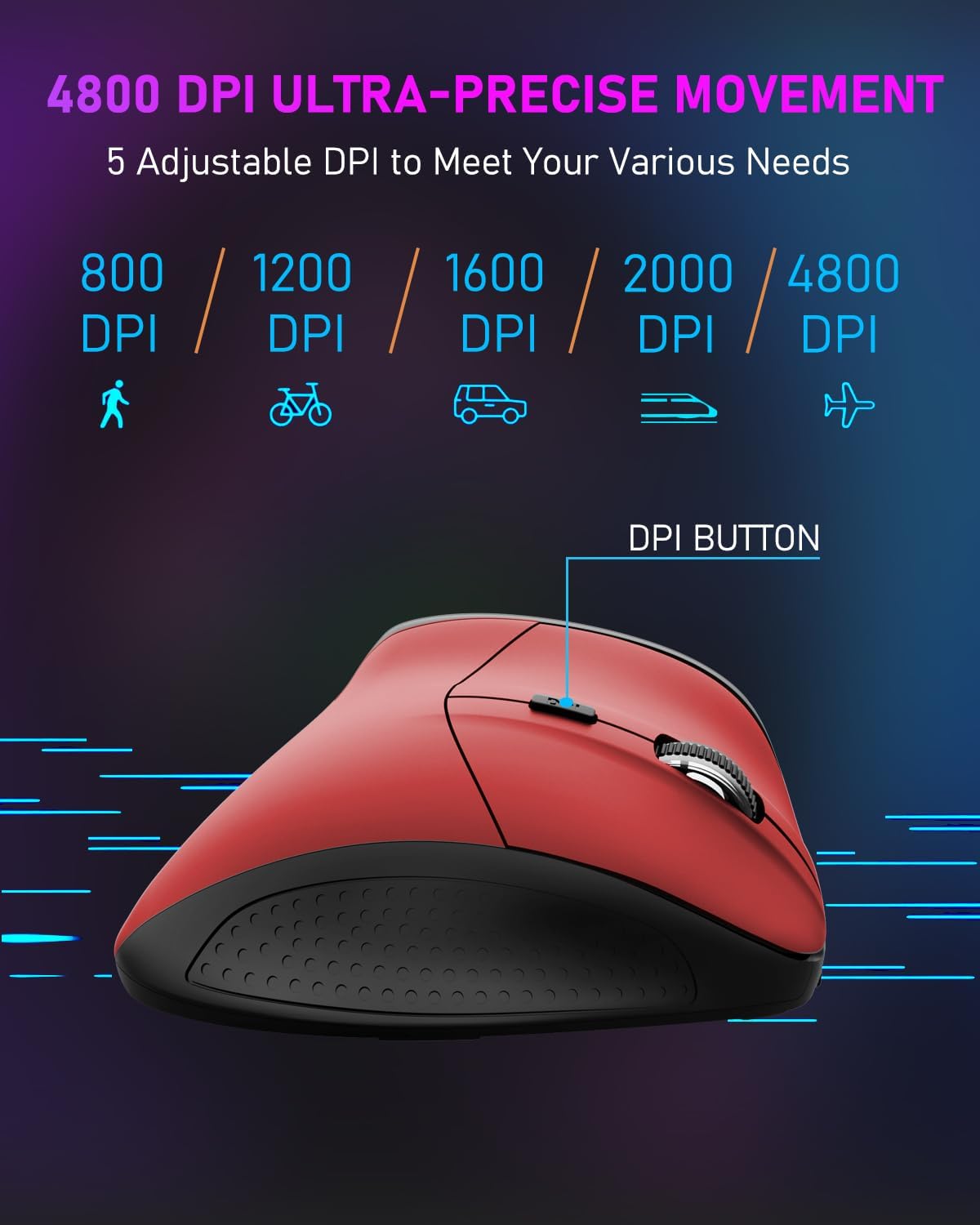
Image 5: DPI Adjustment Levels
5.2 Button Functions
In addition to standard left and right clicks, the mouse includes:
- Scroll Wheel (3): For smooth vertical scrolling. Pressing it acts as a middle-click button.
- Forward Button (6): Used for navigating forward in web browsers or file explorers.
- Backward Button (7): Used for navigating backward in web browsers or file explorers.
5.3 Ergonomic Design Benefits
The vertical design of the E-YOOSO X-45 mouse promotes a natural 'handshake' wrist and arm posture, which can help reduce wrist strain and discomfort during prolonged use compared to traditional horizontal mice.
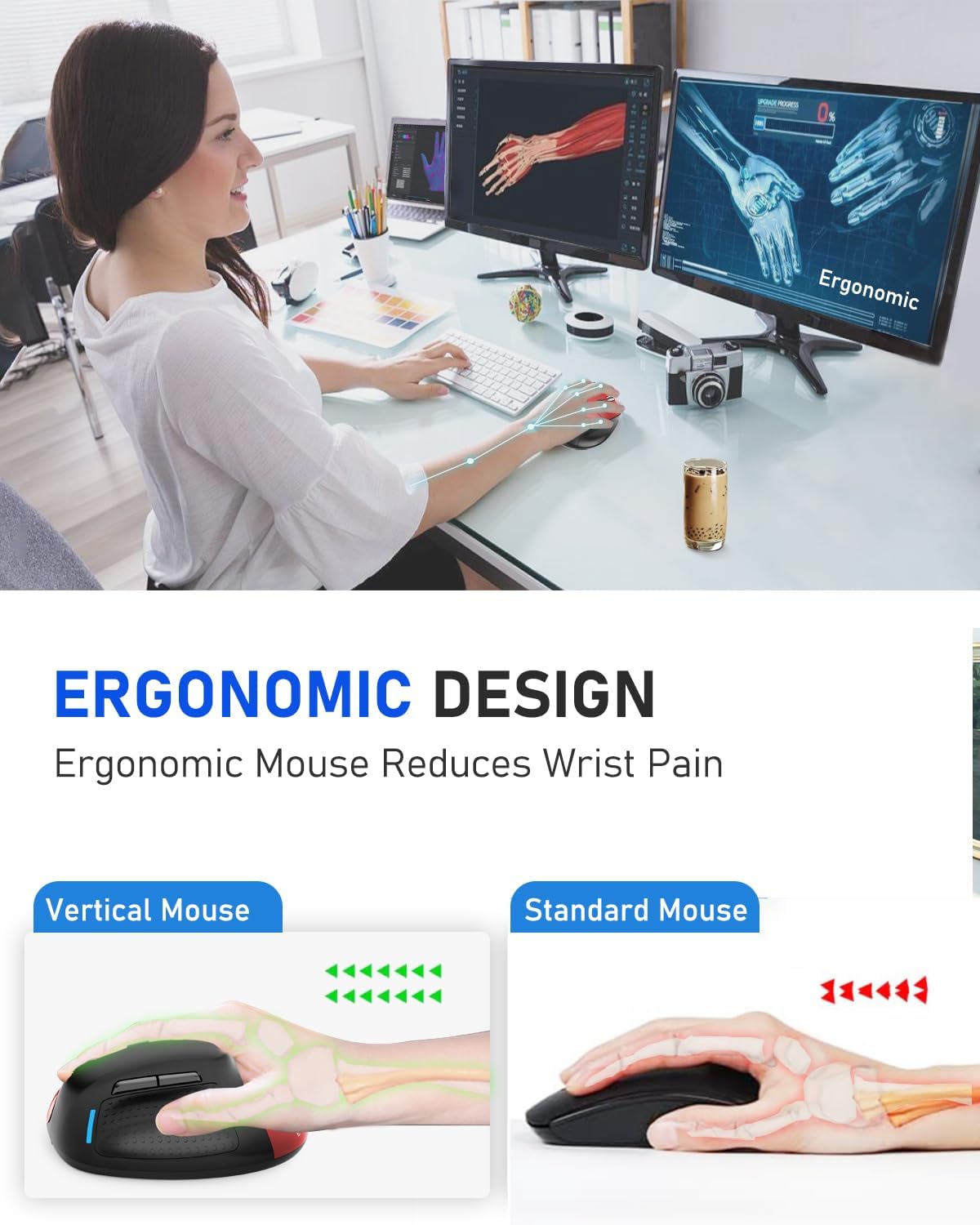
Image 6: Ergonomic Design Reduces Wrist Pain
6. Maintenance
To ensure optimal performance and longevity of your E-YOOSO X-45 mouse:
- Cleaning: Use a soft, dry cloth to clean the mouse. Avoid using harsh chemicals or abrasive materials.
- Storage: When not in use for extended periods, turn off the mouse to conserve battery life. Store in a cool, dry place.
- Battery Care: Avoid fully discharging the battery frequently. Charge the mouse when the battery indicator is low.
7. Troubleshooting
If you encounter issues with your E-YOOSO X-45 mouse, refer to the following common solutions:
| Problem | Possible Cause | Solution |
|---|---|---|
| Mouse not responding (2.4G) | Low battery; USB receiver not properly connected; Incorrect mode selected. | Charge the mouse; Re-insert the USB receiver; Ensure the mouse is in 2.4G mode. |
| Mouse not responding (Bluetooth) | Low battery; Not paired; Incorrect mode selected; Device Bluetooth off. | Charge the mouse; Re-pair the mouse; Ensure the mouse is in BT mode; Enable Bluetooth on your device. |
| Cursor erratic or unresponsive | Dirty optical sensor; Unsuitable surface; Low battery. | Clean the optical sensor; Use on a mouse pad or smooth, opaque surface; Charge the mouse. |
| Buttons not functioning | Software conflict; Low battery. | Restart your computer; Charge the mouse. |
8. Specifications
Key technical specifications for the E-YOOSO X-45 Ergonomic Vertical Mouse:
- Model: X-45
- Connectivity: 2.4G Wireless, Bluetooth (BT 5.1), Wired (USB)
- DPI Levels: 800 / 1200 / 1600 / 2000 / 4800 (Adjustable)
- Buttons: 6 (Left, Right, Scroll Wheel, DPI Switch, Forward, Backward)
- Movement Detection: Optical
- Special Feature: Soundless clicks
- Product Dimensions: 4.63 x 3.22 x 0.1 inches (Note: The provided dimension 0.1 inches for height seems incorrect for a vertical mouse, typically it would be larger. Please refer to actual product for accurate height.)
- Item Weight: 6.4 ounces
- Manufacturer: E-YOOSO
- Compatibility: Windows, Mac OS, Linux, Android, Chromebook, Laptops, Desktops
9. Warranty and Support
E-YOOSO products are designed for reliability and performance. For warranty information, technical support, or customer service inquiries, please refer to the contact details provided on the product packaging or the official E-YOOSO website. Keep your purchase receipt as proof of purchase for warranty claims.


