1. Introduction
This manual provides comprehensive instructions for the setup, operation, maintenance, and troubleshooting of your Wyze Cam Outdoor v2 Starter Bundle. This wireless home security camera system is designed for both indoor and outdoor use, offering 1080p HD video, color night vision, and two-way audio.
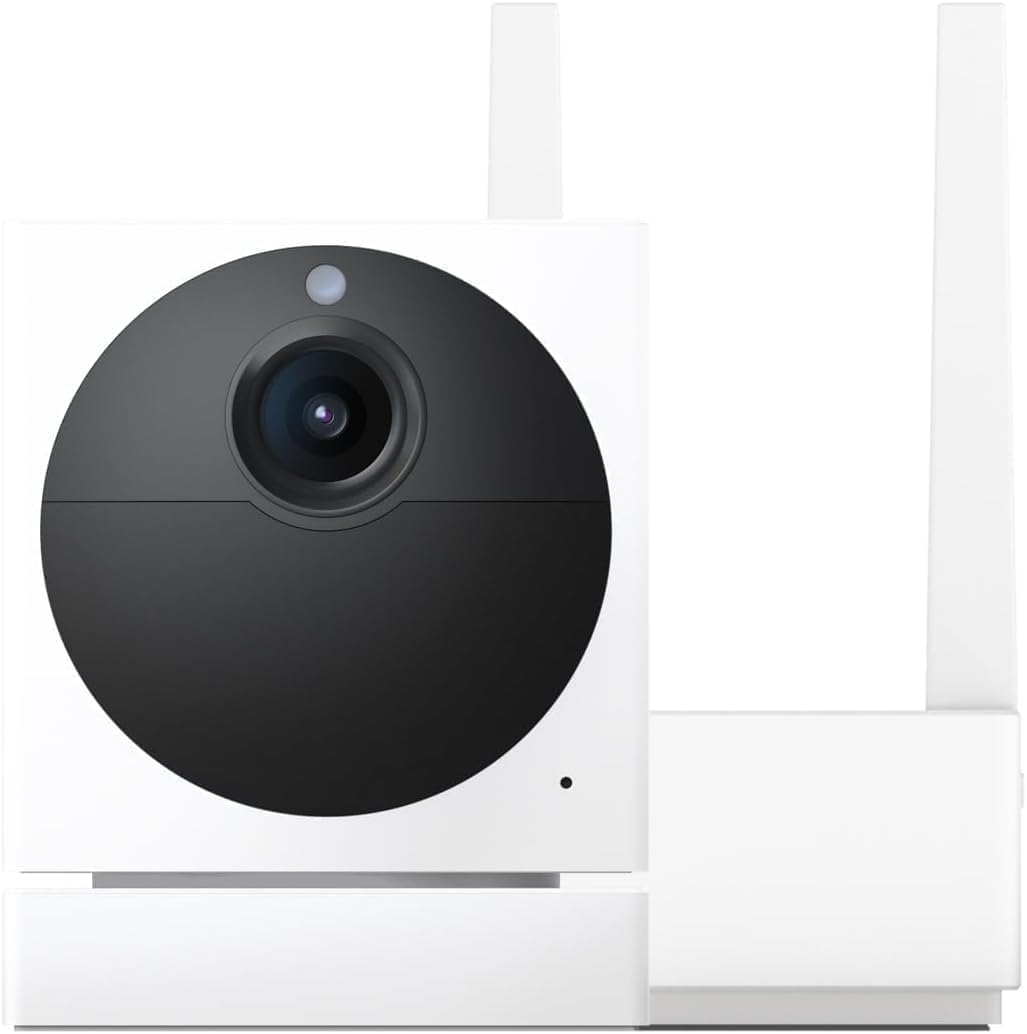
Image: The Wyze Cam Outdoor v2 camera unit and its accompanying base station.
2. What's in the Box
The Wyze Cam Outdoor v2 Starter Bundle includes the following components:
- 1 x Wyze Cam Outdoor v2 Camera
- 1 x Wyze Base Station
- 1 x MicroUSB Cable
- 1 x Screw Assembly (for mounting)
- 1 x Base Station Power Adapter
- 1 x Base Station Ethernet Cable
3. Setup Guide
Follow these steps to set up your Wyze Cam Outdoor v2 system. Ensure your camera is powered on before beginning the setup process to avoid interruptions. The system operates on 2.4GHz Wi-Fi networks.
3.1. Base Station Setup
- Download the Wyze App: Download and install the Wyze app on your smartphone from the App Store (iOS) or Google Play Store (Android).
- Power On Base Station: Plug the Base Station Power Adapter into the Base Station and an electrical outlet.
- Connect to Router: Connect the Base Station to your router using the provided Ethernet cable. Ensure your router has a free Ethernet port.
- Wait for Indicator Light: The status light on the Base Station will flash blue and then remain solid blue once it's connected to the network.
- Add Base Station in App: Open the Wyze app, navigate to the "Cameras" section, and select "Add Wyze Base Station". Follow the on-screen prompts to connect your mobile device to your network and name your Base Station.
Image: The Wyze Base Station connected to a Wi-Fi router with an Ethernet cable.

Image: Screenshot of the Wyze app interface, showing the list of cameras and the option to add a Wyze Base Station.
3.2. Camera Setup and Pairing
- Charge Camera: Ensure the camera is fully charged before initial setup. Connect the MicroUSB cable to the camera and a power source if needed.
- Power On Camera: Flip the power switch on the back of the camera to the "On" position. The status light will flash yellow.
- Add Camera in App: In the Wyze app, select "Add Wyze Cam Outdoor".
- Sync Camera: Press the SYNC button on the bottom of the camera. You will hear "Pairing is in progress. Please wait." Keep the camera within 6 feet of the Base Station during setup.
- Name Camera: Follow the app prompts to name your camera and complete the pairing process.
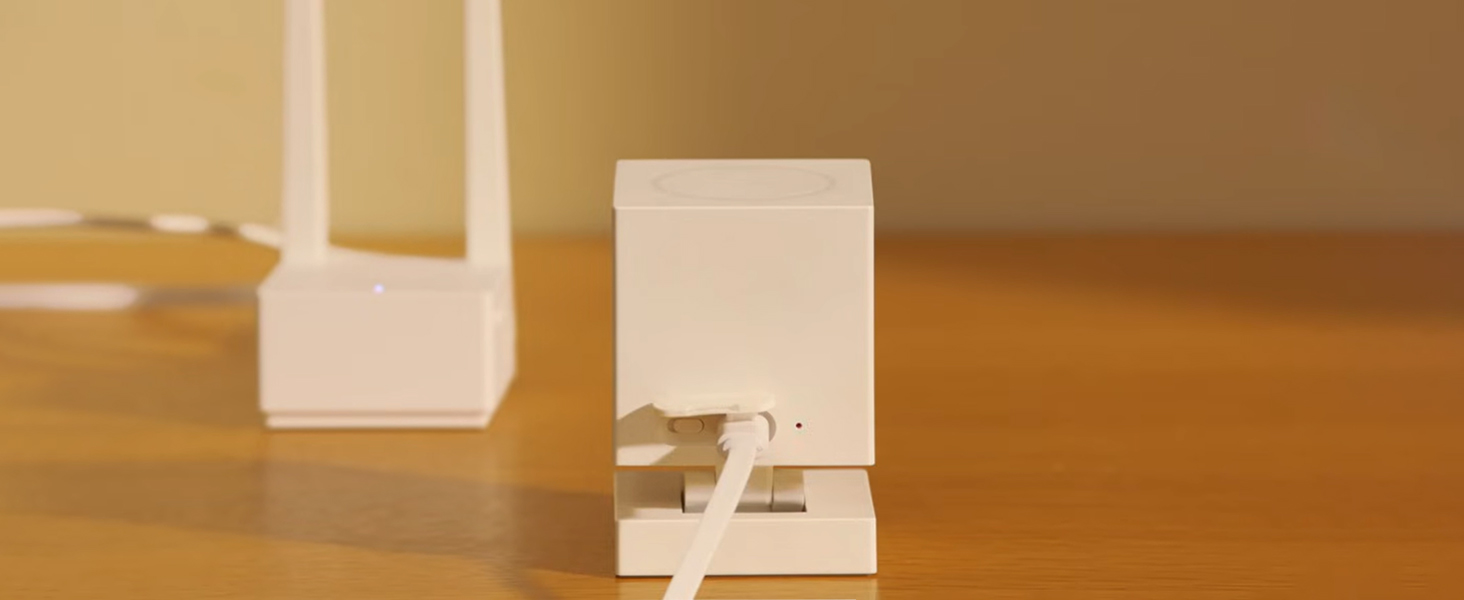
Image: The Wyze Cam Outdoor v2 camera connected to a MicroUSB cable for charging.
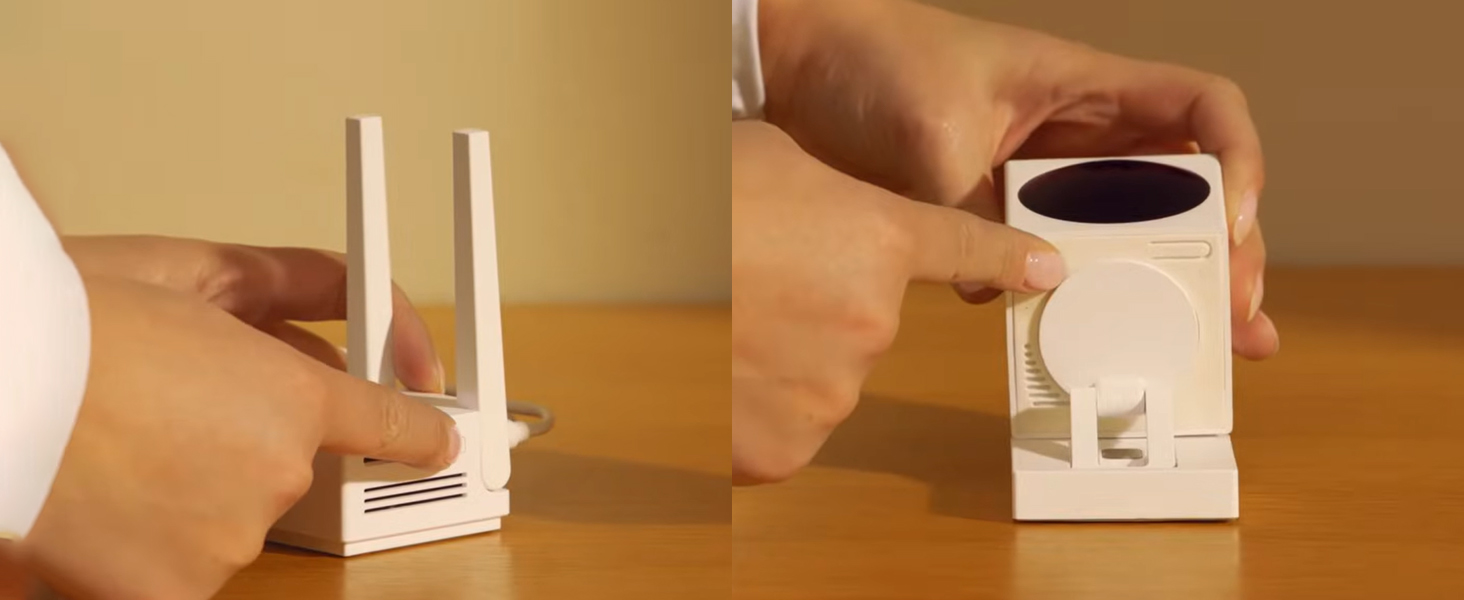
Image: A hand pressing the SYNC button located on the underside of the Wyze Cam Outdoor v2 camera.
3.3. Mounting the Camera
The Wyze Cam Outdoor v2 is IP65 rated for weather resistance, making it suitable for both indoor and outdoor installation. Use the included screw assembly for wall mounting.
- Choose a location that provides the desired viewing angle (130 degrees).
- Ensure the camera is within range of the Base Station's Wi-Fi signal.
- For outdoor installation, consider mounting under an eave or in a sheltered area for optimal protection and battery life.
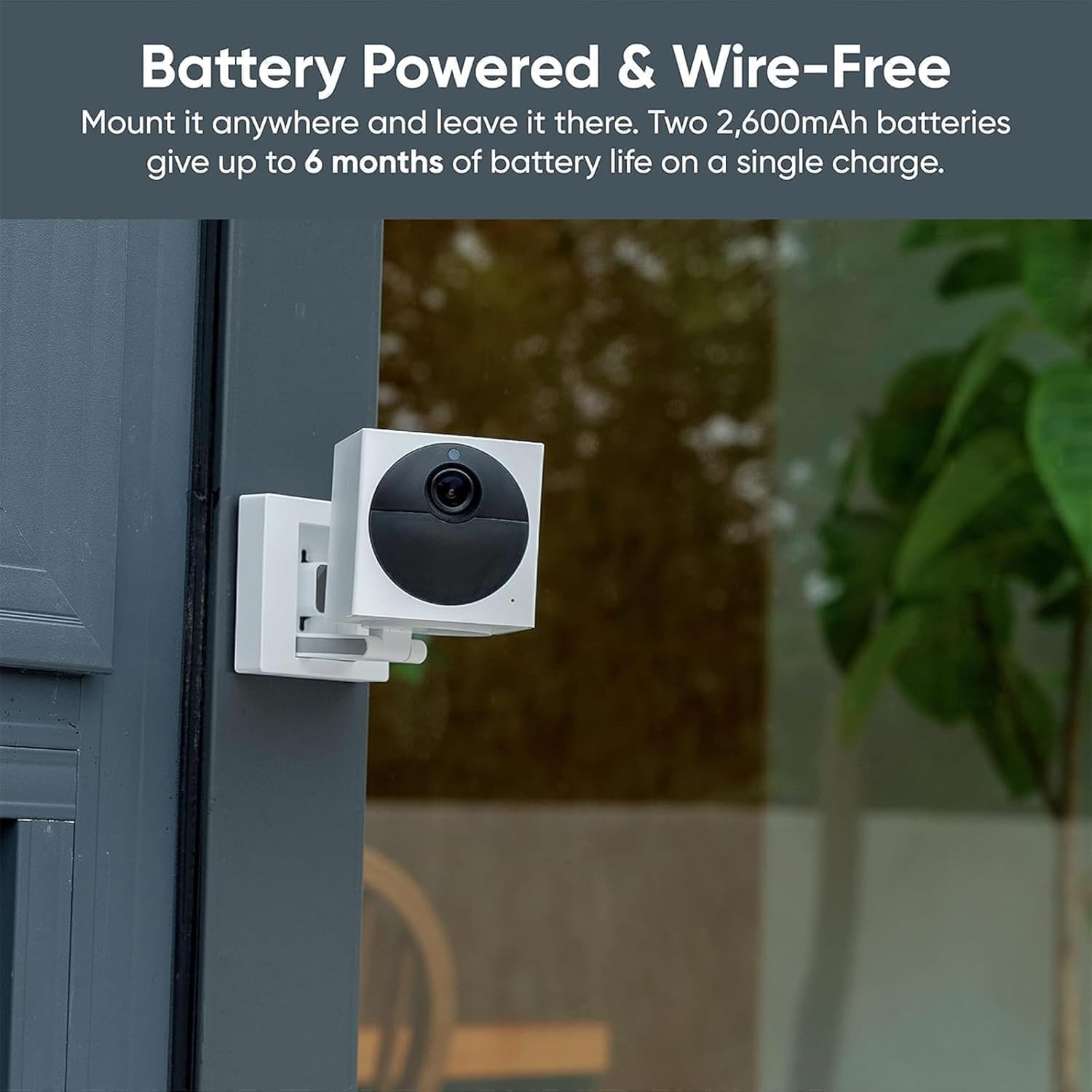
Image: The Wyze Cam Outdoor v2 securely mounted on an exterior wall, demonstrating its wire-free installation.
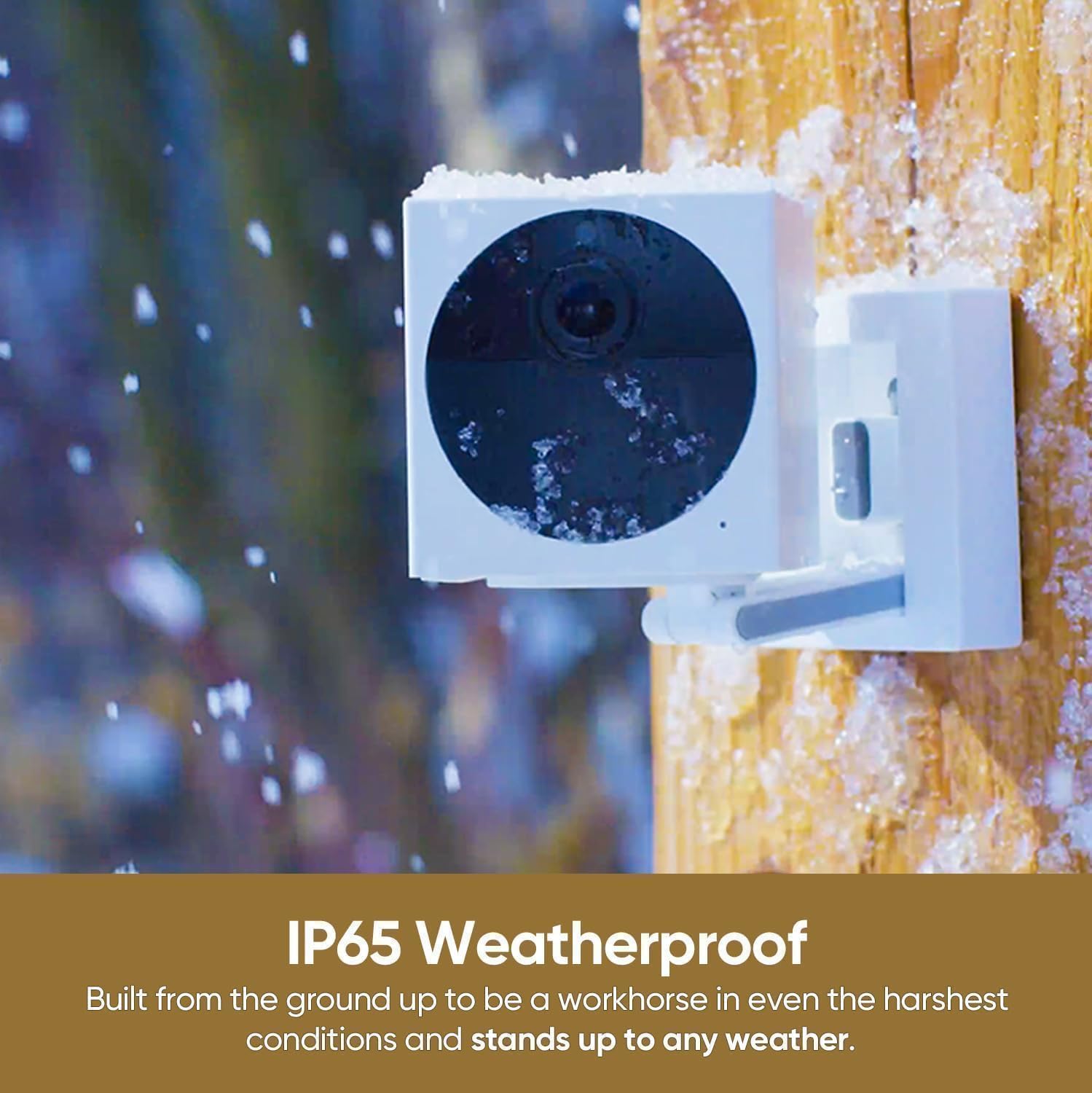
Image: The Wyze Cam Outdoor v2 mounted on a wooden post, covered lightly in snow, illustrating its IP65 weatherproof design.
4. Operation
The Wyze Cam Outdoor v2 offers a range of features for effective home security and monitoring, all controllable via the Wyze app.
4.1. Live View and Recording
- Access live 1080p HD video streams from your camera through the Wyze app.
- Record video manually or set up automatic recording based on motion detection.
- The camera supports local storage via a microSD card (up to 256GB, sold separately) for continuous or event-based recording.
- Cloud storage for 14-day event thumbnails is available, with full-length videos accessible through a Cam Plus subscription.
4.2. Motion Detection and Alerts
- The Passive Infrared (PIR) sensor detects body heat and movement, reducing false alerts from environmental factors.
- Customize detection zones within the app to focus on specific areas of interest.
- Receive instant notifications on your smartphone when motion is detected.
- An optional motion-activated siren can be enabled to deter intruders.
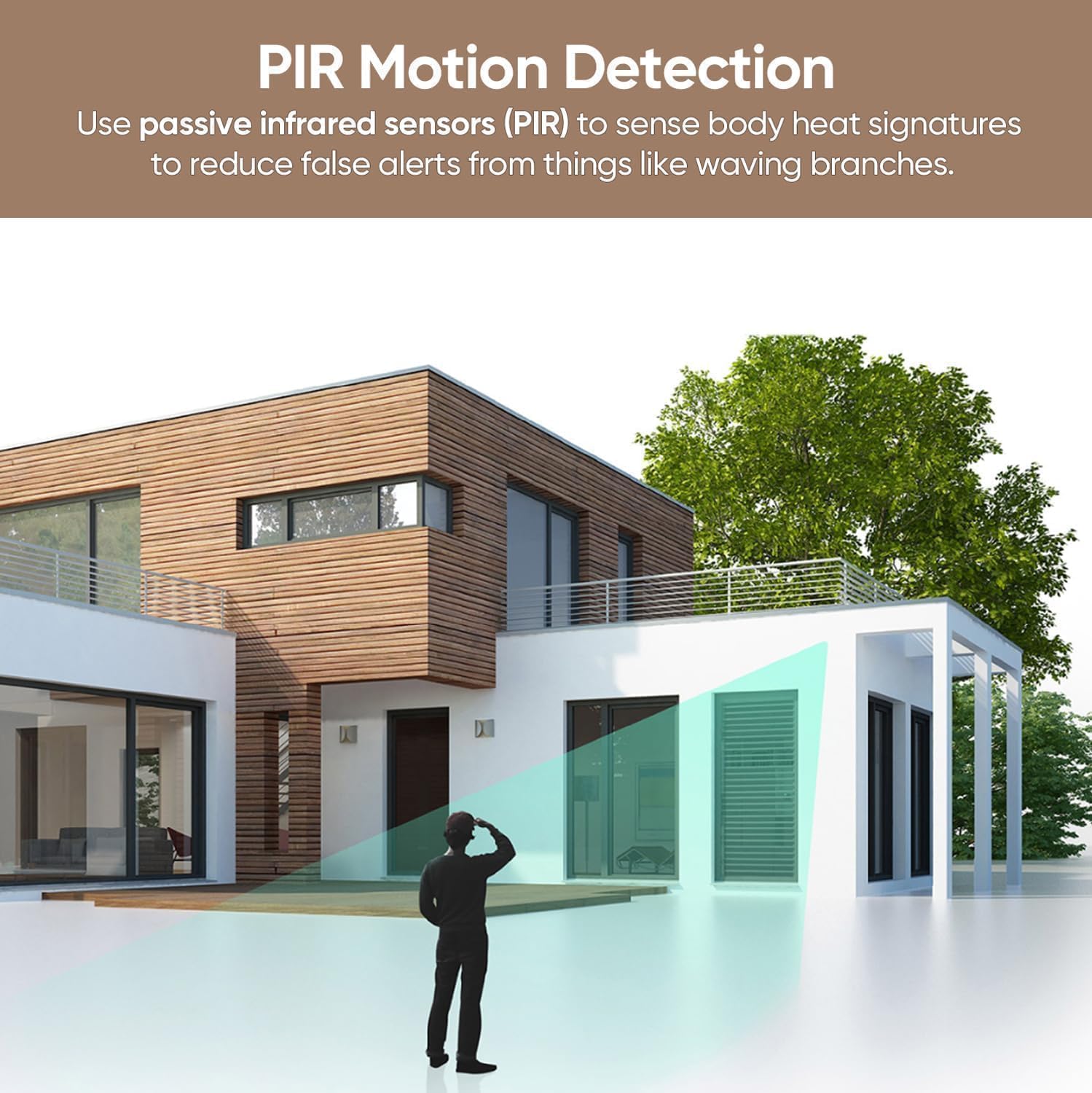
Image: A visual representation of how PIR motion detection works, highlighting the areas where the sensor detects body heat and movement.
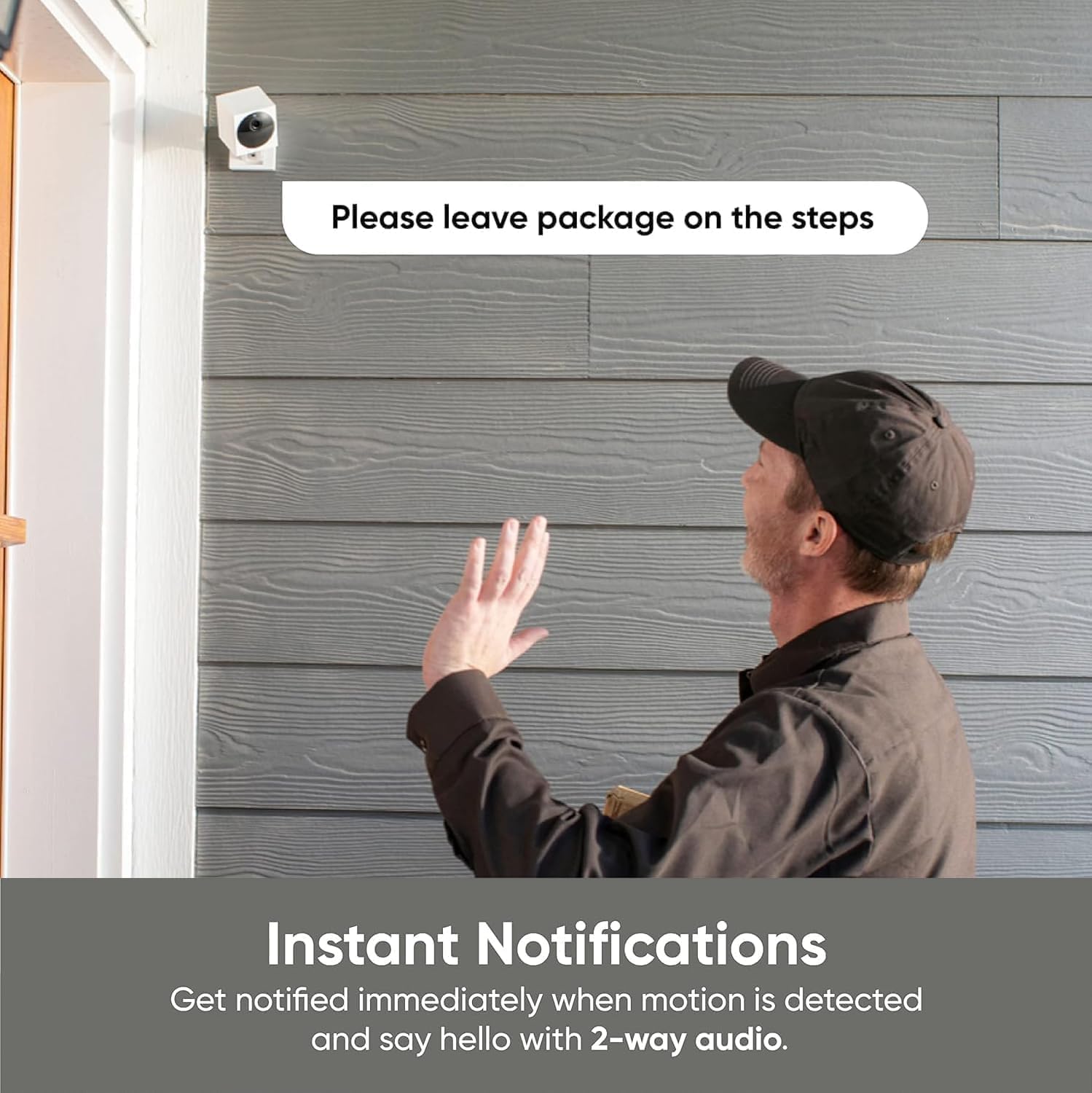
Image: A person interacting with the camera, demonstrating the instant notification and two-way audio features.
4.3. Color Night Vision
- Equipped with a Starlight Sensor, the camera records nighttime video in full, vivid color.
- This technology allows the camera to see in environments up to 25 times darker than traditional video cameras.
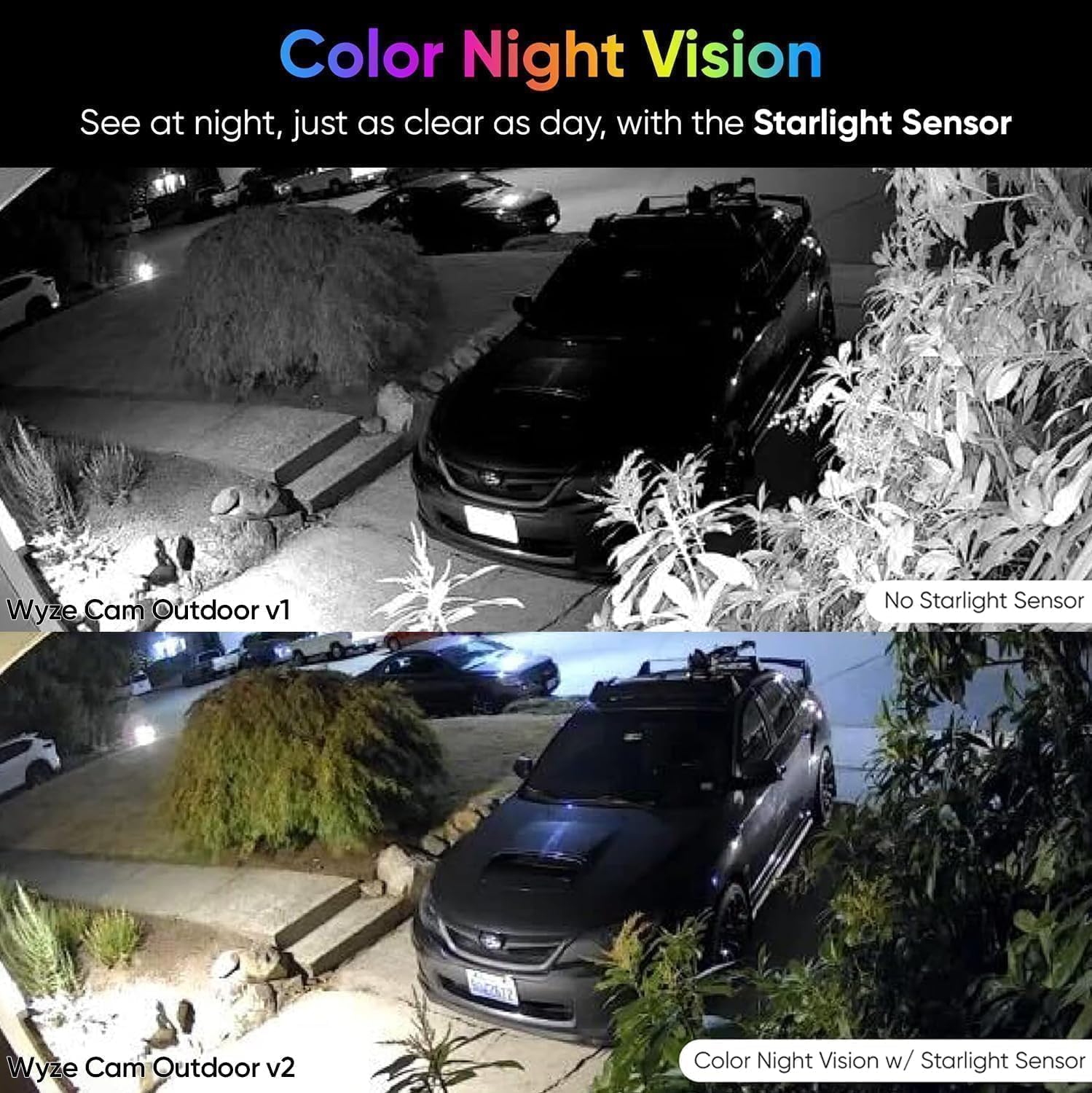
Image: A side-by-side comparison demonstrating the superior color night vision of the Wyze Cam Outdoor v2 compared to a traditional night vision camera.
4.4. Two-Way Audio
- Utilize the built-in microphone and speaker for simultaneous two-way communication.
- This feature allows you to speak to visitors or deter unwanted individuals directly through the camera.
4.5. Smart Home Integration
- The Wyze Cam Outdoor v2 is compatible with Amazon Alexa, Google Assistant, and IFTTT.
- Integrate your camera into your smart home ecosystem for voice control and automated routines.

Image: A display showing the Wyze Cam Outdoor v2 feed on a smart home device, highlighting compatibility with Amazon Alexa, Google Assistant, and IFTTT.
5. Maintenance
5.1. Battery Management
- The camera is powered by two integrated 2,600 mAh rechargeable batteries.
- Battery life typically ranges from 3 to 6 months, depending on usage (10-20 event videos per day), settings, and environmental temperature.
- Recharge the camera using the provided MicroUSB cable.
5.2. Cleaning
- Periodically clean the camera lens and body with a soft, dry cloth to ensure clear video quality.
- Avoid using harsh chemicals or abrasive materials.
5.3. Firmware Updates
- Regularly check the Wyze app for available firmware updates.
- Keeping your device's firmware up-to-date ensures optimal performance, security, and access to new features.
6. Troubleshooting
| Problem | Possible Cause / Solution |
|---|---|
| Camera not connecting to Base Station |
|
| Poor video quality or disconnections |
|
| Battery drains quickly |
|
| No motion alerts |
|
7. Specifications
| Feature | Detail |
|---|---|
| Model Number | WVODV2B1SZNEW |
| Indoor/Outdoor Usage | Indoor, Outdoor |
| Video Resolution | 1080p HD |
| Night Vision | Color Night Vision (Starlight Sensor), 25 Feet Range |
| Power Source | Battery Powered (2 x 2,600 mAh Lithium Polymer, included) |
| Battery Life | 3-6 months (normal usage) |
| Connectivity | Wi-Fi (2.4GHz), Bluetooth |
| Weather Resistance | IP65 Rated (Water Resistant) |
| Viewing Angle | 130 Degrees |
| Audio | 2-Way Audio |
| Motion Detection | PIR Motion Sensor (Audio and Motion alerts) |
| Storage Options | Local (microSD up to 256GB, sold separately), Cloud (14-day event thumbnails, Cam Plus for full videos) |
| Compatible Smart Home Systems | Amazon Alexa, Google Assistant, IFTTT |
| Mounting Type | Wall Mount (Screw In) |
| Dimensions (L x W x H) | 6.4 x 3.3 x 3 inches |
| Weight | 1.26 pounds |
| Included Components | 1 Camera, 1 Base Station, MicroUSB Cable, Screw Assembly, Base Station Power Adapter, Base Station Ethernet Cable |
8. Warranty and Support
For warranty information, technical support, and additional resources, please visit the official Wyze Lifestyle website or contact their customer service. Details regarding product registration and warranty claims can typically be found on the manufacturer's support pages.
Manufacturer: Wyze Lifestyle
Official Website: www.wyze.com
Amazon Store: Wyze Lifestyle Amazon Store


