1. Introduction
This manual provides essential information for the setup, operation, and maintenance of your Skytech Gaming Classic RGB Gaming Mouse (M-1200N) and Keyboard (K-1000) Combo. Please read these instructions carefully before use to ensure optimal performance and longevity of your product.
Package Contents:
- Skytech Gaming Keyboard (K-1000)
- Skytech Gaming Mouse (M-1200N)
- User Manual
2. Setup
Your Skytech Gaming Combo is designed for plug-and-play functionality. Follow these steps to connect your devices:
- Connect the USB cable of the Skytech Gaming Keyboard (K-1000) to an available USB port on your computer.
- Connect the USB cable of the Skytech Gaming Mouse (M-1200N) to another available USB port on your computer.
- Your operating system should automatically detect and install the necessary drivers. If prompted, follow the on-screen instructions.
- For advanced customization of RGB lighting and key functions, download the official Skytech Gaming software from the manufacturer's website.
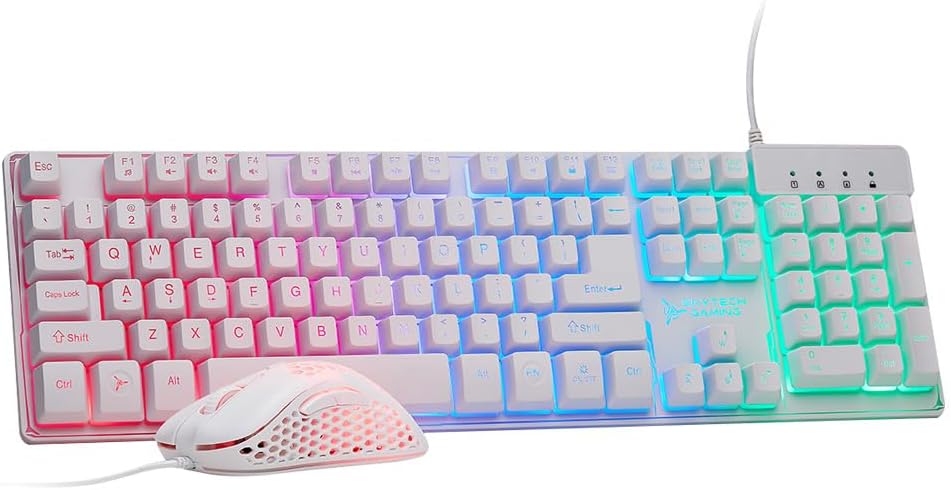
This image displays the white Skytech Gaming keyboard and mouse combo, both featuring vibrant RGB lighting, connected to a computer setup. The keyboard has a full layout with a numeric pad, and the mouse has a honeycomb shell design.
3. Operating the Gaming Mouse (Model M-1200N)
3.1 DPI Adjustment
The M-1200N mouse features an advanced SPCP199 navigation sensor with adjustable DPI settings. To change the DPI:
- Press the DPI button located on the top of the mouse.
- Each press cycles through the available DPI levels: 800, 1600, 2400, 3200, 4800, and 6200.
- The mouse's RGB lighting will change color to indicate the current DPI setting.
3.2 RGB Lighting
The mouse features vibrant RGB lighting with four dynamic colors (Red, Blue, Purple-Blue, Purple). The color changes automatically with DPI adjustments, providing visual feedback.

This image highlights the white Skytech Gaming mouse with its honeycomb design, illuminated by purple RGB lighting. The mouse is shown on a dark, gradient background with subtle light effects, emphasizing its customizable lighting feature.
4. Operating the Gaming Keyboard (Model K-1000)
4.1 RGB Backlighting
The K-1000 keyboard offers customizable RGB backlighting with three lighting modes and adjustable brightness levels. Use the following key combinations to control the lighting:
- FN + ON/OFF Key: Switch between 3 different lighting modes.
- FN + Page Up / Page Down: Adjust the backlight brightness.
- FN + '+' / '-': Adjust the backlight speed.
4.2 Anti-Ghosting and Multimedia Keys
The keyboard features 19 anti-ghosting keys to ensure accurate input during intense gaming sessions. Dedicated function keys provide quick access to multimedia controls and essential shortcuts, enhancing efficiency for both gaming and everyday tasks.

This image illustrates the key combinations for controlling the RGB lighting on the Skytech Gaming keyboard. It shows the 'ON/OFF' key for switching modes, 'FN + Page Up/Down' for brightness, and 'FN + +/-' for speed adjustment.

This image focuses on the Skytech Gaming K-1000 keyboard, emphasizing its robust design and wired connection for ultra-responsive performance, crucial for competitive gaming. The keys are backlit with various colors.
4.3 Keyboard Profiles and Customization
The keyboard supports programmable profiles for different uses, such as gaming or video editing. These profiles can be configured using the official Skytech Gaming software. The software allows you to assign specific lighting patterns or key functions to different profiles, which can then be activated directly from the keyboard.
This video demonstrates how to replace keycaps and switches on the Skytech Gaming keyboard. It also showcases various RGB lighting modes and how to switch between different programmed profiles for customized key illumination, useful for specific applications like video editing.
5. Maintenance
5.1 Cleaning
- To clean the keyboard and mouse, disconnect them from your computer.
- Use a soft, dry cloth to wipe down the surfaces.
- For deeper cleaning, a can of compressed air can be used to remove dust and debris from between the keys.
- Avoid using harsh chemicals or abrasive materials, as these may damage the finish or electronic components.
5.2 General Care
- Avoid exposing the devices to extreme temperatures or humidity.
- Do not drop or subject the devices to strong impacts.
- Ensure cables are not bent sharply or placed under heavy objects to prevent damage.
6. Troubleshooting
6.1 Device Not Responding
- Ensure both the mouse and keyboard USB cables are securely connected to your computer.
- Try connecting the devices to different USB ports on your computer.
- Restart your computer.
- If using a USB hub, try connecting the devices directly to the computer.
6.2 RGB Lights Not Working
- For the keyboard, ensure the lighting is not turned off (FN + ON/OFF key). Try cycling through the lighting modes.
- For the mouse, the RGB lighting is tied to the DPI setting. Ensure the mouse is powered on and try adjusting the DPI.
- Ensure the latest drivers and software are installed for your devices.
7. Specifications
Gaming Mouse (M-1200N)
| DPI Settings | 800, 1600, 2400, 3200, 4800, 6200 |
| Dimensions | 125 x 69 x 43 mm |
| Buttons | 6 micro-switches |
| Lighting | 4 RGB colors (Red, Blue, Purple-Blue, Purple) |
| Cable Length | 1800±50 mm (high gloss PVC + copper) |
Gaming Keyboard (K-1000)
| Interface Type | USB |
| Size | 445 x 137 x 35 mm |
| Key Lifespan | 3,000,000 times |
| Cable Length | 1800 mm |
| Features | 19 anti-ghosting keys, customizable RGB backlighting, multimedia function keys |
| Compatibility | Windows XP, Vista, 7, 8, 10, 11 |
8. Warranty and Support
Skytech Gaming products come with a limited warranty. For detailed warranty information, product support, or to contact customer service, please visit the official Skytech Gaming website or refer to the warranty card included with your purchase.


