
Introduction
Welcome to the user manual for your new realme C65 5G smartphone. This guide provides essential information to help you set up, operate, maintain, and troubleshoot your device. Please read this manual carefully to ensure optimal performance and longevity of your realme C65 5G.
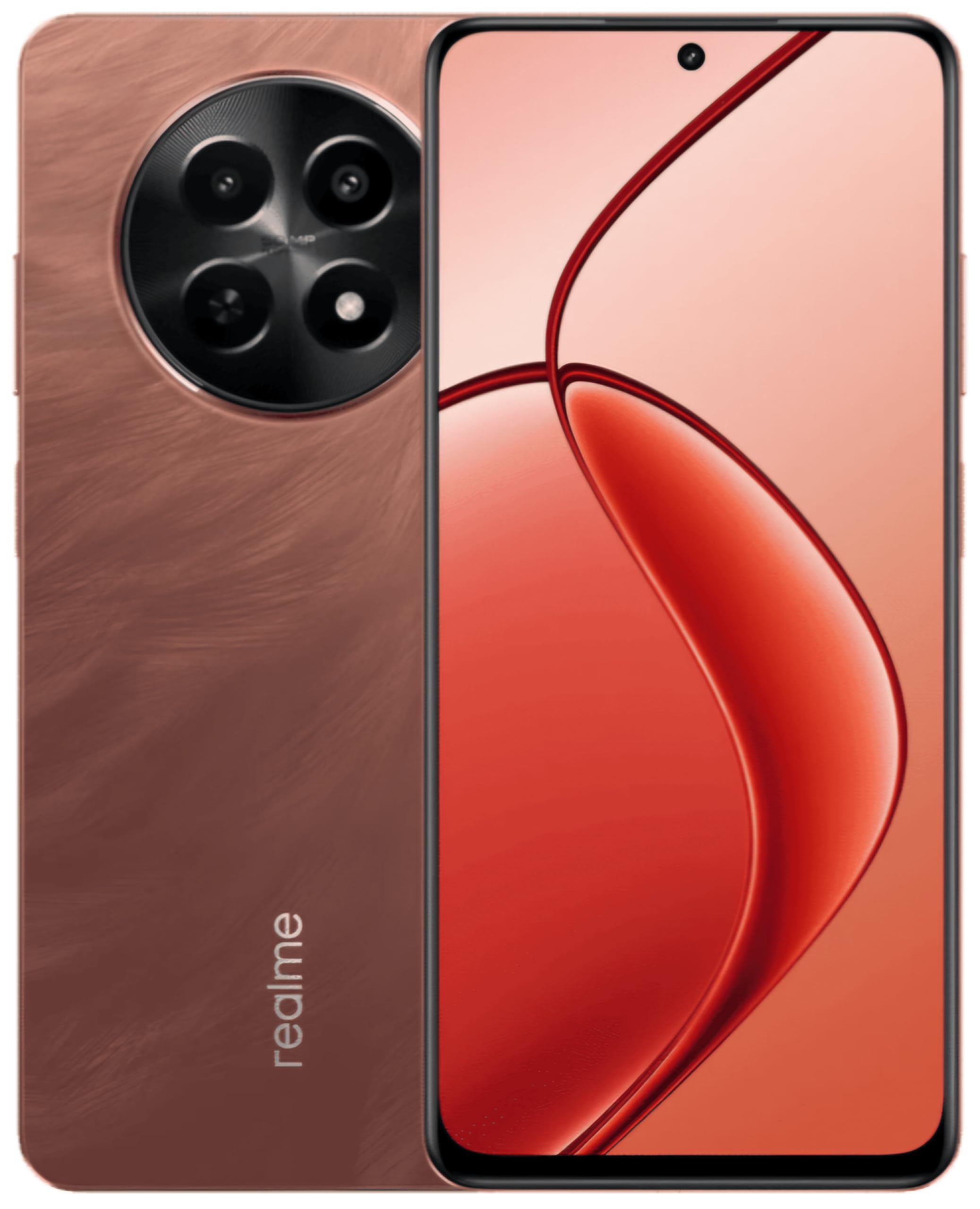
This image displays the realme C65 5G smartphone, highlighting its vibrant Speedy Red finish and the design of its screen and camera setup.
1. Setup Guide
1.1. Inserting SIM and Memory Cards
Your realme C65 5G supports a single Nano SIM card and a microSD card for expandable storage up to 2 TB.
- Locate the SIM card tray on the side of your device.
- Insert the SIM ejector tool into the small hole next to the tray and push gently until the tray pops out.
- Place your Nano SIM card into the designated slot with the gold contacts facing down. If using a microSD card, place it in its respective slot.
- Carefully push the tray back into the phone until it is flush with the device body.
1.2. Powering On Your Device
Press and hold the Power button (usually on the right side) until the realme logo appears on the screen. The device will then boot up.
1.3. Initial Setup
Follow the on-screen prompts to complete the initial setup process. This includes selecting your language, connecting to a Wi-Fi network, setting up your Google account, and configuring security features like fingerprint recognition.
2. Operating Instructions
2.1. Basic Navigation
Your realme C65 5G uses a touch-sensitive display for navigation. Swipe up from the bottom to go to the home screen, swipe left or right to switch between home screens, and swipe down from the top for notifications and quick settings.
2.2. Camera Usage
The realme C65 5G features a 50MP rear camera and an 8MP front camera.
- Open the Camera app from your home screen or app drawer.
- Select your desired mode (Photo, Video, Portrait, etc.).
- Tap the shutter button to capture a photo or start/stop video recording.
- Use the on-screen controls to zoom, switch between front and rear cameras, and apply filters.
2.3. Connectivity
- Wi-Fi: Go to Settings > Network & internet > Wi-Fi to connect to available networks.
- Bluetooth: Go to Settings > Connected devices > Bluetooth to pair with other Bluetooth devices.
- Mobile Data (5G/4G): Ensure your SIM card is active and mobile data is enabled in Quick Settings or Network & internet settings.
- USB: Connect your phone to a computer using a USB cable for file transfer or charging.
2.4. Fingerprint Recognition
The device features fingerprint recognition for secure unlocking. Set up your fingerprint by going to Settings > Security > Fingerprint. Follow the instructions to register your fingerprint(s).
3. Maintenance
3.1. Cleaning Your Device
Use a soft, lint-free cloth to clean the screen and body of your phone. Avoid using harsh chemicals or abrasive materials. For ports, use a soft brush to gently remove dust.
3.2. Software Updates
Regularly check for and install software updates to ensure your device has the latest features, security patches, and performance improvements. Go to Settings > About phone > Software update.
3.3. Battery Care
Your realme C65 5G is equipped with a 5000 mAh battery. To maximize battery life:
- Avoid extreme temperatures.
- Do not let the battery drain completely too often.
- Use the original charger and cable provided with your device.
- Manage background app usage and screen brightness.
4. Troubleshooting
4.1. Device Not Powering On
Ensure the battery is charged. Connect the phone to its charger and wait a few minutes before attempting to power it on again. If it still doesn't turn on, try holding the Power button for an extended period (10-15 seconds).
4.2. Apps Crashing or Freezing
Try force-closing the app and reopening it. If the issue persists, clear the app's cache and data (Settings > Apps > [App Name] > Storage > Clear cache/Clear data). As a last resort, uninstall and reinstall the app.
4.3. Network Connectivity Issues
Check if Airplane Mode is off. Restart your device. Verify your SIM card is properly inserted. If using Wi-Fi, restart your router. For mobile data, ensure your plan is active and you have signal coverage.
4.4. Fingerprint Sensor Not Working
Ensure your finger is clean and dry. Re-register your fingerprint in the settings. If the issue continues, try restarting your device.
5. Specifications
| Feature | Specification |
|---|---|
| Model | realme C65 5G |
| RAM | 8 GB |
| Internal Storage | 128 GB (Expandable up to 2 TB via microSD) |
| Processor | Mediatek Dimensity 6300 |
| Display | 6.67 inch HD+ LCD (1604 x 720 Pixels) |
| Rear Camera | 50 MP |
| Front Camera | 8 MP |
| Battery Capacity | 5000 mAh |
| SIM Card Type | Single Nano SIM |
| Biometric Security | Fingerprint Recognition |
| Water Resistance | Water Resistant |
| Headphones Jack | 3.5 mm |
| Cellular Technology | 5G, 4G |
| Wireless Connectivity | Wi-Fi, Bluetooth, LTE |
6. Warranty Information
For detailed warranty information, please refer to the warranty card included in your product packaging or visit the official realme website. Warranty terms and conditions may vary by region and purchase date.
7. Customer Support
If you encounter issues not covered in this manual or require further assistance, please contact realme customer support. You can find contact details on the official realme website or through the support section of your device's settings.
For online resources, visit the realme Store on Amazon.
8. Official Product Videos
No relevant official product videos with 'Seller' as creator type and m3u8 format were found in the provided product data for embedding.