
CUBOT C29
CUBOT C29 Smartwatch User Manual
Model: C29
1. Introduction
Thank you for choosing the CUBOT C29 Smartwatch. This rugged smartwatch is designed for both daily use and outdoor adventures, offering a wide range of features including health monitoring, sports tracking, and smart notifications. This manual provides detailed instructions on how to set up, operate, and maintain your device to ensure optimal performance and longevity.

Figure 1.1: CUBOT C29 Smartwatch - Main Product View
2. Product Overview
The CUBOT C29 Smartwatch is built for durability and functionality. It features a 1.52-inch HD touch screen, a robust design, and a long-lasting battery.
2.1 Display and Design
The smartwatch is equipped with a 1.52-inch HD LCD touch screen, offering clear visuals and an intuitive user interface. Its rugged construction ensures resistance to scratches and wear, making it suitable for various environments.

Figure 2.1: 1.52" HD+ Touch Screen

Figure 2.2: Rugged Smartwatch Features (High/Low Temperature, Anti-collision, Dust-proof)
The C29 is designed to be ultra-resistant, featuring waterproof capabilities up to 50 meters, dustproof protection, anti-impact construction, and resistance to both ice and heat. This makes it a reliable companion for outdoor activities and challenging conditions.
2.2 Battery Life
With a 410 mAh battery capacity, the CUBOT C29 offers extended usage. A single charge can provide up to 7 days of normal daily use and up to 30 days of standby time, minimizing the need for frequent charging.
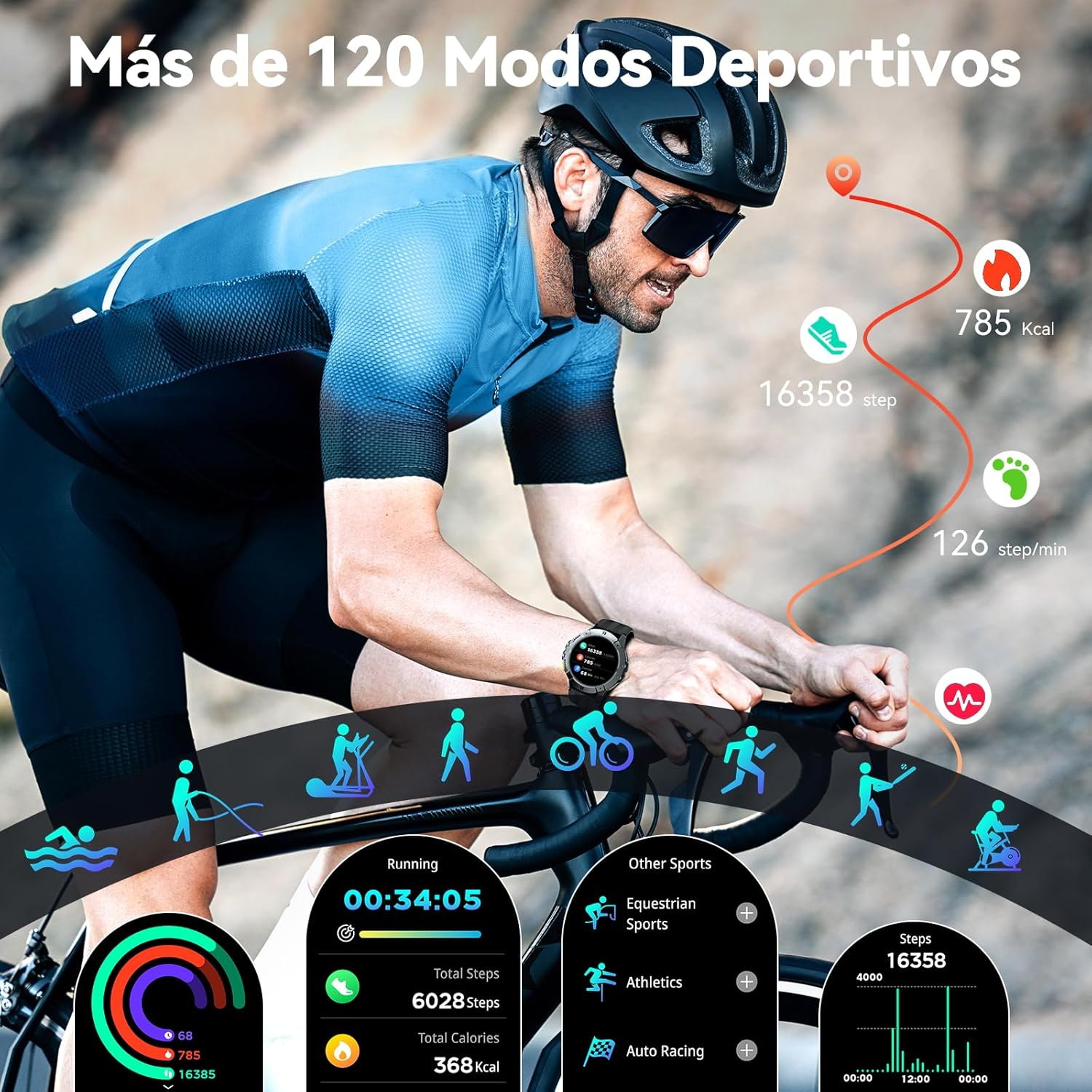
Figure 2.3: 410 mAh Battery Capacity
3. Setup
To begin using your CUBOT C29 Smartwatch, follow these steps to connect it with your mobile phone.
3.1 App Installation
- Scan the QR code provided in the manual or on the watch screen to download the official companion application, 'Da Fit'. Alternatively, you can download it directly from http://plus.crrepa.com/app-download/dafit.
- Install the 'Da Fit' application on your smartphone.
3.2 Bluetooth Connection
- Ensure Bluetooth is enabled on your smartphone.
- Open the 'Da Fit' app and navigate to the device connection section.
- Click on "Add device" and search for "C29" in the list of available devices.
- Select "C29" to pair your smartwatch with your phone. Once connected, you can utilize all the features of the application and watch.

Figure 3.1: App Download and Connection Guide
4. Operating Instructions
The CUBOT C29 Smartwatch offers a variety of smart functions to enhance your daily life.
4.1 Bluetooth Calls and Notifications
Once connected via Bluetooth, the watch supports answering and making calls directly from your wrist, ensuring you never miss an important call. It also provides real-time notifications for incoming calls, text messages, and social media alerts from platforms like Facebook, Instagram, and Twitter.

Figure 4.1: Bluetooth Calls and Message Reminders

Figure 4.2: Smart Notifications
4.2 AI Voice Assistant
The integrated AI voice assistant allows you to perform tasks and get information by simply speaking to your watch. Activate the assistant to ask questions, set alarms, control music, or make calls.

Figure 4.3: AI Voice Assistant Functionality
4.3 Custom Watch Faces
Personalize your smartwatch experience with a variety of built-in watch faces. You can also create custom watch faces or download additional designs from the app to match your style.

Figure 4.4: Built-in and Personalized Watch Faces
4.4 Other Smart Functions
The CUBOT C29 includes several other convenient features:
- Music Control: Control music playback on your phone directly from your watch.
- Weather Forecast: Get real-time weather updates.
- Find Phone: Locate your misplaced phone by triggering an alarm from your watch.
- Camera Control: Use your watch as a remote shutter for your phone's camera.
- Calculator: A basic calculator for quick computations.
- Timer & Stopwatch: Essential tools for timing activities.
- Alarm Clock: Set alarms to wake up or for reminders.
- Vibration Adjustment: Customize vibration intensity for alerts.

Figure 4.5: Overview of Additional Smart Functions
5. Health Monitoring
The CUBOT C29 Smartwatch is equipped with a VC30F-S heart rate sensor and offers comprehensive 24-hour health monitoring features.
5.1 Real-time Health Data
The watch can monitor your heart rate and blood oxygen saturation (SpO2) in real-time. It also provides a stress detection function and supports respiratory training.

Figure 5.1: 24-Hour Health Monitoring (Blood Pressure, Sleep Tracking, Heart Rate, Blood Oxygen)
5.2 Sleep Monitoring
Utilizing scientific sleep monitoring technology, the C29 records various sleep stages, including deep sleep, light sleep, and REM sleep, providing insights into your sleep patterns.

Figure 5.2: Detailed Sleep Monitoring
5.3 Women's Health Tracking
The watch also includes a function for tracking female menstrual data, offering a comprehensive health monitoring instrument.
6. Sports Modes
The CUBOT C29 Smartwatch features over 120 built-in sports modes to cater to diverse athletic needs. Each mode provides detailed sports data to help users exercise scientifically.

Figure 6.1: Over 120 Sports Modes
Examples of supported sports modes include walking, outdoor running, cycling, rugby, mountaineering, and many more. Select the sport you are practicing, and the watch will record your performance and synchronize data with the mobile application.
7. Maintenance
Proper maintenance ensures the longevity and optimal performance of your CUBOT C29 Smartwatch.
7.1 Cleaning
- Regularly clean the watch and strap with a soft, damp cloth.
- Avoid using harsh chemicals, abrasive cleaners, or solvents, as these can damage the watch's finish and components.
- Ensure the charging contacts on the back of the watch are clean and dry before charging.
7.2 Water Resistance
While the C29 is water-resistant up to 50 meters, it is recommended to dry the watch thoroughly after exposure to water, especially saltwater, to prevent corrosion.
7.3 Storage
When not in use for extended periods, store the watch in a cool, dry place. It is advisable to charge the battery to about 50% before long-term storage to preserve battery health.
8. Troubleshooting
If you encounter issues with your CUBOT C29 Smartwatch, refer to the following common troubleshooting steps.
8.1 Watch Not Turning On
- Ensure the watch is fully charged. Connect it to the charger and wait for at least 10-15 minutes before attempting to turn it on again.
- Press and hold the power button for an extended period (e.g., 10-15 seconds) to force a restart.
8.2 Unable to Pair with Phone
- Make sure Bluetooth is enabled on your phone and the watch.
- Ensure the watch is within the Bluetooth range of your phone (typically 10 meters).
- Restart both your phone and the smartwatch.
- Clear the Bluetooth cache on your phone (if applicable) and try pairing again.
- If previously paired, remove the watch from your phone's Bluetooth device list and try pairing from scratch.
8.3 Inaccurate Health Data
- Ensure the watch is worn snugly on your wrist, not too loose or too tight.
- Clean the sensor on the back of the watch.
- Avoid excessive movement during measurements.
- Note that smartwatches are not medical devices, and their readings are for reference only.
8.4 Notifications Not Appearing
- Check if the watch is properly connected to the 'Da Fit' app via Bluetooth.
- Ensure notification permissions are granted for the 'Da Fit' app in your phone's settings.
- Verify that app notifications are enabled within the 'Da Fit' app settings for the specific applications you wish to receive alerts from.
- Disable any power-saving modes on your phone that might restrict background app activity.
9. Specifications
| Feature | Specification |
|---|---|
| Brand | CUBOT |
| Model | C29 |
| Display Size | 1.52 Inches |
| Display Type | LCD |
| Battery Capacity | 410 mAh |
| Average Battery Life | 7 days (normal use) |
| Wireless Connectivity | Bluetooth |
| Operating System | Android Wear (compatible) |
| Memory Storage Capacity | 128 MB |
| Water Resistance | 50 meters |
| Special Features | Always On Display, Alarm Clock, Phone Call, Notifications, Activity Tracker |
| Compatible Devices | Smartphones, Tablets, Laptops |
| Dimensions | 15.5 x 13.9 x 2.7 cm; 120 g |
10. Warranty and Support
CUBOT products are designed and manufactured to the highest quality standards. For specific warranty information, please refer to the warranty card included with your product or visit the official CUBOT website. If you require technical assistance or have questions not covered in this manual, please contact CUBOT customer support through their official channels.
For more information and support, visit the official CUBOT store: CUBOT Official Store
Related documentsC29


Ask a question about this manual
Ask about setup, troubleshooting, compatibility, parts, safety, or missing instructions. Manuals+ will review the question and use this page’s manual context to help answer it.