
1. Product Overview and Package Contents
This manual provides instructions for the MOES Smart Fingerbot and the accompanying Tuya Bluetooth Hub. Please read this manual carefully before use to ensure proper installation and operation.
1.1 Package Contents
- 3 x MOES Smart Fingerbot Plus
- 1 x Tuya Bluetooth Hub
- 1 x Accessory Kit (includes various finger attachments and adhesive stickers)
- 1 x USB Cable (for Hub power)
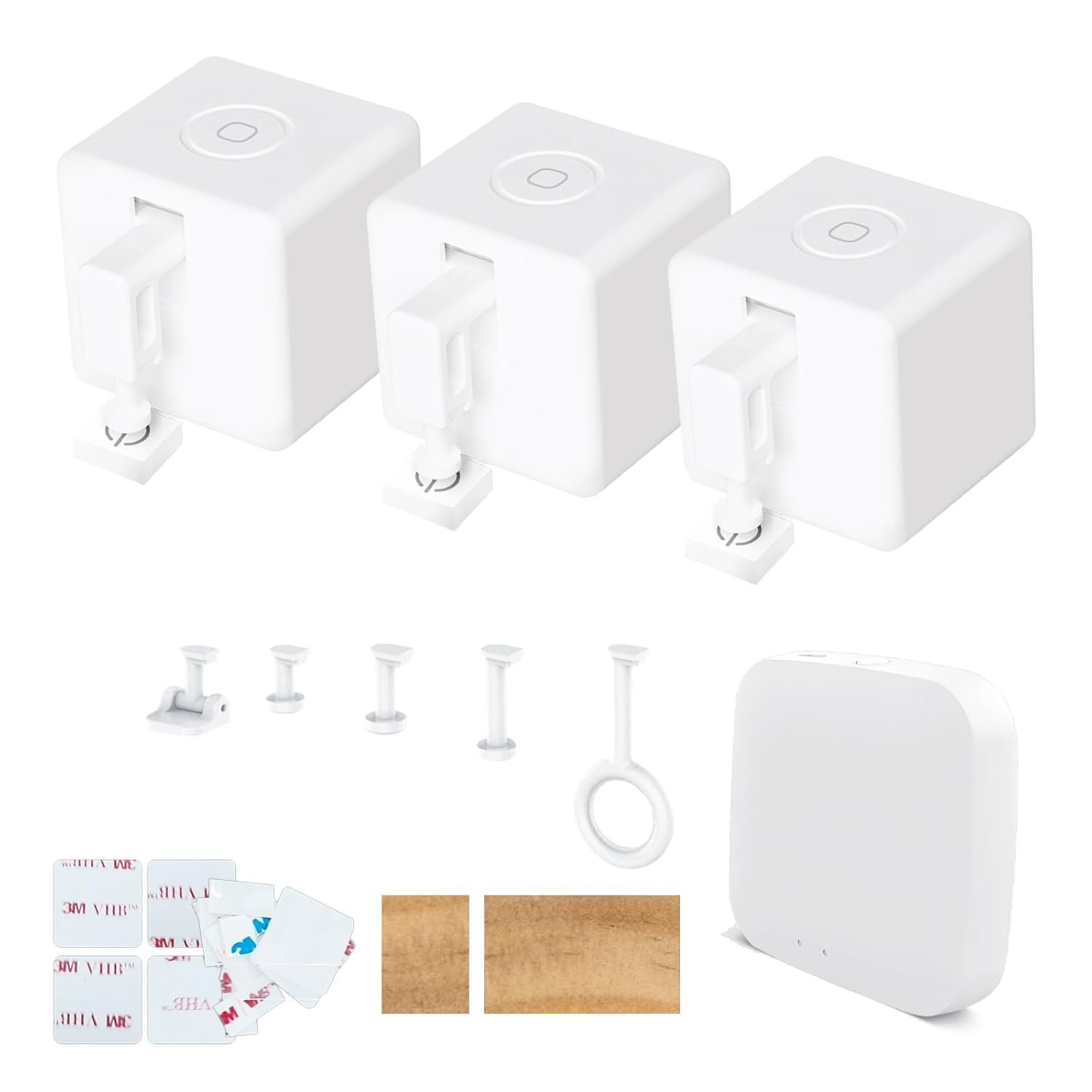
Image 1.1: Contents of the MOES Smart Fingerbot and Tuya Bluetooth Hub package. This image displays three white Fingerbot devices, a white Tuya Bluetooth Hub, various finger attachments, and adhesive pads.
2. Safety Information
- Do not expose the device to extreme temperatures or humidity.
- Do not attempt to disassemble or repair the device yourself.
- Keep out of reach of children.
- Use only the specified power adapter for the Bluetooth Hub.
- Ensure the mounting surface is clean and dry before applying adhesive.
3. Setup and Installation
3.1 Fingerbot Installation
- Identify Target Switch/Button: Determine the switch or button you wish to automate. The Fingerbot is compatible with most rocker switches and push buttons.
- Clean Surface: Ensure the surface around the switch/button is clean, dry, and free of dust or grease.
- Attach Adhesive: Peel off the protective film from one side of the provided 3M VHB adhesive sticker and apply it to the back of the Fingerbot.
- Position Fingerbot: Carefully align the Fingerbot so its arm can press or flip the target switch/button effectively. Ensure the arm has a clear path of movement.
- Secure Fingerbot: Once aligned, press the Fingerbot firmly onto the surface for at least 30 seconds to ensure strong adhesion.
- Select Finger Attachment (Optional): If the standard arm is not suitable, choose an appropriate finger attachment from the accessory kit and attach it to the Fingerbot's arm.

Image 3.1: Examples of the MOES Smart Fingerbot installed on different types of switches and buttons, including a wall switch, a coffee machine button, a rotary knob, and a computer power button. This illustrates the versatility of the device.
3.2 Tuya Bluetooth Hub Setup
- Power On: Connect the Tuya Bluetooth Hub to a power source using the provided USB cable and a compatible USB power adapter (not included). The indicator light will turn on.
- Download App: Download the "Tuya Smart" or "Smart Life" app from your mobile device's app store (iOS or Android).
- Register/Login: Open the app and register for a new account or log in with an existing one.
- Add Hub: In the app, tap the "+" icon to add a new device. Select "Gateway" or "Hub" from the device list, then choose "Bluetooth Gateway".
- Connect to Wi-Fi: Follow the in-app instructions to connect the hub to your 2.4GHz Wi-Fi network. Ensure your phone's Bluetooth is enabled during this process.
3.3 Pairing Fingerbot with Tuya Smart App
- Enable Bluetooth: Ensure Bluetooth is enabled on your smartphone.
- Open App: Open the "Tuya Smart" or "Smart Life" app.
- Add Device: Tap the "+" icon to add a new device. The app should automatically discover nearby Fingerbots if they are in pairing mode and within Bluetooth range (approx. 10 meters).
- Confirm Pairing: Select the discovered Fingerbot(s) and follow the on-screen prompts to complete the pairing process.
- Link to Hub (Optional but Recommended): If you have a Tuya Bluetooth Hub, the app will prompt you to link the Fingerbot to the hub. This enables remote control and advanced features.
4. Operating Instructions
4.1 Basic Operation (Touch Button)
The Fingerbot Plus features a touch button on its surface. A single touch will activate the Fingerbot's arm to press or flip the connected switch/button. This provides a convenient manual override or direct control.
4.2 App Control
Once paired with the Tuya Smart app, you can control your Fingerbot(s) directly from your smartphone:
- On/Off Control: Tap the device icon in the app to toggle the Fingerbot's action (e.g., turn a light on/off).
- Movement Adjustment: Adjust the "Up Movement" and "Down Movement" parameters (0-100) to fine-tune how far the Fingerbot's arm extends and retracts.
- Sustain Time: Set a "Sustain Time" to control how long the Fingerbot's arm holds the button down. This is useful for devices requiring a longer press.

Image 4.1: The Tuya Smart app interface demonstrating the "Sustain Time" setting. The image shows a Fingerbot activating a coffee machine, with a visual representation of a 1-second press versus an 8-second sustained press, highlighting the flexibility of control.
4.3 Scheduling and Timers
The Tuya Smart app allows you to create schedules and timers for automated operation. This feature requires the Tuya Bluetooth Hub for remote access and consistent timing.
- Access Schedules: In the Fingerbot's device interface within the app, navigate to the "Schedule" or "Timer" section.
- Set Time: Define the desired time for the Fingerbot to activate (e.g., 7:00 AM ON, 5:30 PM OFF).
- Select Action: Choose whether the action is "ON" or "OFF" (or press/release depending on the switch type).
- Repeat Days: Select the days of the week for the schedule to repeat.
- Save: Save the schedule.

Image 4.2: The Tuya Smart app displaying the schedule creation interface. An example schedule is shown for a traditional curtain switch, set to turn on at 7:00 AM and off at 5:30 PM, demonstrating automated control.
4.4 Advanced Features with Tuya Bluetooth Hub
Connecting your Fingerbot(s) to the Tuya Bluetooth Hub unlocks enhanced functionality:
- Remote Control: Control your Fingerbot from anywhere with an internet connection, not just within Bluetooth range.
- Voice Control: Integrate with voice assistants like Amazon Alexa, Google Assistant, and Apple Siri for hands-free operation.
- Smart Home Automation: Link with other Tuya-compatible smart devices to create complex automation routines (e.g., turn on lights when a door opens).

Image 4.3: A collage illustrating the benefits of integrating the Fingerbot with the Tuya Bluetooth Hub. Features shown include voice control via Alexa, scheduling via the app, remote control, and direct app control, all enabled by the central hub.
5. Maintenance
- Cleaning: Wipe the Fingerbot and Hub with a soft, dry cloth. Do not use liquid cleaners or abrasive materials.
- Battery Replacement (Fingerbot): The Fingerbot uses a replaceable battery. When the battery level is low, the app will notify you. Refer to the device's internal compartment for battery type and replacement instructions.
- Adhesive Check: Periodically check the adhesive to ensure the Fingerbot remains securely attached. Replace if necessary.
6. Troubleshooting
- Fingerbot Not Responding:
- Check battery level in the app.
- Ensure the Fingerbot is within Bluetooth range of your phone or the Tuya Bluetooth Hub.
- Restart the Fingerbot by briefly removing and reinserting its battery.
- Hub Not Connecting to Wi-Fi:
- Ensure your Wi-Fi network is 2.4GHz. The hub does not support 5GHz networks.
- Verify your Wi-Fi password is correct.
- Move the hub closer to your Wi-Fi router.
- Restart your Wi-Fi router.
- Voice Control Not Working:
- Ensure the Fingerbot is successfully linked to the Tuya Bluetooth Hub.
- Verify that the Tuya Smart app is linked to your Amazon Alexa, Google Assistant, or Apple HomeKit account.
- Check your voice assistant's device list to ensure the Fingerbot is recognized.
- Fingerbot Arm Not Moving Correctly:
- Adjust the "Up Movement" and "Down Movement" parameters in the app.
- Ensure there are no obstructions preventing the arm's movement.
- Check if the correct finger attachment is being used for the switch/button type.
7. Specifications

Image 7.1: A radar chart comparing the specifications of the Fingerbot Plus (red area) and the standard Fingerbot (blue area). Key metrics include clicking life (3k to 15k clicks), movement range (8mm to 12mm), force (9N to 10N), and battery capacity (500mAh to 800mAh), indicating the enhanced capabilities of the Plus model.
| Feature | Detail |
|---|---|
| Brand | MOES |
| Model Number | 547bdb82-77ae-4a25-9da5-1242771d9b59 |
| Operation Mode | ON-NONE-ON, ON-ON-ON, OFF-NONE-ON, ON-ON, ON-ON-OFF, ON-OFF-ON, ON-OFF, ON-NONE-OFF (Configurable via app) |
| Contact Type | Normally Open |
| Connector Type (Hub) | USB |
| Terminal (Hub) | USB |
| Circuit Type | 1-way |
| Mounting Type | Wall Mount (Adhesive) |
| Actuator Type | Finger |
| Contact Material | Copper |
| International Protection Rating | IP51 |
| Connectivity | Bluetooth (Fingerbot), Wi-Fi 2.4GHz (Hub) |
| Compatibility | Tuya Smart / Smart Life App, Amazon Alexa, Google Assistant, Apple Siri |
8. Warranty and Support
For warranty information and technical support, please refer to the official MOES website or contact their customer service directly. Keep your purchase receipt for warranty claims.
Manufacturer: MOES
Date First Available: August 10, 2024