
Wanbo WPB84
Wanbo Mozart 1 Pro Projector User Manual
Model: WPB84
Introduction
Thank you for purchasing the Wanbo Mozart 1 Pro Projector. This manual provides essential information for setting up, operating, and maintaining your projector to ensure optimal performance and longevity. Please read this manual thoroughly before using the product and keep it for future reference.
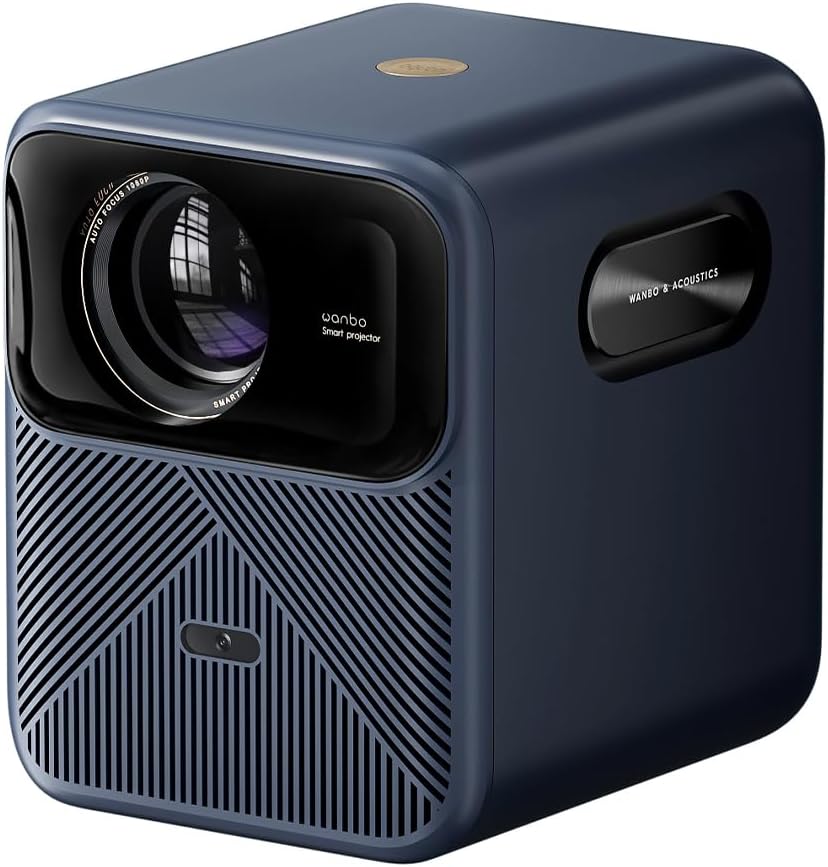
Image: Front-side view of the Wanbo Mozart 1 Pro Projector, showcasing its compact design and lens.
Package Contents
Ensure all items are present in the package:
- Wanbo Mozart 1 Pro Projector
- Power Adapter
- Remote Control
- User Manual
Setup
1. Placement
Place the projector on a stable, flat surface. For optimal viewing, ensure the projection surface (wall or screen) is smooth and light-colored. The ideal projection distance varies based on desired screen size. Refer to the specifications for recommended distances.
2. Power Connection
Connect the power adapter to the DC input port on the projector and then plug the adapter into a power outlet.

Image: Rear view of the projector, highlighting the DC power input, USB port, and HD (HDMI) port.
3. Initial Power On & Setup
Press the power button on the projector or remote control to turn it on. Follow the on-screen prompts to select your language, connect to a Wi-Fi network, and complete the initial setup for Google TV.
4. Focus and Keystone Correction
The Wanbo Mozart 1 Pro features automatic focus and automatic keystone correction for quick and clear image setup. If manual adjustment is needed, navigate to the display settings in the menu.

Image: Visual representation of the projector's automatic focus and keystone correction capabilities.
Operating
1. Remote Control
Use the provided remote control to navigate the projector's interface, select input sources, adjust volume, and access settings.
2. Input Sources
The projector supports multiple input sources:
- HDMI: Connect external devices such as laptops, gaming consoles, or Blu-ray players.
- USB: Play media files directly from a USB drive.
3. Connectivity
- Wi-Fi: Connect to your home network (2.4GHz and 5GHz dual-band support) for online streaming and updates.
- Bluetooth 5.0: Connect external Bluetooth speakers or headphones for enhanced audio.
4. Smart Features (Google TV)
The projector comes with integrated Google TV, providing access to a vast library of apps and content. Key features include:
- Pre-installed Apps: Enjoy popular streaming services like Netflix, YouTube, Prime Video, and Disney+.
- Google Assistant: Use voice commands for search, control, and information.
- Screen Mirroring: Cast content from your smartphone or tablet directly to the projector.
5. Display Settings
- Brightness: The projector delivers 1200 ANSI Lumens for clear images in various lighting conditions.
- Resolution: Native Full HD (1920 x 1080 px) with support for 4K decoding.
- HDR10: Experience enhanced contrast and vibrant colors with HDR10 support.
- MEMC: Motion Estimation Motion Compensation technology ensures smooth motion in fast-paced scenes, ideal for sports and action movies.

Image: Visual demonstration of the projector's 1200 ANSI Lumens brightness, showing clarity in different ambient light conditions.
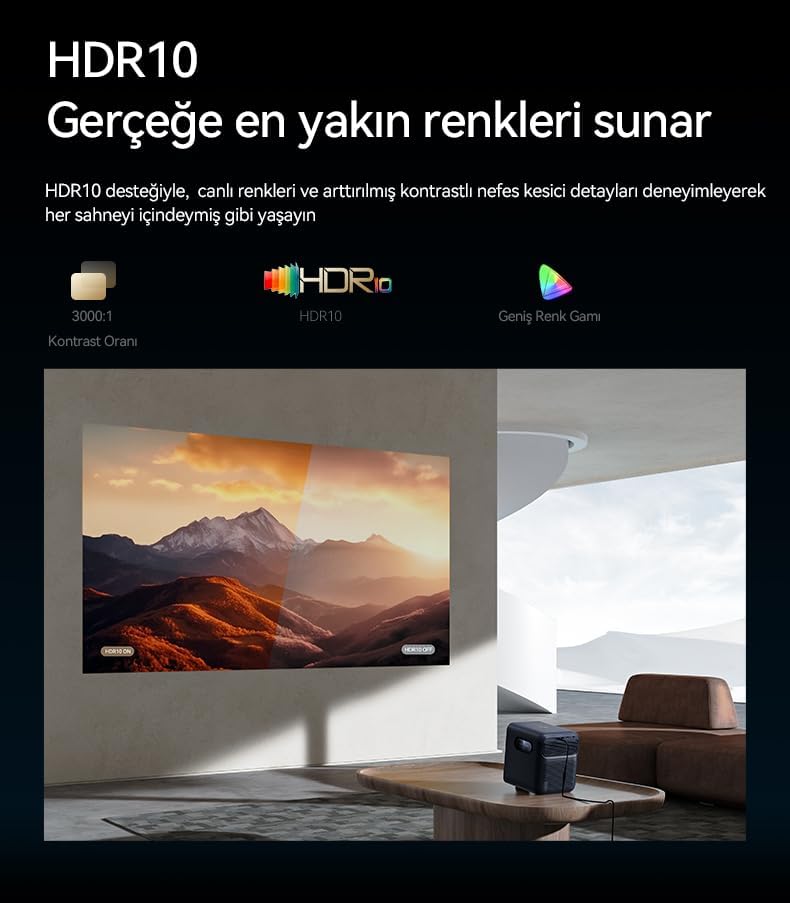
Image: Explanation of HDR10 technology, illustrating its impact on color accuracy and contrast.

Image: Illustration of MEMC (Motion Estimation Motion Compensation) technology, showing its effect on motion clarity.
6. Audio
The projector is equipped with a powerful 20W speaker system (10W x 2) for immersive audio experience.
Maintenance
1. Cleaning
- Lens: Gently wipe the lens with a soft, lint-free cloth specifically designed for optical surfaces. Do not use abrasive cleaners.
- Vents: Regularly clean the air vents to prevent dust buildup, which can affect cooling and performance. Use a soft brush or compressed air.
- Exterior: Wipe the projector's exterior with a soft, dry cloth.
2. Storage
When not in use for extended periods, store the projector in a cool, dry place, away from direct sunlight and extreme temperatures. Use the original packaging or a protective case to prevent dust and damage.
3. Lamp Life
The projector's light source has an estimated lifespan of up to 20,000 hours, ensuring long-term use without frequent lamp replacement.
Troubleshooting
| Problem | Possible Cause | Solution |
|---|---|---|
| No Power | Power cable not connected; Power outlet faulty | Ensure power cable is securely connected; Try a different power outlet. |
| No Image | Incorrect input source; Device not connected properly | Select the correct input source (HDMI/USB); Check cable connections. |
| Blurry Image | Out of focus; Incorrect keystone correction | Allow auto-focus to adjust or manually adjust focus; Check keystone settings. |
| No Sound | Volume too low; Muted; External audio device not connected | Increase volume; Unmute the projector; Check Bluetooth connection if using external speakers. |
| Remote Not Working | Low batteries; Obstruction | Replace batteries; Remove any obstructions between remote and projector. |
Specifications
| Feature | Detail |
|---|---|
| Brand | Wanbo |
| Model Number | WPB84 |
| Display Resolution | 1920 x 1080 px (Full HD) |
| Brightness | 1200 ANSI Lumens |
| Contrast Ratio | 3000:1 |
| Connectivity | HDMI, USB, Wi-Fi (2.4+5G Dual Band), Bluetooth 5.0 |
| Audio Output | 20W (10W x 2) |
| Lamp Life | Up to 20,000 hours |
| Operating System | Google TV |
| Special Features | Auto Focus, Auto Keystone, HDR10, MEMC, Screen Mirroring, Obstacle Avoidance, Screen Fit |
| Dimensions (L x W x H) | 28.7 x 30.5 x 26 cm |
Warranty and Support
Warranty Information
Warranty terms and conditions are typically provided with your purchase documentation or on the product packaging. Please refer to these materials for details regarding your product's warranty coverage.
Customer Support
For technical assistance, troubleshooting beyond this manual, or service inquiries, please visit the official Wanbo website or contact their customer support directly. Contact information can usually be found on the manufacturer's website or your purchase receipt.
Related documentsWPB84


Ask a question about this manual
Ask about setup, troubleshooting, compatibility, parts, safety, or missing instructions. Manuals+ will review the question and use this page’s manual context to help answer it.