
Introduction
This manual provides detailed instructions for the installation, operation, and maintenance of your Wengart Smart WiFi Relay Switch. Please read this manual thoroughly before using the device to ensure proper function and safety. This 4-channel dry contact relay switch module is designed for smart home integration, offering remote control, voice control, and various timing functions.
Safety Information
Warning: Electrical installation should only be performed by qualified personnel. Incorrect wiring can lead to electric shock, fire, or device damage. Always disconnect power before installation or maintenance.
- Ensure the power supply is within the specified voltage range (AC 85-250V or USB 5V).
- Do not exceed the maximum current rating of 10 Amps per channel or 16 Amps total.
- Keep the device away from water and high humidity environments.
- Do not attempt to disassemble or repair the device yourself. Contact support if issues arise.
- Ensure proper ventilation around the device.
Product Overview
The Wengart Smart WiFi Relay Switch is a versatile device designed to integrate traditional electrical appliances into your smart home system. It features four independent channels, allowing control of multiple devices. Key features include:
- Three Working Modes: Self-locking, Interlocking, and Inching modes for flexible control.
- Remote Control: Manage devices from anywhere using the eWeLink App.
- Voice Control: Compatible with Amazon Echo and Google Home for hands-free operation.
- Intelligent Timing: Supports timing, delay, and cycle timing functions.
- Scene Management: Create custom scenes for automated control.
- Shared Control: Share device control with family members.
- Customizable Power-on State: Define the device's state after a power outage.
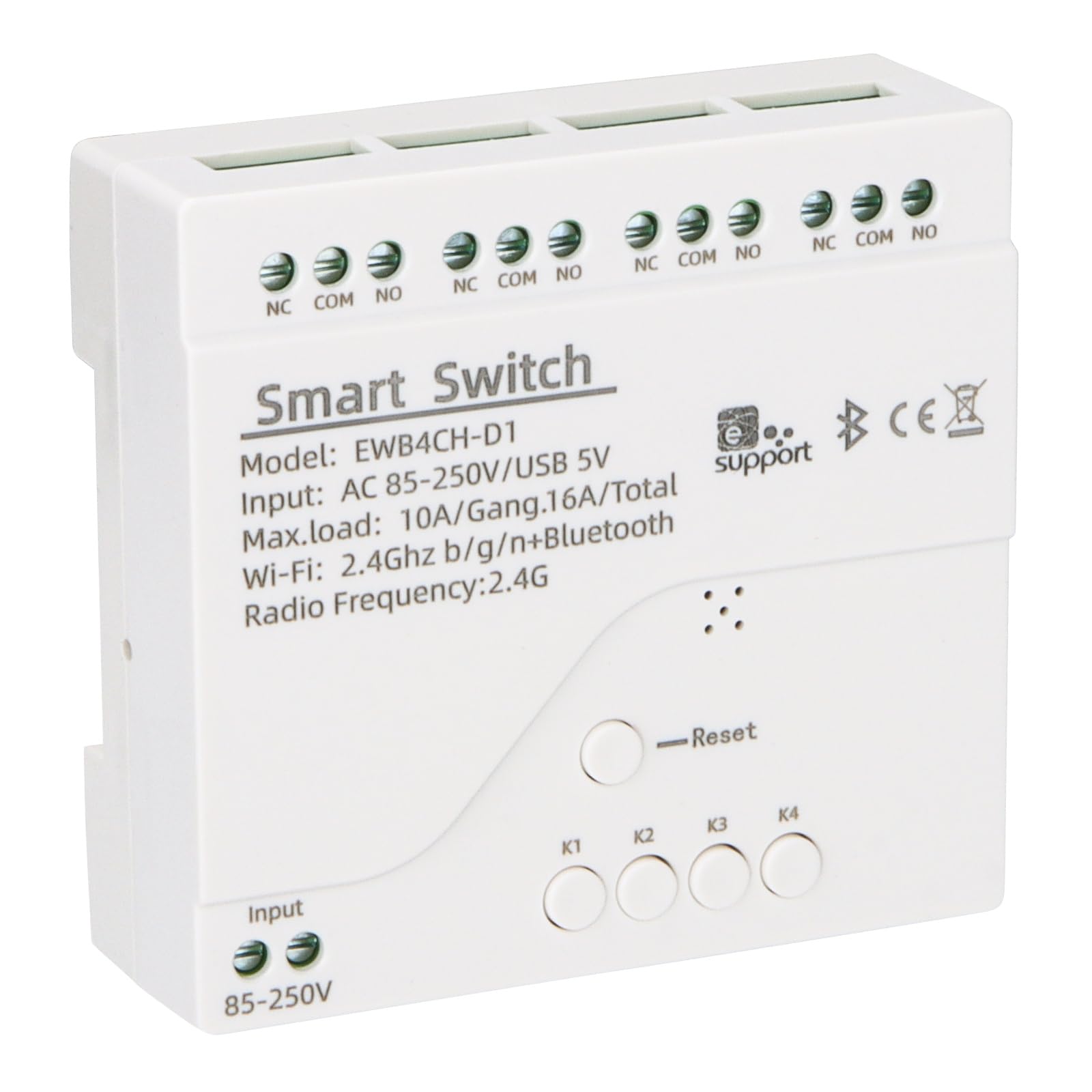
Image: Front view of the Wengart Smart WiFi Relay Switch, highlighting its smart features like app control, voice control, and scheduling.
Specifications
| Feature | Specification |
|---|---|
| Model | WiFi Switch Relay-4 CH |
| Input Voltage | AC 85-250V or USB 5V |
| Max. Current (per gang) | 10 Amps |
| Max. Load (total) | 16 Amps / 3500W (4 gangs) |
| Wireless Connectivity | Wi-Fi 2.4GHz b/g/n + Bluetooth |
| Operation Mode | ON-OFF |
| Mounting Type | Wall Mount (DIN rail compatible) |
| Contact Type | Normally Open (NO) |
| Contact Material | Plastic |
| Working Temperature | -20°C ~ 70°C |
| Dimensions | 81mm x 76mm x 28mm (approx. 3.19" x 2.99" x 1.1") |
| Certification | CE, RoHS |
| Included Components | WiFi smart switch |
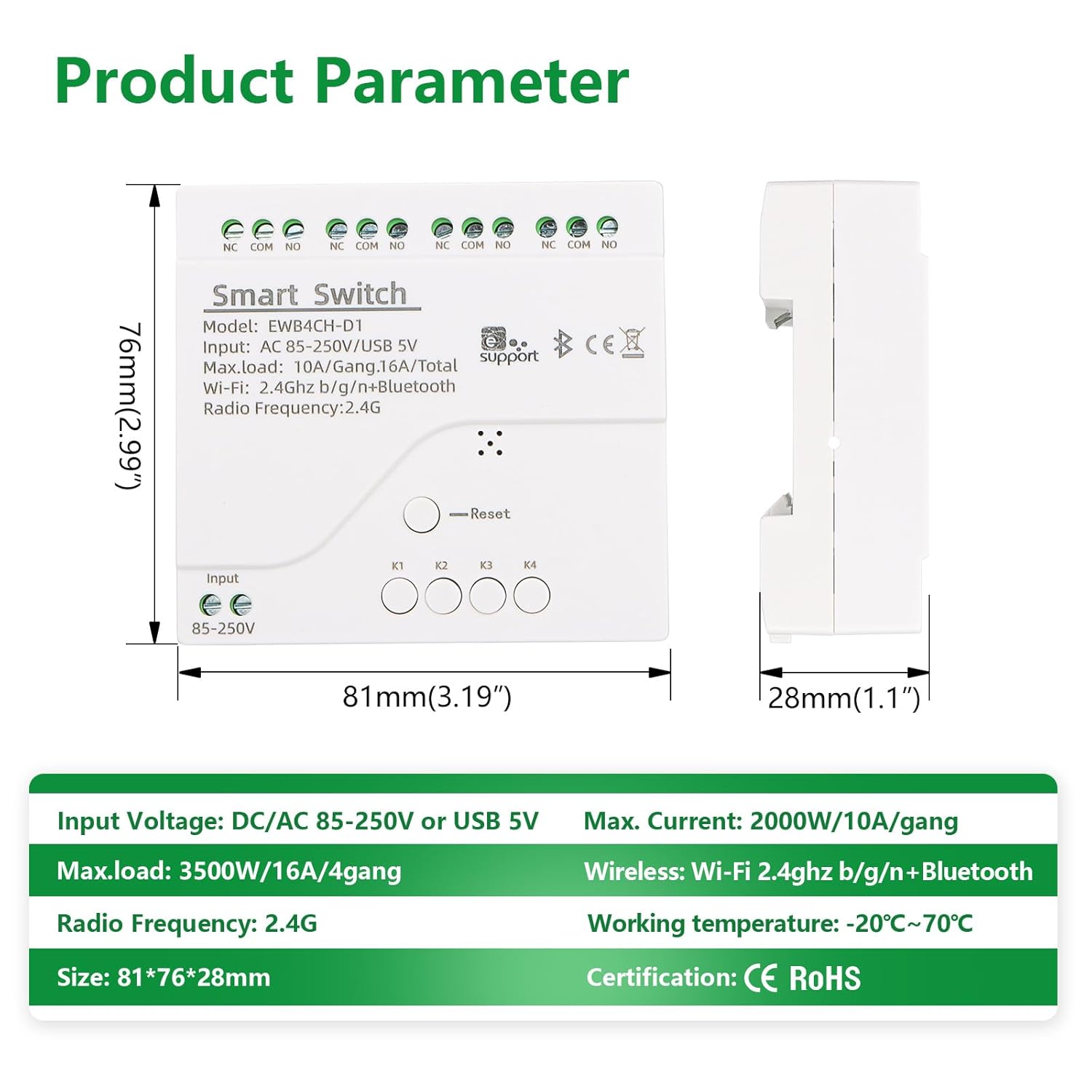
Image: Detailed view of the Wengart Smart WiFi Relay Switch showing its dimensions and key electrical specifications.
Setup
1. Wiring Instructions
Before wiring, ensure the main power supply is disconnected to prevent electric shock. The device supports both AC 85-250V and USB 5V input. Connect your devices to the relay outputs (NO, COM, NC) as required.

Image: Wiring diagram illustrating how to connect the input power (AC 85-250V or USB 5V) and the output to a load (e.g., a light bulb) using the NO and COM terminals.
- Input Power: Connect AC 85-250V to the "Input AC 85-250V" terminals or connect a 5V USB power supply to the USB port.
- Output Connections: Each channel has NO (Normally Open), COM (Common), and NC (Normally Closed) terminals. Connect your load (e.g., light, motor) between COM and NO for standard switching.
- Manual Switch Inputs (K1-K4): These terminals allow for external manual switches to control each channel.
2. App Pairing (eWeLink)
To control the switch via your smartphone, you need to pair it with the eWeLink app.
- Download the eWeLink App from the App Store (iOS) or Google Play Store (Android).
- Register or log in to your eWeLink account.
- Power on the Wengart Smart WiFi Relay Switch.
- Press and hold the "Reset" button on the device for approximately 5-7 seconds until the network indicator LED blinks rapidly. This indicates pairing mode.
- In the eWeLink App, tap the "+" icon to add a device.
- Follow the on-screen instructions to connect the device to your 2.4GHz Wi-Fi network.
- Once successfully paired, you can rename the device and individual channels within the app.
Operating Modes
The Wengart Smart WiFi Relay Switch supports three distinct working modes, configurable via the eWeLink app:

Image: Visual representation of the three operating modes: Self-locking (independent control), Interlock (only one channel active), and Inching (timed pulse).
- Self-locking Mode: In this mode, each of the four channels operates independently. Turning one channel ON or OFF does not affect the state of the other channels. This is suitable for controlling individual lights or appliances.
- Interlock Mode: This mode ensures that only one channel can be active (ON) at any given time. If one channel is turned ON, any previously ON channel will automatically turn OFF. This is useful for applications where only one output should be active, such as motor direction control.
- Inching Mode: Also known as momentary mode, this allows a channel to turn ON for a set duration (e.g., 0.5 to 3600 seconds) and then automatically turn OFF. This is ideal for triggering short actions like opening a gate or pressing a button. The duration can be customized in the eWeLink app.
Remote Control and Voice Control
Remote Control via eWeLink App
Once paired, you can control your Wengart Smart WiFi Relay Switch from anywhere with an internet connection using the eWeLink App. The app provides real-time status updates for each channel.

Image: A person using the eWeLink app on a smartphone to remotely control the smart switch, showing the interface with four channel buttons.
Voice Control with Smart Assistants
The switch is compatible with Amazon Echo (Alexa) and Google Home, allowing for convenient voice commands.

Image: A woman interacting with smart speakers (Amazon Echo and Google Home) to control a light, demonstrating voice control functionality.
- Ensure your eWeLink account is correctly linked to your Amazon Alexa or Google Home account through their respective apps.
- Discover devices in your smart assistant app.
- Use commands such as:
- "Alexa, turn on [Device Name]"
- "Hey Google, turn off [Device Name]"
- "Alexa, set [Channel Name] to on"
Intelligent Timing and Scene Management
Enhance your home automation with the timing and scene features available in the eWeLink App.
- Timing: Set specific ON/OFF times for your devices.
- Delay Timing: Schedule a device to turn ON or OFF after a specified delay.
- Cycle Timing: Automate devices to repeat ON/OFF cycles at regular intervals.
- Scene Management: Create custom scenes to control multiple devices simultaneously with a single tap or based on specific conditions (e.g., "Good Morning" scene turns on lights and coffee maker).
Maintenance
To ensure the longevity and optimal performance of your Wengart Smart WiFi Relay Switch, follow these maintenance guidelines:
- Cleaning: Gently wipe the device with a dry, soft cloth. Do not use liquid cleaners or abrasive materials.
- Environment: Keep the device in a dry, well-ventilated area, away from direct sunlight, extreme temperatures, and corrosive substances.
- Firmware Updates: Periodically check the eWeLink App for available firmware updates for your device. Updates can improve performance and add new features.
- Connection Check: Ensure all wiring connections remain secure. Loose connections can cause intermittent operation or safety hazards.
Troubleshooting
If you encounter issues with your Wengart Smart WiFi Relay Switch, refer to the following common problems and solutions:
- Device not connecting to Wi-Fi:
- Ensure your Wi-Fi network is 2.4GHz. The device does not support 5GHz Wi-Fi.
- Check if your Wi-Fi password is correct.
- Move the device closer to your Wi-Fi router.
- Reset the device by holding the reset button for 5-7 seconds and attempt pairing again.
- Restart your Wi-Fi router.
- Device offline in eWeLink App:
- Check your internet connection.
- Verify the device has power.
- Restart the device by cycling its power.
- If the issue persists, try re-pairing the device.
- Voice control not working:
- Ensure your eWeLink account is correctly linked to Alexa/Google Home.
- Check if the device is online in the eWeLink App.
- Try rediscovering devices in your Alexa/Google Home app.
- Use the exact device and channel names configured in eWeLink.
- Relay not switching:
- Verify the wiring connections are secure and correct.
- Ensure the load connected does not exceed the maximum current rating.
- Check if the device is receiving power.
- Test the channel manually via the eWeLink app.
Warranty and Support
WENGART products are designed for reliability and performance. For warranty information, please refer to the documentation provided at the time of purchase or contact your retailer. If you encounter any issues not covered in this manual or require further assistance, please contact WENGART customer support through the official website or your purchase platform.
Contact Information: Please refer to the WENGART official website or your product packaging for the most up-to-date support contact details.