
1. Introduction
The Panamalar Smart IR+RF Universal Remote Hub is designed to simplify your home automation by integrating control of both Infrared (IR) and Radio Frequency (RF) devices into a single smart device. This hub allows you to manage various home entertainment and automation devices remotely using your smartphone, providing convenience and efficiency.
Transform your smartphone into a universal remote, eliminating the need for multiple physical remotes. Control your TV, air conditioner, lighting, electric curtains, and more from anywhere, anytime.
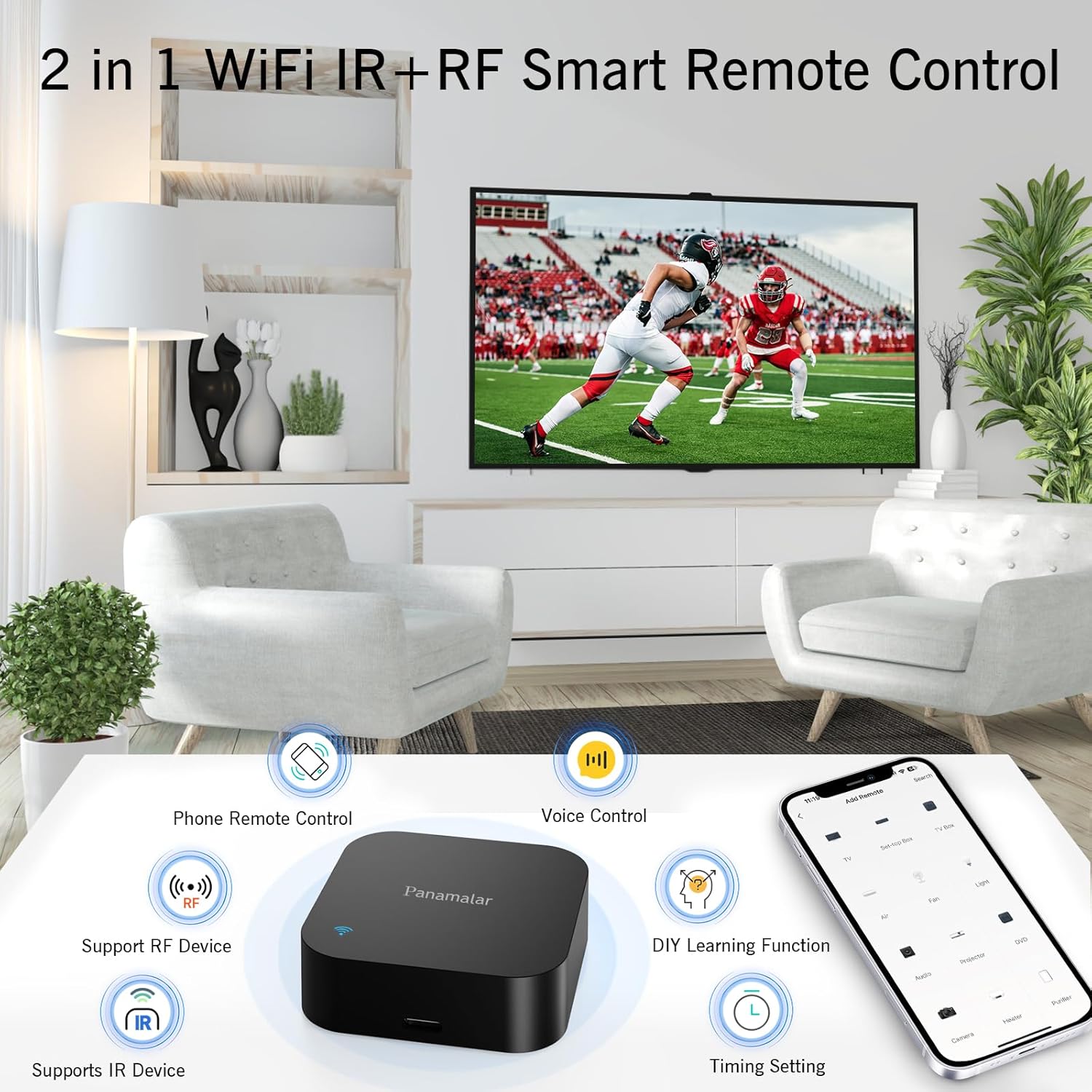
Image: The Panamalar Smart IR+RF Remote Hub in a modern living room, illustrating its key functionalities such as smartphone control, voice commands, DIY learning, and scheduled operations.
2. Package Contents
Please check the box for the following items:
- 1x Panamalar Smart IR/RF Remote Control Hub
- 1x USB Type-C Cable
- 1x Adhesive Tape
- 1x User Manual
3. Key Features
- All-in-One Control: Integrates IR and RF functions to manage various appliances via your smartphone.
- Wide Compatibility: Supports 433MHz RF devices and 38KHz IR devices, including TVs, air conditioners, electric curtains, lights, and more.
- Voice Control: Compatible with Alexa for hands-free control of your devices.
- DIY Learning Function: Allows copying signals from existing remotes for devices not in the database.
- Schedule Setting: Program timers to automatically turn devices on or off at specific times.
- Remote Access: Control your devices from anywhere using the companion app.
- Family Sharing: Share control of the universal remote with family members.
4. Setup Guide
4.1 Powering On the Device
- Connect the provided USB Type-C cable to the power port on the Panamalar Smart Hub.
- Plug the other end of the USB cable into a DC5V/1A USB power adapter (not included) or a compatible USB port.
- The device will power on, indicated by an LED light.
4.2 App Installation and Device Pairing
- Download the "Smart Life" app from your smartphone's app store (compatible with Android 6.0+ or iOS 11+).
- Register or log in to your Smart Life account.
- Ensure your smartphone is connected to a 2.4GHz Wi-Fi network. The hub only supports 2.4GHz Wi-Fi.
- In the Smart Life app, tap the "+" icon to add a new device.
- Select the appropriate device type (e.g., "Universal Remote Control" or "IR Remote Control").
- Follow the on-screen instructions in the app to connect the hub to your Wi-Fi network. This typically involves entering your Wi-Fi password.
- Once successfully paired, the device will appear in your app.
4.3 Adding Appliances
- In the Smart Life app, select your newly added Panamalar Smart Hub.
- Tap "Add Remote" or a similar option to add an appliance.
- Choose the type of appliance (e.g., TV, Air Conditioner, Fan, Electric Curtain).
- The app will guide you through selecting the brand and model from its database. Test the provided remote codes to find a match.
- If your appliance's brand or model is not listed, proceed to the DIY Learning Function (Section 5.1).

Image: A smartphone displaying the Smart Life app interface, demonstrating remote control over various household devices such as a television, air conditioner, and lighting, all managed through the Panamalar Smart Hub.
5. Operating Instructions
5.1 DIY Learning Function (Custom Copy)
If your device's remote codes are not found in the app's database, you can use the DIY learning function:
- In the Smart Life app, select the appliance you wish to configure and choose the "DIY" or "Learn" option.
- The app will prompt you to point your original remote control towards the Panamalar Smart Hub.
- Press the desired button on your original remote (e.g., Power On). The hub will capture the signal.
- Assign a name to this learned function within the app.
- Repeat for all necessary buttons (e.g., Power Off, Volume Up/Down, Channel Up/Down, Temperature Adjust).
5.2 Voice Control Integration
The Panamalar Smart Hub supports voice control via Alexa. To enable this:
- Ensure your Smart Life account is linked to your Alexa account through the Alexa app.
- Discover devices in the Alexa app. Your appliances configured in Smart Life should appear.
- You can now use voice commands such as:
- "Alexa, turn on the TV."
- "Alexa, turn up the volume."
- "Alexa, set the air conditioner to 24 degrees."

Image: A family in a living room, demonstrating the use of voice commands through an Alexa device to control their television, facilitated by the Panamalar Smart Hub.
5.3 Timing and Schedule Setting
Set schedules for your devices to operate automatically:
- In the Smart Life app, select the appliance you want to schedule.
- Look for the "Schedule" or "Timer" option.
- Set the desired time for the device to turn on or off, or to perform a specific action (e.g., change temperature).
- You can also create custom scenes that trigger multiple devices simultaneously based on time or other conditions.
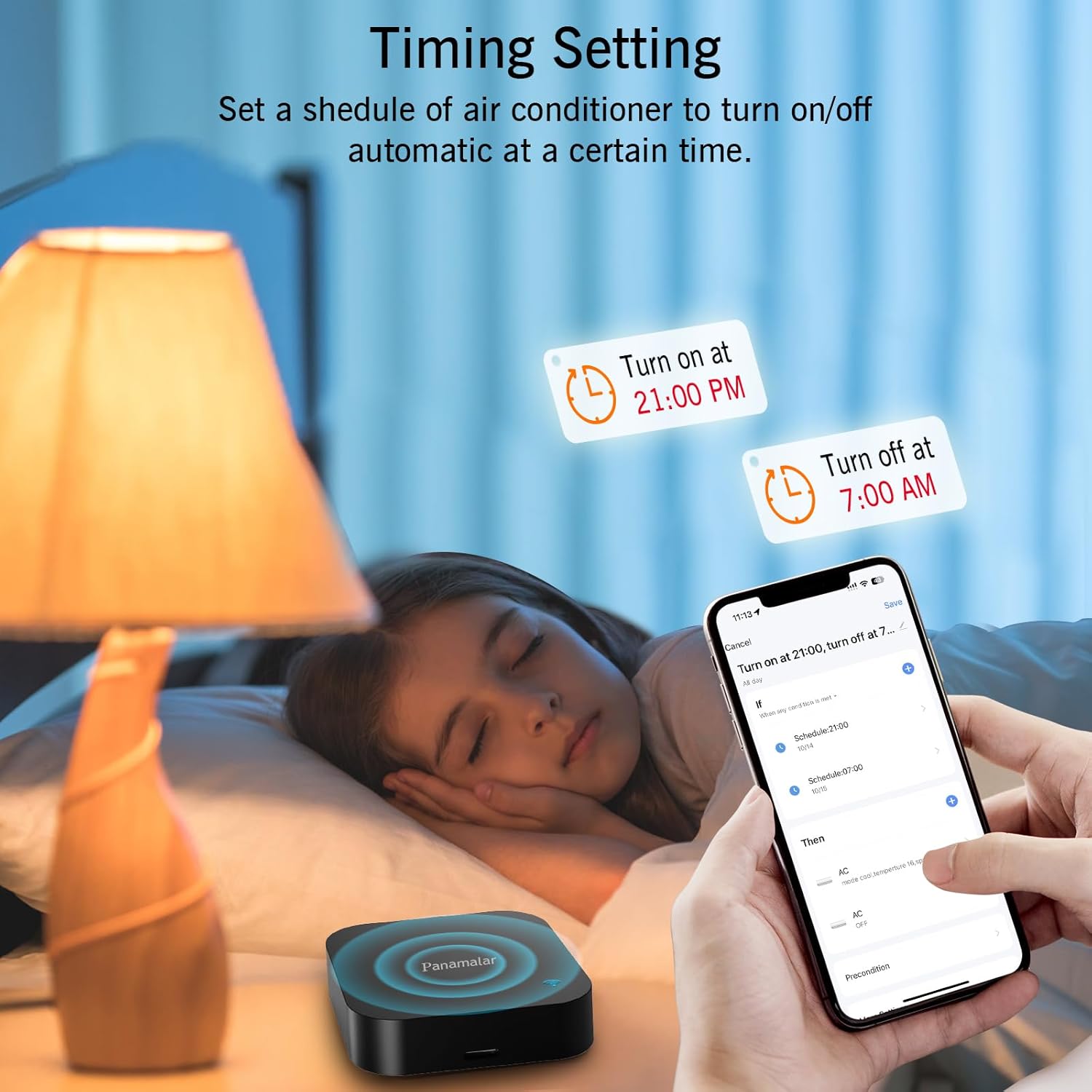
Image: A close-up of a smartphone screen displaying the scheduling interface within the Smart Life app, showing options to set automatic on/off times for an air conditioner, managed by the Panamalar Smart Hub.
6. Compatibility Notes
- The RF function supports fixed code RF devices only. It is not compatible with rolling code RF devices. Please verify your RF device's code type before attempting to pair.
- The device is not compatible with sunshades.
- The Wi-Fi connection requires a 2.4GHz network. 5GHz Wi-Fi networks are not supported.

Image: A circular diagram illustrating the Panamalar Smart Hub at its center, surrounded by various compatible devices such as TVs, air conditioners, RF lights, electric curtains, light switches, set-top boxes (STB), RF fans, and electric roller blinds, indicating full integration with both IR and RF technologies.
7. Maintenance
To ensure optimal performance and longevity of your Panamalar Smart Hub:
- Keep the device in a dry environment, away from direct sunlight and extreme temperatures.
- Clean the device with a soft, dry cloth. Do not use liquid cleaners or abrasive materials.
- Avoid placing objects directly on top of the hub that might obstruct its IR or RF signals.
- Ensure the device has a clear line of sight to IR-controlled appliances for best performance.
8. Troubleshooting
- Device not connecting to Wi-Fi: Ensure your Wi-Fi network is 2.4GHz. Check your Wi-Fi password. Try restarting your router and the smart hub.
- IR device not responding: Ensure the smart hub has a clear line of sight to the IR receiver of your appliance. The IR range is approximately 10 meters.
- RF device not responding: Confirm that your RF device uses a fixed code, not a rolling code. Rolling code devices are not supported. Ensure the hub is within range of the RF device.
- DIY learning not working: Ensure the original remote is pointed directly at the smart hub during the learning process and is close enough. Try repeating the learning process.
- Voice control issues: Verify that your Smart Life account is correctly linked to Alexa and that devices are discovered. Check your internet connection.
9. Specifications
| Model | IT-S11 |
| Material | ABS |
| IR Frequency | 38KHz |
| RF Frequency | 433MHz |
| WiFi Frequency | 2.4GHz only |
| IR Range | ≤10 meters |
| Input | DC5V/1A |
| Power Port | Type-C |
| OS Support | Android 6.0 or iOS 11 and above |
| Dimensions (L x W x H) | 6L x 6W x 2H cm |

Image: A detailed view of the Panamalar Smart Hub, highlighting its compact dimensions and a table summarizing its technical specifications.
10. Warranty and Support
This product comes with a 365-day warranty from the date of purchase.
For technical support, troubleshooting assistance, or warranty claims, please contact Panamalar customer service through the contact information provided on the product packaging or the official Panamalar website. Please have your purchase receipt and product model number (IT-S11) ready when contacting support.