
1. Introduction
Welcome to your new Lenovo Essential IdeaPad laptop. This manual provides essential information for setting up, operating, maintaining, and troubleshooting your device. Please read this guide thoroughly to ensure optimal performance and longevity of your laptop.
The Lenovo Essential IdeaPad is designed for productivity and entertainment, featuring a 15.6-inch Full HD display, an Intel Pentium Silver N6000 processor, 36GB RAM, and 1.5TB storage (512GB SSD and 1TB Cloud Storage). It comes pre-installed with Windows 11 Home and includes a 1-year Microsoft 365 Personal subscription.
2. What's in the Box
Verify that all items are present in your product packaging:
- Lenovo Essential IdeaPad Laptop
- Power Adapter (CHAARGER)
- Microsoft 365 Personal (1-Year Subscription Card)
3. Product Overview
Familiarize yourself with the components and features of your Lenovo Essential IdeaPad.
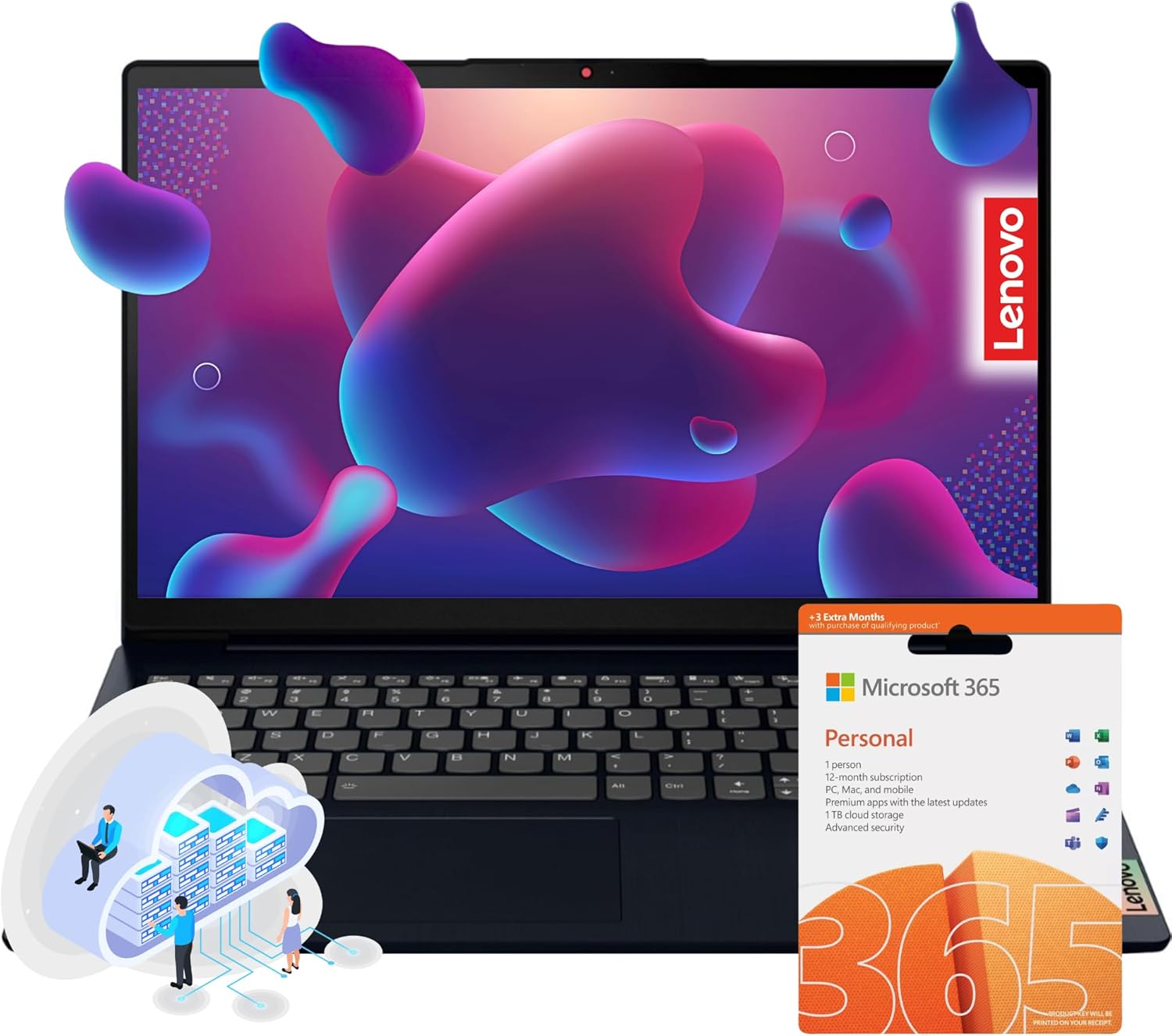
The Lenovo Essential IdeaPad laptop, showcasing its sleek design and the included Microsoft 365 Personal subscription card.
3.1. Key Features
- Display: 15.6-inch Full HD (1920 x 1080) LED-Backlit Anti-Glare Non-Touch Display.
- Processor: Intel Pentium Silver N6000 (4 cores, up to 3.00 GHz).
- Graphics: Integrated Intel UHD Graphics.
- Memory: 36GB DDR4 RAM.
- Storage: 512GB SSD and 1TB Cloud Storage.
- Operating System: Windows 11 Home.
- Wireless Connectivity: Wi-Fi 6 (802.11AX) and Bluetooth 5.1.
- Webcam: 720p HD Webcam with Privacy Shutter.
- Audio: Dual Dolby Audio Speakers.
- Battery Life: Up to 11 hours.
3.2. Ports and Connectors

A detailed view of the Lenovo IdeaPad's side ports, including USB 2.0, 4-in-1 Card Reader, Power Connector, USB 3.2 Gen1, HDMI 1.4b, USB-C 3.2 Gen1, and Audio Jack, illustrating its versatile connectivity.
- 1 x USB 2.0 Type-A
- 1 x USB 3.2 Gen 1 Type-A
- 1 x USB-C 3.2 Gen 1
- 1 x HDMI 1.4b
- 1 x 4-in-1 SD Card Reader
- 1 x Headphone/Microphone Combination Jack
- 1 x Power Connector

An infographic detailing the physical dimensions and core features of the Lenovo IdeaPad, including its thin profile, light weight, processor, graphics, audio, webcam, USB-C support, and battery life.
4. Setup
4.1. Initial Power On
- Connect the power adapter to the laptop's power connector and then to a power outlet.
- Open the laptop lid. The laptop may power on automatically, or you may need to press the power button located on the keyboard deck.
- Follow the on-screen instructions to complete the Windows 11 Home initial setup. This includes selecting your region, language, connecting to a Wi-Fi network, and creating a user account.
4.2. Microsoft 365 Activation
Your laptop includes a 1-year subscription to Microsoft 365 Personal. To activate:
- Ensure your laptop is connected to the internet.
- Open any Microsoft 365 application (e.g., Word, Excel).
- Follow the prompts to sign in with your Microsoft account or create a new one. The subscription will be automatically linked to your account.
5. Operating Instructions
5.1. Power On/Off and Sleep
- Power On: Press the power button.
- Shut Down: Click the Start button, then Power > Shut down.
- Sleep: Close the lid or click the Start button, then Power > Sleep.
5.2. Using the Touchpad
The touchpad functions as a mouse. Use single-finger gestures for pointing and clicking, and multi-finger gestures for scrolling, zooming, and other actions. Refer to Windows settings for customizing touchpad gestures.
5.3. Connecting to Wi-Fi

The Lenovo IdeaPad laptop with icons for Wi-Fi 6 and Bluetooth 5.1, indicating enhanced wireless connectivity and faster data transfer.
- Click the Wi-Fi icon in the taskbar.
- Select your desired network from the list.
- Enter the network password if prompted, then click 'Connect'.
5.4. Connecting Bluetooth Devices
- Go to 'Settings' > 'Bluetooth & devices'.
- Ensure Bluetooth is turned 'On'.
- Put your Bluetooth device into pairing mode.
- Click 'Add device' and select 'Bluetooth'.
- Choose your device from the list and follow any on-screen prompts.
5.5. Using External Displays (HDMI)
Connect an external monitor or TV to the HDMI 1.4b port. Press Windows key + P to select display modes (Duplicate, Extend, Second screen only).
5.6. Using the SD Card Reader
Insert an SD card into the 4-in-1 card reader slot. The card will appear as a removable drive in 'File Explorer', allowing you to transfer files.
6. Maintenance
6.1. Cleaning the Laptop
- Use a soft, lint-free cloth slightly dampened with water or a screen cleaner for the display.
- For the keyboard and chassis, use a soft cloth. Avoid harsh chemicals.
- Use compressed air to clear dust from vents and keyboard crevices.
6.2. Battery Care
- Avoid fully discharging the battery frequently.
- Store the laptop in a cool, dry place when not in use for extended periods.
- For optimal battery health, avoid extreme temperatures.
6.3. Software Updates
Regularly check for and install Windows updates to ensure system stability, security, and performance. Go to 'Settings' > 'Windows Update'.
6.4. Data Backup
Regularly back up your important data to an external drive or cloud storage to prevent data loss.
7. Troubleshooting
This section addresses common issues you might encounter with your Lenovo Essential IdeaPad.
7.1. Laptop Not Turning On
- Ensure the power adapter is securely connected to both the laptop and a working power outlet.
- Check if the power outlet is functional by plugging in another device.
- If the battery is completely drained, allow it to charge for at least 15-30 minutes before attempting to power on.
7.2. Wi-Fi Not Connecting
- Verify that Wi-Fi is enabled in Windows settings.
- Restart your router and modem.
- Forget the network and reconnect, ensuring the correct password is entered.
- Update Wi-Fi drivers through Device Manager.
7.3. Slow Performance
- Close unnecessary applications running in the background.
- Check for and install any pending Windows updates.
- Run a disk cleanup and defragmentation (for HDD, not typically needed for SSD).
- Scan for malware or viruses.
7.4. Windows 11 S Mode Limitations
If your laptop is operating in Windows 11 S Mode, you can only install apps from the Microsoft Store. If you need to install applications from other sources, you must switch out of S Mode. This is a one-way process:
- Go to 'Settings' > 'System' > 'Activation'.
- In the 'Switch to Windows 11 Pro' section, look for 'Go to the Store'.
- On the 'Switch out of S mode' (or similar) page that appears in the Microsoft Store, click the 'Get' button.
- Follow the on-screen instructions. Once you switch out of S Mode, you cannot go back.
8. Specifications
Detailed technical specifications for your Lenovo Essential IdeaPad.
| Feature | Specification |
|---|---|
| Display Size | 15.6 Inches |
| Screen Resolution | 1920 x 1080 pixels (Full HD) |
| Processor | Intel Pentium Silver N6000 (up to 3.00 GHz) |
| RAM | 36 GB DDR4 (Note: Some configurations may vary, e.g., 20GB) |
| Memory Speed | 2666 MHz |
| Hard Drive | 512GB SSD + 1TB Cloud Storage (Note: Some configurations may vary, e.g., 128GB SSD or 256GB SSD) |
| Graphics Coprocessor | Intel UHD Graphics |
| Wireless Type | 802.11ax (Wi-Fi 6) |
| Bluetooth | Bluetooth 5.1 |
| USB 2.0 Ports | 2 |
| USB 3.0 Ports | 1 (USB 3.2 Gen 1 Type-A) |
| USB-C Ports | 1 (USB-C 3.2 Gen 1) |
| Operating System | Windows 11 Home |
| Item Weight | 3.5 pounds (1.59 kg) |
| Product Dimensions | 21 x 3 x 14 inches (53.34 x 7.62 x 35.56 cm) |
| Color | Black |
| Battery | 1 Lithium Ion battery required |
| Special Features | 11 Hour Battery Life, Microsoft 365 Subscription, Wi-Fi 6 |
9. Warranty and Support
Your Lenovo Essential IdeaPad comes with a standard manufacturer's warranty. For detailed warranty information, please refer to the warranty card included with your product or visit the official Lenovo support website.
For technical assistance, driver downloads, or further support, please visit the Lenovo Support Website or contact Lenovo customer service.