
Introduction
Thank you for purchasing the eKids Disney Junior Ariel Karaoke Microphone with Bluetooth Speaker. This manual provides important information for the safe and optimal use of your new karaoke machine. Please read it thoroughly before use and retain it for future reference.
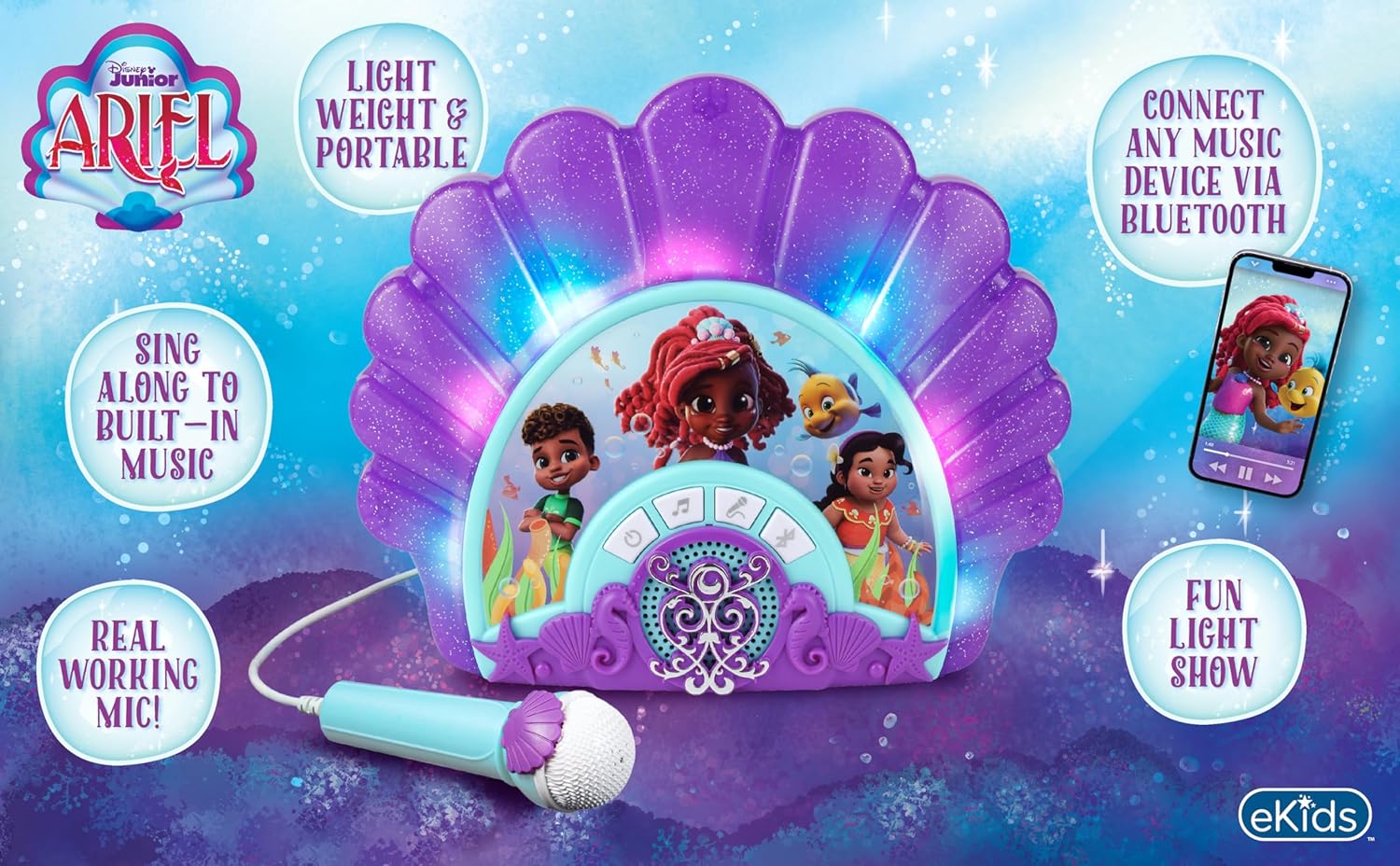
Figure 1: Product overview highlighting key features.
Setup
1. Unpacking
Carefully remove all components from the packaging. Ensure all items listed in the 'What's in the Box' section are present. Retain packaging for storage or shipping if needed.
2. Battery Installation
The unit requires 3 'AA' batteries (not included). Locate the battery compartment on the back of the unit. Open the compartment, insert the batteries according to the polarity indicators (+/-), and close the cover securely.

Figure 2: Rear view of the unit with battery compartment and controls labeled.
3. Initial Power On
After installing batteries, press the Power button (⏻) located on the front panel to turn on the unit. The unit will emit a sound and the lights will activate.
Operation
1. Basic Functions
The front panel features several control buttons:
- Power Button (⏻): Turns the unit on or off.
- Play/Repeat Button (♫): Plays the built-in music. Press again to repeat the current song or cycle through built-in tracks.
- Select Song Button (♪): Changes the built-in song.
- Microphone Button (🎤): Activates or deactivates the microphone.
- Bluetooth Button (Ⓑ): Initiates Bluetooth pairing mode.
2. Bluetooth Connection
To connect an external music device via Bluetooth:
- Turn on the karaoke machine.
- Press the Bluetooth button (Ⓑ) on the unit. The unit will enter pairing mode, indicated by a flashing light or sound.
- On your external device (smartphone, tablet, etc.), go to its Bluetooth settings and search for available devices.
- Select "eKids Ariel Karaoke" (or similar name) from the list to pair.
- Once paired, you can stream music from your device to the karaoke machine.

Figure 3: Bluetooth compatibility with various devices.
3. Using the Microphone
The unit includes a real working microphone. Plug the microphone into the designated port. Press the Microphone button (🎤) to activate it. Sing along to built-in music or music streamed via Bluetooth.
4. Built-in Music
The karaoke machine comes with pre-loaded music. Press the Play/Repeat button (♫) to start playing. Use the Select Song button (♪) to switch between tracks.
5. Light Show Feature
The unit features a fun light show that enhances your performance. The lights activate automatically when the unit is on and music is playing.
6. Volume Control
Adjust the overall volume using the HI/MEDIUM/LOW switch located on the back of the unit (refer to Figure 2).
Video 1: Official product demonstration of the eKids Disney Junior Ariel Karaoke Microphone and Boombox, showcasing its features and operation.
Maintenance
1. Cleaning
Wipe the unit with a soft, dry cloth. Do not use liquid cleaners or abrasive materials, as they may damage the finish or internal components.
2. Storage
When not in use for extended periods, remove the batteries to prevent leakage. Store the unit in a cool, dry place away from direct sunlight and extreme temperatures.
Troubleshooting
| Problem | Possible Cause | Solution |
|---|---|---|
| Unit does not power on. | Batteries are dead or incorrectly installed. | Replace batteries with new 'AA' batteries, ensuring correct polarity. |
| No sound from speaker. | Volume is too low or muted. External device volume is low. | Check the volume switch on the back of the unit. Increase volume on the connected Bluetooth device. |
| Microphone not working. | Microphone not plugged in or Microphone button is off. | Ensure the microphone is securely plugged into its port. Press the Microphone button (🎤) to activate it. |
| Bluetooth connection fails. | Unit is not in pairing mode or device is out of range. | Press the Bluetooth button (Ⓑ) to enter pairing mode. Ensure your device is within 30 feet (10 meters) of the unit. Try restarting both devices. |
Specifications
| Feature | Detail |
|---|---|
| Brand | eKids |
| Model Number | B0DCKBB6KW |
| Color | Purple |
| Included Components | Microphone |
| Speaker Count | 1 |
| Connector Type | Bluetooth |
| Connectivity Technology | Bluetooth |
| Media Type | Bluetooth |
| Compatible Devices | smartphone, tablet, tv, speaker |
| Built-In Media | Microphone |
| UPC | 092298961170 |
| Manufacturer | KIDdesigns |
Warranty & Support
Warranty Information
This product is covered by a standard manufacturer's warranty. Please refer to the warranty card included in your product packaging for specific terms and conditions. For return policy details, please consult your retailer.
Customer Support
For technical assistance or further inquiries, please visit the official eKids website or contact their customer service department. Contact information can typically be found on the product packaging or the brand's official website.