
1. Introduction
The Keychron K17 Max is an ultra-slim wireless mechanical keyboard designed for enhanced productivity and gaming. It features a compact 96% layout, QMK firmware, and supports multiple connection modes including 2.4 GHz, Bluetooth, and wired USB Type-C. This manual provides detailed instructions for setting up, operating, maintaining, and troubleshooting your K17 Max keyboard.

Image 1.1: The Keychron K17 Max keyboard highlighting its key features such as Launcher Web Configurator, ultra-slim design, 2.4 GHz & Bluetooth connectivity, macOS & Windows compatibility, 1000 Hz Polling Rate, Numpad, Acoustic Foam, and Double-Shot PBT Keycaps.
2. Setup
2.1 Package Contents
Verify that all items are present in your package:
- 1x Keychron K17 Max Fully Assembled Keyboard
- 1x Type-A to Type-C Cable
- 1x Extension Adapter for 2.4 GHz Receiver
- 1x Type-A 2.4 GHz Receiver
- 1x Keycap Puller

Image 2.1: Illustration of the included accessories: keyboard, USB-C cable, 2.4 GHz receiver, and keycap puller.
2.2 Charging the Keyboard
Connect the provided USB Type-A to Type-C cable to the keyboard's USB-C port and the other end to a power source (e.g., computer USB port or USB wall adapter). The charging indicator light will show the charging status.
2.3 Connection Modes
The K17 Max supports three connection types:
- 2.4 GHz Wireless: For high-performance gaming with a 1000 Hz polling rate. Insert the 2.4 GHz receiver into your computer's USB-A port. Use the extension adapter if needed for better signal.
- Bluetooth 5.1: Connect up to three devices and switch between them seamlessly. Enable Bluetooth on your device and pair with the keyboard.
- Wired (USB Type-C): Connect the keyboard directly to your computer using the provided USB-C cable.

Image 2.2: The keyboard illustrating its three connection modes: 2.4 GHz, Bluetooth 5.1, and USB Wired.
2.4 Operating System Switch
Locate the OS toggle switch on the side of the keyboard. Switch it to the appropriate position for your operating system (Windows/Android or Mac/iOS) to ensure correct key mapping.

Image 2.3: Close-up of the multi-OS toggle switch on the side of the keyboard, indicating settings for Windows and macOS.
3. Operating Instructions
3.1 Basic Typing
The K17 Max features a standard QWERTY layout with a 96% form factor, including a numeric keypad. Keys are designed for a comfortable typing experience with low-profile Gateron mechanical brown switches.
3.2 RGB Backlight Control
The keyboard features customizable RGB backlighting. Use the dedicated function keys or the Keychron Launcher web app to cycle through various lighting effects, adjust brightness, and change colors.

Image 3.1: The Keychron K17 Max keyboard displaying its customizable RGB backlights in a desk setup.
3.3 QMK Firmware and Keychron Launcher
The K17 Max runs on QMK open-source firmware, allowing for advanced customization. Use the Keychron Launcher web app to remap keys, create macros, and configure lighting effects. This web-based tool requires no installation and provides regular updates.
- Access the Keychron Launcher via your web browser.
- Connect your keyboard via USB-C to your computer.
- Follow the on-screen instructions to customize your keyboard settings.
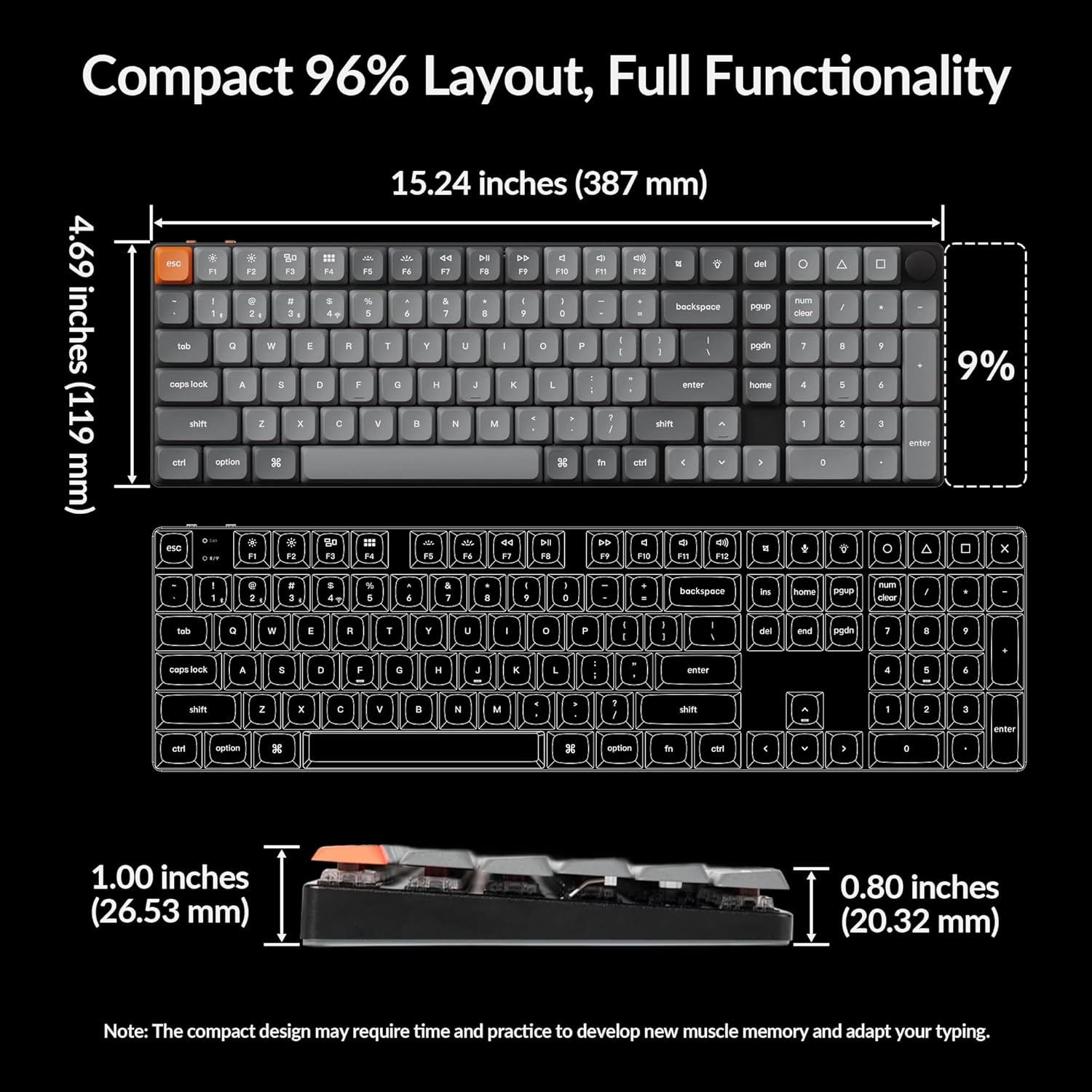
Image 3.2: Screenshot of the Keychron Launcher Web App interface on a laptop, showing key remapping and customization options for the K17 Max.
4. Maintenance
4.1 Cleaning the Keyboard
To clean your keyboard, disconnect it from all power sources. Use a soft, lint-free cloth slightly dampened with water or a mild cleaning solution. For dust and debris between keycaps, use compressed air. Avoid spraying liquids directly onto the keyboard.
4.2 Keycap Care
The K17 Max features durable double-shot PBT keycaps. If you need to remove keycaps for cleaning or replacement, use the provided keycap puller to avoid damage. Gently pull the keycap straight up.

Image 4.1: Close-up view of the low-profile double-shot PBT keycaps, highlighting their LSA profile and durable construction.
5. Troubleshooting
5.1 Connectivity Issues
- 2.4 GHz: Ensure the receiver is securely plugged in and the keyboard is in 2.4 GHz mode. Try a different USB port or use the extension adapter to position the receiver closer to the keyboard.
- Bluetooth: Ensure Bluetooth is enabled on your device and the keyboard is in Bluetooth pairing mode. Forget the device on your computer and re-pair if connection fails.
- Wired: Check the USB-C cable connection at both ends. Try a different USB-C cable or port.
5.2 Keys Not Responding
- Ensure the keyboard is powered on and connected.
- Check the OS switch is set correctly for your system.
- If specific keys are not working, gently remove the keycap with the keycap puller and inspect for any obstructions.
- Perform a factory reset if issues persist (refer to Keychron support for specific instructions).
5.3 Backlight Issues
- Ensure the backlight is enabled and brightness is adjusted.
- Check settings in the Keychron Launcher web app.
5.4 Firmware Updates
Regularly check the Keychron website or the Keychron Launcher web app for firmware updates to ensure optimal performance and access to new features. Follow the provided instructions carefully during the update process.
6. Specifications
| Feature | Detail |
|---|---|
| Brand | Keychron |
| Model Number | K17 Max |
| Layout | 96% (100 Keys) |
| Connectivity | 2.4 GHz Wireless, Bluetooth 5.1, USB Type-C Wired |
| Switches | Low-Profile Gateron Mechanical Brown |
| Keycaps | Double-Shot PBT |
| Backlight | RGB |
| Polling Rate (2.4 GHz) | 1000 Hz |
| Compatible OS | macOS, Windows, Linux, Android, iOS |
| Material | Aluminum, Plastic |
| Power Source | Rechargeable Battery, USB Powered |
| Dimensions (Approx.) | 15.24 inches (387 mm) x 4.69 inches (119 mm) |

Image 6.1: Detailed dimensions of the Keychron K17 Max keyboard, illustrating its compact 96% layout.

Image 6.2: Close-up view of the low-profile Gateron mechanical brown switches beneath the keycaps.
7. Warranty and Support
7.1 Warranty Information
The Keychron K17 Max keyboard comes with a 1-year limited warranty from the date of purchase. This warranty covers manufacturing defects under normal use. It does not cover damage caused by misuse, accidents, unauthorized modifications, or normal wear and tear.
7.2 Customer Support
For technical assistance, warranty claims, or further inquiries, please visit the official Keychron website or contact their customer support team. You can find contact information and FAQs on the Keychron support page.
Official Keychron Website: www.keychron.com


