
ARPHA SP300K
ARPHA SP300K Keyless Entry Door Lock User Manual
Model: SP300K | Brand: ARPHA
1. Introduction
Thank you for choosing the ARPHA SP300K Keyless Entry Door Lock. This advanced smart deadbolt offers multiple secure entry methods, including unique palm vein recognition, passcode, app control, and traditional key. With built-in Wi-Fi, it seamlessly integrates into your smart home, providing convenience and enhanced security. This manual provides detailed instructions for installation, operation, maintenance, and troubleshooting to ensure optimal performance and a secure experience.
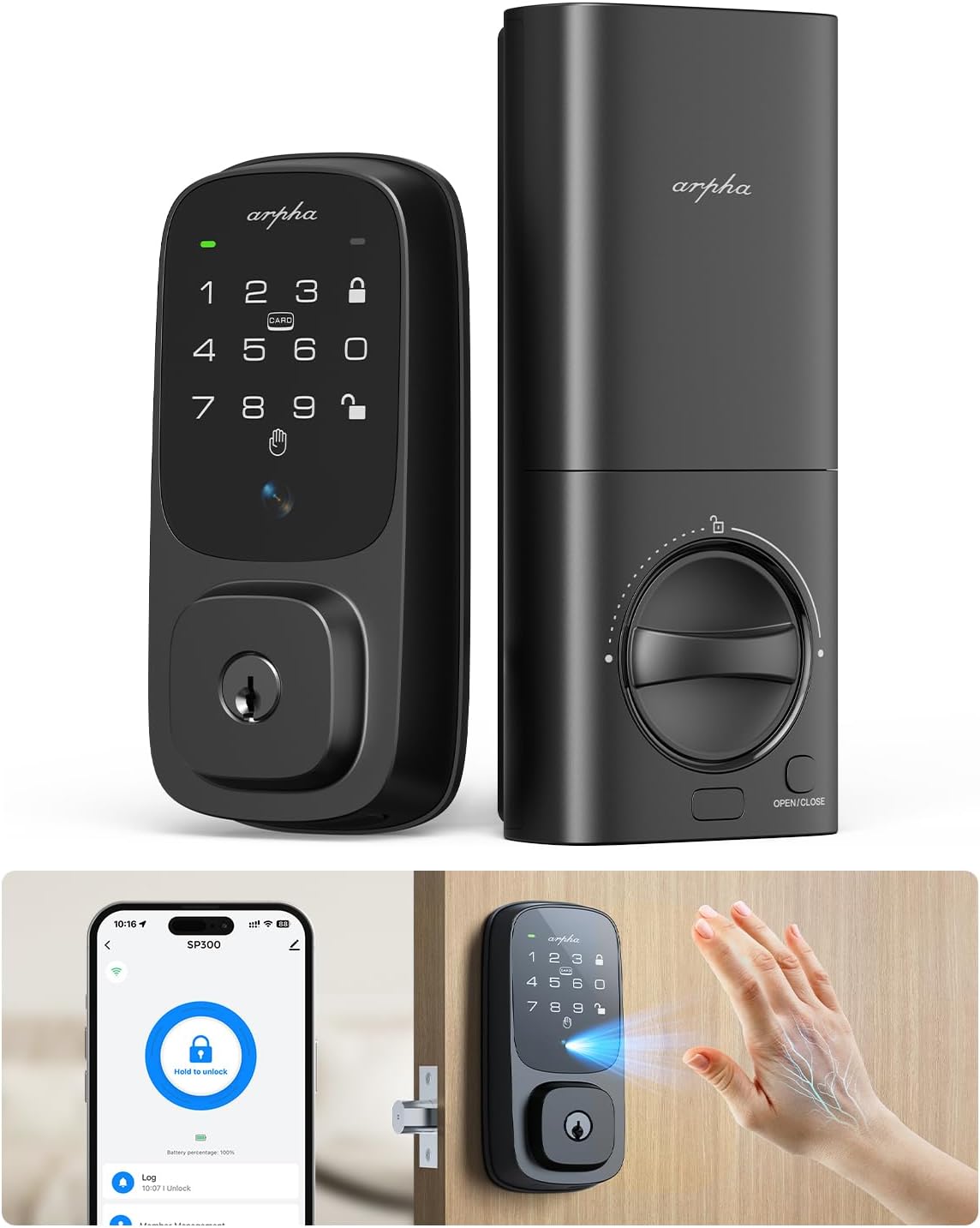
Image: The ARPHA SP300K smart deadbolt lock, showing both the exterior keypad unit and the interior thumb-turn unit.
2. Key Features
- Palm Vein Biometric Mastery: Utilizes infrared imaging for unique palm vein pattern authentication (<1 second, 99% accuracy), offering hygienic, touch-free entry.
- Cloud-Connected Access Management: Built-in Wi-Fi module allows remote unlocking, one-time code generation, and real-time notifications via the companion app.
- Voice-Activated Smart Home Integration: Seamlessly integrates with Amazon Alexa and Google Assistant for voice-controlled entry.
- Unhackable Biology, Uncompromised Privacy: Palm-vein patterns offer superior biometric uniqueness; local data encryption ensures privacy.
- All-Weather Durability: BMHA Level 3-certified and IP54 weatherproof, functioning reliably from -4°F to 140°F (-20°C to 60°C).
- Sustainable Powerhouse: 7800mAh eco-rechargeable battery provides up to 8 months of use, with low-power alerts and emergency USB-C charging.
- Easy Installation: Designed for DIY installation in approximately 15 minutes with an intuitive app-guided setup.

Image: Diagram illustrating the advanced palm vein recognition technology, highlighting its accuracy, speed, and capacity for 50 palm vein groups.

Image: The smart lock shown in a snowy environment, emphasizing its IP65 rating and ability to withstand temperatures from -4°F to 140°F.
3. Setup and Installation
The ARPHA SP300K is designed for straightforward DIY installation. Please follow these steps carefully:
- Prepare Your Door: Ensure your door meets the required specifications. The lock is compatible with door thicknesses of 1.38"-2.17" (35-55mm). Bore hole backset can be 2.36" or 2.76" (60mm or 70mm), and bore hole diameter 1.5" or 2.13" (38mm or 54mm).
- Install the Latch: Insert the latch into the door edge and secure it with screws.
- Install the Exterior Assembly: Place the exterior keypad unit onto the door, ensuring the spindle passes through the latch.
- Install the Interior Mounting Plate: Secure the interior mounting plate to the exterior assembly using the provided screws.
- Connect Cables: Carefully connect the cable from the exterior unit to the interior unit.
- Install the Interior Assembly: Attach the interior unit to the mounting plate and secure it.
- Insert Battery: Open the battery cover on the interior unit and insert the included Lithium Polymer battery.
- App Setup: Download the ARPHA companion app. Scan the QR code on the lock or in the manual to pair your device. Follow the in-app instructions for initial setup, including calibrating the lock and setting up palm vein patterns and passcodes.
The lock is compatible with both left-handed and right-handed doors.
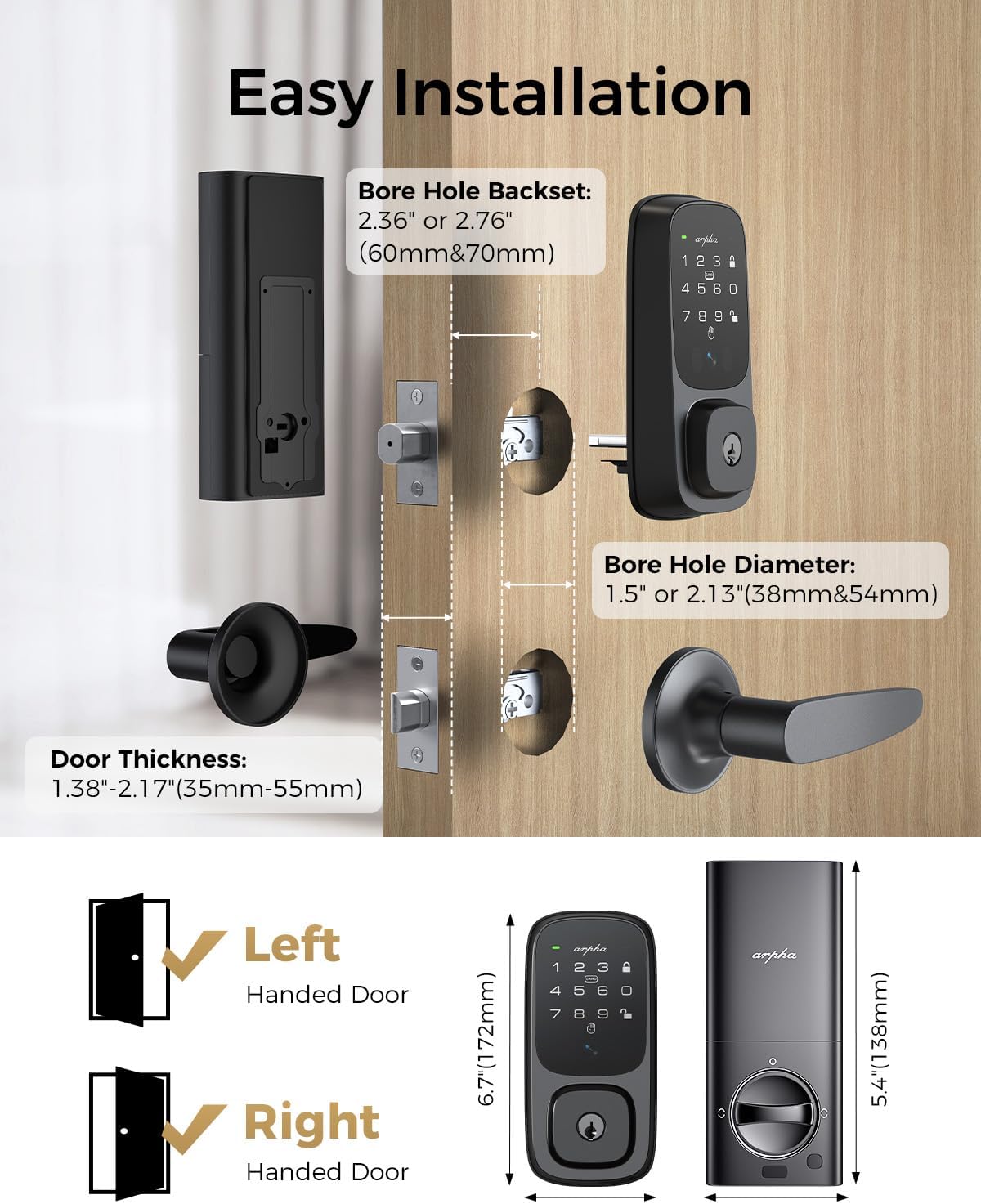
Image: Visual guide for easy installation, showing bore hole backset, diameter, and door thickness requirements, along with left and right-handed door compatibility.
4. Operating Instructions
4.1 Unlocking Methods
- Palm Vein Recognition: Place your palm approximately 5-15cm in front of the sensor on the exterior unit. The lock will recognize your unique palm vein pattern and unlock.
- Passcode Entry: Enter your registered passcode on the keypad. The lock supports anti-peeping codes, allowing you to enter random digits before or after your actual code to protect it from onlookers.
- App Control: Use the ARPHA companion app on your smartphone to remotely unlock the door. The app also allows you to generate one-time or temporary passcodes for guests.
- Voice Control: Integrate your lock with Amazon Alexa or Google Assistant. Once configured, you can use voice commands like "Alexa, unlock the front door" (voice code may be required for security).
- NFC Card: Tap a registered NFC card to the designated area on the lock to unlock.
- Mechanical Key: In case of emergency or battery depletion, use the provided mechanical key to unlock the deadbolt.
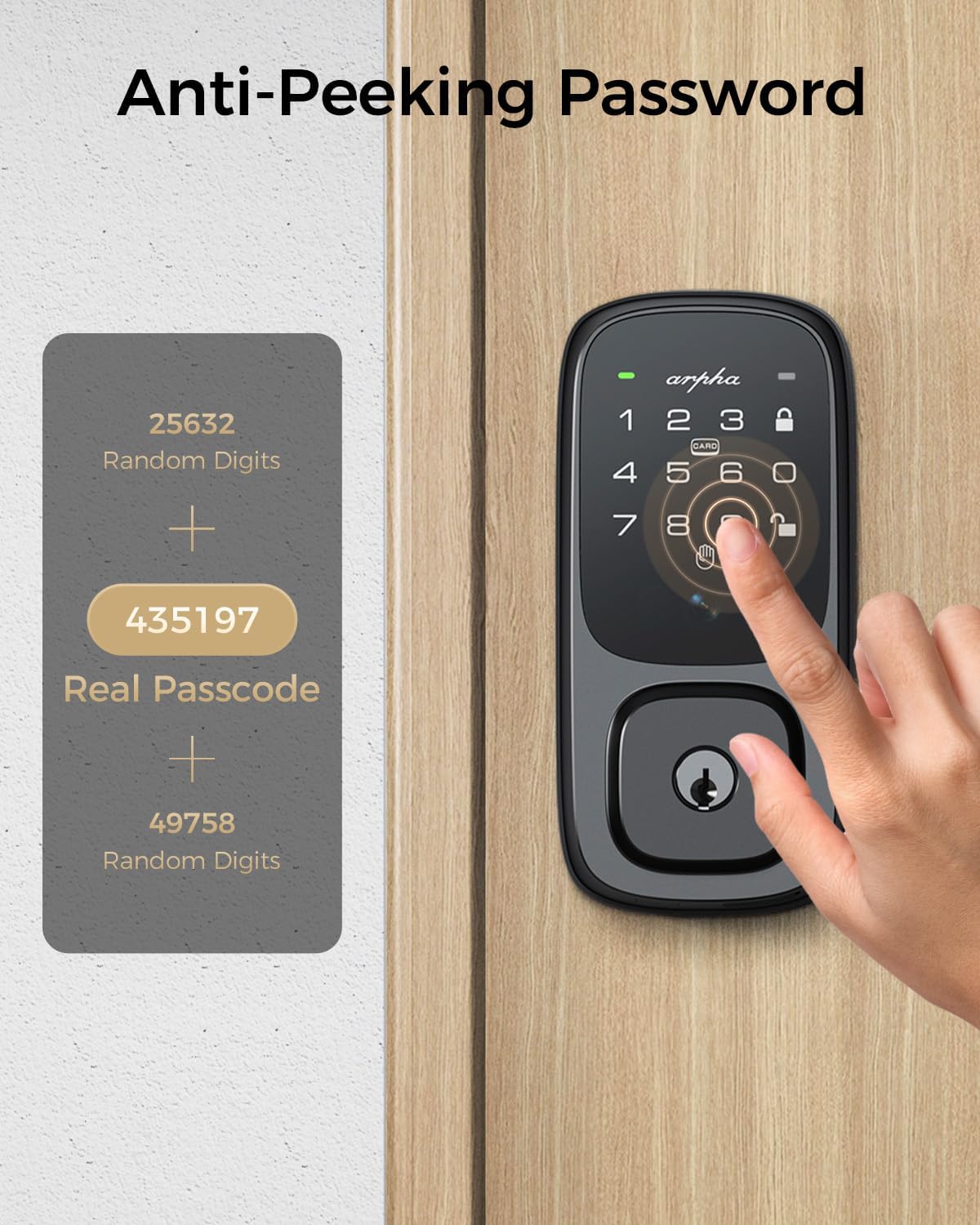
Image: Demonstration of the anti-peeping password feature, showing how random digits can be added before and after the real passcode for enhanced security.

Image: A visual representation of different unlocking methods available for the ARPHA SP300K, including NFC card, mobile app, and traditional mechanical key.
4.2 Locking Methods
- Auto-Lock: The lock can be configured to automatically lock after a set period (e.g., 10 seconds to 15 minutes) once the door is closed. This setting can be customized via the app.
- One-Touch Lock: Press and hold the lock button on the keypad to manually lock the door from the outside.
- Thumb-Turn: Manually lock the door from the inside using the thumb-turn knob on the interior unit.

Image: A visual showing the auto-lock feature, indicating the adjustable delay from 10 seconds to 3 minutes before the lock automatically engages.
5. Maintenance
Proper maintenance ensures the longevity and optimal performance of your ARPHA SP300K lock.
- Battery Management: The 7800mAh rechargeable Lithium Polymer battery provides approximately 8 months of use based on 10 openings/closings per day. The app will provide low-power alerts. Recharge the battery using the included USB-C cable. An emergency USB-C O-T-G charging port is available on the exterior unit to prevent lockouts if the battery fully depletes.
- Cleaning: Wipe the exterior keypad and interior unit with a soft, dry cloth. Avoid using abrasive cleaners or solvents that could damage the finish or electronic components.
- Environmental Conditions: While the exterior unit is IP54 weatherproof, avoid direct and prolonged exposure to extreme moisture or harsh chemicals. The interior unit is not waterproof and should be protected from water.

Image: Illustration of the 7800mAh rechargeable battery, highlighting its 8-month lifespan, eco-friendly nature, and low-power alert feature, along with the emergency USB-C charging port.
6. Troubleshooting
If you encounter issues with your ARPHA SP300K lock, refer to the following common problems and solutions:
| Problem | Possible Cause | Solution |
|---|---|---|
| Palm vein recognition fails | Incorrect palm placement; sensor obstruction; unregistered palm. | Ensure palm is flat and 5-15cm from sensor. Clean sensor. Re-register palm in app. |
| Lock does not respond | Low battery; system error. | Recharge battery via USB-C. If unresponsive, use mechanical key and contact support. |
| Cannot connect to Wi-Fi/App | Incorrect Wi-Fi password; router issues; lock too far from router. | Verify Wi-Fi password. Restart router. Move lock closer to router or use a Wi-Fi extender. Re-pair in app. |
| Auto-lock not working | Auto-lock disabled; incorrect timing setting. | Enable auto-lock and adjust timing in the ARPHA app. |
| Keypad unresponsive | Low battery; physical damage. | Recharge battery. If damage is visible, contact customer support. |
For issues not listed here, please refer to the support section or contact ARPHA customer service.
7. Specifications
| Feature | Specification |
|---|---|
| Model Name | SP300K |
| Brand | ARPHA |
| Lock Type | Biometric, Deadbolt, Keypad |
| Material | Metal |
| Color | Dark Black |
| Item Dimensions (L x W x H) | 5.45 x 2.89 x 1.98 inches |
| Item Weight | 3.91 pounds |
| Battery Type | 1 Lithium Polymer battery (included) |
| Battery Capacity | 7800mAh |
| Connectivity Protocol | Wi-Fi (2.4GHz) |
| Control Method | App, Touch, Voice |
| Special Features | Anti-Peeping Password, Auto-Lock, Palmar vein Recognition, Passcode Unlock, Rechargeable |
| Operating Temperature | -4°F to 140°F (-20°C to 60°C) |
| Weatherproofing | IP54 (exterior unit) |

Image: Detailed diagram showing the lock's dimensions and required door specifications for installation, including bore hole and backset measurements.
8. Warranty and Support
ARPHA is committed to providing exceptional support and assurance for your product.
- Money-Back Guarantee: Enjoy a 30-day money-back guarantee from the date of purchase.
- Product Assurance: The ARPHA SP300K comes with an 18-month assurance period, covering manufacturing defects and malfunctions under normal use.
- Technical Support: Lifetime technical support is available for all ARPHA products.
- Customer Service: Our dedicated support team is available 24/7 via email service to assist you with any inquiries or issues. Please do not hesitate to contact us if you need help.

Image: A customer support representative with a headset, symbolizing ARPHA's commitment to 24/7 online service and fast response times.
Related documentsSP300K

Ask a question about this manual
Ask about setup, troubleshooting, compatibility, parts, safety, or missing instructions. Manuals+ will review the question and use this page’s manual context to help answer it.