
1. Introduction
The Keychron K17 Max is an ultra-slim mechanical keyboard designed for enhanced productivity and gaming. It features a 96% layout and supports multiple connection modes: 2.4 GHz wireless, Bluetooth 5.1, and wired USB Type-C. This keyboard is compatible with various operating systems, including macOS and Windows, and is powered by QMK open-source firmware, allowing for extensive customization via the Keychron Launcher web application.
This manual provides essential information for setting up, operating, maintaining, and troubleshooting your Keychron K17 Max keyboard.

Image: The Keychron K17 Max mechanical keyboard, showcasing its 96% layout and low-profile design, with a close-up of a red mechanical switch in the top right corner.
2. Setup
2.1. Package Contents
Before beginning, ensure all components are present in the package:

Image: A visual representation of the Keychron K17 Max package contents, including the keyboard, Type-A to Type-C cable, extension adapter for receiver, 2.4GHz receiver, and a keycap puller.
- 1x Fully Assembled Keyboard
- 1x Type-A to Type-C Cable
- 1x Extension Adapter for Receiver
- 1x Type-A 2.4GHz Receiver
- 1x Keycap Puller
2.2. Connecting the Keyboard
The K17 Max offers three connection methods:

Image: A graphic illustrating the three available connection modes for the Keychron K17 Max: 2.4GHz wireless, Bluetooth 5.1, and USB wired connection.
- 2.4 GHz Wireless Connection:
- Locate the 2.4GHz receiver.
- Plug the receiver into an available USB-A port on your computer.
- Ensure the keyboard's mode switch (located on the side) is set to "2.4G".
- The keyboard should automatically connect. This mode provides a 1000 Hz polling rate for optimal gaming performance.
- Bluetooth 5.1 Connection:
- Set the keyboard's mode switch to "BT" (Bluetooth).
- On your device (computer, phone, tablet), enable Bluetooth and search for new devices.
- Select "Keychron K17 Max" from the list of available devices.
- Follow any on-screen prompts to complete pairing. The keyboard can connect to up to three devices simultaneously, allowing for seamless switching.
- Wired USB Type-C Connection:
- Connect the provided Type-A to Type-C cable to the keyboard's USB-C port.
- Connect the other end of the cable to a USB-A port on your computer.
- Set the keyboard's mode switch to "Cable".
- The keyboard will function as a wired device and charge its internal battery.
2.3. Operating System Toggle
The K17 Max features a dedicated switch to toggle between macOS and Windows/Android/iOS layouts, ensuring full compatibility and correct key mappings for your operating system.

Image: A close-up view of the side of the Keychron K17 Max keyboard, highlighting the physical toggle switch for selecting between Windows/Android/iOS and macOS operating system modes.
Locate the OS toggle switch on the side of the keyboard and slide it to the appropriate position for your operating system (Windows/Android/iOS or macOS).
3. Operation
3.1. Basic Usage
Once connected, the Keychron K17 Max functions as a standard keyboard. Its 96% layout includes a numeric keypad and function row, providing full functionality in a compact form factor.
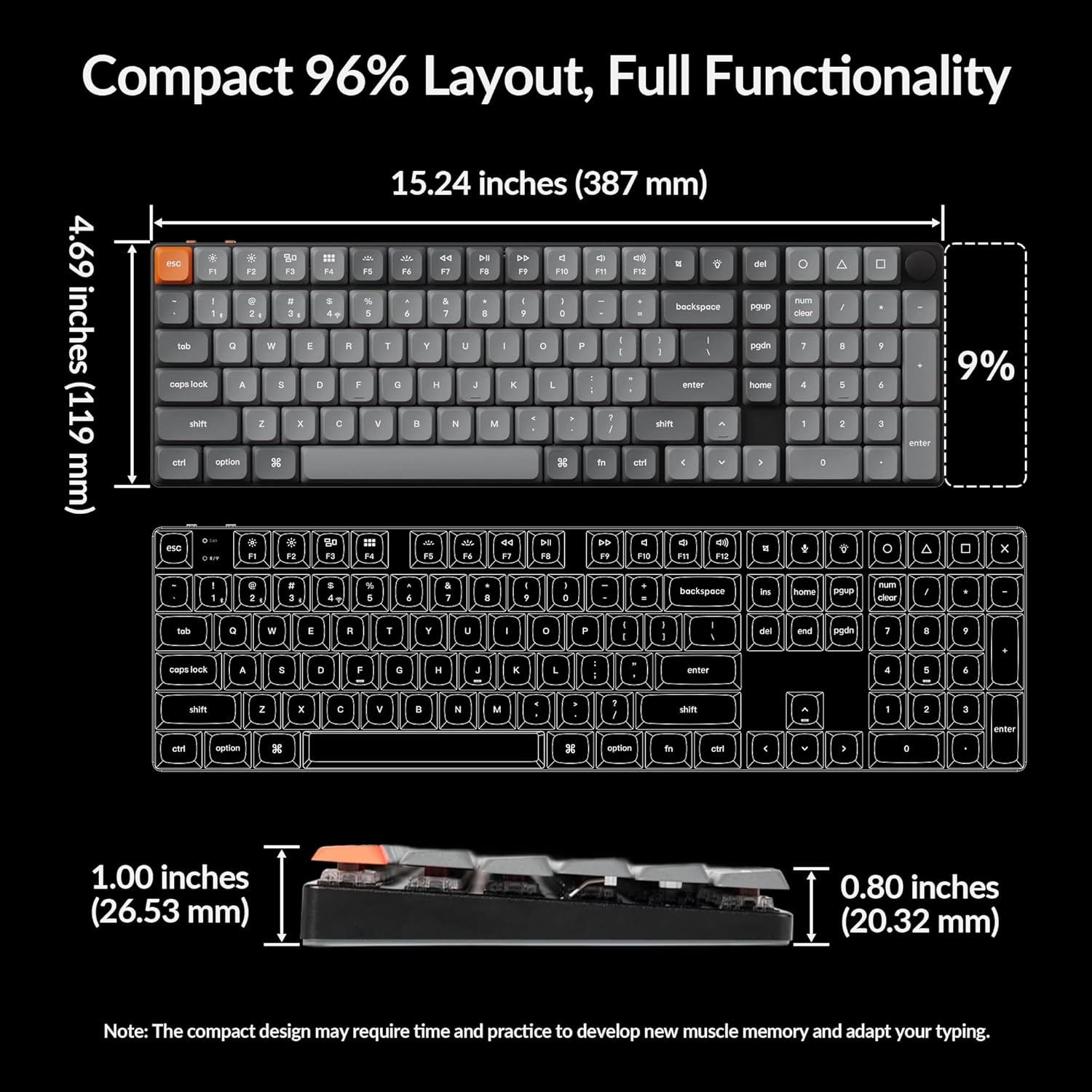
Image: A top-down view of the Keychron K17 Max keyboard, illustrating its compact 96% layout and providing key dimensions (length, width, height) for reference.
3.2. Customizable RGB Backlights
The K17 Max features customizable RGB backlighting. You can cycle through various lighting effects and colors directly on the keyboard using specific key combinations, or customize them further using the Keychron Launcher web app.

Image: The Keychron K17 Max keyboard illuminated with customizable RGB backlighting, set on a desk next to a laptop, demonstrating its aesthetic appeal.
Refer to the full user guide for specific key combinations to adjust backlight settings.
3.3. Keychron Launcher Web App (QMK Firmware)
The K17 Max runs on QMK open-source firmware, allowing for advanced customization of key assignments, macros, and lighting effects. The Keychron Launcher is a cross-platform, web-based tool that provides a graphical interface for these customizations.

Image: A laptop screen displaying the Keychron Launcher web application interface, showing key remapping options for the K17 Max keyboard, which is also visible on the desk below.
- Access: The Keychron Launcher can be accessed via a web browser. No installation is required.
- Customization: Use the Launcher to remap keys, create macros, adjust lighting patterns, and update firmware.
- Firmware Updates: The web app facilitates regular updates, ensuring your keyboard has the latest features and improvements.
For detailed instructions on using the Keychron Launcher, please visit the official Keychron website or refer to the comprehensive user guide.
4. Maintenance
Proper maintenance ensures the longevity and optimal performance of your Keychron K17 Max keyboard.
4.1. Cleaning the Keyboard
- General Cleaning: Use a soft, lint-free cloth slightly dampened with water or a mild cleaning solution to wipe down the keycaps and keyboard frame. Avoid excessive moisture.
- Dust Removal: Use compressed air to remove dust and debris from between the keycaps and switches.
- Keycap Cleaning: For deeper cleaning, use the provided keycap puller to carefully remove keycaps. Clean them with mild soap and water, rinse thoroughly, and ensure they are completely dry before reattaching.

Image: A close-up shot of the Keychron K17 Max's low-profile double-shot PBT keycaps, highlighting their durable material and design.
4.2. Battery Care
- Avoid fully discharging the battery frequently.
- Store the keyboard in a cool, dry place if not used for extended periods.
- Use the provided USB-C cable for charging.
5. Troubleshooting
If you encounter issues with your Keychron K17 Max, try the following common troubleshooting steps:
- Keyboard Not Responding:
- Ensure the keyboard is charged or connected via USB-C cable.
- Check the connection mode switch (2.4G, BT, Cable) is set correctly.
- For wireless connections, ensure the receiver is properly plugged in or Bluetooth is paired.
- Try restarting your computer or device.
- Bluetooth Connection Issues:
- Remove the keyboard from your device's Bluetooth list and re-pair it.
- Ensure no other devices are interfering with the Bluetooth signal.
- Keys Not Registering:
- Check for any physical obstructions under the keycap.
- If a specific key is not working, it might indicate a switch issue.
- Backlight Issues:
- Ensure the backlight is enabled.
- Adjust brightness settings using the keyboard shortcuts or Keychron Launcher.
For more detailed troubleshooting steps and solutions, please refer to the official Troubleshooting Guide (PDF) or the User Guide (PDF) available on the product page.
6. Specifications
Below are the technical specifications for the Keychron K17 Max Ultra-Slim Mechanical Keyboard:
| Feature | Detail |
|---|---|
| Model Name | K17 Max |
| Layout | 96% Layout |
| Connectivity | 2.4 GHz Wireless, Bluetooth 5.1, USB Type-C Wired |
| Switch Type | Low-Profile Gateron Mechanical (Red Switch variant) |
| Keycaps | Low-Profile Double-shot PBT Keycaps |
| Backlight | RGB Backlit |
| Firmware | QMK Open-Source Firmware |
| Customization Software | Keychron Launcher Web App |
| Compatible OS | macOS, Windows, Android, iOS, Linux |
| Polling Rate (2.4GHz) | 1000 Hz |
| Item Weight | 2.42 pounds (approx. 1.1 kg) |
| Package Dimensions | 17.6 x 6.57 x 1.81 inches |
| Battery | Internal Rechargeable (1 AAA batteries required for operation, likely refers to internal battery pack) |
7. Warranty and Support
7.1. Warranty Information
Keychron products typically come with a limited manufacturer's warranty covering defects in materials and workmanship. The specific warranty period and terms may vary by region and product. Please retain your proof of purchase for warranty claims.
For detailed warranty information, please visit the official Keychron website or contact Keychron customer support.
7.2. Customer Support
If you require further assistance, have questions, or need technical support, please contact Keychron customer service through their official channels.
- Official Website: Visit the Keychron Official Website for FAQs, support articles, and contact information.
- Amazon Store: You can also find support and product information on the Keychron Amazon Store.
- User Guides: Access the full User Guide (PDF) and Troubleshooting Guide (PDF) for comprehensive details.


