
Roinvou 2+64G Android Auto Radio for Toyota Matrix 2009-2014
Roinvou 2+64G Android Auto Radio User Manual
For Toyota Matrix 2009-2014
1. Introduction
This manual provides detailed instructions for the installation, operation, and maintenance of your Roinvou 2+64G Android Auto Radio. Please read this manual thoroughly before using the product to ensure proper function and safety. This unit is designed specifically for the Toyota Matrix models from 2009 to 2014.
2. Setup and Installation
2.1 Package Contents
Before beginning installation, please verify that all components listed below are present in your package:

Figure 2.1: Included Components
- Roinvou Car Stereo for Toyota Matrix
- Power Cable
- RCA Harness
- GPS Antenna
- AHD Backup Camera
- External Microphone
- Rear Camera Input Cable
- Dual USB Cable
- Installation Tool
2.2 Installation Notes
Installation of this car radio system requires technical knowledge and experience. It is highly recommended that installation be performed by a qualified professional to ensure correct wiring and functionality, and to prevent damage to the unit or your vehicle.

Figure 2.2: Before and After Installation
2.3 Backup Camera Connection
The included AHD backup camera provides enhanced safety when reversing. Connect the camera according to the diagram below. Ensure the reverse input cable is securely plugged in, even if the camera is not in use, as this can affect Bluetooth and Wi-Fi signal reception.

Figure 2.3: Backup Camera Wiring Diagram
2.4 Steering Wheel Control (SWC)
The unit supports steering wheel controls for convenient operation while driving. The connection method depends on whether your vehicle has a CANBUS decoder.

Figure 2.4: Steering Wheel Control Setup
Without CANBUS Decoder: Connect the plugs or steering wheel control wires (Key1/Key2) in the power cable to the corresponding port or wire of your original car. Then, navigate to "SteeringWheelKey" in the unit's settings for manual matching to activate button functions.
With CANBUS Decoder: Connect the CANBUS before powering on the machine. Then, go to Settings > Factory Setup (Password 000000) > Can Settings to make SWC work properly. First, select the brand of the CANBUS decoder, then select the matching model and year according to your vehicle's actual situation.
3. Operating Instructions
3.1 System Overview
The Roinvou Android Auto Radio features a powerful Android system with a 4-core processor, 2GB RAM, and 64GB ROM, ensuring a smooth user experience. It offers 26 customizable UI themes for personalized aesthetics.

Figure 3.1: Powerful Processor Architecture

Figure 3.2: Customizable UI Themes
3.2 Wireless/Wired CarPlay & Android Auto
Connect your iPhone or Android smartphone to the unit for seamless integration of navigation, calls, messages, and music. Connection can be established wirelessly via Bluetooth or wired using the original USB data cable.
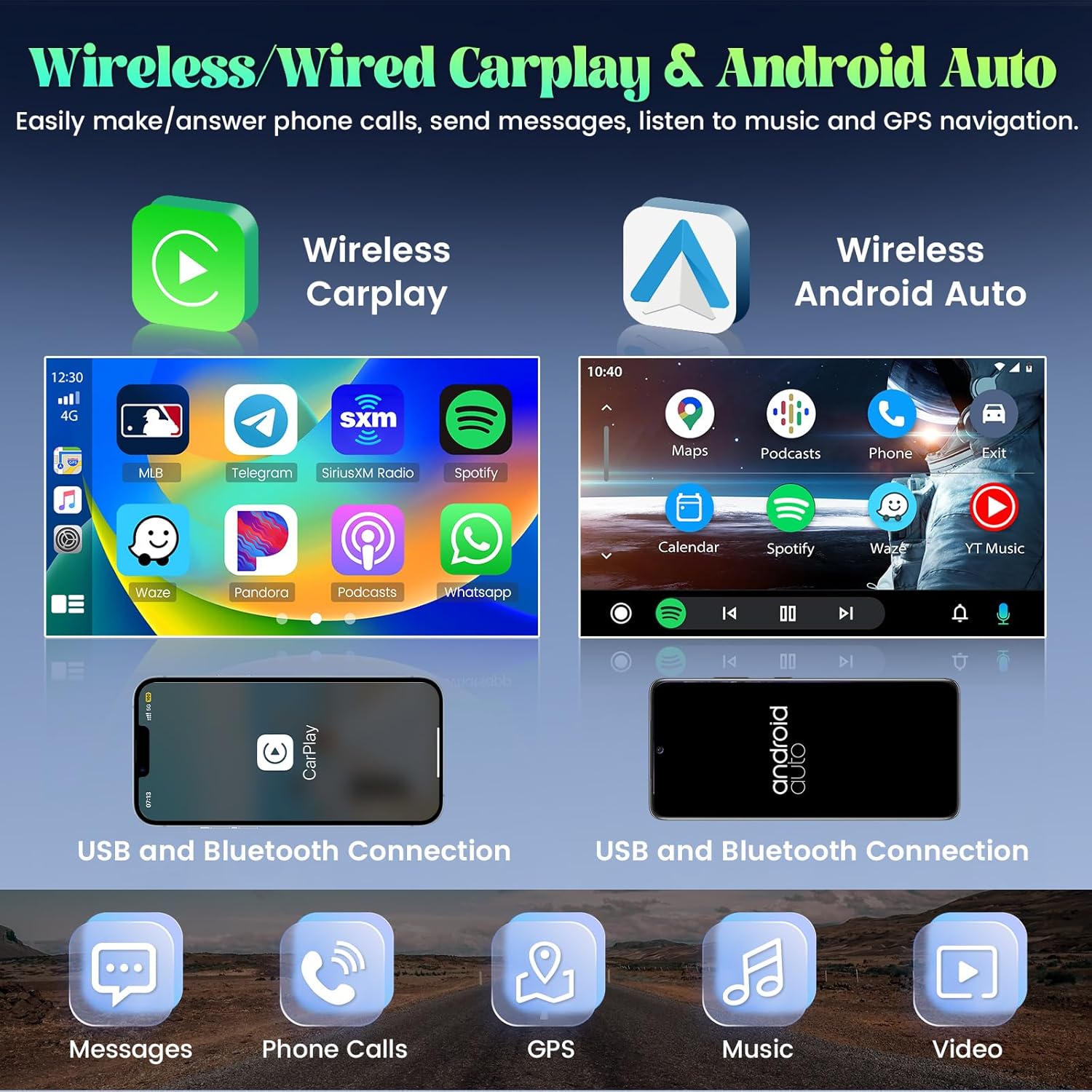
Figure 3.3: CarPlay and Android Auto Functionality
3.3 Bluetooth & Mirror Link
The built-in Bluetooth module supports hands-free calling, phone book synchronization, and music streaming. The Mirror Link feature allows you to display your smartphone screen directly on the car stereo's larger display for multimedia content.
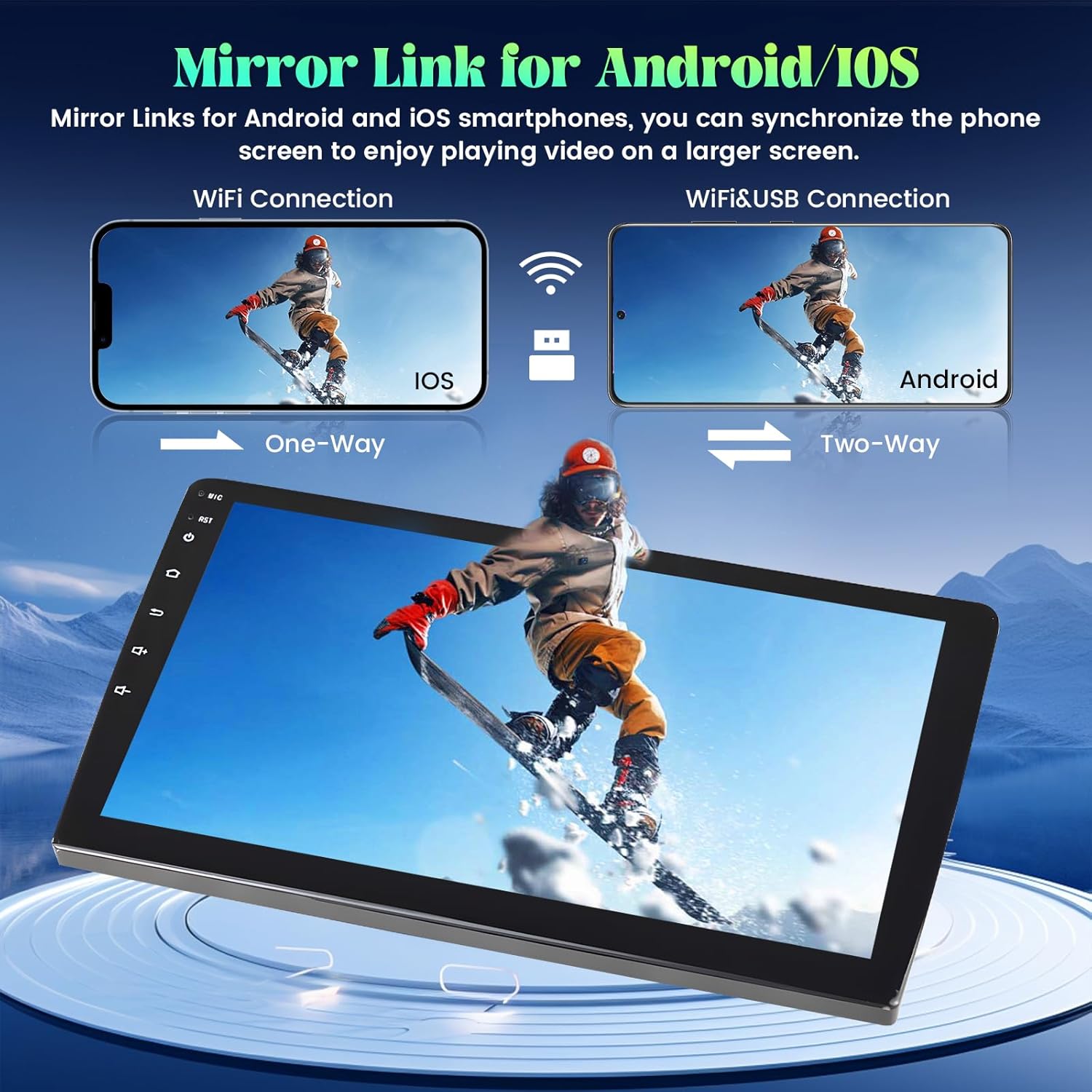
Figure 3.4: Mirror Link Connectivity
3.4 Wi-Fi & GPS Navigation
Connect the unit to a Wi-Fi hotspot to download online applications, stream videos, and access online navigation. The system supports both online and offline navigation, preloaded with Here WeGo maps and compatible with Google Maps.

Figure 3.5: GPS Navigation and Wi-Fi Features
3.5 Audio Features
The unit includes an FM/RDS radio for clear reception and a Digital Sound Processor (DSP) for adjustable EQ settings, allowing you to customize your audio experience.

Figure 3.6: Audio and Display Features
4. Maintenance
To ensure the longevity and optimal performance of your Roinvou Android Auto Radio, follow these maintenance guidelines:
- Cleaning: Use a soft, dry cloth to clean the screen and exterior. Avoid abrasive cleaners or solvents that may damage the surface.
- Software Updates: Periodically check for software updates provided by Roinvou to ensure you have the latest features and bug fixes. Updates can typically be performed via Wi-Fi.
- Temperature: Avoid exposing the unit to extreme temperatures, both hot and cold, as this can affect electronic components.
- Power: Ensure your vehicle's electrical system is in good condition to prevent power fluctuations that could harm the unit.
5. Troubleshooting
If you encounter issues with your Roinvou Android Auto Radio, refer to the following common troubleshooting steps:
| Problem | Possible Cause | Solution |
|---|---|---|
| Unit does not power on | Incorrect wiring; Blown fuse; Vehicle battery issue | Check power connections and fuses. Ensure vehicle battery is charged. Consult a professional for wiring verification. |
| No sound output | Speaker wires disconnected; Volume too low; Incorrect audio source selected | Verify speaker connections. Increase volume. Select the correct audio input source (e.g., FM, Bluetooth, CarPlay). |
| Bluetooth not connecting | Bluetooth off on unit or phone; Pairing mode not active; Interference | Ensure Bluetooth is enabled on both devices. Put the unit in pairing mode. Delete previous pairings and try again. Move away from other wireless devices. |
| GPS signal weak or lost | GPS antenna obstructed or disconnected; Poor satellite coverage | Ensure GPS antenna is properly installed and has a clear view of the sky. Check antenna connection. Try moving to an open area. |
| CarPlay/Android Auto not working | Incorrect USB cable; Phone software outdated; App issues | Use original or certified USB cable. Update phone's operating system. Restart phone and unit. Check app permissions. |
| Backup camera not displaying | Camera wiring issue; Reverse input cable not connected | Verify camera power and video connections. Ensure the reverse input cable is connected to the unit. |
If the problem persists after attempting these solutions, please contact Roinvou customer support.
6. Specifications
| Feature | Specification |
|---|---|
| Brand | Roinvou |
| Model | 2+64G Android Auto Radio |
| Compatible Vehicle | Toyota Matrix 2009-2014 |
| Screen Size | 9 Inches (23 cm visible diagonal) |
| Resolution | 1024 x 600 |
| Operating System | Android |
| Processor | 4-Core |
| RAM | 2GB |
| ROM | 64GB |
| Connectivity | Bluetooth, Wi-Fi, USB |
| Special Features | Wireless/Wired CarPlay, Android Auto, Mirror Link, GPS Navigation, FM RDS Radio, DSP, Steering Wheel Control (SWC), 26 Desktop Themes |
| Audio Output Mode | Stereo |
| Item Weight | 3.89 pounds |
| Package Dimensions | 16.45 x 13.25 x 4.13 inches |
7. Warranty and Support
Roinvou is committed to providing quality products and customer satisfaction. For any inquiries, technical assistance, or support regarding your Roinvou Android Auto Radio, please contact our customer support team.
Customer Support Email: roinvouservices@163.com
Please have your product model and purchase details ready when contacting support to facilitate a quicker resolution.
Related documents2+64G Android Auto Radio for Toyota Matrix 2009-2014


Ask a question about this manual
Ask about setup, troubleshooting, compatibility, parts, safety, or missing instructions. Manuals+ will review the question and use this page’s manual context to help answer it.