
Introduction
This manual provides detailed instructions for the setup, operation, and maintenance of your INSEETECH Tuya Smart Camera Indoor. This 4MP wireless camera is designed for indoor use, offering features such as motion detection, auto-tracking, night vision, and two-way audio, making it suitable for home security, baby monitoring, and pet supervision.

Figure 1: INSEETECH Tuya Smart Camera Indoor and its mobile application interface.
Product Features
- High-Resolution 4MP Clarity: Captures detailed images and video with a 4-megapixel sensor, providing clear surveillance.
- Seamless 2.4GHz WiFi Connection: Ensures stable connectivity to your home network for remote access via the Tuya Smart app.
- Smart Motion Detection & Auto Tracking: Detects movement and automatically tracks objects, keeping them within the camera's view. Instant alerts are sent to your device.
- Two-Way Audio: Built-in microphone and speaker allow for real-time communication with individuals near the camera.
- Enhanced Night Vision: Provides clear monitoring in low-light conditions up to 32.8 feet (10 meters).
- Pan & Tilt Functionality: Offers a 355-degree horizontal pan and 90-degree vertical tilt for comprehensive coverage.
- Versatile Placement: Suitable for various indoor environments such as living rooms, bedrooms, and nurseries.
- Multiple Storage Options: Supports local storage via Micro SD card (not included) and cloud storage services for 24/7 recording.

Figure 2: Overview of the camera's primary features.

Figure 3: Visual comparison of 4MP and 1080P video clarity.
What's in the Box
Upon opening the package, please verify that all the following components are included:
- 1 x WiFi Camera
- 1 x Power Adapter
- 1 x Power Cable
- 1 x Mounting Bracket
- 1 x Accessories (screws, wall plugs)
- 1 x User Manual (this document)
Setup Guide
1. Powering On the Camera
Connect the provided power adapter to the camera's power input port and plug it into a standard electrical outlet. The camera will initiate its startup sequence.
2. Downloading the Tuya Smart App
The INSEETECH Smart Camera operates with the Tuya Smart application. Download the app from your device's app store (App Store for iOS, Google Play Store for Android) or by scanning the QR code provided in the installation image below.
- Open your smartphone's camera or a QR code scanner app.
- Scan the QR code to be redirected to the app download page.
- Install the "Tuya Smart" app.
- Register a new account or log in if you already have one.
3. Connecting the Camera to Wi-Fi
Ensure your Wi-Fi network is 2.4GHz, as the camera only supports this frequency. Follow these steps to connect your camera:
- Open the Tuya Smart app and tap "Add Device" or the "+" icon.
- Select "Security & Video Surveillance" and then "Smart Camera (Wi-Fi)".
- Follow the on-screen prompts to enter your 2.4GHz Wi-Fi network name and password.
- The app will generate a QR code. Position your camera approximately 6-8 inches (15-20 cm) in front of your phone screen, allowing the camera to scan the QR code.
- Once the camera successfully scans the code, it will emit a confirmation sound. Tap "I heard a prompt" in the app.
- The camera will then connect to your Wi-Fi network. This process may take a few moments.
- Once connected, you can name your camera and begin using it.

Figure 4: Visual guide for camera installation and app connection.
4. Camera Placement
The camera can be placed on a flat surface or mounted to a wall or ceiling using the included mounting bracket. Choose a location that provides the desired viewing angle and is within range of your 2.4GHz Wi-Fi network.
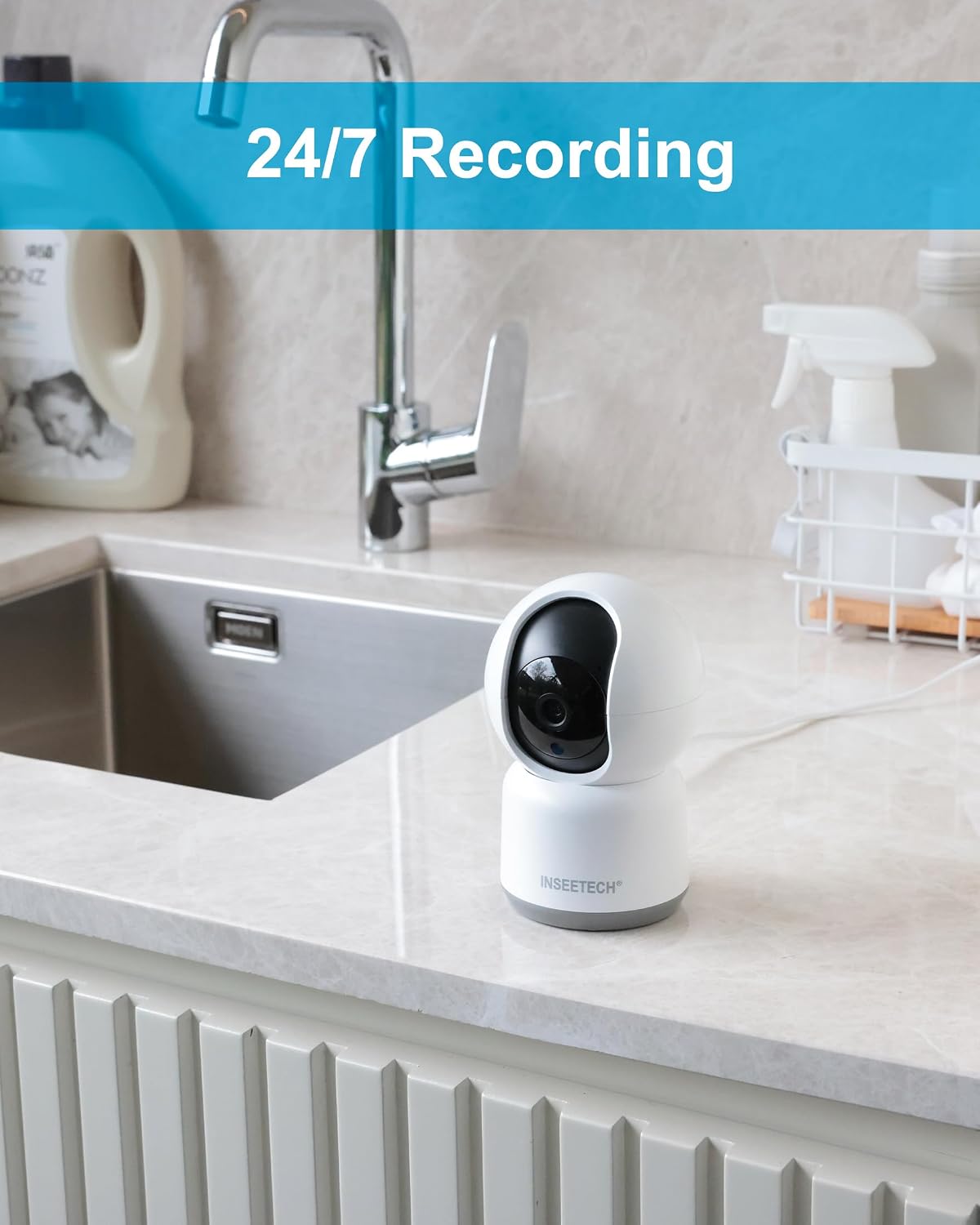
Figure 5: Example of camera placement in an indoor setting.

Figure 6: Mounting options for the camera.
Operating Instructions
1. Live View and Control
Open the Tuya Smart app and select your camera from the device list to access the live video feed. From this screen, you can:
- Pan and Tilt: Use the directional controls on the app interface to remotely adjust the camera's viewing angle (355° horizontal, 90° vertical).
- Digital Zoom: Pinch to zoom on the live feed to view details.
- Two-Way Audio: Tap the microphone icon to speak through the camera's speaker, and listen through your phone.
- Take Snapshots/Record Video: Capture still images or record video directly to your phone.

Figure 7: Camera's pan and tilt capabilities.

Figure 8: Two-way audio communication and family sharing feature.
2. Motion Detection and Alerts
The camera is equipped with smart motion detection and auto-tracking features. When motion is detected, the camera will:
- Send instant notifications to your smartphone.
- Automatically track the moving object within its field of view.
- Record the event (if recording is enabled).
You can customize motion detection sensitivity and alert settings within the Tuya Smart app.

Figure 9: Human detection and auto-tracking in action.

Figure 10: Instant smart alerts for detected motion.
3. Recording and Storage
The camera supports continuous recording and event-triggered recording. You have two primary storage options:
- Micro SD Card: Insert a Micro SD card (up to 128GB, Class 10 or higher, not included) into the camera's designated slot for local storage. Recordings can be accessed and played back via the app.
- Cloud Storage: Subscribe to the optional cloud storage service through the Tuya Smart app for secure, off-site storage of your recordings.
To access recorded footage, navigate to the playback section within the camera's interface in the Tuya Smart app.

Figure 11: Storage options and playback interface.
4. Night Vision
The camera automatically switches to night vision mode in low-light conditions, utilizing infrared technology to provide clear black-and-white images. This ensures continuous monitoring even in complete darkness.

Figure 12: Camera operating in night vision mode.
Maintenance
- Cleaning: Use a soft, dry cloth to clean the camera lens and body. Avoid using harsh chemicals or abrasive cleaners.
- Firmware Updates: Regularly check the Tuya Smart app for firmware updates. Keeping your camera's firmware updated ensures optimal performance and security.
- Power Cycle: If the camera experiences connectivity issues or malfunctions, try unplugging it from the power source for 10 seconds and then plugging it back in.
- Reset: If persistent issues occur, a factory reset may be necessary. Refer to the troubleshooting section for instructions on how to reset the camera.
Troubleshooting
| Problem | Possible Cause | Solution |
|---|---|---|
| Camera fails to connect to Wi-Fi. | Incorrect Wi-Fi password; camera too far from router; 5GHz Wi-Fi network used; camera needs reset. |
|
| No live video feed or offline status. | Internet connection issue; camera power loss; app glitch. |
|
| Motion detection alerts are not received. | Alerts disabled in app; incorrect sensitivity settings; app notifications blocked by phone. |
|
| Two-way audio is unclear or not working. | Microphone/speaker obstruction; network latency; app permissions. |
|
Specifications
| Feature | Detail |
|---|---|
| Model Name | WF820-4MPB |
| Indoor/Outdoor Usage | Indoor |
| Video Capture Resolution | 4 MP (2560 x 1440 pixels) |
| Connectivity Technology | Wireless (Wi-Fi 2.4GHz only) |
| Pan Angle | 355 Degrees |
| Tilt Angle | 90 Degrees |
| Night Vision Range | 32.8 Feet (10 meters) |
| Two-Way Audio | Yes |
| Motion Detection | Yes, with Auto Tracking |
| Storage Options | Micro SD Card (up to 128GB), Cloud Storage |
| Power Source | Corded Electric (5V DC, 3.5W) |
| Dimensions (L x W x H) | 3 x 2.98 x 5 inches (approx. 7.6 x 7.5 x 12.7 cm) |
| Weight | 11.2 ounces (approx. 317 grams) |
| Material | Acrylonitrile Butadiene Styrene (ABS) |
| Included Components | Camera, Power Adapter, Power Cable, Mounting Bracket, Accessories, User Manual |

Figure 13: Camera dimensions.
Warranty and Support
For warranty information and technical support, please refer to the contact details provided on the product packaging or visit the official INSEETECH website. Keep your purchase receipt as proof of purchase for warranty claims.
For further assistance, you may also contact INSEETECH customer service through their official channels.

