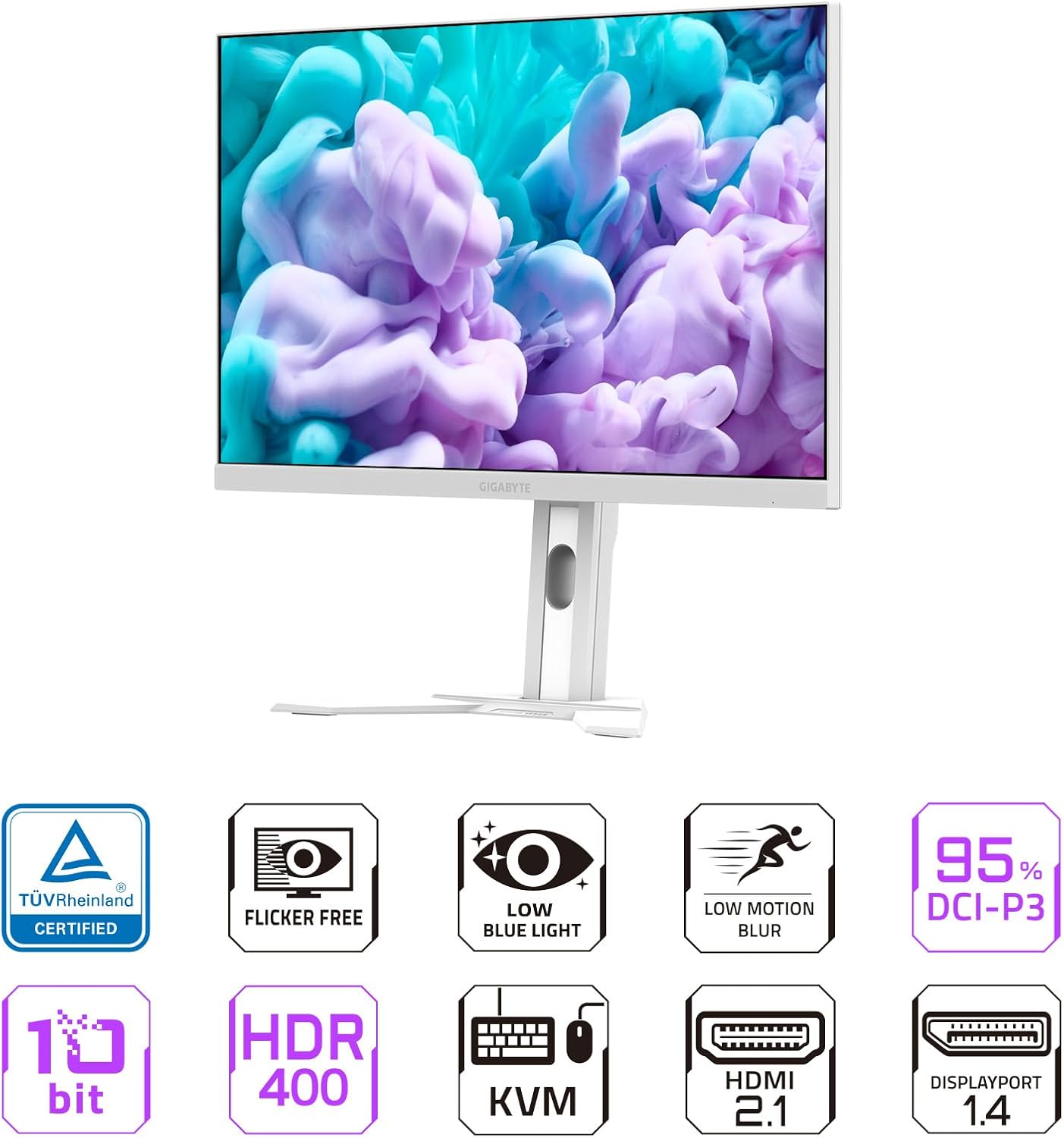
GIGABYTE M27Q Advanced ICE (SA) Gaming Monitor User Manual
Model: M27Q A ICE (SA)
1. Introduction
This user manual provides comprehensive instructions for the setup, operation, and maintenance of your GIGABYTE M27Q Advanced ICE (SA) 27" SS IPS Gaming Monitor. Designed for both gamers and professionals, this monitor delivers exceptional clarity and smoothness with its QHD 2560x1440 resolution, 180Hz refresh rate, and 1ms MPRT response time. It also features convenient Type-C KVM functionality for seamless device switching. Please read this manual thoroughly to ensure proper use and to maximize your monitor's performance.
2. Safety Information
To ensure safe operation and prolong the lifespan of your monitor, please observe the following safety precautions:
Do not expose the monitor to rain or moisture to prevent fire or electric shock.
Ensure proper ventilation. Do not block ventilation openings or place the monitor on soft surfaces that may block airflow.
Use only the power cord and adapter supplied with the monitor. Connect to a grounded power outlet.
Avoid placing heavy objects on the power cord.
Do not attempt to service the monitor yourself. Refer all servicing to qualified service personnel.
Keep the monitor away from direct sunlight, heat sources, and extreme temperatures.
Handle the monitor with care, especially the screen. Avoid applying pressure to the panel.
3. Package Contents
Verify that all items listed below are included in your package. If any items are missing or damaged, please contact your retailer.
Power Cable (various regional adapters may be included)
HDMI Cable
DisplayPort (DP) Cable
USB Type-C Cable
USB 3.2 Upstream Cable
Quick Start Guide / Installation Guide
Warranty Card
Figure 3.1: Front view of the GIGABYTE M27Q Advanced ICE (SA) Gaming Monitor.
Figure 3.2: Various cables included for connectivity and power.
Figure 3.3: The robust metal stand arm and base, designed for stability and easy assembly.
4. Setup
Follow these steps to assemble your monitor and connect it to your devices. It is crucial to follow the unboxing steps provided on the packaging to avoid product damage, which may not be covered under warranty.
Unpack the Monitor: Carefully open the packaging. Do not remove the monitor panel from its protective EPE bag or Styrofoam packaging until instructed. The packaging itself contains important assembly instructions.
Assemble the Stand:
Attach the stand arm to the stand base. Secure it by tightening the screw on the underside of the base. This screw can be tightened by hand or with a flathead/Phillips screwdriver.
Once the stand base and arm are securely connected, attach the assembled stand to the back of the monitor panel. The stand slides into the VESA mount area and locks into place. Ensure it clicks securely.
Figure 4.1: The monitor fully assembled on its sturdy stand.
Connect Power: Plug the provided power cable into the AC input port on the back of the monitor, then connect the other end to a grounded power outlet.
Connect Input Devices:
The monitor offers multiple connectivity options:
HDMI: Connect up to two devices using HDMI 2.0 ports.
DisplayPort (DP): Connect one device using the DisplayPort 1.4.
USB Type-C: Connect a compatible device (e.g., laptop) for video, data, and power delivery. This port supports KVM functionality.
USB 3.2 Upstream: Connect this to your PC to enable the downstream USB 3.2 ports on the monitor.
USB 3.2 Downstream: Two ports available for connecting peripherals like keyboards, mice, or USB drives.
Earphone Jack: For audio output.
Figure 4.2: Overview of the monitor's input/output ports, including HDMI, DisplayPort, USB-C, and USB 3.2.
Power On: Press the power button located on the back of the monitor to turn it on.
5. Operating the Monitor
Your GIGABYTE M27Q monitor is equipped with intuitive controls and advanced features to enhance your viewing and gaming experience.
5.1 On-Screen Display (OSD) Navigation
The monitor features a joystick-like button on the back for navigating the On-Screen Display (OSD) menu. This allows you to adjust various settings such as brightness, contrast, color modes, input sources, and gaming features.
Press the joystick button to open the OSD menu.
Move the joystick up/down/left/right to navigate through menu options.
Press the joystick to select an option or confirm a setting.
Move the joystick left to go back to the previous menu or exit the OSD.
5.2 KVM Feature
The integrated KVM (Keyboard, Video, Mouse) feature allows you to control multiple devices connected to the monitor using a single set of keyboard and mouse. Simply connect your keyboard and mouse to the monitor's USB downstream ports, and connect your devices (e.g., PC via DisplayPort/HDMI + USB Upstream, and laptop via USB Type-C). Use the dedicated KVM button on the back of the monitor to switch between connected systems instantly.
Figure 5.1: The KVM feature simplifies switching between multiple connected devices using one keyboard and mouse.
5.3 Ergonomic Adjustments
The monitor stand allows for various ergonomic adjustments to ensure comfortable viewing:
Height Adjustment: Adjust the monitor height by up to 130mm.
Tilt: Tilt the screen from -5° to +20° for optimal viewing angles.
Swivel: The monitor can swivel left and right.
Pivot: The monitor can pivot to portrait mode.
Figure 5.2: The ergonomic stand allows for height and tilt adjustments to achieve a perfect viewing angle.
6. Maintenance
Proper maintenance helps ensure the longevity and optimal performance of your GIGABYTE M27Q monitor.
Cleaning the Screen: Gently wipe the screen with a soft, lint-free cloth. For stubborn marks, lightly dampen the cloth with water or a non-ammonia, non-alcohol based screen cleaner. Never spray liquid directly onto the screen.
Cleaning the Casing: Use a soft, dry cloth to wipe the monitor casing. Avoid abrasive cleaners or solvents.
Ventilation: Ensure the ventilation openings on the monitor are clear of dust and debris. Use compressed air to gently clear dust if necessary.
Power Off When Not in Use: Turn off the monitor when not in use for extended periods to conserve energy and prolong its lifespan.
7. Troubleshooting
If you encounter issues with your monitor, refer to the following common troubleshooting steps:
No Power:
Check if the power cable is securely connected to both the monitor and the power outlet.
Verify that the power outlet is functioning correctly by plugging in another device.
No Signal / Blank Screen:
Ensure the video cable (HDMI, DisplayPort, or USB-C) is securely connected to both the monitor and your computer/device.
Check if the correct input source is selected on the monitor's OSD menu.
Try connecting the monitor to a different video port on your computer or try a different cable.
Restart your computer/device.
Image Flickering or Distortion:
Ensure your graphics card drivers are up to date.
Check the refresh rate setting in your operating system's display settings. Ensure it matches the monitor's supported refresh rate (e.g., 180Hz).
Disable AMD FreeSync in the monitor's OSD or your graphics card settings to see if the issue persists.
KVM Not Switching:
Ensure the USB 3.2 Upstream cable is connected from the monitor to your primary PC.
Verify that all devices are properly connected to their respective video and USB ports on the monitor.
Press the KVM button firmly to switch inputs.
8. Specifications
Key technical specifications for the GIGABYTE M27Q Advanced ICE (SA) Gaming Monitor:
Feature
Detail
Screen Size
27 Inches
Panel Type
SS IPS
Resolution
QHD 2560x1440
Refresh Rate
180Hz
Response Time
1ms MPRT
Color Accuracy
95% DCI-P3, 10 bit
HDR Support
VESA DisplayHDR 400
Adaptive Sync
AMD FreeSync
Connectivity
2x HDMI 2.0, 1x DisplayPort 1.4, 1x USB Type-C, 2x USB 3.2 Downstream, 1x USB 3.2 Upstream, 1x Earphone Jack
KVM Feature
Yes
Ergonomics
Height Adjustable (130mm), Tilt (-5° to +20°), Swivel, Pivot
VESA Mount
100x100mm
Certifications
TÜV Rheinland Certified (Low Blue Light, Flicker Free)
Dimensions (LxWxH)
7.6 x 24.2 x 21.1 inches
Item Weight
18.26 pounds
9. Warranty and Support
GIGABYTE provides a warranty for its products. While specific terms may vary by region, a 3-year warranty is commonly offered for this monitor. For detailed warranty information, technical support, driver downloads, and frequently asked questions, please visit the official GIGABYTE website or contact their customer service directly.
Ask about setup, troubleshooting, compatibility, parts, safety, or missing instructions. Manuals+ will review the question and use this page’s manual context to help answer it.