Acer Aspire 15 Laptop (Model A15-41M-R8Y2) User Manual
Your comprehensive guide to setup, operation, and maintenance.
Introduction
The Acer Aspire 15, Model A15-41M-R8Y2, is a versatile laptop designed for everyday productivity and creative tasks. This manual provides essential information for setting up, operating, maintaining, and troubleshooting your device, ensuring you get the most out of its features.
1. Initial Setup
1.1 Unpacking Your Laptop
Your Acer Aspire 15 package includes:
- Laptop
- AC Adapter
- Power Cord
Carefully remove all components from the packaging.
1.2 Connecting to Power
Before initial use, connect your laptop to a power source:
- Connect the AC adapter to the DC-in jack on the side of your laptop.
- Plug the power cord into the AC adapter and then into a wall outlet.
- The battery indicator light will illuminate, indicating that the laptop is charging.
1.3 First Power On
Press the power button to turn on your laptop. Follow the on-screen instructions to complete the Windows 11 Home setup process.

Image: The Acer Aspire 15 laptop displaying the Windows 11 Start menu, illustrating the initial power-on experience.
1.4 Port Overview
Familiarize yourself with the available ports on your laptop for connecting peripherals.

Image: Left side of the laptop showing a USB 3.2 port, a headset jack, and a Kensington lock slot.

Image: Right side of the laptop showing the DC-in jack, a USB Type-C port, an HDMI port, and another USB 3.2 port (with power-off charging capability).
- USB Type-C Port: Supports USB4 (up to 40 Gbps), USB Charging & Power Delivery (65W).
- USB 3.2 Gen 1 Ports: Two ports, one featuring power-off charging.
- HDMI 2.1 Port: For connecting to external displays with HDCP support.
- Headphone/Speaker/Line-Out Jack: For audio devices.
- Kensington Lock Slot: For securing your laptop.
- DC-in Jack: For connecting the AC adapter.
2. Operating Your Acer Aspire 15
2.1 Performance and Multitasking
The laptop is equipped with an AMD Ryzen 5 8640HS Hexa-Core Processor and 8GB DDR5 RAM, alongside a 512GB PCIe Gen4 SSD, providing efficient performance for various tasks.

Image: A close-up view of the Acer Aspire 15 keyboard area, with a glowing representation of the AMD Ryzen processor chip, emphasizing its central role in performance.
2.2 Display Features
The 15.6-inch Full HD (1920 x 1080) display offers clear visuals. Acer BluelightShield technology is integrated to help reduce eye strain during extended use.

Image: The Acer Aspire 15 laptop screen displaying a vibrant landscape, with text overlays indicating "15.6" FHD Display", "Slim Bezels Design", and "Acer BlueLightShield™".
2.3 AI Features with Copilot
Your laptop includes a dedicated Copilot Key for quick access to Copilot in Windows, an AI assistant designed to enhance productivity across applications.

Image: A screenshot of the Copilot in Windows interface on the laptop screen, showing options for conversation styles (Creative, Balanced, Precise) and example prompts.
For video calls, Acer PurifiedVoice and PurifiedView technologies work with the 1080p webcam and dual digital microphones to provide clear communication.

Image: A person wearing headphones, using the Acer Aspire 15 laptop for a video conference call, with text overlays highlighting "Acer PurifiedView™", "Acer PurifiedVoice™", and "Copilot Key".
2.4 Connectivity
The laptop supports Wi-Fi 6E (802.11ax) for high-speed wireless internet and Bluetooth 5.3 for connecting wireless accessories.

Image: A person working on the Acer Aspire 15 laptop in a cafe setting, with text overlays indicating "USB 4 Type-C", "HDMI 2.1", and "Wi-Fi 6E", emphasizing its versatile connectivity.
2.5 AcerSense Key
The dedicated AcerSense Key provides instant access to system settings, allowing you to manage performance modes, check battery status, and maintain your system.

Image: The Acer Aspire 15 laptop displaying the AcerSense software interface, which shows system usage modes, battery and USB charging settings, and performance checks.
2.6 Backlit Keyboard
The integrated backlit keyboard allows for comfortable typing in various lighting conditions.

Image: A top-down view of the Acer Aspire 15 laptop's backlit keyboard, showing the illuminated keys and touchpad.
3. Maintenance and Care
Regular maintenance helps ensure the longevity and optimal performance of your laptop.
- Cleaning: Use a soft, lint-free cloth to clean the screen and exterior. For stubborn marks, dampen the cloth slightly with water or a screen-safe cleaner. Avoid harsh chemicals.
- Battery Care: To prolong battery life, avoid fully discharging the battery frequently. Store the laptop in a cool, dry place when not in use for extended periods.
- Software Updates: Regularly update your operating system and drivers to ensure security and performance.
- Ventilation: Ensure the laptop's vents are not obstructed to prevent overheating. Use the laptop on a hard, flat surface.
- Data Backup: Periodically back up important data to an external drive or cloud storage.
4. Troubleshooting Common Issues
This section addresses common issues you might encounter with your Acer Aspire 15 laptop.
4.1 Power Issues
- Laptop does not turn on: Ensure the AC adapter is securely connected and the power outlet is functional. Check if the battery is charged.
- Battery not charging: Verify the AC adapter and power cord connections. Try a different power outlet.
4.2 Display Issues
- No display on screen: Connect an external monitor to check if the issue is with the laptop's display. Ensure the laptop is powered on.
- Flickering or distorted display: Update your graphics drivers. Adjust display resolution settings.
4.3 Connectivity Problems
- Wi-Fi not connecting: Check if Wi-Fi is enabled in Windows settings. Restart your router and laptop. Ensure correct Wi-Fi password.
- Bluetooth device not pairing: Ensure Bluetooth is enabled on both devices. Place devices close to each other. Remove and re-add the device in Bluetooth settings.
4.4 Performance Slowdown
- Laptop is slow: Close unnecessary applications. Check for background processes consuming high resources (Task Manager). Ensure sufficient free space on the SSD. Run a malware scan.
5. Technical Specifications
| Feature | Specification |
|---|---|
| Model Name | Acer Aspire 15 A15-41M-R8Y2 |
| Item Model Number | NX.KTPAA.001 |
| Operating System | Windows 11 Home |
| Processor | AMD Ryzen 5 8640HS Hexa-Core (3.5 GHz) |
| Graphics | Integrated AMD Radeon Graphics |
| RAM | 8 GB DDR5 |
| Storage | 512 GB PCIe Gen4 SSD |
| Display | 15.6 inches Full HD (1920 x 1080 pixels) |
| Wireless Connectivity | Wi-Fi 6E (802.11ax), Bluetooth 5.3 |
| Ports | 1x USB Type-C (USB4, PD 65W), 2x USB 3.2 Gen 1 (1 with power-off charging), 1x HDMI 2.1, 1x Headphone/Speaker/Line-Out Jack, 1x DC-in, 1x Kensington Lock Slot |
| Keyboard | Backlit Keyboard |
| Dimensions (LxWxH) | 14.33 x 0.7 x 9.35 inches |
| Weight | 3.64 pounds |
| Battery | 1 Lithium Ion battery (included) |
6. Environmental Information
The Acer Aspire 15 is designed with environmental considerations.
- Packaging: Packaged in 100% recyclable materials and FSC-certified paper.
- Materials: Features a bottom cover made from 30% Post-Consumer Recycled (PCR) plastic.
- Certifications: Holds Energy Star certification and EPEAT Silver registration.

Image: Graphics illustrating EPEAT Silver certification and the use of 30% PCR in the laptop's bottom cover.
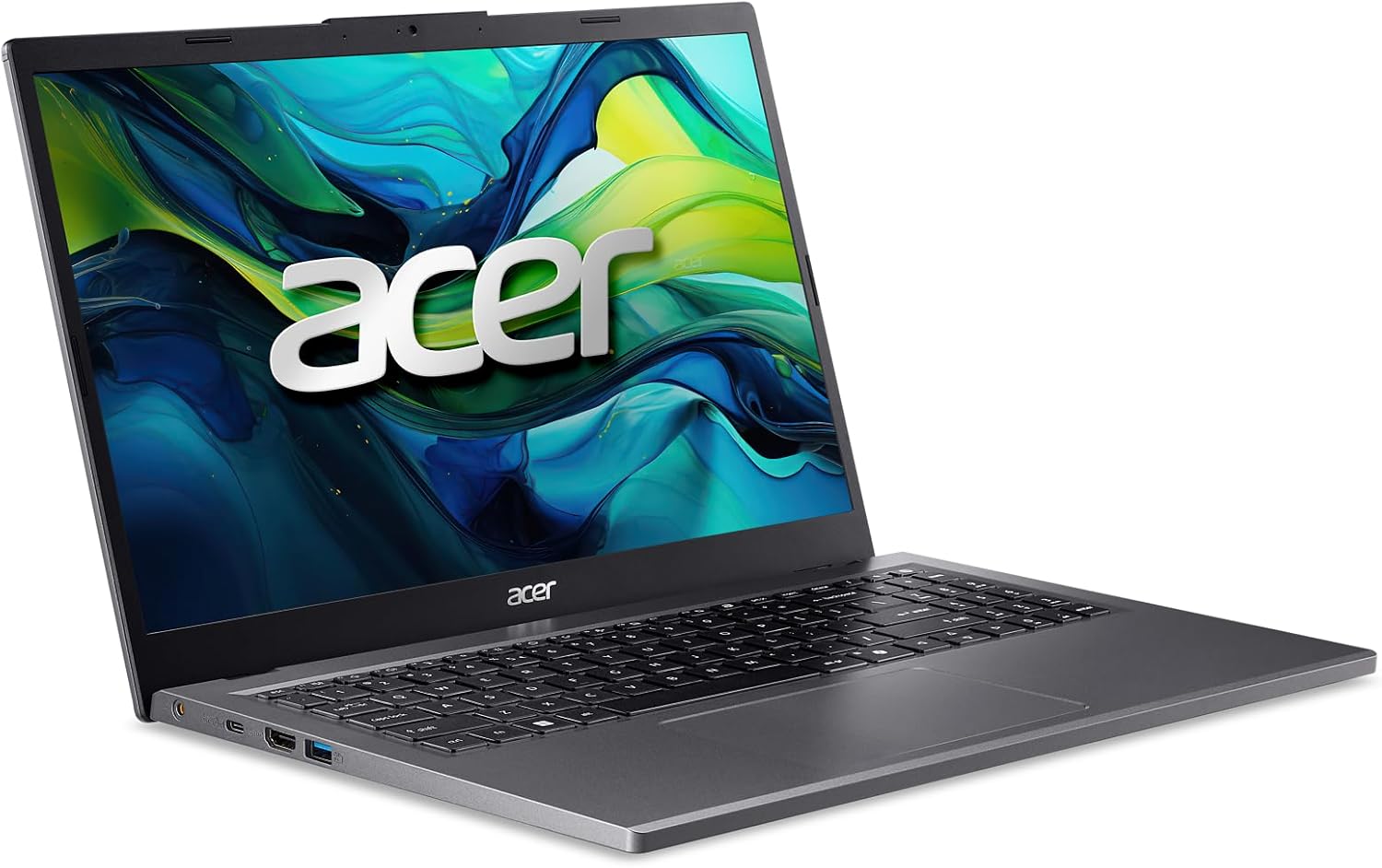
Image: The Acer Aspire 15 laptop alongside its brown, recyclable cardboard packaging, highlighting "100% Recyclable packaging" and "30% PCR bottom cover".
7. Warranty and Support
7.1 Warranty Information
Your Acer Aspire 15 laptop comes with a standard manufacturer's warranty. Please refer to the warranty card included with your product or visit the official Acer support website for detailed terms and conditions.
7.2 Customer Support
For technical assistance, driver downloads, or service inquiries, please visit the official Acer support website or contact Acer customer service. Keep your product's serial number (NX.KTPAA.001) readily available when contacting support.
For more information, visit the official Acer Support Website.


