Introduction
The Caliber RMD035DAB-FBA is a versatile 1DIN car radio designed to enhance your in-car audio experience. It features an integrated DAB+/FM tuner for crystal clear radio reception, Bluetooth for hands-free calling and audio streaming, and multiple media playback options including USB and Micro SD cards. This manual provides detailed instructions for installation, operation, and maintenance to ensure optimal performance and longevity of your device.

Figure 1: Caliber RMD035DAB-FBA Car Radio Front View
Key Features
- DAB+ Tuner: Enjoy crystal clear and interference-free digital radio reception.
- FM Tuner with RDS-EON: Standard FM radio reception with enhanced data services.
- Bluetooth Connectivity: For hands-free calling and wireless audio streaming.
- USB & Micro SD Playback: Supports music playback from USB drives and Micro SD cards up to 32GB.
- 2.1A USB Charging: Conveniently charge your smartphone or other devices.
- Aux-in: Connect external audio devices via a 3.5mm jack.
- RCA Output: For connecting external amplifiers.
- Audio Format Support: Compatible with MP3, WMA, APE, FLAC, and AAC audio formats.
- Standard 1 DIN Size: Easy installation in most vehicles.

Figure 2: Overview of Product Features and Connectivity Options
Setup and Installation
This unit is designed for standard 1 DIN installation. Professional installation is recommended to ensure proper wiring and functionality.
1. Pre-Installation Check
- Ensure your vehicle has a standard 1 DIN opening.
- Verify that your vehicle's wiring harness is compatible with the ISO connection provided.
- Disconnect the vehicle's negative battery terminal before starting installation to prevent electrical shorts.
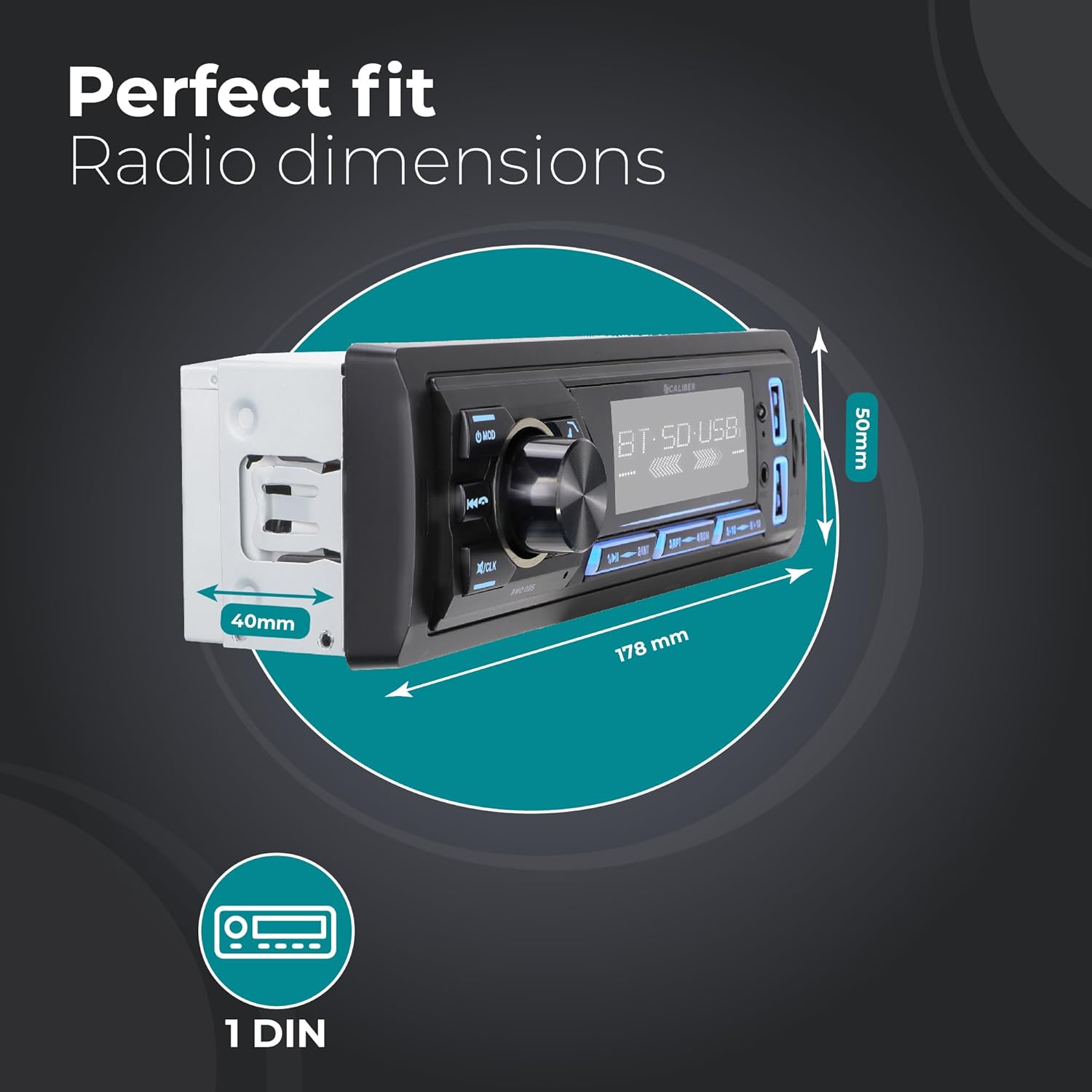
Figure 3: Car Radio Dimensions for Installation
2. Wiring Connections
Connect the following wires according to the ISO standard and your vehicle's wiring diagram:
- Yellow (Constant Power): Connect to a constant 12V supply.
- Red (Accessory Power): Connect to a switched 12V supply (ignition).
- Black (Ground): Connect to a good chassis ground point.
- Blue (Antenna/Amplifier Remote): Connect to power antenna or external amplifier remote turn-on.
- Speaker Wires: Connect to your vehicle's speakers (e.g., White/White-Black for Front Left, Grey/Grey-Black for Front Right, Green/Green-Black for Rear Left, Purple/Purple-Black for Rear Right).
- DAB+ Antenna: Connect the included DAB+ antenna to the dedicated DAB antenna input on the rear of the unit. Position the antenna for optimal reception.
- RCA Outputs: If using an external amplifier, connect RCA cables from the unit's RCA outputs to the amplifier's inputs.
3. Mounting the Unit
- Slide the metal mounting sleeve into the vehicle's dashboard opening until it locks into place.
- Carefully slide the car radio unit into the mounting sleeve until it clicks securely.
- Reconnect the vehicle's negative battery terminal.
Operating Instructions
1. Basic Controls
- Power On/Off: Press the MOD button briefly to turn the unit on. Press and hold to turn off.
- Volume Control: Rotate the large central knob to adjust the volume.
- Mode Selection: Press the MOD button repeatedly to cycle through available modes (DAB+, FM, Bluetooth, USB, SD, AUX).
- Mute: Briefly press the volume knob to mute/unmute audio.
- Clock Setting: Press and hold the /CLK button to enter clock setting mode. Use the volume knob to adjust hours/minutes and press the knob to confirm.
2. Radio Operation (DAB+/FM)
- Selecting Band: In radio mode, press the BND button to switch between FM1, FM2, FM3, DAB1, DAB2, DAB3.
- Automatic Scan: Press and hold the BND button to perform an automatic scan and store strong stations.
- Manual Tuning: Use the ◀◀ (previous track) and ▶▶ (next track) buttons for manual tuning.
- Preset Stations: Press buttons 1 to 6 to select a stored preset station. To store a station, tune to the desired frequency, then press and hold one of the preset buttons (1-6) until you hear a beep.

Figure 4: DAB+ Digital Radio Experience
3. Bluetooth Operation
- Pairing:
- Select Bluetooth mode using the MOD button. The display will show "BT".
- On your mobile device, enable Bluetooth and search for available devices.
- Select "Caliber RMD035DAB" (or similar name) from the list. If prompted for a PIN, enter "0000".
- Once paired, the display will show "CONNECTED".
- Hands-Free Calling:
- Answer Call: Press the ☎ (phone) button.
- End Call: Press the ☎ (phone) button again.
- Reject Call: Press and hold the ☎ (phone) button.
- Redial: In Bluetooth mode, press the ☎ (phone) button twice to redial the last number.
- Bluetooth Audio Streaming (A2DP):
- Once paired, audio from your device will stream to the car radio.
- Use the ◀◀ and ▶▶ buttons to skip tracks.
- Use the volume knob to adjust playback volume.

Figure 5: Bluetooth Audio Streaming Interface
4. USB and Micro SD Playback
- Insert a USB drive into the USB port or a Micro SD card into the SD card slot. The unit will automatically switch to USB/SD mode and begin playback.
- Use the ◀◀ and ▶▶ buttons to skip tracks.
- Press the 1/▶▶ button to play/pause.
- The unit supports MP3, WMA, APE, FLAC, and AAC audio formats.
5. AUX-in Operation
- Connect an external audio device (e.g., MP3 player) to the AUX-in port on the front panel using a 3.5mm audio cable.
- Select AUX mode using the MOD button.
- Control playback and volume from the connected external device.
6. USB Charging Function
- The dedicated USB charging port (2.1A) allows you to charge your smartphone or other USB-powered devices.
- Simply connect your device's USB charging cable to the charging port.

Figure 6: USB Charging Port Location
Maintenance
- Cleaning: Use a soft, dry cloth to clean the unit's front panel. For stubborn dirt, dampen the cloth slightly with water. Do not use abrasive cleaners or solvents.
- Temperature: Avoid exposing the unit to extreme temperatures, direct sunlight for prolonged periods, or high humidity.
- Ventilation: Ensure the unit has adequate ventilation to prevent overheating. Do not block ventilation openings.
- Fuse Replacement: If the unit does not power on, check the fuse located on the rear of the unit. Replace with a fuse of the same rating (typically 10A).
Troubleshooting
| Problem | Possible Cause | Solution |
|---|---|---|
| No power | Incorrect wiring; Blown fuse; Vehicle battery low. | Check power and ground connections. Replace fuse if blown. Check vehicle battery. |
| No sound | Volume too low; Mute activated; Speaker wires disconnected/shorted. | Increase volume. Deactivate mute. Check speaker wiring. |
| Poor radio reception (FM) | Antenna not connected; Weak signal area; Damaged antenna. | Ensure antenna is properly connected. Try tuning to a stronger station. Inspect antenna for damage. |
| Poor radio reception (DAB+) | DAB+ antenna not connected/positioned correctly; Out of DAB+ service area. | Ensure DAB+ antenna is connected and positioned optimally (e.g., on windshield). Check DAB+ coverage in your area. |
| Bluetooth not pairing | Unit not in pairing mode; Device Bluetooth off; Incorrect PIN. | Ensure unit is in Bluetooth mode. Turn Bluetooth on/off on device. Enter "0000" if prompted for PIN. |
| USB/SD not playing | Unsupported file format; Corrupted files; USB/SD card not inserted correctly; Card capacity too large. | Ensure files are supported (MP3/WMA/APE/FLAC/AAC). Reinsert USB/SD. Use cards up to 32GB. |
Specifications
| Feature | Detail |
|---|---|
| Brand | Caliber |
| Model | RMD035DAB-FBA |
| Type | 1 DIN Car Radio |
| Connectivity Technology | Bluetooth, USB |
| Special Features | Built-In Bluetooth, RCA Output, FM Tuner, DAB+, Hands-Free Calling, USB Charging (2.1A) |
| Compatible Devices | Smartphone, Tablet, Personal Computer |
| Audio Output Mode | Stereo |
| Speaker Surround Sound Channel Configuration | 4.0 |
| Output Wattage | 4 x 55 Watts |
| Supported Audio Formats | MP3, WMA, APE, FLAC, AAC |
| USB/Micro SD Capacity | Up to 32GB |
| Product Dimensions (L x W x H) | 17.8 x 4 x 5 cm (7.01 x 1.57 x 1.97 inches) |
| Item Weight | 500 g (1.1 lbs) |
Warranty and Support
Specific warranty details for the Caliber RMD035DAB-FBA are not provided in this manual. Please refer to the warranty card included with your product packaging or visit the official Caliber website for the most up-to-date warranty information and customer support contacts.
For technical assistance or service inquiries, please contact Caliber customer support through their official channels.


