1. Introduction
This manual provides detailed instructions for the installation, operation, and maintenance of your CAMECHO RM 4K Mirror Dash Cam. This device integrates a high-resolution dash camera with a 10.99-inch full touch screen, offering advanced features such as wireless CarPlay, Android Auto, Wi-Fi connectivity, voice control, and night vision for an enhanced driving experience.

Figure 1.1: CAMECHO RM 4K Mirror Dash Cam overview, showing the screen interface with various app icons and connectivity features.
2. Package Contents
Please verify that all items listed below are included in your package. If any items are missing or damaged, please contact customer support.
- CAMECHO RM Mirror Dash Cam (Front unit)
- Cigarette Lighter Power Cord
- User Manual
- 3m AUX Cable
- Bandages (for cable management)
- Note: The rear view camera is sold separately and is not included in the standard package.
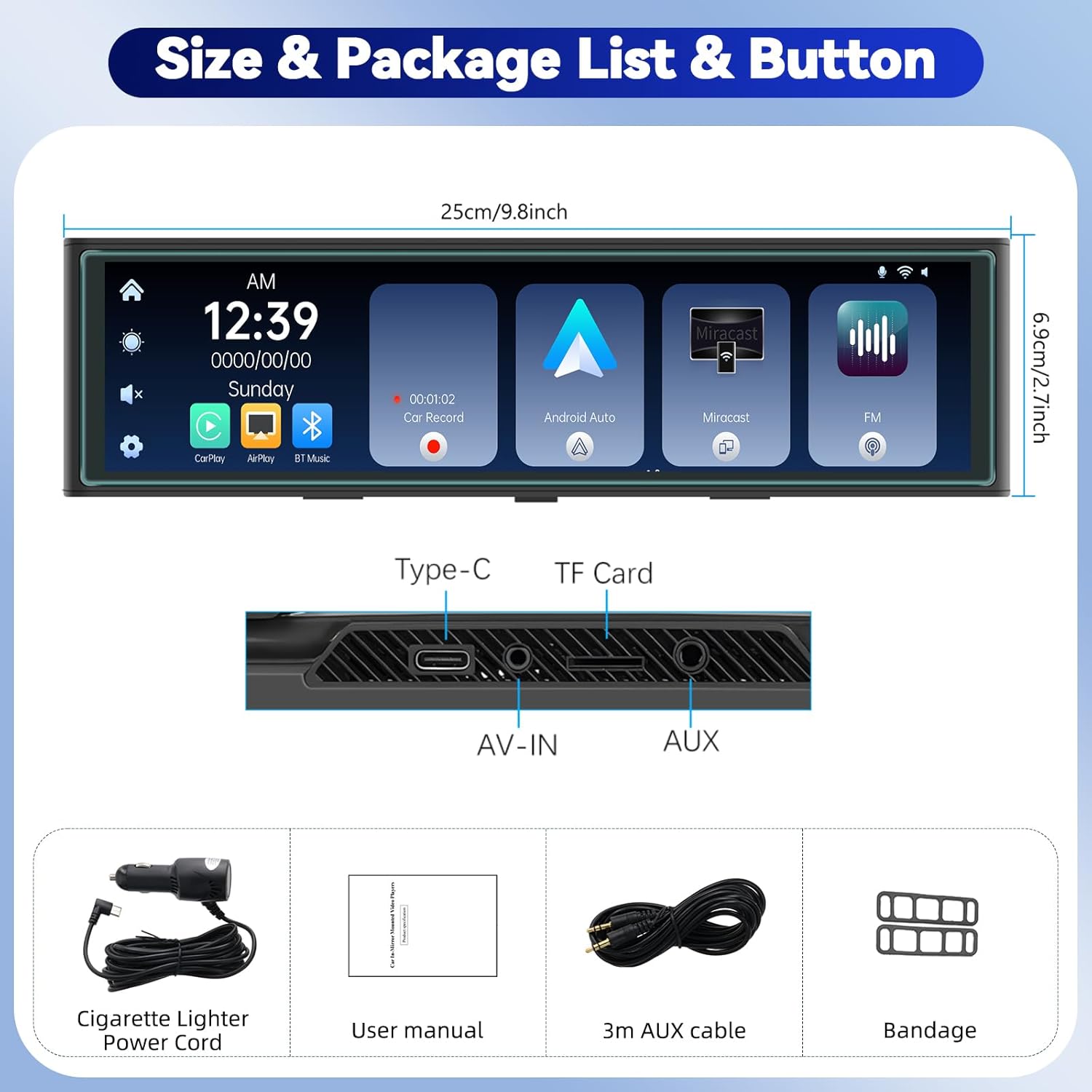
Figure 2.1: Illustration of the CAMECHO RM Mirror Dash Cam and its included accessories.
3. Installation
3.1 Mounting the Dash Cam
- Securely attach the CAMECHO RM Mirror Dash Cam over your vehicle's existing rearview mirror using the provided straps or clips. Ensure it is centered and stable.
- Adjust the angle of the front camera lens to capture the desired view of the road ahead.
3.2 Power Connection
- Connect the cigarette lighter power cord to the Type-C port on the top of the dash cam.
- Route the power cable neatly along the windshield trim and dashboard to the vehicle's cigarette lighter socket. Use the provided bandages to secure the cable.
- Insert the cigarette lighter adapter into the vehicle's 12V power outlet.
3.3 Rear Camera Installation (Optional)
If you have purchased a separate rear view camera, connect it to the AV-IN port on the dash cam. Route the cable to the rear of your vehicle and mount the camera according to its specific instructions, typically near the license plate or rear window. Ensure proper wiring for reverse trigger if desired.

Figure 3.1: Visual guide for routing the power cable and installing the dash cam.
4. Operating Instructions
4.1 Basic Operation
- Power On/Off: The device will automatically power on when the vehicle starts and power off when the engine is turned off. You can also manually power it on/off using the power button (location not specified, assume side/top).
- Screen Navigation:
- Adjust Viewing Angle: Slide your finger up or down on the screen to adjust the vertical viewing angle of the camera.
- Switch Views: Swipe left or right on the screen to switch between front camera view, rear camera view (if connected), or a split-screen display of both.
- Video Recording: The dash cam automatically begins recording when powered on. The front camera records in 4K resolution, with options for 1080P/2K/4K. If a rear camera is connected, it records in 1080P.
- Loop Recording: Videos are recorded in segments of 1, 3, or 5 minutes. When the memory card is full, the oldest unlocked files will be overwritten by new recordings to ensure continuous operation.
- Night Vision: The device features enhanced night vision for clear recording in low-light conditions.
4.2 Wireless CarPlay & Android Auto
The CAMECHO RM supports wireless CarPlay for iPhone and Android Auto for Android phones, allowing seamless integration of your smartphone's features onto the dash cam screen.
- Ensure Bluetooth and Wi-Fi are enabled on your smartphone.
- On the dash cam, navigate to the CarPlay or Android Auto interface.
- Pair your phone via Bluetooth with the dash cam.
- Once paired, the device will establish a Wi-Fi connection for CarPlay or Android Auto functionality.
- You can now use voice control for navigation, music playback, making calls, and accessing other compatible applications.

Figure 4.1: Wireless CarPlay and Android Auto functionality demonstration.
4.3 Airplay & Android Cast (Screen Mirroring)
Mirror your smartphone's screen directly onto the dash cam display.
- For iOS devices (Airplay): Connect your iPhone to the dash cam via Wi-Fi and select the Airplay option on the dash cam.
- For Android devices (Android Cast): Connect your Android phone to the dash cam via Wi-Fi and select the Android Cast option.

Figure 4.2: Screen mirroring feature for both Android and iOS devices.
4.4 FM Transmitter & Bluetooth Music
Transmit audio from the dash cam to your car's speakers or play music via Bluetooth.
- FM Transmitter:
- On the dash cam, select the FM Transmitter option and choose an unoccupied FM frequency.
- Tune your vehicle's FM radio to the same frequency.
- Audio from the dash cam will now play through your car's speakers.
- Bluetooth Music:
- Enable Bluetooth on your mobile phone.
- On the dash cam, select the [Bluetooth Music] option.
- Go to [BT Manage] on the dash cam interface to connect to your phone.
- Once connected, you can play music from your phone and make hands-free calls.
- AUX Connection: Connect the provided 3m AUX cable from the dash cam's AUX output to your car's AUX input for direct audio transmission.
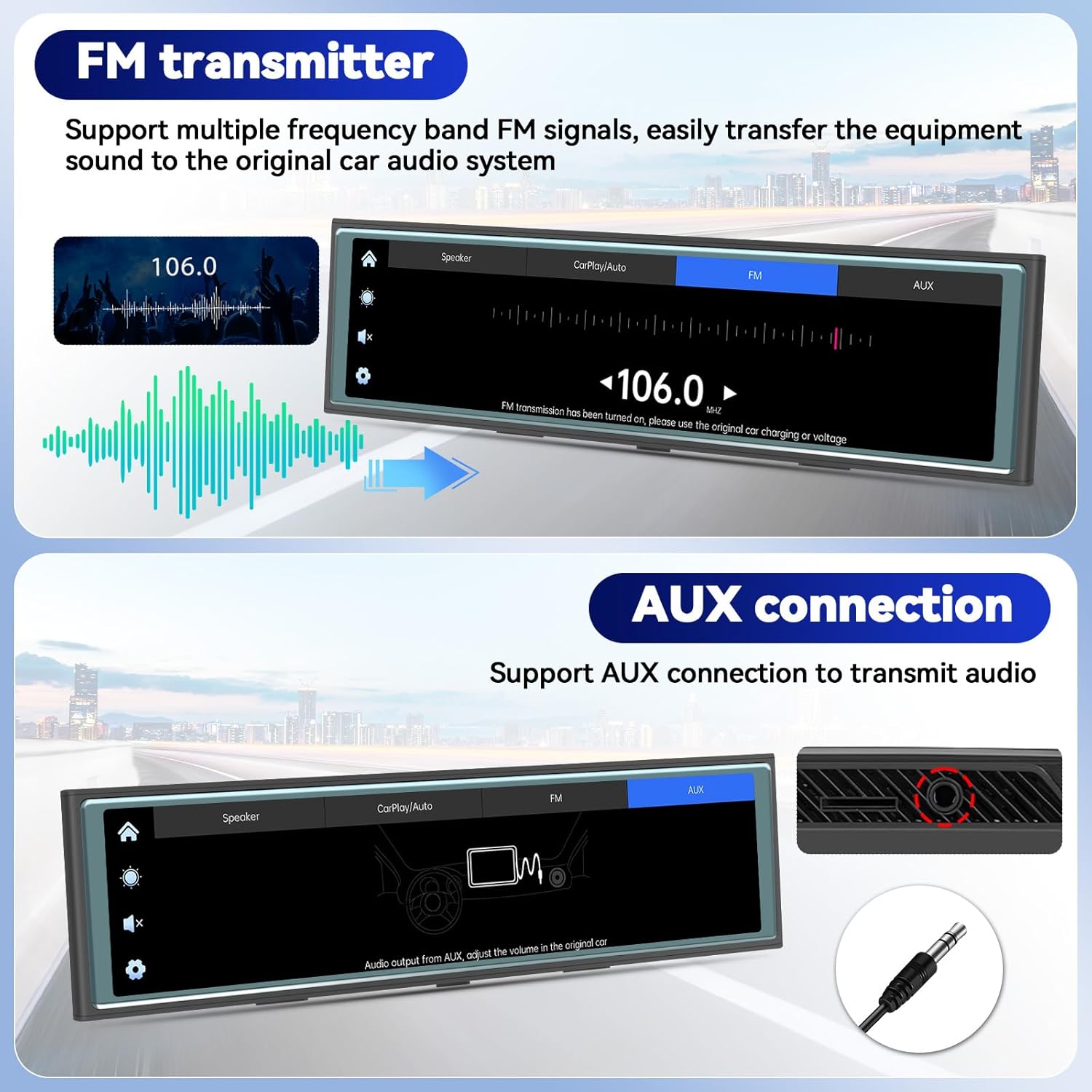
Figure 4.3: FM Transmitter and AUX connection options.
4.5 Wi-Fi & App Control (Viidure App)
Manage your dash cam recordings and settings using the "Viidure" app on your smartphone.
- Download the App: Scan the QR code displayed on the dash cam screen or visit https://www.6zhentan.com/app/d0001/index.html to download the "Viidure" app for iOS or Android.
- Connect via Wi-Fi:
- On the dash cam, navigate to the Wi-Fi settings.
- On your smartphone, connect to the dash cam's Wi-Fi network (SSID and password will be displayed on the dash cam screen, e.g., "LongGoWiFiHome", password "12345678").
- App Functions: Once connected, you can view live footage, play back recorded videos, download videos to your phone, edit clips, and share them.

Figure 4.4: Wi-Fi connectivity and Viidure app download/usage guide.
5. Maintenance
- Cleaning: Use a soft, dry cloth to clean the screen and camera lenses. Avoid abrasive cleaners or solvents.
- Memory Card: Regularly format the TF card (TransFlash card) within the dash cam's settings to ensure optimal performance and prevent data corruption. Replace the memory card if it shows signs of degradation or error.
- Firmware Updates: Check the official CAMECHO website or the Viidure app periodically for available firmware updates to ensure your device has the latest features and bug fixes.
6. Troubleshooting
| Problem | Possible Cause | Solution |
|---|---|---|
| Device does not power on. | No power supply; loose connection; faulty power cord. | Check cigarette lighter connection; ensure vehicle's 12V outlet is functional; try a different power source if available. |
| Recording stops or freezes. | Memory card full or corrupted; incompatible memory card; faulty memory card. | Format the memory card; replace with a high-speed, reputable brand memory card. |
| CarPlay/Android Auto not connecting. | Bluetooth/Wi-Fi off on phone; incorrect pairing; interference. | Ensure phone's Bluetooth and Wi-Fi are on; re-pair the devices; try restarting both the phone and dash cam. |
| No audio from car speakers via FM. | Incorrect FM frequency; car radio not tuned correctly. | Verify dash cam and car radio are on the exact same, clear FM frequency. |
7. Specifications
| Feature | Detail |
|---|---|
| Model Name | RM |
| Screen Size | 10.99 inches |
| Screen Type | 2.5D Full Touch Screen |
| Front Camera Resolution | 4K (selectable 1080P/2K/4K) |
| Rear Camera Resolution | 1080P (requires separate purchase) |
| Connectivity | Bluetooth, Wi-Fi |
| Special Features | CarPlay, Android Auto, Airplay, Android Cast, FM Transmitter, Loop Recording, Night Vision, App Control |
| Power Input | Cigarette Lighter Power Cord (12V) |
| Storage | TF Card Slot (card not included, capacity not specified) |
| Product Dimensions | 1 x 1 x 1 inches |
| Item Weight | 2.16 pounds |
| Manufacturer | CAMECHO |
Note: Product dimensions from specifications (1x1x1 inches) appear to be generic. Actual dimensions from product images are approximately 9.8 inches (25cm) length and 2.7 inches (6.9cm) height.
8. Warranty and Support
8.1 Warranty Information
For detailed warranty information regarding your CAMECHO RM Mirror Dash Cam, please refer to the warranty card included in your product packaging or consult your purchase documentation. Warranty terms and conditions may vary by region and retailer.
8.2 Customer Support
If you encounter any issues or have questions about your CAMECHO product, please contact our customer support team:
- Email: camechovip@126.com
- For additional resources and FAQs, please visit the official CAMECHO website.

Figure 8.1: CAMECHO customer support contact information.


