Introduction
This manual provides comprehensive instructions for the setup, operation, and maintenance of your Unitek R36 Wireless HDMI Display Adapter. This device enables seamless screen mirroring and casting from your mobile devices and computers to a larger display, supporting 4K@60Hz resolution and dual-band WiFi for a stable connection.
Please read this manual carefully before using the product to ensure optimal performance and to prevent damage.
What's in the Box
- Unitek Wireless HDMI Display Adapter (Model R36)
- USB Power Cable (for device power)
- User Manual (this document)

Image: The Unitek R36 Wireless HDMI Display Adapter, a compact device with an integrated HDMI cable and a USB power port.
Key Features
- 4K@60Hz Ultra Clear Output: Supports 4K decoding for high-definition video output at 60Hz, ensuring clear and smooth visuals.
- Dual-Band WiFi: Utilizes both 5G and 2.4G WiFi bands for stable and efficient wireless transmission.
- Seamless Wireless Streaming: Enables casting from Android/iOS devices, laptops, and tablets with a transmission range of up to 25 meters in open spaces.
- Plug-and-Play Setup: Connects directly to your TV's HDMI port and Wi-Fi without requiring additional apps or Bluetooth.
- Multi-Protocol Support: Compatible with Airplay, Miracast, and DLNA.
- Flexible Display Modes: Features a one-touch switch for seamless transition between landscape and portrait orientations (for smartphones only).
- Portable Design: Compact size (7.2 x 7.2 x 1.7cm) for easy transport and use in various environments.
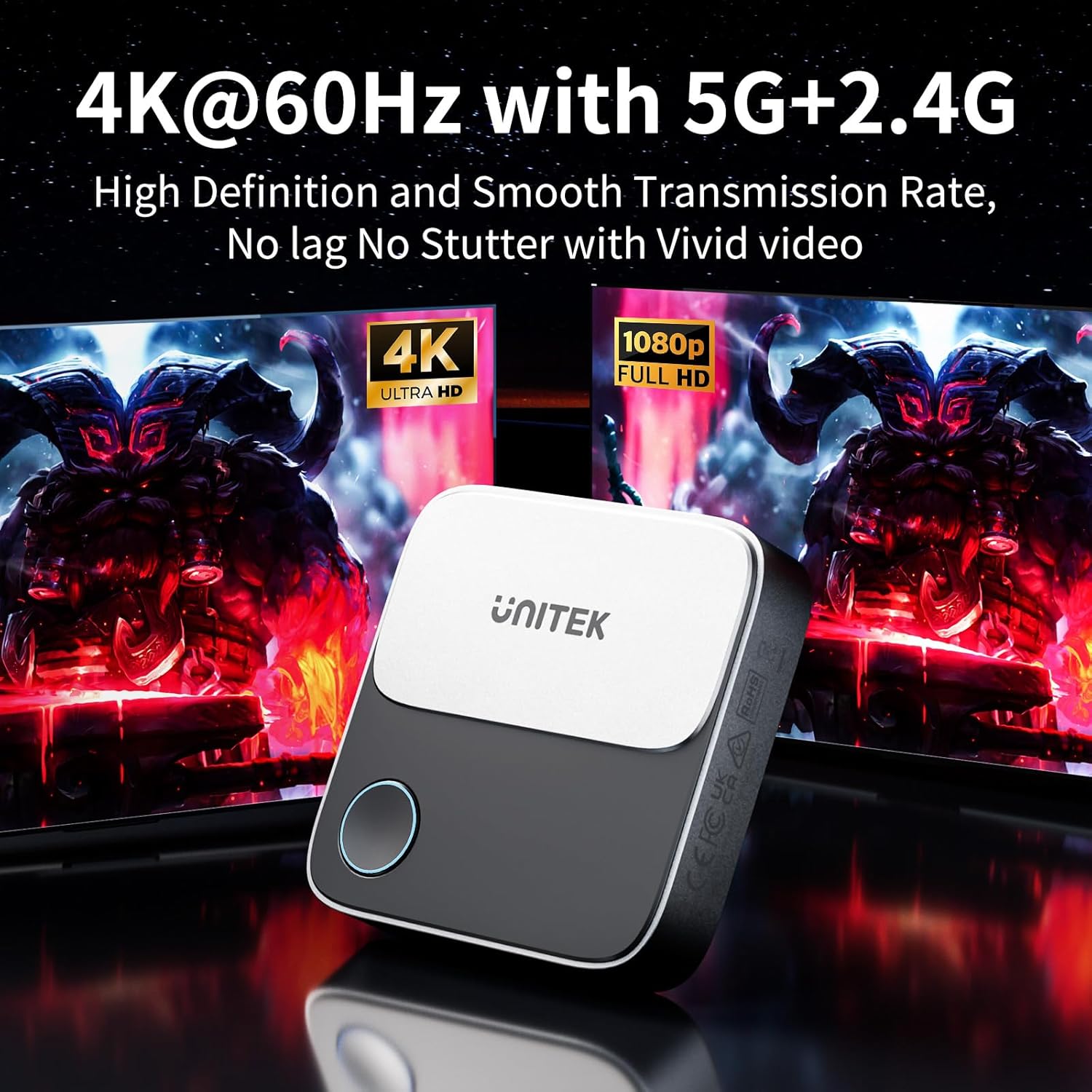
Image: The Unitek R36 adapter connected to a display, illustrating its 4K@60Hz capability with dual 5G+2.4G WiFi bands for high-definition and smooth transmission.
Setup Instructions
- Connect to Display: Plug the HDMI connector of the Unitek R36 adapter into an available HDMI port on your TV, monitor, or projector.
- Power On: Connect the USB power cable to the adapter and then to a USB power source (e.g., a TV USB port, a USB wall adapter, or a power bank). Ensure the adapter receives stable power.
- Select Input: Switch your display's input source to the corresponding HDMI port where the adapter is connected.
- Initial Screen: The display will show the adapter's startup screen, which includes its Wi-Fi network name (SSID) and password, along with an IP address for advanced settings.
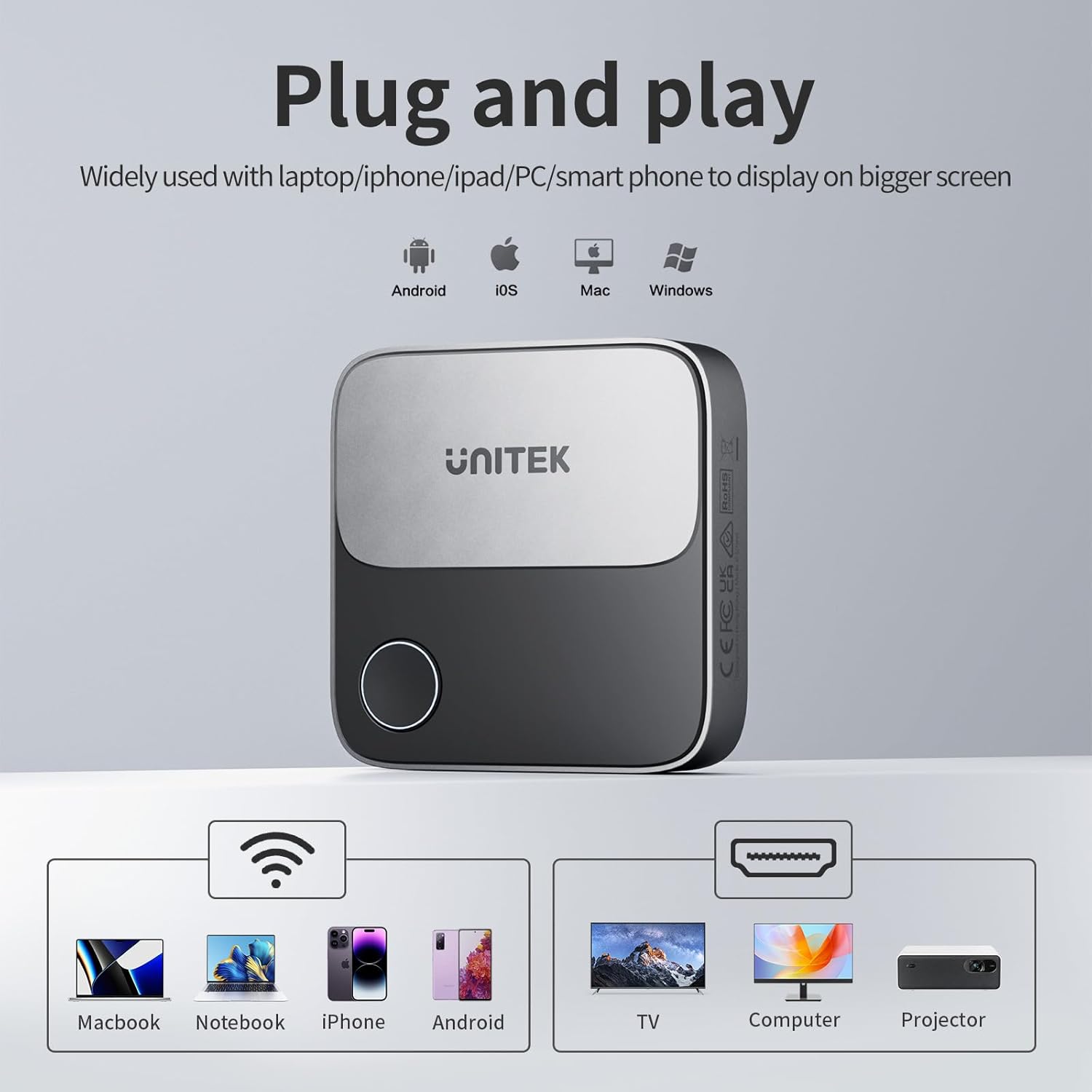
Image: The Unitek R36 adapter demonstrating its plug-and-play functionality, connecting to various devices like Mac, iPhone, Android, and Windows laptops, and outputting to TVs, computers, or projectors.
Operating Instructions
For iOS and macOS Devices (Airplay)
- Connect to Adapter's Wi-Fi: On your iPhone, iPad, or Mac, go to Wi-Fi settings and connect to the Wi-Fi network broadcast by the Unitek R36 adapter (SSID and password displayed on your TV screen).
- Internet Setup (Optional but Recommended):
- Open a web browser on your iOS/Mac device and navigate to the IP address shown on your TV screen (e.g., 192.168.203.1).
- Click on "Internet" and select your home router's Wi-Fi name from the list.
- Enter your home router's Wi-Fi password and click "OK". The adapter will then connect to your home network, allowing your iOS/Mac device to access the internet while mirroring.
- Activate Screen Mirroring:
- For iOS: Swipe down from the top-right corner (or up from the bottom for older models) to open Control Center. Tap "Screen Mirroring" and select the Unitek adapter from the list.
- For macOS: Click the Control Center icon in the menu bar, then click "Screen Mirroring" and select the Unitek adapter.
For Android and Windows Devices (Miracast/DLNA)
- Ensure Adapter is Ready: The adapter should be powered on and displaying its initial screen on your TV.
- Activate Screen Casting:
- For Android: Go to your device's settings and look for "Cast," "Smart View," "Wireless Display," "Screen Mirroring," or similar options. The exact name may vary by device manufacturer. Select the Unitek adapter from the detected devices.
- For Windows: Press the Windows key + K. In the "Connect" sidebar, select the Unitek adapter. Ensure your Windows PC supports Miracast.
- Connect to Adapter's Wi-Fi (if prompted): Some Android devices may require you to connect to the adapter's Wi-Fi network directly before casting.

Image: The Unitek R36 adapter facilitating a business meeting by mirroring a laptop screen onto a larger display, enhancing collaboration and presentation effectiveness.

Image: A smartphone mirroring a video game to a large television using the Unitek R36 adapter, demonstrating its use for entertainment with a transmission range of up to 25 meters.
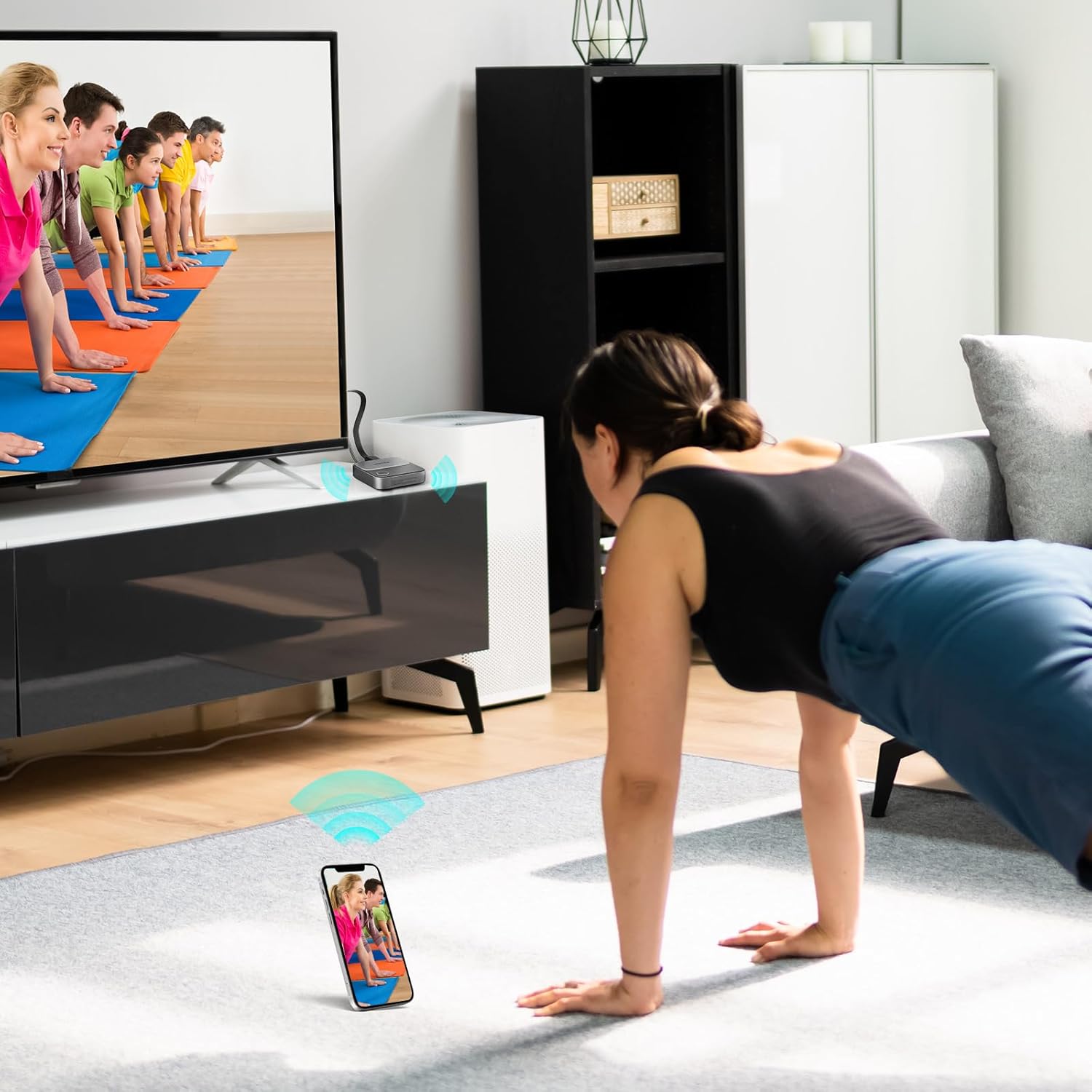
Image: A person exercising at home, mirroring a fitness video from their smartphone to a television using the Unitek R36 adapter, highlighting its versatility for various activities.
Landscape or Portrait Mode
The Unitek R36 adapter features a physical button that allows you to switch between landscape and portrait display orientations. This function is primarily designed for smartphone mirroring.
- Landscape Mode: Ideal for watching movies, playing games, or general desktop mirroring.
- Portrait Mode: Suitable for viewing social media feeds, live streaming, or documents from your smartphone in a full-screen vertical format.
To switch modes, simply press the button on the adapter. The display will adjust accordingly.
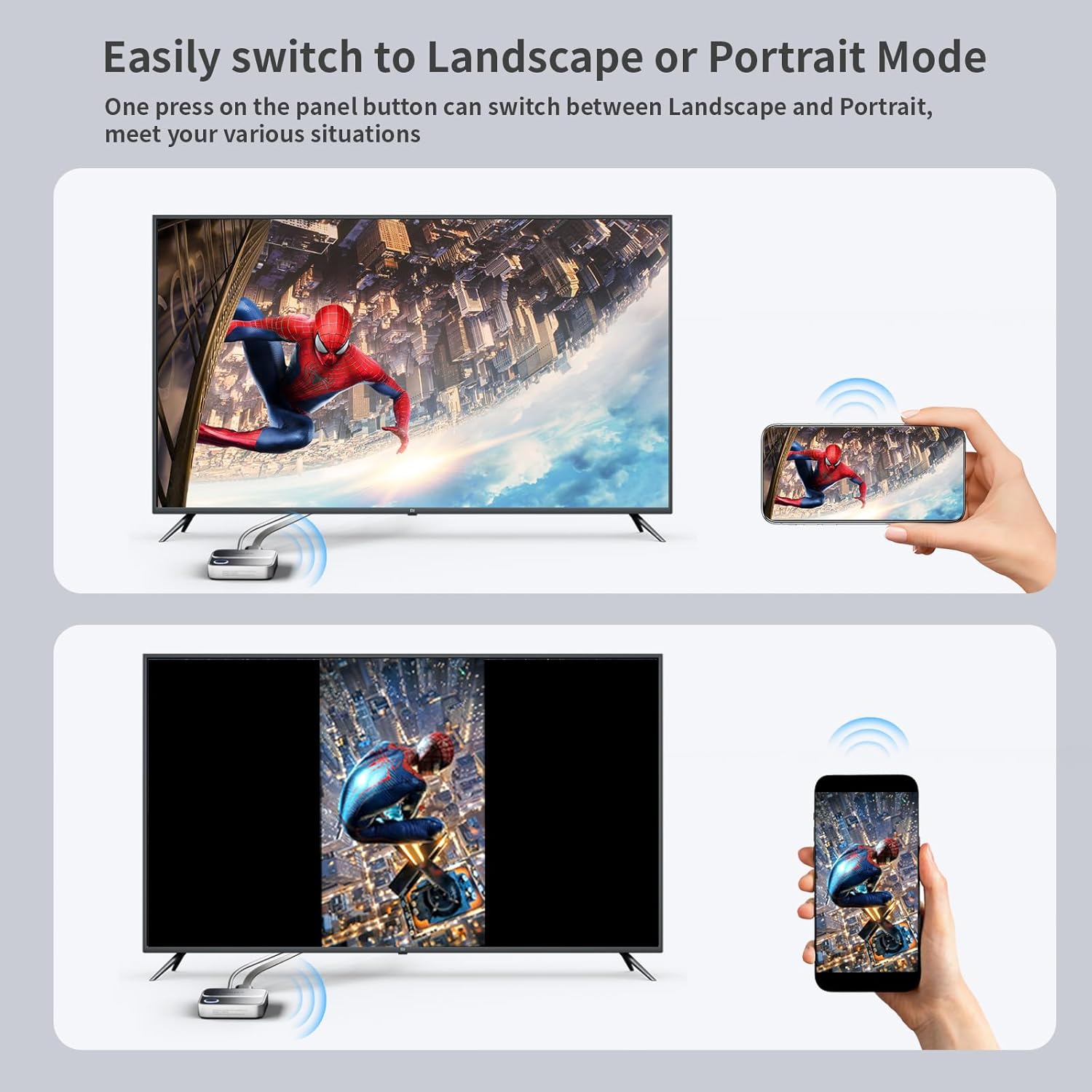
Image: A smartphone mirroring its screen to a television via the Unitek R36 adapter, demonstrating the ability to switch between landscape and portrait display modes with a single button press.
Compatibility and Limitations
The Unitek R36 adapter supports a wide range of devices and applications, but it's important to note certain limitations:
- Supported Systems: Android, Windows, iOS, macOS.
- Supported Protocols: Airplay, Miracast, DLNA.
- Application Compatibility: Most streaming apps and websites are compatible with Android and Windows systems.
- HDCP Copyrighted Content: Due to HDCP (High-bandwidth Digital Content Protection) restrictions, iOS and macOS systems do not support mirroring content from certain copyright-protected applications such as Netflix, Hulu, Amazon Prime Video, and DIRECTV.

Image: A compatibility chart illustrating which applications are supported for mirroring on Windows/Android versus those not supported on iOS/macOS due to HDCP restrictions, such as Netflix and Hulu.
Specifications
| Brand | Unitek |
| Model Name | R36 |
| Connectivity Technology | HDMI, Wireless (2.4G/5G WiFi) |
| Connector Type | HDMI |
| Resolution | 4K@60Hz |
| Special Features | Miracast, Airplay, DLNA, Landscape/Portrait Mode Switch |
| Supported Internet Services | Suitable for Various Devices |
| Controller Type | App Control (via device's native casting features) |
| Form Factor | TV Stick / Dongle |
| Color | Grey |
| Product Dimensions | 7.2 x 7.2 x 1.7 cm |
| Item Weight | 6.3 ounces |
Troubleshooting
- No Display on TV:
- Ensure the adapter is properly connected to the HDMI port and receiving sufficient power via the USB cable.
- Verify that your TV's input source is set to the correct HDMI port.
- Try a different HDMI port or USB power source.
- Connection Issues / Frequent Disconnections:
- Ensure your device is within the recommended transmission range (up to 25 meters in open spaces; may be reduced to 5 meters if many electronic devices are causing interference).
- Check for strong Wi-Fi interference from other devices.
- For iOS/Mac, ensure the adapter is connected to your home Wi-Fi network as described in the "Internet Setup" section.
- Restart both the Unitek R36 adapter (by unplugging and replugging power) and your source device.
- Lag or Poor Picture Quality:
- Ensure your source device and the adapter are using the 5G Wi-Fi band for better performance, if available.
- Reduce the distance between your source device and the adapter.
- Close unnecessary applications on your source device to free up resources.
- Check if your display resolution is set correctly.
- Cannot Mirror HDCP Protected Content (e.g., Netflix on iOS/Mac):
- This is a known limitation due to HDCP copyright protection. The adapter cannot bypass these restrictions on iOS and macOS devices.
- Consider using an Android or Windows device for mirroring such content, as they often have broader app compatibility.
Warranty and Support
For warranty information and technical support, please refer to the documentation included with your product packaging or visit the official Unitek website. You can also contact Unitek customer service through their official channels for assistance.
Please retain your proof of purchase for any warranty claims.


