Introduction
Welcome to the user manual for your CWOWDEFU P25L 11-inch Android 14 Tablet. This guide provides essential information to help you set up, operate, maintain, and troubleshoot your device. Please read this manual carefully to ensure optimal performance and longevity of your tablet.
1. Setup
1.1 Unboxing and Package Contents
Before starting, ensure all items are present in the package. Carefully remove the tablet and accessories from the box.

Image: The CWOWDEFU P25L tablet packaging showing the tablet, charging head, Type-C cable, instruction manual, screen protector, and ejector pin.
The package should contain:
- 1 x CWOWDEFU P25L Tablet
- 1 x Charging Head
- 1 x Type-C Cable
- 1 x Instruction Manual (this document)
- 1 x Screen Protector
- 1 x Ejector Pin
1.2 Charging the Tablet
For first-time use, fully charge the tablet. Connect the Type-C cable to the tablet's charging port and the charging head to a power outlet. The battery indicator on the screen will show charging status.

Image: A user holding the CWOWDEFU P25L tablet, illustrating its 7000mAh long-lasting battery and 10W fast charging capability.
1.3 Powering On/Off
- To Power On: Press and hold the Power button until the CWOWDEFU logo appears.
- To Power Off: Press and hold the Power button, then select 'Power off' from the options on the screen.
- To Restart: Press and hold the Power button, then select 'Restart' from the options.
1.4 Initial Setup
Upon first power-on, follow the on-screen prompts to:
- Select your preferred language.
- Connect to a Wi-Fi network.
- Sign in with your Google account or create a new one.
- Set up screen lock (PIN, pattern, password).
1.5 Inserting a TF Card
The tablet supports storage expansion up to 1TB using a TF (microSD) card.
- Locate the SIM/TF card tray on the side of the tablet.
- Use the ejector pin to open the tray.
- Place the TF card into the designated slot with the gold contacts facing down.
- Gently push the tray back into the tablet until it clicks into place.
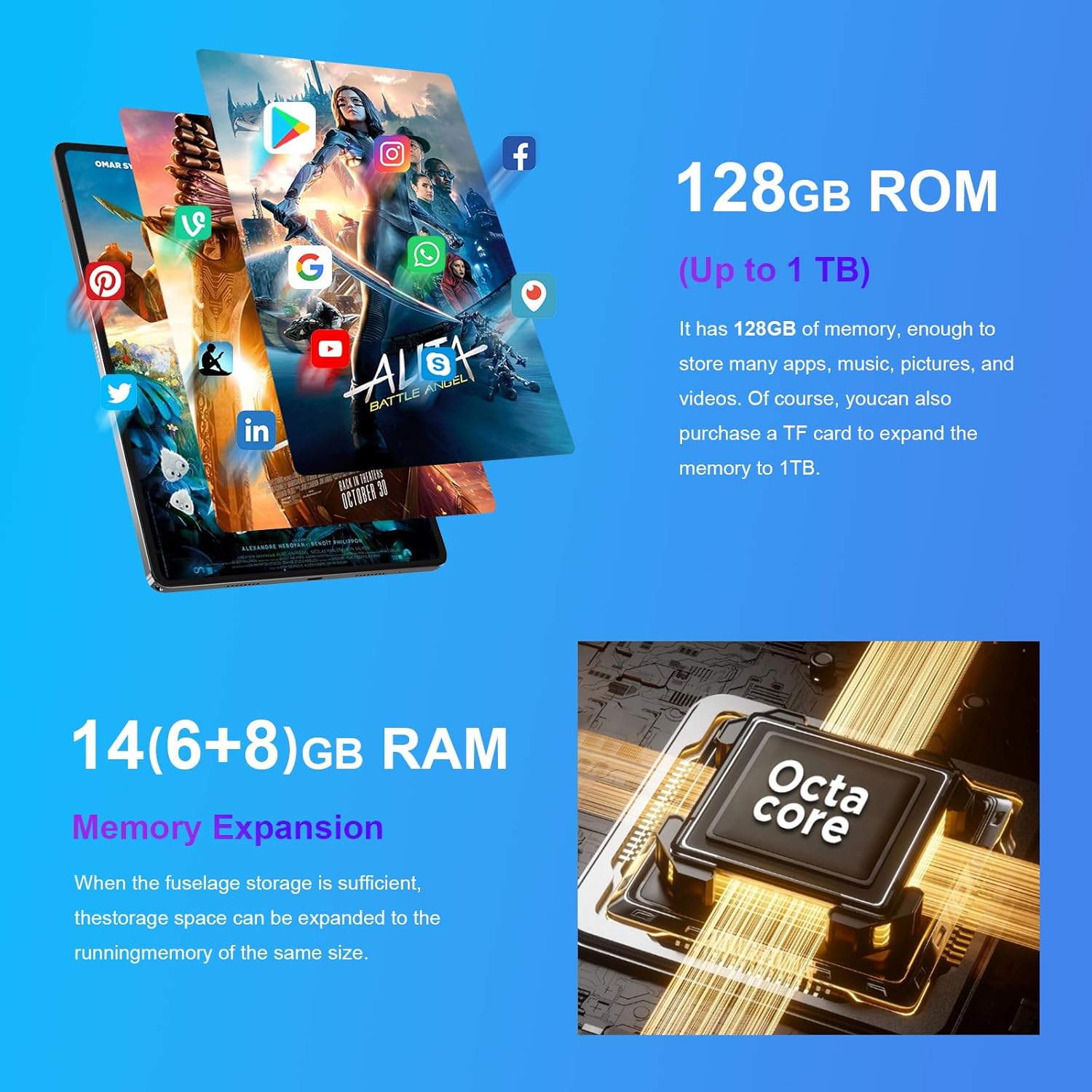
Image: The CWOWDEFU P25L tablet highlighting its 128GB ROM (expandable up to 1TB) and 14GB RAM (6+8GB memory expansion) with an Octa-core processor.
2. Operating Instructions
2.1 Basic Navigation
The tablet uses touch gestures for navigation:
- Tap: Select an item or open an app.
- Tap and Hold: Access contextual menus or move icons.
- Swipe: Scroll through pages or lists.
- Pinch-to-Zoom: Zoom in or out on images and web pages.
2.2 Connecting to Wi-Fi
- Go to Settings > Network & internet > Wi-Fi.
- Toggle Wi-Fi On.
- Select your desired network from the list and enter the password if prompted.
2.3 Bluetooth Pairing
- Go to Settings > Connected devices > Bluetooth.
- Toggle Bluetooth On.
- The tablet will scan for available devices. Select your device from the list to pair.
2.4 Using the Cameras
The tablet is equipped with a front 5MP camera and a rear 13MP + 3MP dual camera system. Open the Camera app to take photos or record videos. Tap the screen to focus and press the shutter button to capture.
2.5 Display and Audio
The 11-inch 2K IPS display (1920x1200) provides clear visuals, complemented by dual stereo speakers for an immersive audio experience.

Image: The CWOWDEFU P25L tablet showcasing its 11-inch 2K display and dual-speaker stereo sound, ideal for media consumption.
- Brightness: Adjust screen brightness from the Quick Settings panel (swipe down from the top) or in Settings > Display.
- Volume: Use the volume buttons on the side of the tablet or adjust in Settings > Sound & vibration.
2.6 Android 14 Features
Your tablet runs on the latest Android 14 operating system, offering enhanced privacy, security, and multitasking capabilities.
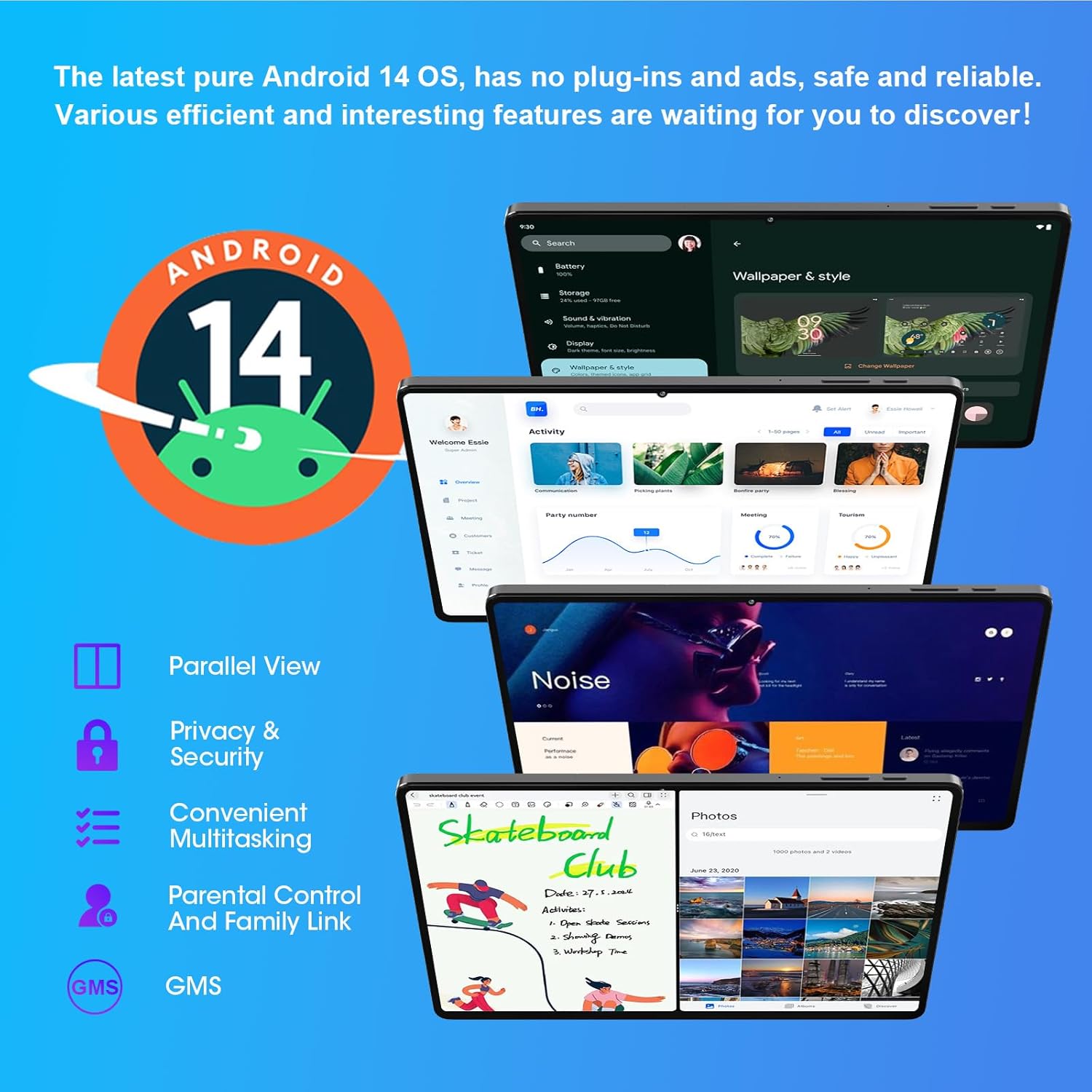
Image: The CWOWDEFU P25L tablet displaying the Android 14 interface, highlighting features such as Parallel View, Privacy & Security, Convenient Multitasking, and Parental Control.
- Parallel View: Utilize multiple apps side-by-side for improved productivity.
- Privacy & Security: Advanced controls to manage app permissions and data access.
- Convenient Multitasking: Seamlessly switch between applications.
- Parental Control and Family Link: Manage device usage for children.
3. Maintenance
3.1 Cleaning the Tablet
- Use a soft, lint-free cloth to clean the screen and body.
- For stubborn smudges, slightly dampen the cloth with water or a screen cleaner.
- Avoid using harsh chemicals, abrasive materials, or excessive moisture.
3.2 Software Updates
Regularly check for and install software updates to ensure your tablet has the latest features, security patches, and performance improvements.
- Go to Settings > System > System update.
- Follow the on-screen instructions to download and install any available updates.
3.3 Battery Care
- Avoid exposing the tablet to extreme temperatures.
- Do not let the battery completely drain frequently.
- Use the original charger and cable for optimal charging.
3.4 Storage Management
To maintain optimal performance, regularly manage your tablet's storage:
- Delete unnecessary apps and files.
- Move large files (photos, videos) to a TF card or cloud storage.
- Clear app cache regularly in Settings > Apps > [App Name] > Storage & cache.
4. Troubleshooting
4.1 Tablet Not Turning On
- Ensure the tablet is sufficiently charged. Connect it to the charger for at least 30 minutes.
- Press and hold the Power button for 10-15 seconds to force a restart.
4.2 Wi-Fi Connection Issues
- Restart your Wi-Fi router and the tablet.
- Forget the network in Settings > Network & internet > Wi-Fi, then reconnect.
- Ensure you are within range of the Wi-Fi signal.
4.3 Slow Performance
- Close unused applications running in the background.
- Clear app caches and free up storage space.
- Restart the tablet.
- If performance issues persist, consider a factory reset (Warning: This will erase all data. Back up important files first.). Go to Settings > System > Reset options > Erase all data (factory reset).
4.4 Apps Crashing or Not Responding
- Force close the app: Go to Settings > Apps > [App Name] > Force stop.
- Clear the app's cache and data: Go to Settings > Apps > [App Name] > Storage & cache > Clear cache and Clear data.
- Uninstall and reinstall the app.
5. Specifications
The CWOWDEFU P25L tablet features a robust design and powerful components for a smooth user experience.

Image: The CWOWDEFU P25L tablet highlighting its simple, sturdy, and stylish 7.2mm thick all-metal body, designed for durability.
| Feature | Description |
|---|---|
| Model Name | P25L |
| Operating System | Android 14 |
| Display | 11-inch IPS, 1920 x 1200 pixels (2K Resolution) |
| Processor | Octa-Core UMS 9230 (UNISOC), 2 GHz |
| GPU | Mali-G52 |
| RAM | 14 GB (6 GB installed + 8 GB expandable) |
| Internal Storage | 128 GB ROM |
| Expandable Storage | Up to 1 TB via TF card |
| Battery | 7000 mAh Lithium-polymer |
| Cameras | Front: 5 MP, Rear: 13 MP + 3 MP |
| Connectivity | Wi-Fi (802.11a/b/g/n/ac, 2.4G/5G), Bluetooth 5.0, GPS |
| Interfaces | USB Type-C, 3.5mm Audio Jack |
| Special Features | Stereo Speakers, USB OTG Support, Expandable Storage |
| Dimensions (L x W x H) | 24.5 x 8.3 x 16.4 cm |
| Weight | 920 grams |
| Color | Silver |
6. Warranty and Support
6.1 Warranty Information
Your CWOWDEFU P25L tablet comes with a 1-year warranty from the date of purchase. Additionally, a 30-day return policy is offered for returns without questions.
6.2 Customer Support
If you encounter any issues or have questions regarding your tablet, please contact CWOWDEFU customer support. Support is available 24/7 to assist you.
- Refer to the contact information provided on the CWOWDEFU official website or your purchase documentation.


