
thinkcar 689BT
THINKCAR THINKSCAN 689BT Automotive Diagnostic Tool User Manual
Model: 689BT
Product Overview
The THINKCAR THINKSCAN 689BT is an advanced automotive diagnostic tool designed to provide comprehensive system analysis, bidirectional control, and various service functions for a wide range of vehicles. Built on an Android 10 platform with a 4-core CPU, 4GB RAM, and 64GB ROM, it offers fast and efficient performance. This tool is ideal for both DIY enthusiasts and professional mechanics seeking a powerful and user-friendly diagnostic solution.

Image: The THINKSCAN 689BT device, showcasing its compact design and the included carrying case, with labels indicating its bidirectional, ECU coding, and 34+ services capabilities.
Key Features:
- Full Bi-directional Controls: Perform active tests on various vehicle components.
- ECU Coding: Customize OE-settings, flash hidden functions, and match replaced components.
- 34+ Service Functions: Comprehensive reset and maintenance services including Oil Reset, EPB, BMS, SAS Calibration, ABS Bleeding, Injector Coding, and more.
- OE Level All System Diagnostics: Access and diagnose all available vehicle systems (Engine, Transmission, ABS, SRS, etc.).
- Wireless Updates: Lifetime free software updates ensure the tool remains current with new vehicle models and functions.
- Extensive Vehicle Coverage: Supports over 140 car brands and 10,000 models (1996-2024), including CAN FD & DoIP protocols.
Setup Guide
Follow these steps to set up your THINKSCAN 689BT diagnostic tool for first-time use.
1. Unboxing and Initial Charge
- Carefully unpack all components from the carrying case. Verify that all items listed in the 'What's in the Box' section are present.
- Connect the 3-in-1 charger to the device and a power outlet. Allow the device to fully charge before first use.

Image: Contents of the THINKSCAN 689BT package, including the main unit, ThinkDiag Mini 2 Connector, various cables, charger, and carrying case.
2. Power On and Initial Configuration
- Press and hold the power button to turn on the device.
- Follow the on-screen prompts to select your preferred language (English is default) and connect to a Wi-Fi network for updates.
- The device is designed for immediate use without a complicated registration process.
3. Connecting to Vehicle
- Locate the vehicle's OBD-II port, typically under the dashboard on the driver's side.
- Plug the ThinkDiag Mini 2 Connector into the vehicle's OBD-II port. Ensure a secure connection.
- The device will automatically establish a Bluetooth connection with the connector.
Operating Instructions
The THINKSCAN 689BT offers a range of diagnostic and service functions. Here's how to navigate and utilize its core capabilities.
1. AutoVIN and AutoScan
- After connecting to the vehicle, select 'Diagnose' from the main menu.
- The tool will attempt to automatically detect the Vehicle Identification Number (VIN) and perform an AutoScan of all available systems.
- If AutoVIN fails, you can manually input the VIN or select the vehicle make, model, and year.

Image: The OEM All System Diagnosis interface, illustrating the AutoVIN and AutoScan feature for quick and accurate vehicle identification and system scanning.
Video: Demonstration of how to use the AutoVIN and AutoScan functions on the THINKSCAN 689BT to quickly identify the vehicle and scan all systems.
2. OE Level All System Diagnostics
- After AutoScan, the tool will display a health report showing the status of all detected systems.
- You can select individual modules (e.g., Engine, Transmission, ABS, SRS) to read and clear Diagnostic Trouble Codes (DTCs).
- View live data streams in text, graph, or analog formats to monitor real-time sensor and actuator values.
Video: A detailed look at the full live data stream capabilities of the THINKSCAN 689BT, showing how to monitor various vehicle parameters in real-time.
3. Bi-directional Controls (Active Tests)
- Navigate to the 'Active Test' or 'Actuation Test' option within a specific system module.
- This function allows you to send commands to vehicle sub-systems or components to test their functionality (e.g., turn on/off radiator fan, cycle ABS pump, test injectors).
- This greatly assists in pinpointing faulty components without relying on vehicle controls.

Image: Visual examples of full bi-directional controls (active tests) such as activating exterior lights, fuel pump, and windows, demonstrating the tool's ability to send commands to vehicle components.
Video: An overview of the special features of the THINKSCAN 689BT bi-directional tool, highlighting its active test capabilities.
Video: Demonstrates the 3000+ active tests available on the THINKSCAN 689BT bidirectional scanner.
4. ECU Coding
- Access 'ECU Coding' from the main menu or within specific system modules.
- This function allows for advanced operations such as writing VIN to the ECU, renewing ECU coordination, improving fuel efficiency, and performing transmission quick relearn.
- It also enables customization of OE-settings, activating hidden functions, and matching replaced components.
- Note: ECU coding functions vary by vehicle model and year. Exercise caution when performing these operations.

Image: A visual representation of the advanced ECU coding features, showing how the tool interacts with the vehicle's electronic control unit to perform various programming tasks.
5. Service Functions (Resets)
- Select 'Maintenance' from the main menu to access a wide array of service functions.
- The tool supports over 34 common maintenance services, including:
- Oil Reset
- Electronic Parking Brake (EPB) Reset
- Battery Management System (BMS) Reset
- Steering Angle Sensor (SAS) Calibration
- ABS Bleeding
- Injector Coding
- Gearbox Match
- Suspension Reset
- Crankshaft Relearn
- Clutch Reset
- Turbo Reset
- ECU Reset
- FRM Reset
- Gate Reset
- Rlsensor Reset
- Always refer to the vehicle's service manual before performing any reset functions.
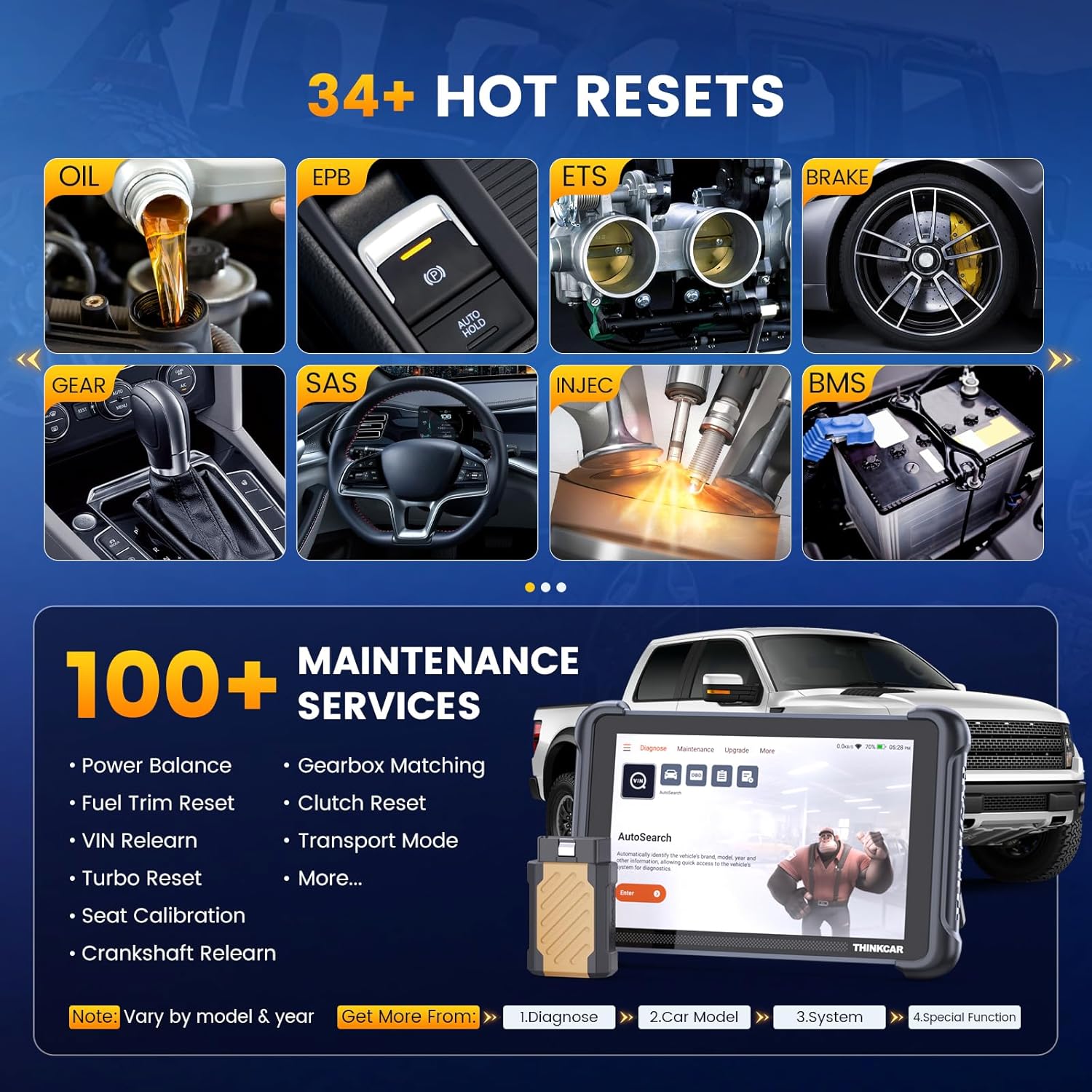
Image: A collage of icons representing the 34+ hot reset and 100+ maintenance services available on the THINKSCAN 689BT, such as oil reset, EPB, and injector coding.
Video: A brief demonstration of the 34 service functions available on the THINKSCAN 689BT bidirectional tool.
6. Vehicle Coverage
The THINKSCAN 689BT supports a wide range of vehicle brands and models, compatible with OBD2, EOBD, and CAN protocols. It also supports CAN FD & DoIP for newer vehicles and FCA AutoAuth for 2018+ FCA cars (requires user registration and membership fee).

Image: Illustrates the extensive vehicle coverage of the THINKSCAN 689BT, showing compatibility with EU-based, USA-based, and Asian-based cars from various years and supporting multiple protocols.
Video: Guide on how to check vehicle coverage using the THINKSCAN 689BT diagnostic tool.
Maintenance
Proper maintenance ensures the longevity and optimal performance of your THINKSCAN 689BT.
1. Software Updates
- The THINKSCAN 689BT offers lifetime free wireless updates. Regularly check for updates to ensure compatibility with the latest vehicle models and access new features.
- Connect the device to a stable Wi-Fi network.
- Navigate to the 'Upgrade' section on the main menu and follow the on-screen instructions to download and install available updates.
2. Device Care
- Keep the device clean using a soft, dry cloth. Avoid abrasive cleaners or solvents.
- Store the device in its protective carrying case when not in use to prevent damage from drops or impacts.
- Avoid exposing the device to extreme temperatures, direct sunlight, or excessive moisture.
- Ensure the OBD-II connector is clean and free of debris before plugging it into the vehicle.

Image: Detailed views of the THINKSCAN 689BT showing its product dimensions and robust construction, emphasizing its suitability for workshop environments.
Troubleshooting
This section provides solutions to common issues you might encounter with your THINKSCAN 689BT.
1. Device Not Powering On
- Ensure the device is fully charged. Connect it to the charger and wait for the charging indicator to show progress.
- Press and hold the power button for at least 5 seconds.
2. Connection Issues with Vehicle
- Verify that the ThinkDiag Mini 2 Connector is securely plugged into the vehicle's OBD-II port.
- Ensure the vehicle's ignition is in the ON position (engine can be off).
- Check the Bluetooth connection between the device and the connector. If necessary, restart both the device and the vehicle.
- Confirm that the vehicle is compatible with the tool's protocols (OBD2, EOBD, CAN, CAN FD, DoIP).
3. Software Freezes or Slow Performance
- Close any unnecessary applications running in the background.
- Perform a system restart.
- Ensure the device has sufficient storage space. Clear old diagnostic reports or unnecessary files if needed.
- Check for and install any pending software updates.
4. Inaccurate or Missing Data
- Ensure the correct vehicle information (VIN, make, model, year) has been entered or automatically detected.
- Verify that the specific module you are trying to access is supported for your vehicle.
- Some advanced functions like ECU Coding may not be available for all vehicle models/years.
Important Notice Regarding Used Devices:
If you receive a device that appears to be used or previously registered, it may be a customer return. While this situation is unavoidable, you can typically exchange it for a new one through your retailer. For any issues, contacting THINKCAR support via Amazon's "Messages" is recommended for a solution within 24 hours.
Specifications
| Feature | Detail |
|---|---|
| Brand | thinkcar |
| Model | 689BT |
| Operating System | Smooth Android 10 Based Quad-core Processor |
| Display | 8-inch Touchscreen, 1280x720 Resolution |
| Memory | 4GB RAM + 64GB Storage |
| Connectivity | 2.4 & 5G Wi-Fi, 5.0 BT VCI (Bluetooth Diagnostics) |
| Battery | 4150mAh (12+ Hours Working) |
| Product Dimensions | 9.05"L x 1.04"W x 5.84"H |
| Item Weight | 3.65 pounds |
| Supported Protocols | OBD2, EOBD, CAN, CAN FD, DoIP |
| Language | English (supports 28 languages) |
Warranty and Support
THINKCAR is committed to providing reliable products and customer support.
1. Warranty Information
Specific warranty details are typically provided with your purchase documentation. For extended protection, consider the available protection plans offered at the time of purchase (e.g., 3-Year or 4-Year Protection Plans).
2. Customer Support
For technical assistance, troubleshooting, or any product-related inquiries, please contact THINKCAR customer support. The best way to reach support is often through the messaging system of the platform where you purchased the product (e.g., Amazon's "Messages").
3. User Guide (PDF)
A detailed User Guide in PDF format is available for download. This guide provides in-depth information on all features and operations.
Related documents689BT


Ask a question about this manual
Ask about setup, troubleshooting, compatibility, parts, safety, or missing instructions. Manuals+ will review the question and use this page’s manual context to help answer it.