
1. Introduction
This manual provides instructions for the setup, operation, and maintenance of your EIGHTREE Smart Plugs, Model ET08. These smart plugs are designed for use exclusively with Amazon Alexa devices via Bluetooth connectivity, enabling voice control and scheduling of connected appliances.
Important Note: These smart plugs operate solely via Bluetooth and are compatible only with Amazon Alexa devices. They do not support Wi-Fi connections or integration with other smart home platforms like Google Home or Apple HomeKit.
2. Safety Information
- Do not exceed the maximum load of 10 Amps or 1100 Watts.
- For indoor use only. Avoid exposure to moisture or extreme temperatures.
- Ensure the smart plug is fully inserted into the wall outlet.
- Do not disassemble or modify the device.
- Keep out of reach of children.
3. Package Contents
The EIGHTREE Smart Plug package includes the following items:
- 4 x EIGHTREE Smart Plugs
- 1 x User Manual
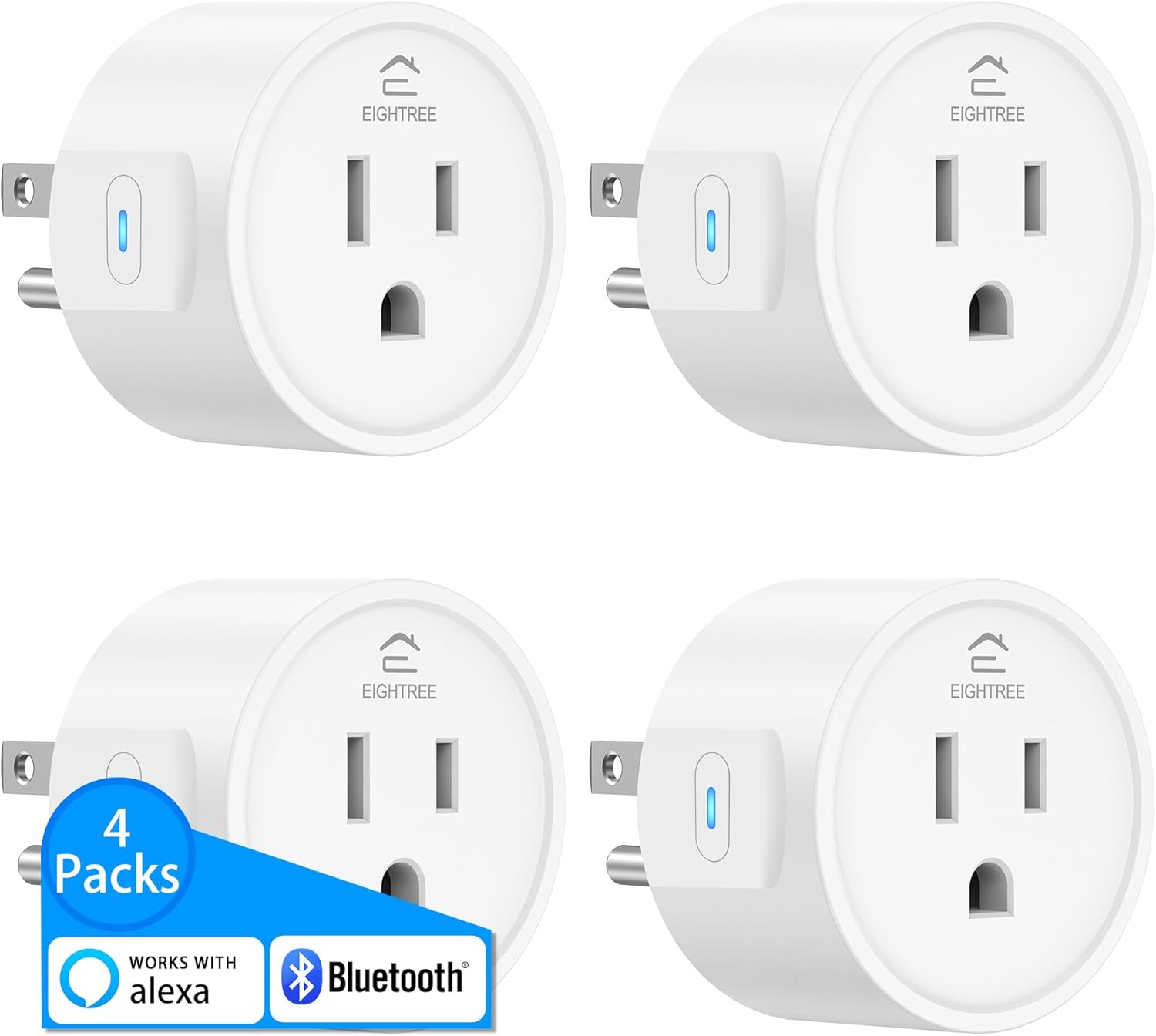
Image: Four EIGHTREE Smart Plugs, illustrating the product's appearance and quantity included in the 4-pack.
4. Product Overview
The EIGHTREE Smart Plug (Model ET08) is a compact Bluetooth-enabled device designed to integrate seamlessly with your Amazon Alexa ecosystem. It allows you to control traditional appliances using voice commands or through the Alexa app.
- Bluetooth-Only Connectivity: Connects directly to compatible Alexa devices without requiring a separate Wi-Fi network or additional apps.
- Voice Control: Use Alexa voice commands to turn connected devices on or off.
- Remote Control: Manage your smart plugs from anywhere using the Alexa app on your smartphone.
- Timing & Scheduling: Set custom schedules for devices to automatically turn on or off at specific times, or based on sunrise/sunset.
- Bluetooth Mesh Network: Multiple EIGHTREE smart plugs can form a mesh network, extending the control range from your Alexa device up to 32 feet.
- Compatibility: Works with various household devices that have a physical on/off switch, such as lamps, fans, and coffee makers.
5. Setup Instructions
Follow these steps to set up your EIGHTREE Smart Plugs with your Amazon Alexa device:
- Power On: Plug the EIGHTREE Smart Plug into a standard 120V AC wall outlet. The indicator light on the plug will illuminate.
- Alexa Device Ready: Ensure your Amazon Alexa device (e.g., Echo, Echo Dot) is powered on and connected to the internet.
- Automatic Discovery: Your Alexa device should automatically detect the new smart plug. You may hear an audible confirmation from Alexa, such as "New device found."

Image: A smart plug connected to a wall outlet, with an Amazon Echo device nearby, illustrating the simple plug-in setup process.
- Voice Command for Discovery: If the plug is not automatically discovered, say, "Alexa, discover devices."

Image: An Amazon Echo device responding to a voice command to discover new smart plugs.
- Naming Your Plug: Once discovered, you can name your smart plug (e.g., "Living Room Lamp") through the Alexa app or by saying, "Alexa, rename [device name] to [new name]."
- No Separate App Required: These smart plugs work directly with the Alexa app. No additional third-party applications are needed for functionality.
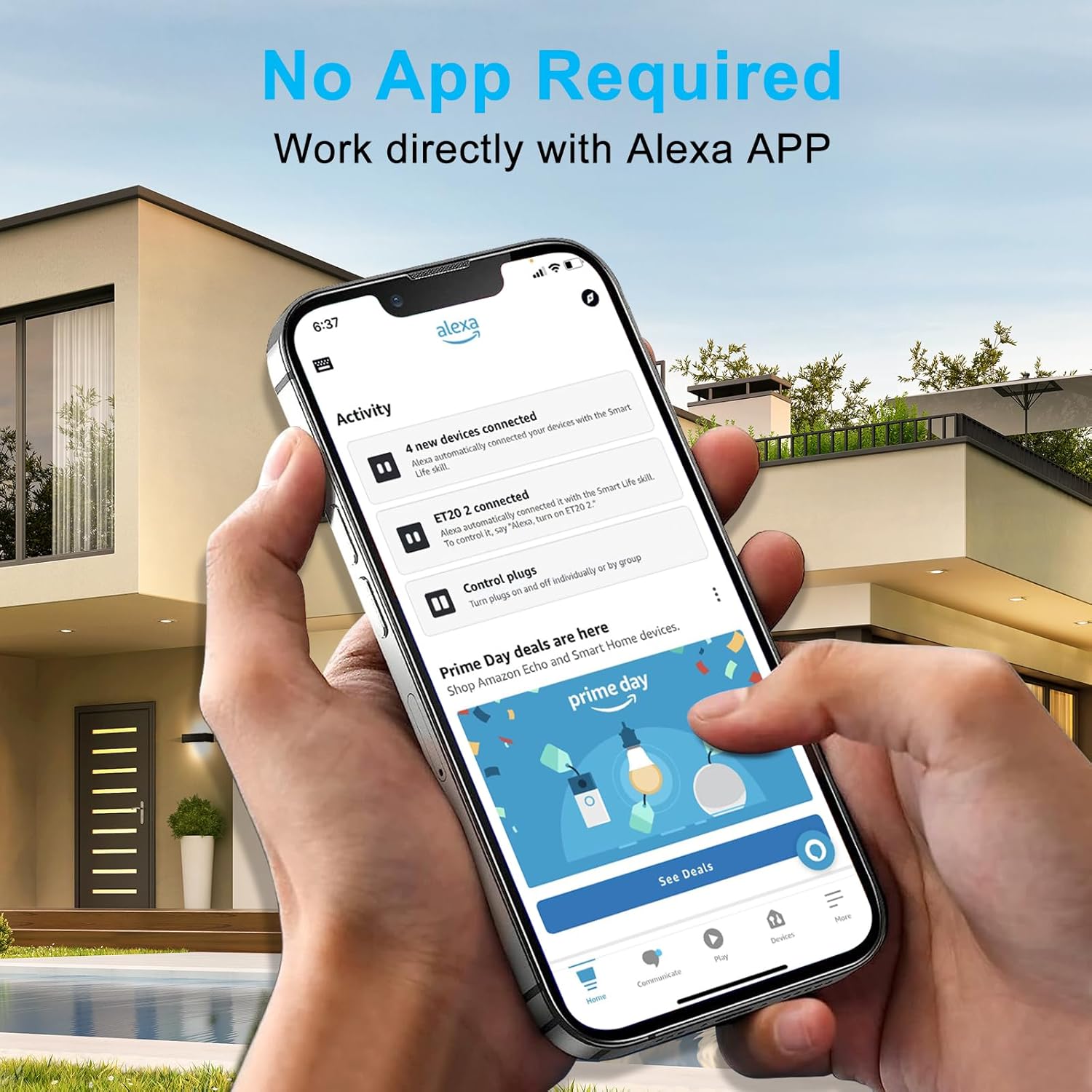
Image: A smartphone screen showing the Alexa app, highlighting that no additional app is needed for device control.
Tip for Simplified Setup: If you selected "Link device to your Amazon account" during purchase, the smart plug may automatically connect to your Alexa account upon plugging it in.
6. Operating Instructions
6.1 Voice Control
Once your smart plug is set up, you can control connected devices using simple voice commands through your Alexa device.
- To turn on a device: "Alexa, turn on [device name]." (e.g., "Alexa, turn on the fan.")
- To turn off a device: "Alexa, turn off [device name]." (e.g., "Alexa, turn off the lamp.")
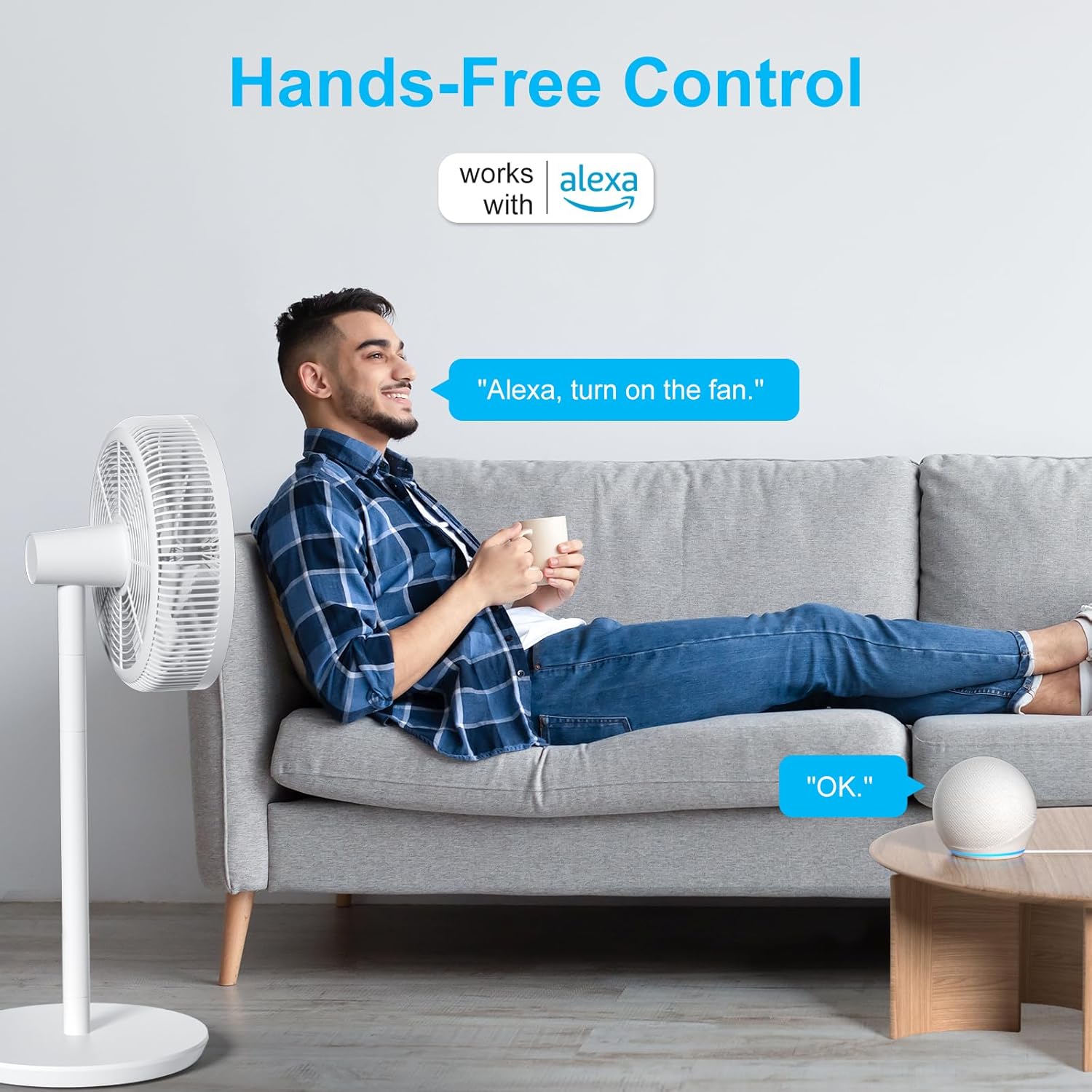
Image: A user interacting with an Alexa device to control a fan, illustrating hands-free operation.

Image: A user issuing a voice command to Alexa to turn on a lamp, with Alexa's confirmation.
6.2 Remote Control via Alexa App
You can control your smart plugs remotely using the Amazon Alexa app on your smartphone or tablet, provided your Alexa device acts as a home hub.
- Open the Alexa app.
- Navigate to the 'Devices' section.
- Select your smart plug and toggle its power state.

Image: A smart plug controlling a lamp, with an Alexa device enabling remote control via the Alexa app.

Image: A user controlling a coffee machine via the Alexa app, demonstrating remote control functionality.
6.3 Timing and Scheduling
Utilize the Alexa app to create schedules and routines for your smart plugs:
- Set devices to turn on/off at specific times (e.g., coffee machine at 7 AM).
- Create routines based on sunrise or sunset.
- Combine with other Alexa routines for automated home scenarios.

Image: Examples of scheduling various household devices like a coffee machine, air purifier, lamp, and TV.
6.4 Bluetooth Mesh Network
EIGHTREE Smart Plugs can establish a Bluetooth mesh network. This feature allows multiple plugs to communicate with each other and with your Alexa device, extending the effective control range and improving connectivity reliability within your home.
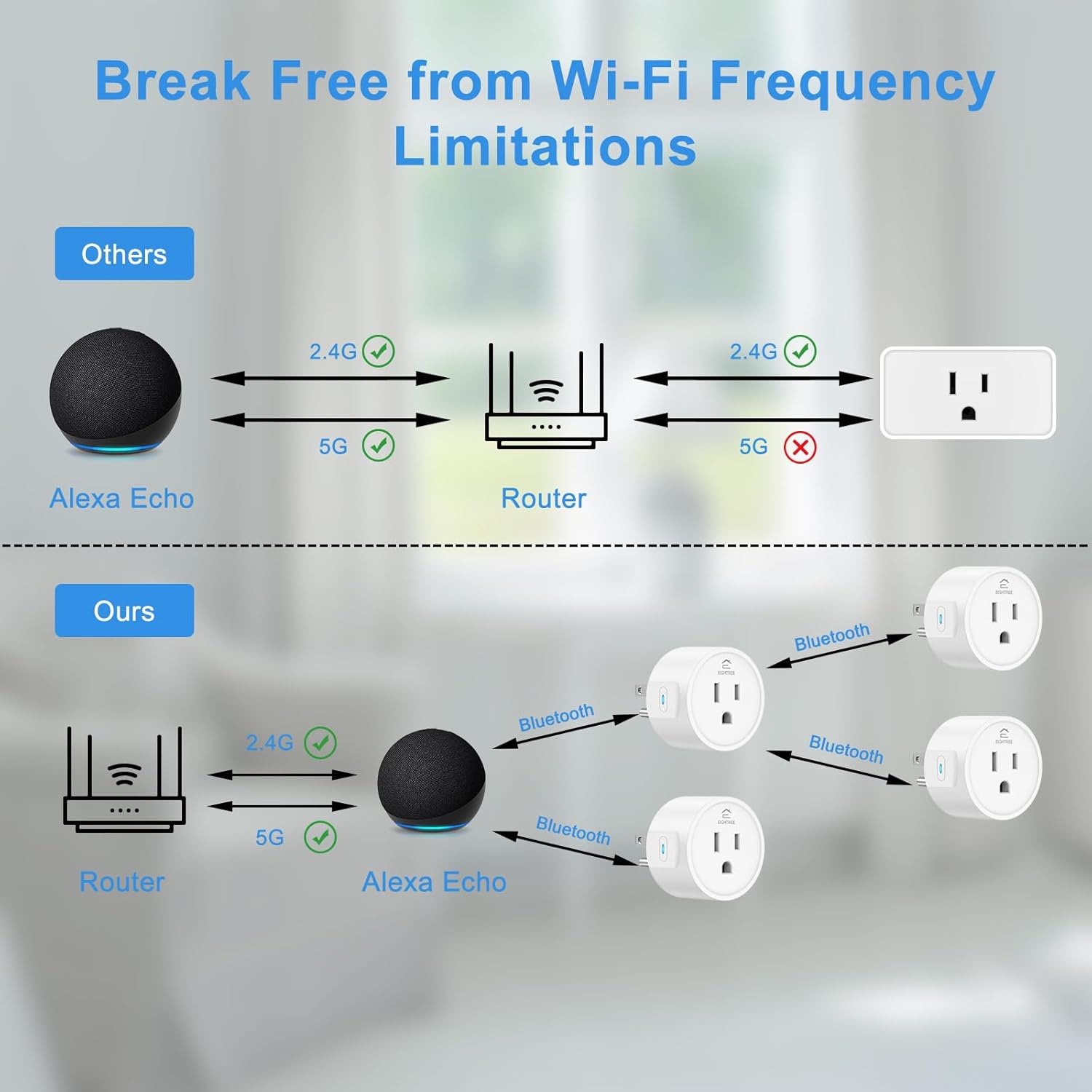
Image: A diagram comparing traditional Wi-Fi smart plugs with EIGHTREE's Bluetooth mesh network, highlighting extended range and connectivity.

Image: A floor plan illustrating how the Bluetooth mesh network extends control range, allowing plugs further from the Alexa device to remain connected.
6.5 Compatible Alexa Devices
The EIGHTREE Smart Plugs are compatible with a range of Amazon Echo devices that support Bluetooth. Ensure your Alexa device has Bluetooth capabilities for proper functionality.
- Echo (2nd-4th Gen)
- Echo Dot (2nd-5th Gen)
- Echo Plus (1st-2nd Gen)
- Echo Show (all generations)
- Echo Studio
- Echo Flex
- Echo Spot
- Echo Input

Image: A visual representation of various Amazon Echo devices compatible with EIGHTREE Smart Plugs.
7. Maintenance
To ensure optimal performance and longevity of your EIGHTREE Smart Plugs:
- Clean the exterior with a dry, soft cloth. Do not use liquid cleaners or aerosols.
- Avoid placing the plugs in areas with high humidity or direct sunlight.
- Regularly check for any signs of damage to the plug or connected appliance cords.
8. Troubleshooting
- Plug not responding to Alexa:
- Ensure the smart plug is powered on and the indicator light is active.
- Verify your Alexa device is online and within Bluetooth range (up to 32 feet).
- Try saying "Alexa, discover devices" again.
- Restart both the smart plug (unplug and replug) and your Alexa device.
- Confirm your Alexa device is compatible and has Bluetooth support.
- Scheduling not working:
- Check the schedules and routines configured in the Alexa app for accuracy.
- Ensure your Alexa device has a stable internet connection, as schedules are managed through the cloud.
- Verify the smart plug is connected and responsive to direct voice commands.
- Device connected to smart plug does not turn on/off:
- Ensure the appliance itself is switched to the 'ON' position if it has a physical switch. Smart plugs control the power supply to the outlet, not the internal state of the appliance.
- Check if the appliance is functioning correctly when plugged directly into a standard outlet.
- Limited control range:
- Place additional EIGHTREE smart plugs between your Alexa device and the furthest plug to leverage the Bluetooth mesh network and extend the control range.
- Reduce physical obstructions between the Alexa device and the smart plugs.
9. Specifications
| Feature | Specification |
|---|---|
| Model Number | ET08 |
| Brand | EIGHTREE |
| Connectivity Protocol | Bluetooth |
| Control Method | App (Alexa), Voice |
| Controller Type | Amazon Alexa, Push Button |
| Operating Voltage | 120 Volts (AC) |
| Current Rating | 10 Amps |
| Wattage | 1100 Watts |
| Operation Mode | ON-OFF-ON |
| Contact Type | Normally Open |
| Connector Type | Plug In |
| Item Dimensions (L x W x H) | 1.96 x 1.96 x 1.18 inches |
| Item Weight | 8.4 ounces |
| Color | White |
| Material | Stainless Steel (Contact Material) |
| International Protection Rating | IP00 |
| Upper Temperature Rating | 50 Degrees Celsius |
| Batteries Required? | No |
10. Warranty and Support
Specific warranty details for EIGHTREE Smart Plugs are not provided in this manual. For warranty information or technical support, please refer to the product packaging or contact EIGHTREE customer service through their official channels. You may also visit the EIGHTREE Store on Amazon for additional resources.


