
Introduction
Welcome to the SGNICS F57L Smart Watch user manual. This guide provides detailed instructions on how to set up, operate, maintain, and troubleshoot your new smart watch. Please read this manual thoroughly to ensure proper use and to fully utilize all features of your device.
Package Contents
Before you begin, please verify that all items are present in your package:
- 1 x SGNICS F57L Smart Watch
- 1 x Watch Band
- 1 x Charging Cable
- 1 x User Manual (this document)
Product Overview
Familiarize yourself with the components of your SGNICS F57L Smart Watch.
Watch Components
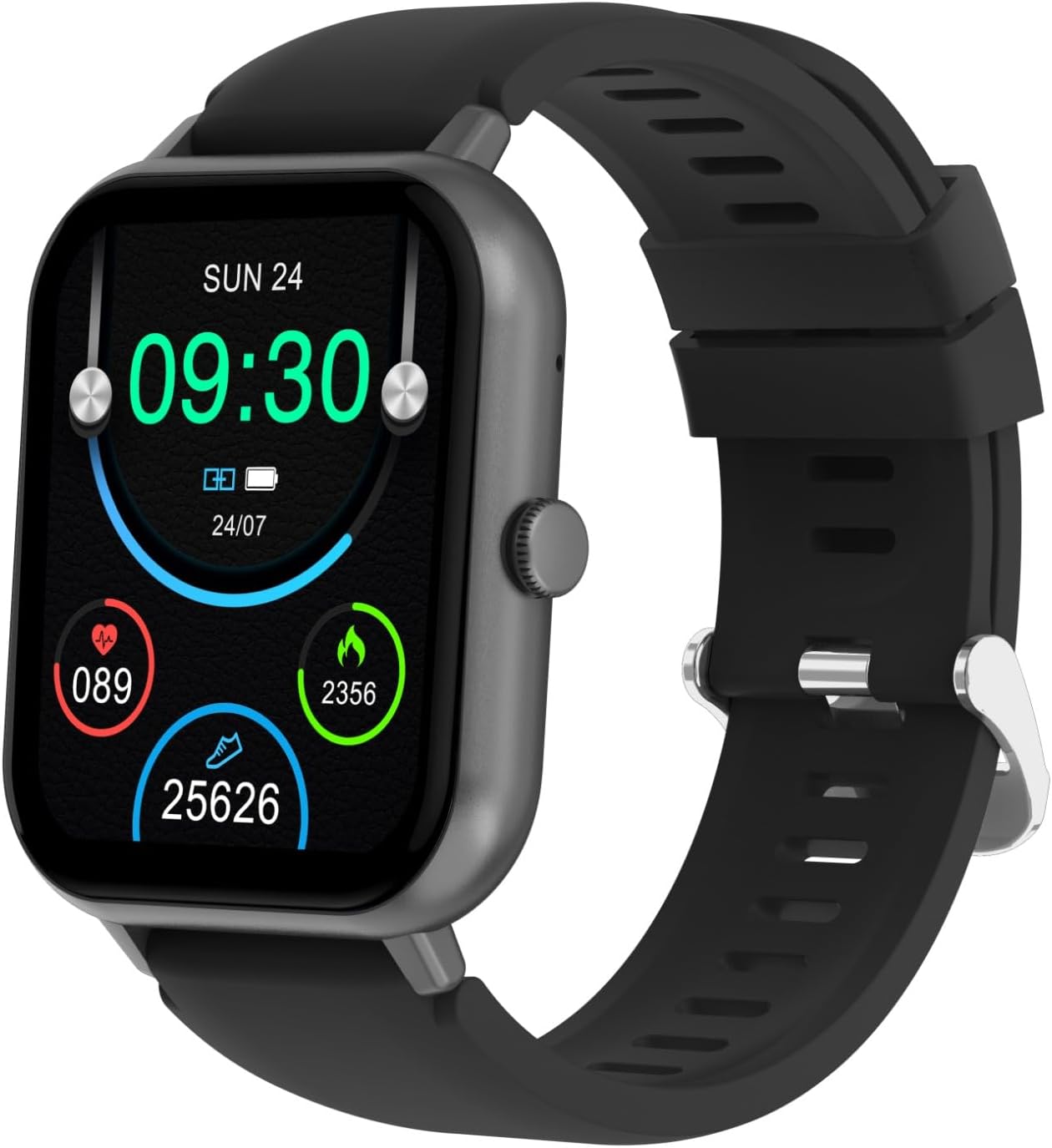
Figure 1: Front view of the SGNICS F57L Smart Watch, showing the main display with various health metrics.
- 1.91" HD Touch Screen: The primary interface for interaction and information display.
- Side Button/Crown: Used for power on/off, returning to the home screen, and navigating menus.
- Heart Rate Sensor: Located on the back, used for continuous heart rate monitoring.
- Charging Contacts: Magnetic points on the back for connecting the charging cable.

Figure 2: Rear view of the SGNICS F57L Smart Watch, highlighting the heart rate sensor and charging contacts.

Figure 3: Side view of the SGNICS F57L Smart Watch, illustrating the location of the physical button.
Setup
1. Charging the Device
- Connect the magnetic charging cable to the charging contacts on the back of the watch.
- Plug the USB end of the cable into a standard USB power adapter (5V/1A recommended) or a computer's USB port.
- The watch screen will display a charging indicator. Allow approximately 2 hours for a full charge.
2. Power On/Off
- Power On: Press and hold the side button for 3-5 seconds until the SGNICS logo appears.
- Power Off: From the watch face, swipe down to access quick settings, then tap the power icon, or go to Settings > System > Power Off. Alternatively, press and hold the side button for 3-5 seconds and select 'Power Off' when prompted.
3. App Installation
To unlock the full functionality of your smart watch, you need to install the companion app on your smartphone. Scan the QR code provided in the watch's initial setup screen or search for the app name (usually mentioned in the watch's packaging or quick start guide) in your phone's app store (Google Play Store for Android, Apple App Store for iOS).
4. Device Pairing
After installing the app:
- Ensure Bluetooth is enabled on your smartphone.
- Open the companion app and follow the on-screen instructions to create an account or log in.
- In the app, navigate to 'Device' or 'Add Device' and select your SGNICS F57L from the list of available devices.
- Confirm the pairing request on both your phone and the watch.
Operating Instructions
1. Basic Navigation
- Swipe Up: Access notifications.
- Swipe Down: Access quick settings (brightness, DND, battery, etc.).
- Swipe Left/Right: Cycle through widgets (activity data, heart rate, weather, etc.).
- Tap: Select an item or open an application.
- Press Side Button: Return to the watch face or open the app menu.
2. Bluetooth Call Function
Once paired with your smartphone via Bluetooth, you can make and receive calls directly from your watch.
- Making Calls: Access the 'Dialer' or 'Contacts' app on your watch.
- Receiving Calls: When a call comes in, the watch will vibrate and display the caller ID. Tap the green icon to answer or the red icon to reject.
3. Health Tracking
The watch automatically tracks various health metrics 24/7.
- Heart Rate: View real-time heart rate on the watch face or in the dedicated heart rate app.
- Activity: Tracks steps, distance, and calories burned. Data can be viewed on the watch and in the companion app.
- Sleep Monitoring: Automatically monitors sleep patterns when worn during sleep.
4. 50+ Sport Modes
The watch supports over 50 sport modes, including running, dancing, yoga, cycling, and hiking.
- Open the 'Workout' or 'Sport' app on your watch.
- Select your desired activity.
- Tap 'Start' to begin tracking your workout. The watch will record duration, calories, and other relevant metrics.
5. Notifications
Receive notifications for calls, messages, and app alerts directly on your wrist.
- Ensure notification permissions are enabled in the companion app on your smartphone.
- Notifications will appear on the watch screen and be accompanied by a vibration. Swipe up from the watch face to view your notification history.
6. AI Voice Assistant
Utilize the integrated AI voice assistant for quick tasks and information.
- Activate the voice assistant through its dedicated app icon or by a specific gesture/button press (refer to watch settings for configuration).
- Speak your commands or questions clearly into the watch's microphone.
7. Customizing Watch Faces
Personalize your watch with various watch faces.
- On the Watch: Long-press the watch face, then swipe left/right to browse pre-installed faces. Tap to select.
- Via App: The companion app offers a wider selection of watch faces, including options to customize with your own photos.
Maintenance
1. Cleaning
To maintain the watch's appearance and functionality:
- Wipe the screen and body with a soft, lint-free cloth.
- For stubborn dirt, slightly dampen the cloth with water. Avoid harsh chemicals.
- Clean the charging contacts regularly to ensure proper charging.
2. Water Resistance
The SGNICS F57L Smart Watch is designed with a degree of water resistance, suitable for daily use such as hand washing or light rain. It is not recommended for swimming, showering with hot water, or diving. Exposure to saltwater or chemicals should be avoided as it may damage the device.
Troubleshooting
If you encounter issues with your SGNICS F57L Smart Watch, refer to the following common problems and solutions:
- Watch will not power on:
Ensure the watch is fully charged. Connect it to the charging cable and allow it to charge for at least 30 minutes before attempting to power on again. - Cannot pair with smartphone:
Check that Bluetooth is enabled on your phone and the watch. Ensure the watch is within range of your phone. Restart both the watch and your phone, then try pairing again through the companion app. - Notifications are not received:
Verify that notification permissions are granted to the companion app in your phone's settings. Also, check if 'Do Not Disturb' mode is active on either your watch or phone. - Inaccurate health data:
Ensure the watch is worn snugly on your wrist, about one finger's width above your wrist bone. Clean the sensor on the back of the watch. Avoid excessive movement during measurements. - Screen is unresponsive:
Try restarting the watch by pressing and holding the side button. If the issue persists, ensure the screen is clean and dry.
Specifications
| Model Name | F57L |
| Brand | SGNICS |
| Screen Size | 1.91 inches HD Touch Screen |
| Connectivity | Bluetooth |
| Material | Zinc |
| Special Feature | Activity Tracker, Bluetooth Call, AI Voice Assistant, 50+ Sport Modes |
| Compatible Devices | Smartphones (Android/iOS) |
Warranty and Support
Warranty Information
The SGNICS F57L Smart Watch comes with a 60-day warranty from the date of purchase, covering manufacturing defects. This warranty does not cover damage caused by misuse, accidents, unauthorized modifications, or normal wear and tear.
Customer Support
For further assistance, technical support, or warranty claims, please contact SGNICS customer service through the contact information provided on your purchase platform or the official SGNICS website. Please have your purchase receipt and product model number (F57L) ready when contacting support.