
1. Introduction
Welcome to the user manual for your new SGNICS Smart Watch F57L. This guide provides essential information on how to set up, operate, and maintain your device. Please read this manual thoroughly to ensure proper use and to maximize the features of your smartwatch.
2. Package Contents
Please verify that all items are present in your package:
- 1 * Smart Watch F57L
- 1 * Band
- 1 * Charging Cable
- 1 * User Manual (this document)
3. Product Overview
The SGNICS Smart Watch F57L is designed to be a versatile activity tracker and communication device. It features a 1.91-inch HD touch screen and a durable zinc body.
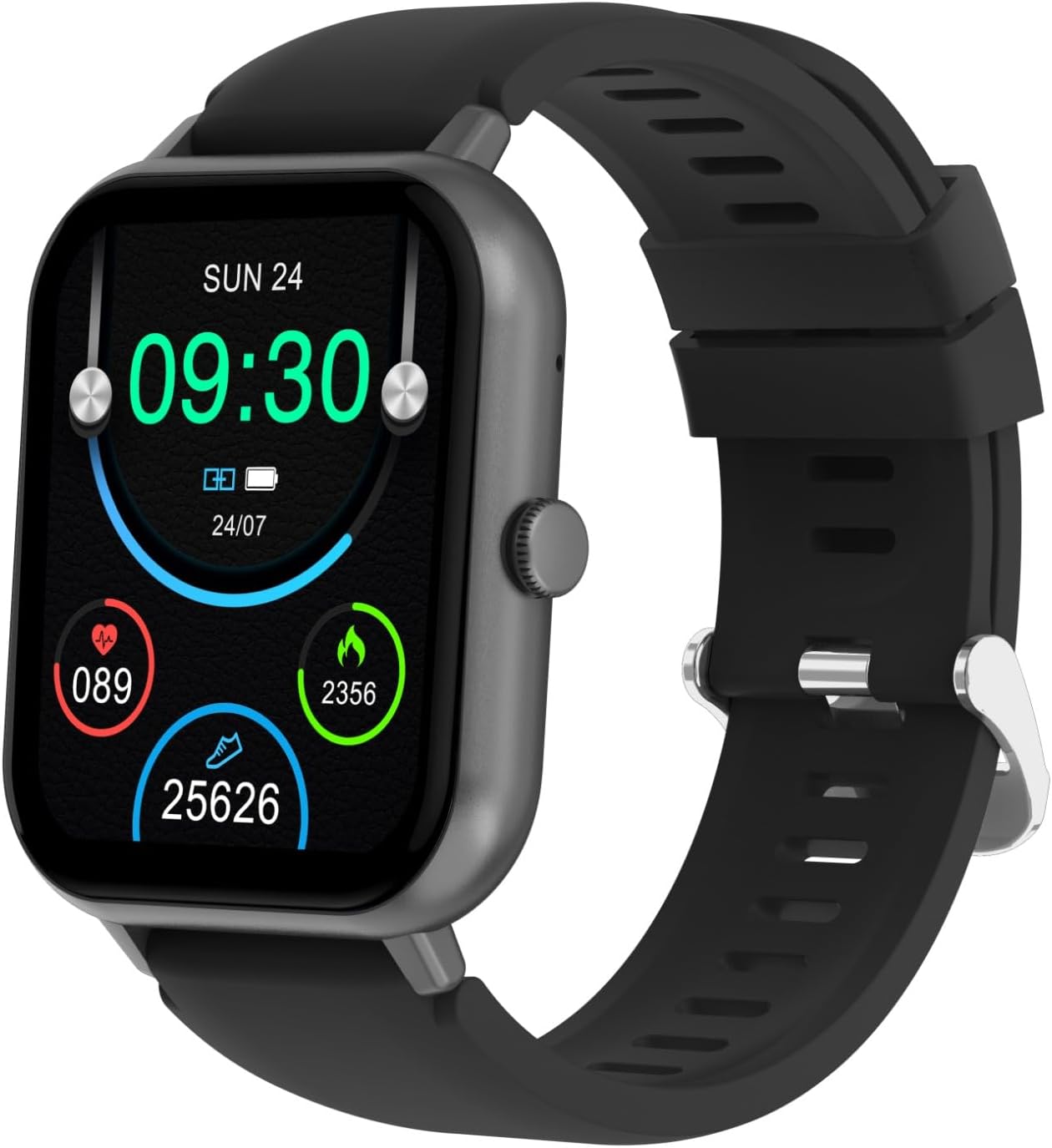
Figure 3.1: Front view of the SGNICS Smart Watch F57L, displaying the time, heart rate, calorie count, and step count on its vibrant screen.

Figure 3.2: Detailed view of the smartwatch display, highlighting the clear digital interface and health tracking icons.

Figure 3.3: Rear view of the smartwatch, illustrating the integrated heart rate sensor and fitness tracker components.

Figure 3.4: Side profile of the smartwatch, revealing the physical control button and the overall slim design.
4. Setup
4.1 Initial Charging
Before first use, fully charge your smartwatch. Connect the provided charging cable to the charging port on the back of the watch and plug the USB end into a standard USB power adapter (not included) or a computer's USB port. The watch display will indicate charging status.
4.2 Companion App Installation
To unlock all features and synchronize data, download the dedicated companion app on your smartphone. Search for the app name (refer to the packaging or quick start guide for the specific app name) in your device's app store (Google Play Store for Android or Apple App Store for iOS).
4.3 Device Pairing
- Ensure your smartwatch is charged and powered on.
- Enable Bluetooth on your smartphone.
- Open the companion app on your smartphone and follow the on-screen instructions to add a new device.
- Select 'F57L' or the corresponding device name from the list of available Bluetooth devices.
- Confirm the pairing request on both your smartphone and the smartwatch if prompted.
- Once paired, the watch will synchronize time and data with your phone.
5. Operating Instructions
5.1 Basic Navigation
- Touch Screen: Swipe left/right, up/down to navigate through menus and features. Tap to select an option.
- Side Button: Press to return to the previous screen or the watch face. A long press may power on/off the device or access a quick menu.
5.2 Wrist Calls & Notifications
After connecting to your phone via Bluetooth, you can make and receive calls directly from your smartwatch without needing to take out your mobile phone. All messages and notifications from your paired smartphone will be displayed on your wrist, accompanied by a vibration alert, ensuring you do not miss important communications.
5.3 24-Hour Health Tracking
Equipped with advanced sensors, the smartwatch automatically tracks your daily activity 24/7. This includes monitoring your heart rate, sleep patterns, and other vital health metrics throughout the day.
5.4 50+ Sport Modes
The Activity Tracking smart watch offers over 50 sports modes, including running, dancing, yoga, cycling, and hiking. Select the appropriate mode before starting your activity to accurately track your performance, including steps, calories burned, distance covered, and activity duration. This data helps you adjust your training intensity for optimal results.
5.5 AI Voice Assistant
Access your virtual assistant directly from your wrist. You can ask questions, set reminders, and control smart devices using voice commands, enhancing convenience and productivity.
5.6 Other Life Assistant Features
The smartwatch includes several practical features to assist with daily tasks:
- Pedometer: Tracks your daily step count.
- Distance & Calories: Monitors distance traveled and calories burned.
- Music Playback Control: Manage music on your smartphone.
- Stopwatch & Countdown: For timing activities.
- Calculator: Basic arithmetic functions.
- Weather Display: Provides current weather information.
- Remote Photography: Control your phone's camera remotely.
- Find My Phone: Helps locate your paired smartphone.
5.7 DIY UI (Custom Dials)
Personalize your smartwatch by choosing from hundreds of available watch faces or create your own custom dial through the companion app.
6. Maintenance
6.1 Cleaning
Regularly clean your smartwatch and band with a soft, dry, lint-free cloth. If necessary, use a slightly damp cloth with mild soap, then wipe dry. Avoid harsh chemicals or abrasive materials.
6.2 Water Resistance
The smartwatch is designed to withstand splashes and sweat. However, it is not recommended for swimming, showering, or prolonged submersion in water. Avoid exposing it to hot water or steam.
6.3 Battery Care
To prolong battery life, avoid fully discharging the battery frequently. Charge the device when the battery level is low. Store the watch in a cool, dry place when not in use for extended periods.
7. Troubleshooting
| Problem | Possible Solution |
|---|---|
| Watch does not power on | Ensure the watch is fully charged. Connect to the charger for at least 30 minutes. |
| Cannot pair with smartphone | Ensure Bluetooth is enabled on your phone and the watch. Restart both devices. Check if the companion app is updated. |
| Inaccurate health data | Ensure the watch is worn snugly on your wrist, not too tight or too loose. Clean the sensors on the back of the watch. |
| Notifications not received | Check app notification permissions on your smartphone. Ensure the watch is connected via Bluetooth and the companion app is running in the background. |
| Screen unresponsive | Restart the watch by holding the side button. If unresponsive, allow the battery to fully drain and then recharge. |
If you encounter issues not listed here, please refer to the support section or contact customer service.
8. Specifications
| Feature | Detail |
|---|---|
| Brand | SGNICS |
| Model Name | F57L |
| Color | Black |
| Material | Zinc |
| Display | 1.91 inch HD Touch Screen |
| Connectivity | Bluetooth |
| Special Feature | Activity Tracker, Bluetooth Call, AI Voice Assistant |
| Sport Modes | 50+ |
| Compatible Devices | Smartphone (Android/iOS) |
| Target Audience | Teens, Seniors, Adults |
| Manufacturer | SGNICS |
| Model Year | 2024 |
9. Warranty & Support
9.1 Warranty Information
This SGNICS Smart Watch F57L comes with a 60-day warranty from the date of purchase. This warranty covers manufacturing defects under normal use. It does not cover damage caused by misuse, accidents, unauthorized modifications, or improper maintenance.
9.2 Customer Support
For technical assistance, warranty claims, or any questions regarding your SGNICS Smart Watch F57L, please contact SGNICS customer support. Refer to your purchase documentation or the official SGNICS website for contact details.