
1. Introduction
Thank you for choosing the EDUP Mini USB WiFi 6 Adapter Bluetooth 5.3 Dongle. This device provides ultra-fast dual-band Wi-Fi 6 (802.11ax) connectivity and Bluetooth 5.3 capabilities for your Windows 11/10 desktop or laptop PC. It is designed to offer stable, high-speed data transfer and low-energy connectivity, enhancing your network and peripheral experience.
This manual will guide you through the installation, operation, and maintenance of your new adapter, ensuring optimal performance.
2. Safety Information
- Keep the device away from water, fire, excessive humidity, or hot environments.
- Do not attempt to disassemble, repair, or modify the device.
- Use the device within its specified operating temperature and humidity ranges.
- Ensure proper ventilation around the device when in use.
3. Package Contents
Please check the package contents carefully. If any item is missing or damaged, contact your retailer.
- 1 x USB Bluetooth WiFi Adapter
- 1 x User manual
4. Product Overview
The EDUP Mini USB WiFi 6 Adapter is a compact and portable device designed for seamless integration with your computer. Its small form factor allows it to remain discreetly plugged into a USB port.

Figure 4.1: EDUP Mini USB WiFi 6 Adapter Bluetooth 5.3 Dongle
This image shows the compact black USB adapter with the EDUP logo and a blue indicator light. It features a standard USB-A connector.

Figure 4.2: Key Features Overview
This graphic highlights the adapter's main features: AX900, 900Mbps, USB 2.0 interface, Bluetooth 5.3, Wi-Fi 6, 2.4G/5G Dual Band, 802.11AX standard, Windows 10/11 compatibility, and easy driver installation.
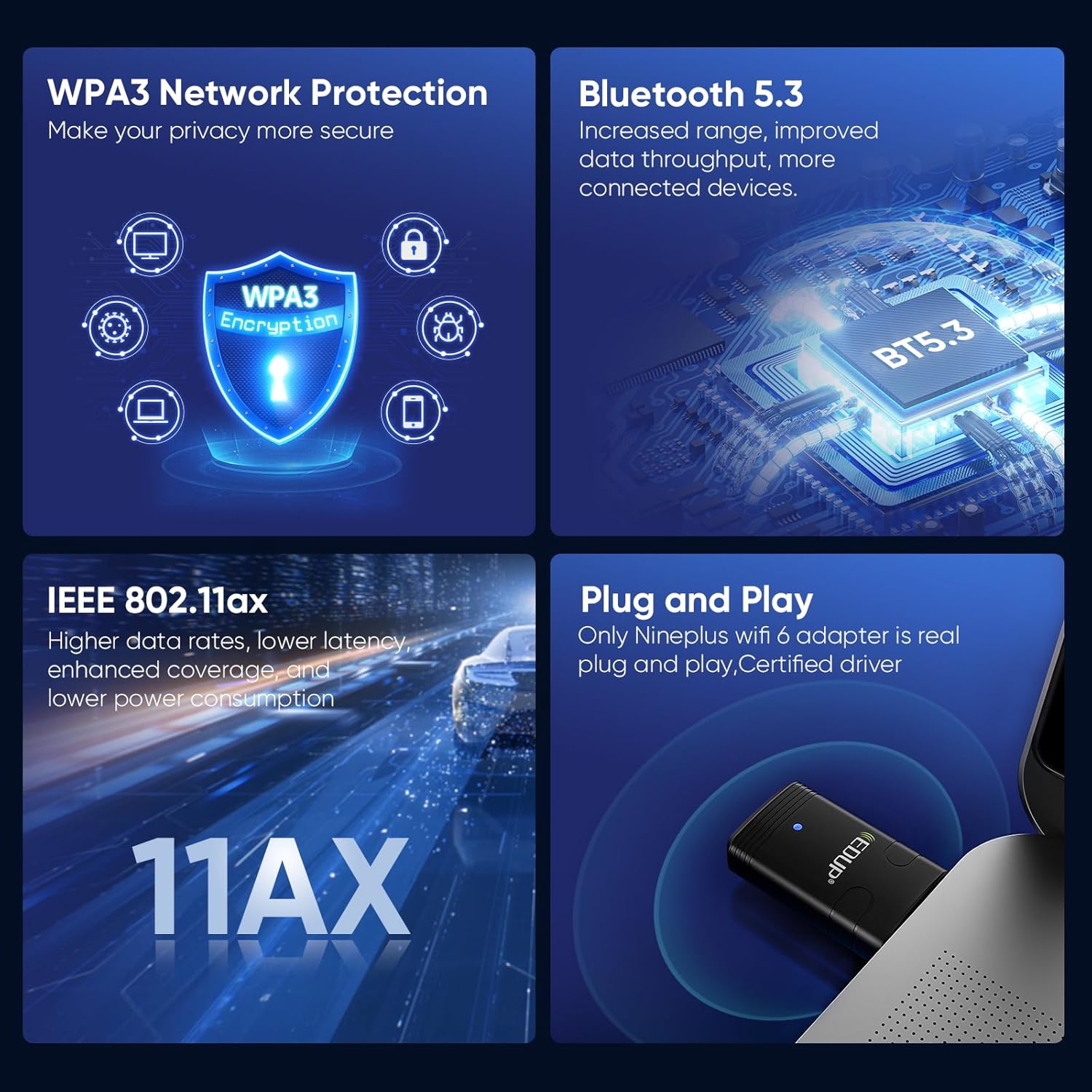
Figure 4.3: Convenient and Portable Design
This image illustrates the adapter's small dimensions (20mm width, 44mm length) when plugged into a laptop, emphasizing its portability.
5. Setup Guide
5.1 System Requirements
- Operating System: Windows 11 or Windows 10 (64-bit recommended).
- Available USB 2.0 or 3.0 port.

Figure 5.1: Supported Operating Systems
This image displays the logos for Windows 10 and Windows 11, indicating compatibility with these operating systems.
5.2 Driver Installation
The EDUP Mini USB WiFi 6 Adapter requires driver installation for full functionality. Drivers are provided on a U disk included with your purchase, or can be downloaded from the official EDUP website.
- Insert the Adapter: Plug the EDUP Mini USB WiFi 6 Adapter into an available USB port on your desktop or laptop PC.
- Install Drivers:
- Option A (U Disk): Insert the provided U disk into a USB port. Navigate to the U disk drive in File Explorer and run the driver setup executable (e.g., "autorun.exe" or similar).
- Option B (Online Download - Recommended for latest drivers):
- Open your web browser and go to the EDUP website: szedup.com/usb-adapters/EPAX910.html.
- Navigate to the "Download Center" or "Support" section.
- Locate and download the latest drivers for model EP-AX910 (or EP-AX900/910 Driver) compatible with Windows 10/11. The file will likely be a compressed ZIP file.
- Extract the downloaded ZIP file to a folder on your computer.
- Run the setup executable (e.g., "setup.exe" or "autorun.exe") from the extracted folder and follow the on-screen instructions.
- Complete Installation: Follow the prompts in the installation wizard. You may be asked to restart your computer after installation is complete.
Video 5.1: EDUP USB WiFi 6 Adapter Bluetooth 5.3 Dongle Driver Installation Guide
This video demonstrates the process of downloading and installing the drivers for the EDUP USB WiFi 6 Adapter from the official EDUP website. It shows navigating to the download center, selecting the correct driver, downloading the file, and running the installation wizard.

Figure 5.2: Adapter Connected to a Mini PC
This image shows the compact EDUP USB WiFi 6 Adapter plugged into a USB port on a mini PC, illustrating its discreet integration.
6. Operating Instructions
6.1 Connecting to Wi-Fi
Once the drivers are successfully installed, your computer will recognize the Wi-Fi capabilities of the adapter.
- Click on the Wi-Fi icon in your system tray (usually in the bottom-right corner of your screen).
- Select your desired Wi-Fi network from the list of available networks.
- Enter the network security key (password) if prompted.
- Click "Connect". Your computer should now be connected to the internet via the EDUP adapter.

Figure 6.1: Wi-Fi 6 Speed Capabilities
This image illustrates the potential Wi-Fi 6 speeds: up to 600 Mbps on the 5GHz band and up to 286 Mbps on the 2.4GHz band, offering faster performance compared to previous Wi-Fi generations.
6.2 Connecting Bluetooth Devices
The adapter also enables Bluetooth 5.3 connectivity for various peripherals.
- Go to Windows Settings > Devices > Bluetooth & other devices.
- Ensure Bluetooth is turned "On".
- Click "Add Bluetooth or other device" and select "Bluetooth".
- Put your Bluetooth device (e.g., headphones, keyboard, mouse) into pairing mode.
- Select your device from the list and follow any on-screen prompts to complete the pairing process.

Figure 6.2: Bluetooth 5.3 Connectivity
This diagram illustrates how the EDUP adapter facilitates connections to various Bluetooth devices, including keyboards, mice, printers, audio devices, and earphones, from a desktop, PC, or laptop.
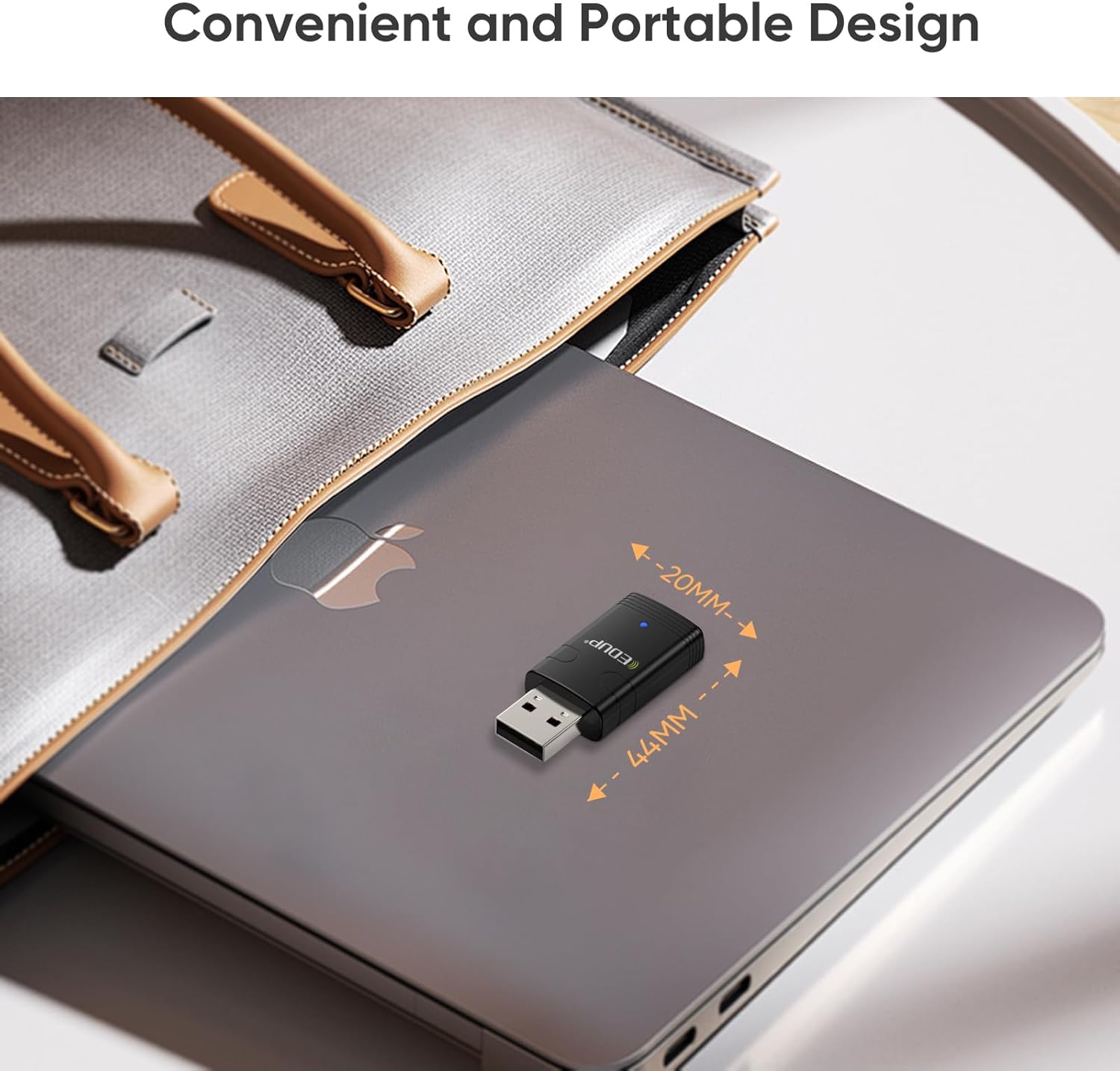
Figure 6.3: Advanced Features
This image highlights key features such as WPA3 Network Protection for enhanced security, Bluetooth 5.3 for increased range and throughput, IEEE 802.11ax for higher data rates and lower latency, and the plug-and-play nature with certified drivers.
7. Maintenance
- Keep the adapter clean by wiping it with a soft, dry cloth.
- Avoid exposing the adapter to extreme temperatures or direct sunlight.
- When transporting a laptop, it is advisable to remove the dongle to prevent accidental damage.
- Periodically check the EDUP website for updated drivers to ensure optimal performance and compatibility.
8. Troubleshooting
8.1 Adapter Not Detected or Not Working
- Check USB Port: Try plugging the adapter into a different USB port on your computer.
- Driver Installation: Ensure that the drivers are correctly installed. If you used the U disk, consider downloading the latest drivers from the EDUP website (szedup.com/usb-adapters/EPAX910.html) as they may be more up-to-date.
- Restart Computer: A system restart can often resolve detection issues after driver installation.
- Device Manager: Open Device Manager (search for it in Windows) and check if the adapter is listed under "Network adapters" and "Bluetooth". Look for any yellow exclamation marks, which indicate a driver issue. Right-click and select "Update driver" or "Uninstall device" and then reinstall the driver.
8.2 Wi-Fi Connection Issues
- Signal Strength: Ensure you are within range of your Wi-Fi router.
- Incorrect Password: Double-check the Wi-Fi password.
- Router Reboot: Try restarting your Wi-Fi router.
- Network Band: Confirm your router is broadcasting on 2.4GHz or 5GHz. The adapter supports both.
8.3 Bluetooth Pairing Problems
- Device Pairing Mode: Ensure your Bluetooth device is in proper pairing mode. Refer to your device's manual.
- Distance: Keep the Bluetooth device close to the adapter during pairing.
- Interference: Move away from other wireless devices that might cause interference.
- Remove Existing Pairings: If the device was previously paired with another computer or phone, unpair it first.
9. Specifications
| Feature | Specification |
|---|---|
| Model Number | EP-AX910 |
| Product Dimensions | 0.7 x 0.3 x 1.65 inches (0.7"L x 0.3"W x 1.65"H) |
| Item Weight | 1.44 ounces |
| Hardware Interface | USB 2.0 |
| Color | Black |
| Compatible Devices | Laptop, Desktop, Tablet |
| Compatible Operating System | Windows 11, Windows 10 |
| Data Link Protocol | Ethernet, IEEE 802.11ax (Wi-Fi 6) |
| Data Transfer Rate | Up to 900 Mbps (2.4G ax: 286Mbps; 5G ax: 600Mbps) |
| Bluetooth Version | Bluetooth 5.3 |
| Security Protocol | WPA3 |
10. Warranty and Support
EDUP provides a 3-year manufacturer replacement warranty for this product. Additionally, a 90-day no-questions-asked return policy is offered.
For any assistance, technical support, or warranty claims, please feel free to contact us via Amazon message. Our support team is ready to help you with any inquiries or issues you may encounter.