
1. Product Overview
The Akko Calico Cat Theme Wireless Gaming Mouse is designed for comfortable and versatile use across various devices. It features a unique cat-shaped design and offers tri-mode connectivity for flexible operation.

Image: The Akko Calico Cat Theme Wireless Gaming Mouse, showcasing its distinctive design.
- Calico Cat Theme: Features an adorable cat-shaped design for a unique aesthetic.
- Tri-Mode Connectivity: Supports 2.4GHz wireless, Bluetooth 3.0, and Bluetooth 5.0 for versatile connection options.
- Ergonomic Design: Shaped for a comfortable fit in the palm, enhancing user experience.
- Wide Compatibility: Compatible with Mac and Windows systems, including PCs, laptops, MacBooks, and iPads.
- Silent Operation: Equipped with soundless clicks for a quiet working environment.
2. Setup Instructions
2.1 Battery Installation
The mouse requires one AA battery (included). To install the battery:
- Locate the battery compartment on the underside of the mouse.
- Open the battery compartment cover.
- Insert one AA battery, ensuring correct polarity (+/-).
- Close the battery compartment cover securely.

Image: Underside of the mouse showing the battery compartment and the 2.4G USB receiver slot.
2.2 Connecting the Mouse
The mouse supports three connection modes: 2.4GHz wireless (via USB receiver), Bluetooth 3.0, and Bluetooth 5.0.

Image: Diagram illustrating the three connectivity modes: 2.4G, Bluetooth 3.0, and Bluetooth 5.0.
2.2.1 2.4GHz Wireless Connection (USB Receiver)
- Locate the 2.4G USB receiver stored within the battery compartment of the mouse.
- Remove the USB receiver.
- Insert the USB receiver into an available USB port on your computer or device.
- Turn on the power switch located on the underside of the mouse.
- The mouse should connect automatically.
2.2.2 Bluetooth Connection (BT3.0/BT5.0)
- Ensure the mouse has a battery installed and is powered on.
- On the underside of the mouse, locate the switch to select between 2.4G and BT modes. Switch it to the BT position.
- On your computer or device, enable Bluetooth and search for new devices.
- The mouse should appear as "Akko Mouse" or similar in the list of available Bluetooth devices.
- Select the mouse to pair. Follow any on-screen prompts to complete the pairing process.
3. Operating Instructions
3.1 Basic Functions
- Left Click: Primary selection and interaction.
- Right Click: Accesses contextual menus.
- Scroll Wheel: Scrolls content vertically. Pressing the scroll wheel typically acts as a middle click.
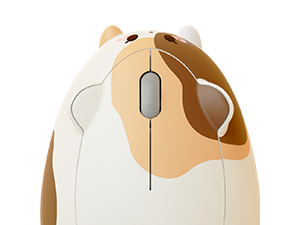
Image: Top view of the Akko Calico Cat mouse, highlighting the main buttons and scroll wheel.
3.2 DPI Adjustment
The mouse features adjustable DPI (Dots Per Inch) settings, allowing you to change cursor sensitivity. The available DPI settings are 800, 1600 (default), and 3200.
To adjust the DPI, press the dedicated DPI button, usually located on the underside or top of the mouse. Each press cycles through the available DPI settings.

Image: Visual representation of adjustable DPI settings (800, 1600, 3200) for the Akko mouse.
4. Ergonomics and Design
The Akko Cat Theme Wireless Gaming Mouse is designed with user comfort in mind. Its ergonomic shape provides a natural fit for the palm, reducing strain during extended use. The mouse also features an anti-slip bottom for stable movement and an agile scroll wheel for smooth navigation.

Image: Illustration of the mouse's ergonomic design, suitable for palm, fingertip, and claw grip styles.

Image: The mouse's surface, emphasizing its skin-friendly material for comfortable touch.
4.1 Portability
With dimensions of approximately 115mm (length) x 76mm (width) x 41mm (height), the mouse is designed to be portable and easy to carry.

Image: Top and side views of the mouse with its compact dimensions indicated.
5. Maintenance
- Cleaning: Use a soft, dry cloth to clean the mouse. For stubborn dirt, a slightly damp cloth can be used, ensuring no moisture enters the internal components.
- Battery Replacement: Replace the AA battery when the mouse performance degrades or it stops responding.
- Storage: When not in use for extended periods, turn off the mouse to conserve battery life. Store in a cool, dry place.
6. Troubleshooting
- Mouse not responding:
- - Ensure the battery is correctly installed and has sufficient charge. Replace if necessary.
- - Check the power switch on the underside of the mouse is in the "ON" position.
- - For 2.4GHz connection, ensure the USB receiver is securely plugged into a working USB port.
- - For Bluetooth connection, verify that Bluetooth is enabled on your device and the mouse is correctly paired. Try re-pairing if connection issues persist.
- - Note: The mouse does not have a visible laser light on the bottom, which is normal operation.
- Intermittent connection or lag:
- - Move the mouse closer to the USB receiver or Bluetooth-enabled device to reduce interference.
- - Ensure there are no large metallic objects between the mouse and the receiver/device that could block the signal.
- - Check for other wireless devices operating on the same frequency that might cause interference.
- Cursor movement is erratic or imprecise:
- - Clean the optical sensor on the underside of the mouse with a soft, dry cloth.
- - Use the mouse on a clean, uniform surface or a mouse pad.
- - Adjust the DPI setting to a more suitable level for your task.
7. Specifications
| Feature | Detail |
|---|---|
| Brand | Akko |
| Model Name | Akko Wireless Gaming Mouse |
| Model Number | 6925758630146 |
| Color | Calico Cat |
| Connectivity Technology | 2.4G, Bluetooth 3.0, Bluetooth 5.0 (Tri-Mode) |
| Movement Detection Technology | Optical |
| Special Feature | Soundless clicks |
| Button Quantity | 1 (referring to main click functionality, typically 3 buttons including scroll click) |
| Hand Orientation | Right |
| Compatible Devices | Personal Computer (PC, Laptops, MacBooks, iPad) |
| Operating System | Windows 8.2, Mac |
| Power Source | Battery Powered (1 AA battery required, included) |
| Item Weight | 0.16 kg |
| Material | Plastic |
| Dimensions (approx.) | 115mm (L) x 76mm (W) x 41mm (H) |
8. Warranty and Support
This product is covered by a standard manufacturer's warranty. For specific warranty details, please refer to the packaging or contact Akko customer support directly. Keep your purchase receipt as proof of purchase.
For technical support or inquiries, please visit the official Akko website or contact their customer service department.
Akko Official Website: www.akkogear.com


