
1. Introduction
Thank you for purchasing the Tomzon A24W Mini Drone. This manual provides detailed instructions for safe operation, setup, and maintenance of your drone. Please read this manual thoroughly before use to ensure proper function and to maximize your flying experience.

Image: A family enjoying the Tomzon A24W mini drone, highlighting its appeal for both children and adults.
2. What's in the Box
The Tomzon A24W Mini Drone package includes the following items:
- Drone Body
- 3 x Batteries
- USB Charging Cable
- Spare Propellers
- Japanese Instruction Manual (User Manual)
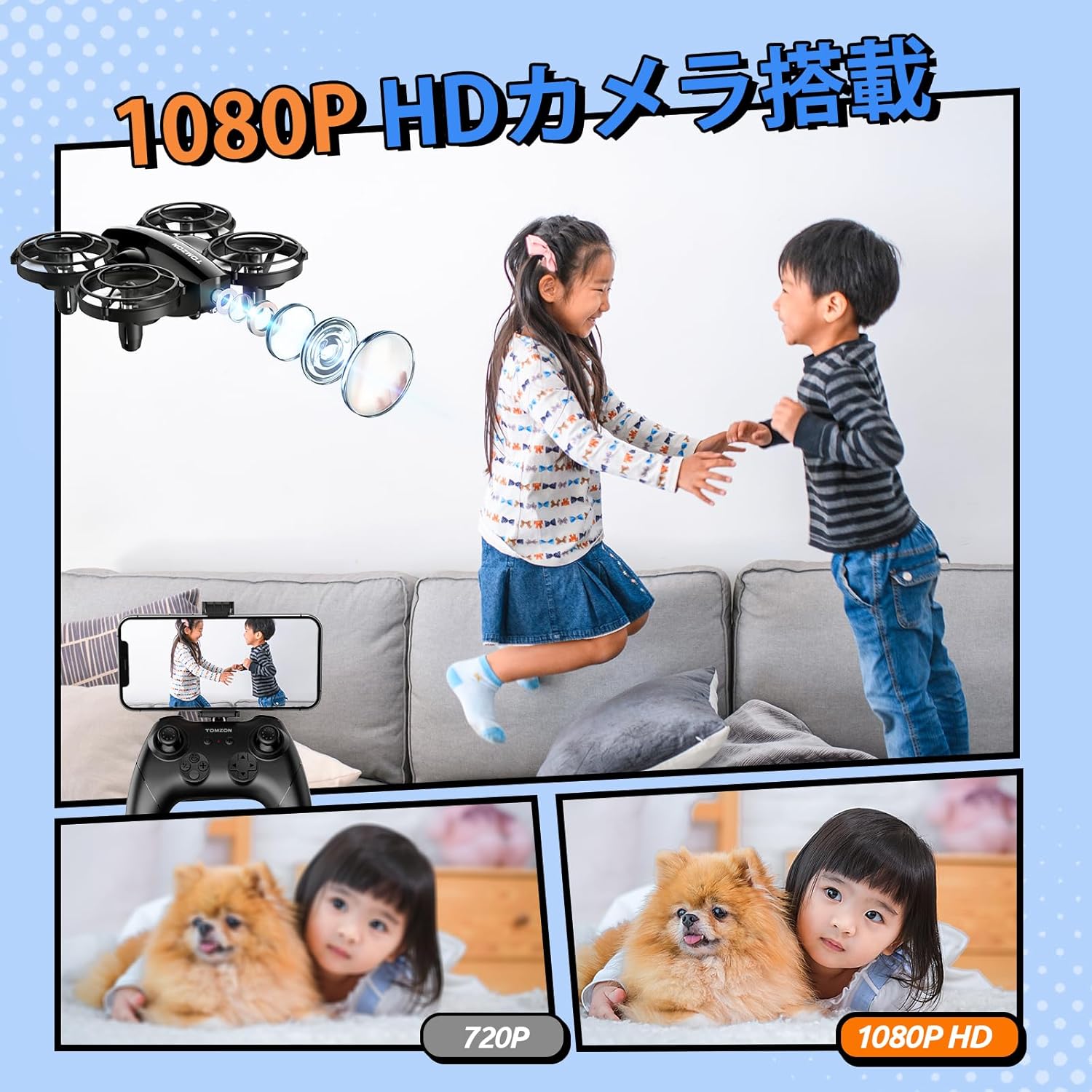
Image: The Tomzon A24W drone, remote controller, and three batteries, laid out as included in the package.
3. Product Features
- 1080P Camera: Capture high-quality photos and videos from the air.
- Extended Flight Time: Three included batteries provide a total of 24 minutes of continuous flight (8 minutes per battery).
- Infrared Battle Mode: Engage in exciting aerial battles with other A24 series drones.
- Beginner-Friendly Functions: Hand-toss takeoff, one-key takeoff/landing, headless mode, and altitude hold for easy control.
- Multiple Flight Modes: Enjoy 3-speed adjustment, 3D flips, high-speed rotation, and circle flight.
- 360° Propeller Guard: Ensures safety for both the drone and users, absorbing impact during collisions.
- Lightweight Design: Weighs less than 100g, requiring no registration.
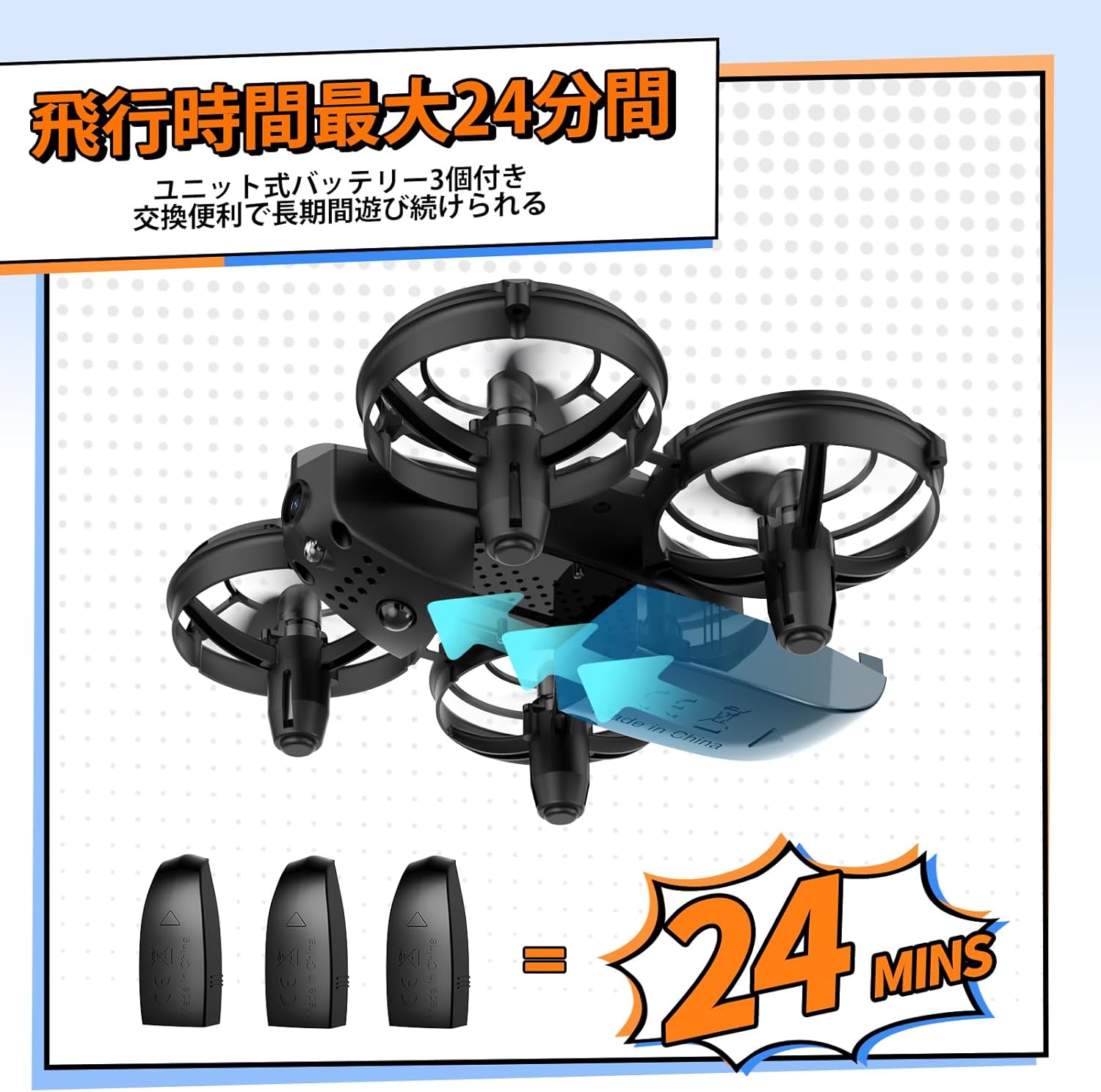
Image: The drone with its three batteries, emphasizing the extended flight duration.

Image: A child with the drone, demonstrating its safe and child-friendly design.
4. Setup
4.1 Controller and Drone Pairing
- Insert your smartphone into the controller's phone holder.
- Turn on the drone's power. The drone's lights will flash red.
- Turn on the controller's power.
- The drone will automatically connect to the controller.
Video: Demonstrates how to pair the drone with its controller and connect to the mobile application.
4.2 App Connection
- Open your smartphone's settings.
- Navigate to Wi-Fi settings.
- Connect to the Wi-Fi network named "Tomzon_A24W_xxxxxx".
- Open the FlyCam app. The app will indicate successful connection.
4.3 Drone Calibration
- After pairing, short press the calibration button on the controller.
- The drone will automatically calibrate.
5. Basic Operation
5.1 Takeoff Methods
- One-Key Takeoff: Short press the 'Takeoff' button on the controller. The drone will automatically ascend and hover.
- Manual Takeoff: Simultaneously push both joysticks inward at a 45-degree angle to start the motors. Then, push the left joystick up to take off.
- Hand-Toss Takeoff: Hold the drone in your hand and gently toss it forward. The drone will automatically take off and hover.

Image: Demonstrates hand-toss takeoff and the drone's battle function.
Video: Shows three different takeoff methods: one-key takeoff, manual takeoff, and hand-toss takeoff.
5.2 Landing
To land the drone, short press the 'Landing' button on the controller. The drone will automatically descend and land.
5.3 Altitude Hold
The drone features an altitude hold function, allowing it to maintain a stable height for easier control.
5.4 Speed Adjustment
The drone offers 3-speed levels (low, medium, high) to suit different skill levels and flying environments.

Image: Visual guide to the drone's beginner-friendly features.
6. Camera Operation
6.1 Taking Photos
- Via App: In the FlyCam app interface, tap the camera icon to take a photo.
- Via Controller: Short press the designated photo button on the controller to capture an image.
Video: Demonstrates how to take photos and record videos using both the app and the controller.
6.2 Recording Videos
- Via App: In the FlyCam app interface, tap the video recording icon to start/stop recording.
- Via Controller: Long press the designated video button on the controller to start recording. Short press again to stop.
7. Special Functions
7.1 3D Flip
Short press the 'Flip' button on the controller, then push the direction joystick to perform a 360-degree flip in the desired direction (available within the first 5 minutes of flight in stable conditions).
7.2 Circle Flight
Short press the 'Circle Flight' button on the controller. The drone will automatically fly in a circular path.
7.3 High-Speed Rotation
Short press the 'Rotation' button on the controller. The drone will automatically rotate at high speed.
7.4 Battle Mode
The drone is equipped with an infrared device for battle. Short press the 'Attack' button on the controller to attack another drone. A hit drone will shake left and right, and its lights will flash.

Image: Visual guide to the drone's special flight functions.
Video: Demonstrates 3D flip, circle flight, high-speed rotation, and battle mode.
8. Safety Precautions & Usage Notes
- Propeller Installation: Ensure propellers are installed correctly according to A and B markings.
- Motor Check: Before flight, verify that no foreign objects (e.g., hair) are entangled in the motors.
- Battery Charging: Charge drone batteries using the included USB cable and a 5V/1A AC adapter. Do not restart the drone immediately after a low battery shutdown; fully charge before next use.
- Battery Storage: Store batteries in a cool, dry environment below 35°C. For storage longer than two weeks, ensure batteries are fully charged.
- Controller Batteries: Use 1.5V AAA batteries of the same type for the controller.
- Humidity: Avoid placing the product in humid environments to prevent rust and malfunction.
- Operating Environment: This product uses the 2.4GHz band and is susceptible to Wi-Fi interference. Operate in spacious indoor areas.

Image: A visual summary of important usage notes for the drone.
9. Maintenance
- Regularly inspect propellers for damage and replace if necessary.
- Keep the drone clean and free from dust and debris.
- Store the drone and accessories in a safe, dry place when not in use.
10. Troubleshooting
If you encounter any issues, please refer to the following common problems and solutions:
| Problem | Possible Cause | Solution |
|---|---|---|
| Drone does not power on. | Battery is not charged or not properly inserted. | Ensure battery is fully charged and correctly inserted. |
| Drone does not pair with controller. | Incorrect pairing procedure or interference. | Follow pairing steps carefully. Ensure no strong Wi-Fi interference. |
| Unstable flight. | Drone not calibrated or damaged propellers. | Perform calibration. Check and replace damaged propellers. |
| Camera not working. | App not connected or camera malfunction. | Ensure app is connected to drone Wi-Fi. Contact support if issue persists. |
11. Specifications
| Specification | Detail |
|---|---|
| Brand | Tomzon |
| Model Name | A24W |
| Effective Still Resolution | 2 MP (1080P) |
| Connectivity Technology | Wi-Fi |
| Item Weight | 33 Grams |
| Video Capture Format | MP4 |
| Control Type | Remote Control |
| Wireless Communication Technology | Infrared |
| Battery Cell Composition | Lithium Ion |
| Optical Sensor Technology | CMOS |
| Media Type | MicroSD |
| Product Dimensions (L x W x H) | 8.4 x 11.8 x 15.2 cm |
12. Warranty & Support
Tomzon strives to be a trusted company for its customers. Your purchase includes a 2-year warranty from the date of purchase. If you have any questions regarding operation or experience battery issues, please feel free to contact us.
Contact Email: support.jp@tomzontoys.com

Image: Tomzon's commitment to customer support, showing 24-hour response, 2-year warranty, and contact details.


