
1. Introduction
This manual provides detailed instructions for the installation, configuration, and operation of your WAVLINK WN572HE4 4G LTE Outdoor Wi-Fi Router. Please read this manual carefully before using the device to ensure proper setup and performance.
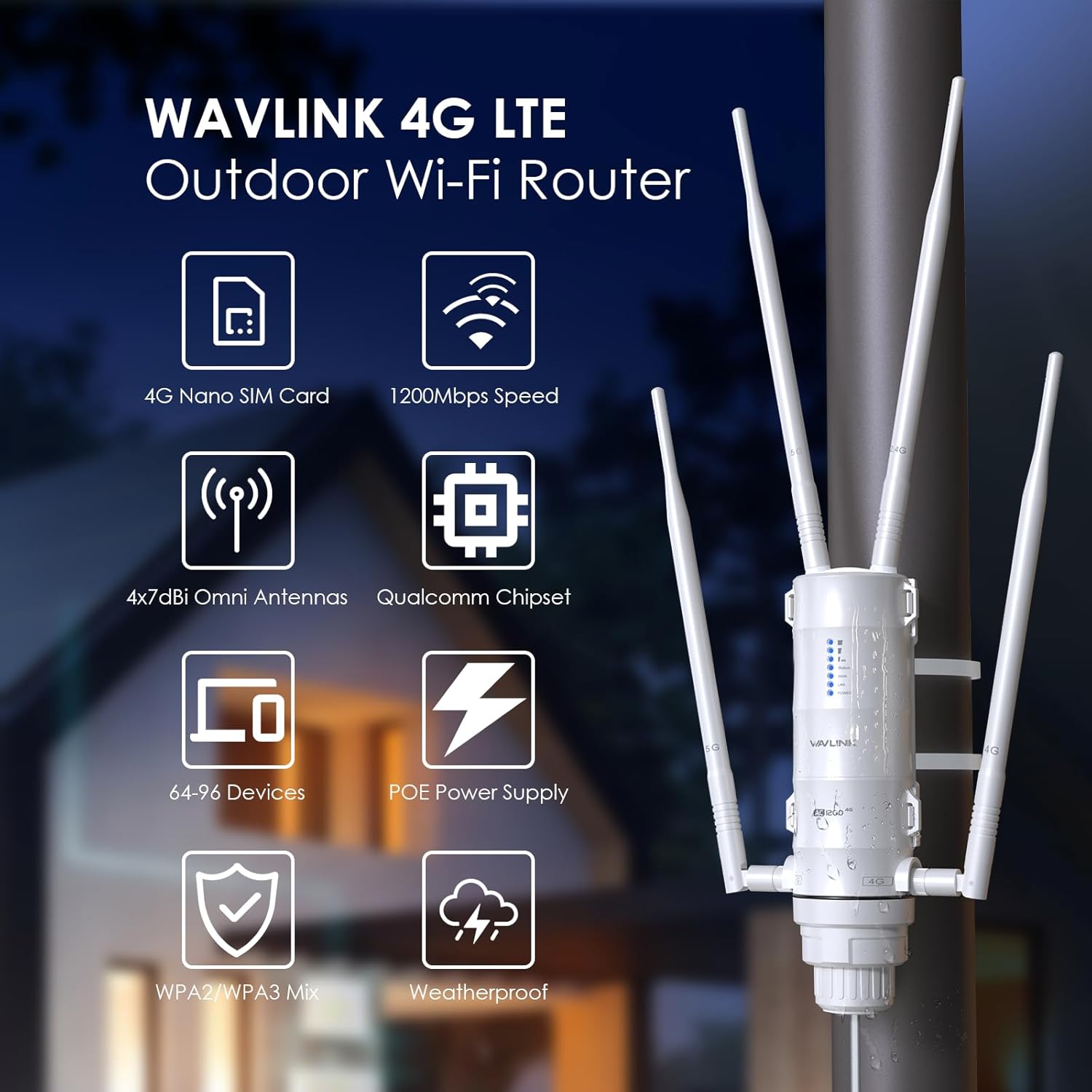
Figure 1: WAVLINK 4G LTE Outdoor Wi-Fi Router. This image highlights key features such as 4G Nano SIM card support, 1200Mbps speed, 4x7dBi Omni Antennas, Qualcomm Chipset, support for 64-96 devices, PoE Power Supply, WPA2/WPA3 Mix security, and weatherproof design.
2. Package Contents
Verify that all items are present in your package. If any item is missing or damaged, please contact your retailer.
- 1x WAVLINK WN572HE4 Outdoor 4G LTE WiFi Router
- 1x 4G Omni Antenna
- 1x 2.4G Omni Antenna
- 2x 5G Omni Antennas
- 1x RJ45 Network Cable
- 1x Power Adapter
- 1x PoE Converter
- 1x Main Body Holder
- 2x Cable Ties
- 1x Screw Fixing Kit
- 1x SIM Card Ejector Pin
- 1x Quick Start Guide
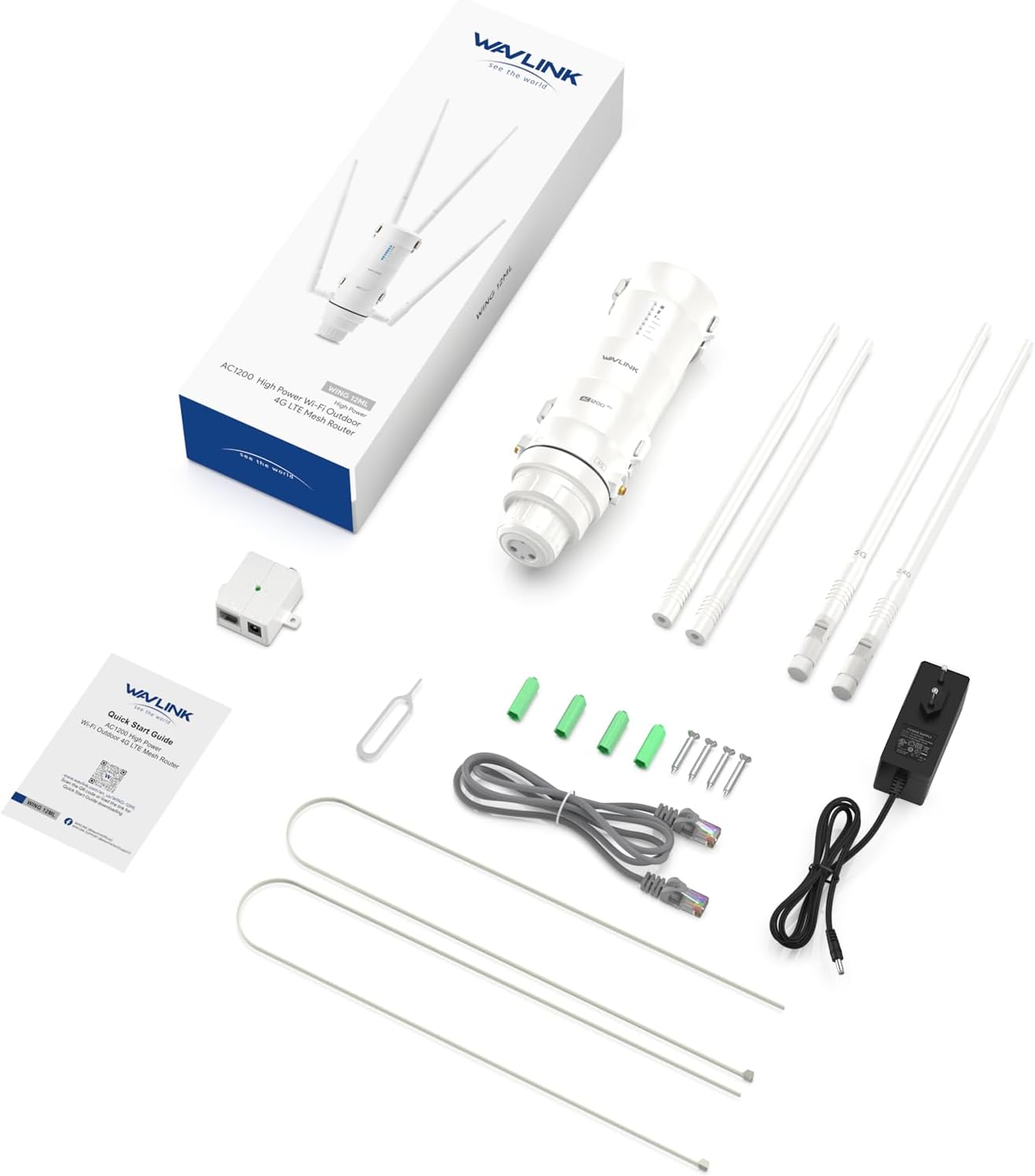
Figure 2: All components included in the WAVLINK WN572HE4 package, laid out for inspection.
3. Product Features
- Updated Qualcomm Chipset: Provides high-performance wireless connectivity with improved signal strength and overall reliability.
- 4G LTE to WiFi Conversion: Easily convert a 4G LTE signal into a Wi-Fi hotspot by inserting a Nano SIM card. Ideal for areas without wired internet.
- Dual-Band Wi-Fi: Offers ultra-fast 5GHz Wi-Fi at up to 867Mbps for bandwidth-intensive tasks and stable 2.4GHz Wi-Fi at up to 300Mbps for general browsing.
- Powerful Signal & Extended Coverage: Equipped with 4x7dBi omnidirectional antennas, extending Wi-Fi coverage up to 300 meters in open areas and supporting 64-96 simultaneous devices.
- Outdoor Design: Features a weatherproof enclosure, operating in temperatures from -20°C to 50°C, with 15KV ESD and 4KV Lightning protection. Note: The PoE part of the router is not waterproof.
- PoE Power Supply: Supports Power over Ethernet for flexible installation and power delivery.
4. Hardware Overview
4.1 Ports and Buttons

Figure 3: Detailed view of the WAVLINK WN572HE4's bottom panel, showing the LAN/WAN/PoE IN port, SIM card slot, Reset button, Pair button, and supported Nano SIM card dimensions.
- LAN/WAN/PoE IN Port: Used for connecting to your network and receiving power via Power over Ethernet.
- SIM Card Slot: Insert a Nano SIM card here to enable 4G LTE connectivity. Only Nano SIM cards are supported.
- Reset Button: Press and hold for 6 seconds to restore factory default settings.
- Pair Button: Press for 2 seconds for WPS pairing.
- GND Terminal: Grounding terminal for lightning protection.
4.2 LED Indicators
The device features several LED indicators to show its status:
- Power LED: Indicates power status.
- 4G LED: Indicates 4G LTE connection status.
- Signal Strength LEDs: Multiple LEDs indicating the strength of the 4G LTE signal.
- Wi-Fi LEDs: Indicates Wi-Fi activity for 2.4GHz and 5GHz bands.
- LAN/WAN LED: Indicates activity on the LAN/WAN port.
5. Setup
5.1 Physical Installation
- Attach Antennas: Carefully screw the provided omnidirectional antennas onto their respective connectors on the router. Ensure they are securely fastened.
- Mounting: Use the main body holder and screw fixing kit to mount the router in your desired outdoor location. Ensure the location provides optimal signal reception and is protected from direct water exposure to the PoE part.
5.2 SIM Card Insertion
- Locate the SIM card slot on the bottom of the router (refer to Figure 3).
- Using the provided SIM card ejector pin, gently push into the small hole next to the SIM slot to open it.
- Insert a Nano SIM card into the slot with the gold contacts facing down, ensuring it clicks into place.
- Close the SIM card slot cover securely.

Figure 4: Illustration of inserting a Nano SIM card into the router and connecting the PoE converter for power.
5.3 Powering On (PoE)
- Connect one end of the RJ45 network cable to the LAN/WAN/PoE IN port on the router.
- Connect the other end of the RJ45 network cable to the PoE port on the provided PoE converter.
- Connect the power adapter to the PoE converter and plug it into a power outlet.
- The router will power on, and the Power LED will illuminate. Wait for the 4G LED to indicate a stable connection.
6. Operating Modes
The WAVLINK WN572HE4 supports two primary operating modes:
6.1 4G LTE Mode
In this mode, the router uses a Nano SIM card to access the 4G LTE network and converts the mobile data signal into a Wi-Fi hotspot. This is ideal for locations without traditional wired internet access.
- Insert a Nano SIM card.
- Connect power via the PoE adapter.
- The router will automatically establish a 4G connection and broadcast Wi-Fi.
- Default login IP:
192.168.40.1, Password:admin.
6.2 Router Mode
In this mode, the router functions as a standard Wi-Fi router, receiving internet from a wired modem/router and broadcasting a Wi-Fi signal. This is suitable for extending an existing wired network wirelessly.
- Connect an Ethernet cable from your existing modem/router to the LAN/WAN/PoE IN port of the WAVLINK router.
- Connect power via the PoE adapter.
- The router will broadcast Wi-Fi based on the wired internet connection.
- Default login IP:
192.168.40.1, Password:admin.

Figure 5: Diagram illustrating the two operating modes: 4G LTE Mode (using a Nano SIM) and Router Mode (using a wired connection from a modem/router).
7. Configuration
7.1 Accessing the Web Management Interface
- Connect your computer or mobile device to the router's Wi-Fi network (SSID and password can be found on the device label).
- Open a web browser and enter the default IP address:
192.168.40.1. - Enter the default username (usually
admin) and password (usuallyadmin). - Follow the on-screen wizard for initial setup, or navigate through the menus to configure settings such as Wi-Fi name (SSID), password, network mode, and other advanced options.
7.2 Basic Wi-Fi Settings
- Change SSID: It is recommended to change the default Wi-Fi network name (SSID) for better security and personalization.
- Set Strong Password: Always use a strong, unique password for your Wi-Fi network.
- Security Mode: Ensure WPA2/WPA3 Mix mode is selected for optimal security.
8. Maintenance
- Firmware Updates: Regularly check the WAVLINK official website for firmware updates to ensure optimal performance and security.
- Cleaning: Keep the router clean and free from dust. Use a soft, dry cloth. Do not use liquid cleaners.
- Environmental Conditions: Ensure the router operates within its specified temperature range (-20°C to 50°C) and is protected from excessive moisture, especially the PoE converter.
9. Troubleshooting
9.1 No Internet Connection
- Check SIM Card: Ensure the Nano SIM card is correctly inserted and has an active data plan.
- Check 4G LED: If in 4G LTE mode, verify the 4G LED is solid green, indicating a stable connection.
- Check Cables: Ensure all Ethernet cables are securely connected.
- Reboot: Power cycle the router and the PoE converter.
- Signal Strength: Check the signal strength LEDs. If weak, try repositioning the router.
9.2 Wi-Fi Not Visible or Unstable
- Wi-Fi LEDs: Check if the Wi-Fi LEDs are active.
- Router Position: Ensure the router is not obstructed and is within range of your devices.
- Interference: Minimize interference from other electronic devices.
- Reset: If issues persist, perform a factory reset by holding the Reset button for 6 seconds.
10. Specifications
| Feature | Description |
|---|---|
| Brand | WAVLINK |
| Model Name | WN572HE4 |
| Special Feature | Convert 4G LTE to WiFi, supports various devices, extended coverage via omnidirectional antennas |
| Frequency Band Class | Dual Band (2.4GHz & 5GHz) |
| Wireless Communication Standard | 802.11a, 802.11ac, 802.11b, 802.11g, 802.11n |
| Compatible Devices | Computers (laptops, desktops), mobile devices (smartphones, tablets), gaming consoles, streaming devices, printers, security cameras, smart thermostats, smart TVs, other Wi-Fi or Ethernet enabled devices |
| Connectivity Technology | 4G, Wi-Fi |
| Antenna Type | Fixed Omnidirectional Antennas (4x7dBi) |
| Max Wi-Fi Speed | 1200Mbps (867Mbps on 5GHz, 300Mbps on 2.4GHz) |
| 4G LTE Download/Upload Speed | Up to 150 Mbps / 50 Mbps |
| SIM Card Support | Nano SIM |
| Power Supply | PoE (Power over Ethernet) |
| Operating Temperature | -20°C to 50°C (-4°F to 122°F) |
| Protection | Weatherproof Enclosure, 15KV ESD, 4KV Lightning Protection |

Figure 6: Visual representation of the WAVLINK WN572HE4 converting a 4G LTE signal into dual-band Wi-Fi (5GHz and 2.4GHz) with specified speeds.

Figure 7: Illustration of the WAVLINK WN572HE4's extended signal coverage, reaching up to 300 meters and connecting 64-96 devices.
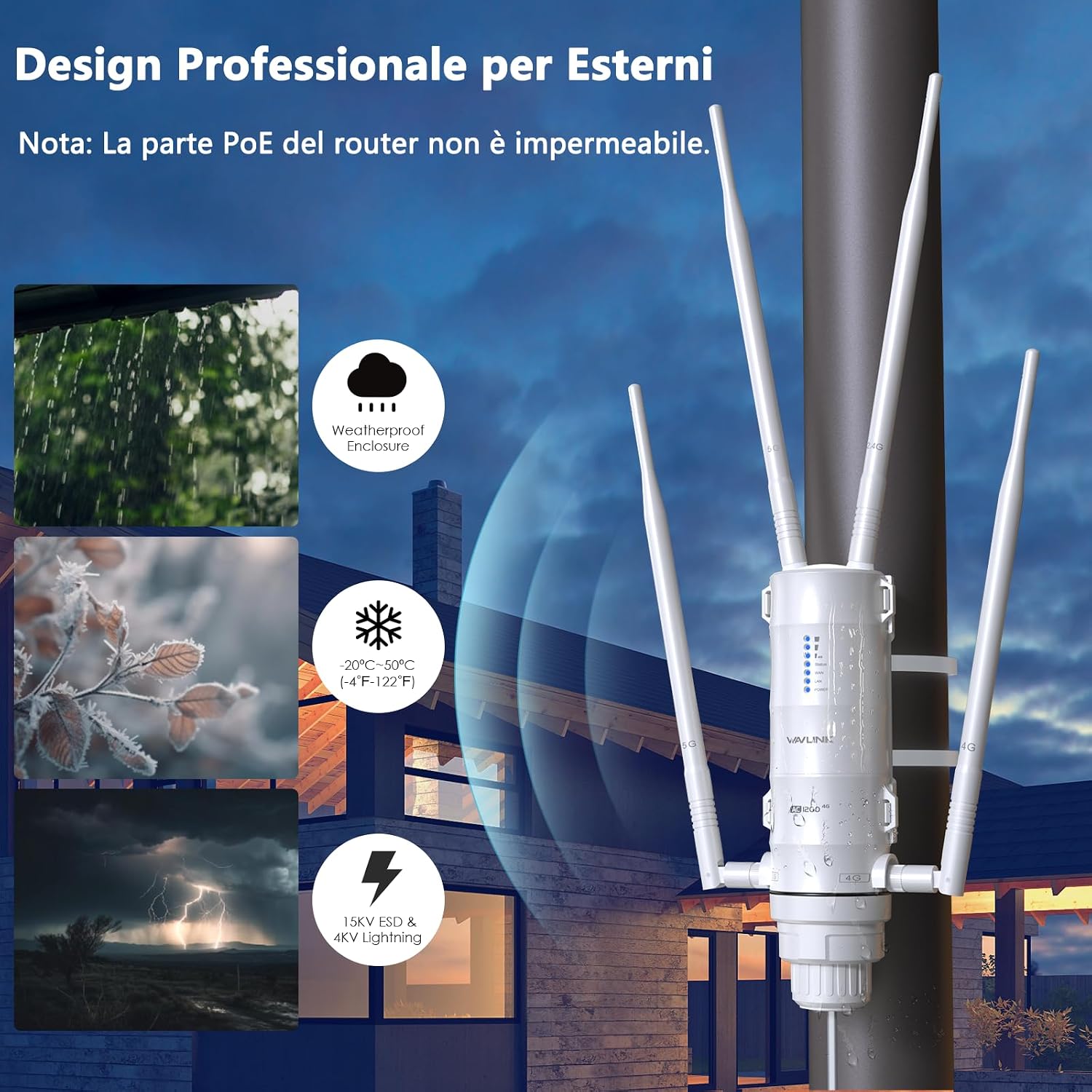
Figure 8: The WAVLINK WN572HE4's professional outdoor design, highlighting its weatherproof enclosure, temperature resilience, and protection against ESD and lightning. Note that the PoE part is not waterproof.
11. Warranty and Support
WAVLINK products come with a limited warranty. Please refer to the warranty card included in your package or visit the official WAVLINK website for detailed warranty terms and conditions.
For technical support, troubleshooting assistance, or further inquiries, please visit the WAVLINK support page on their official website or contact their customer service.
- WAVLINK Official Website: www.wavlink.com