
1. Product Overview
The ULTIMEA Aura A30 is a 5.1 channel virtual surround sound system designed to enhance your home entertainment experience. It includes a soundbar, a wired subwoofer, and two surround speakers, offering immersive audio with advanced features like app control and customizable equalizer settings.

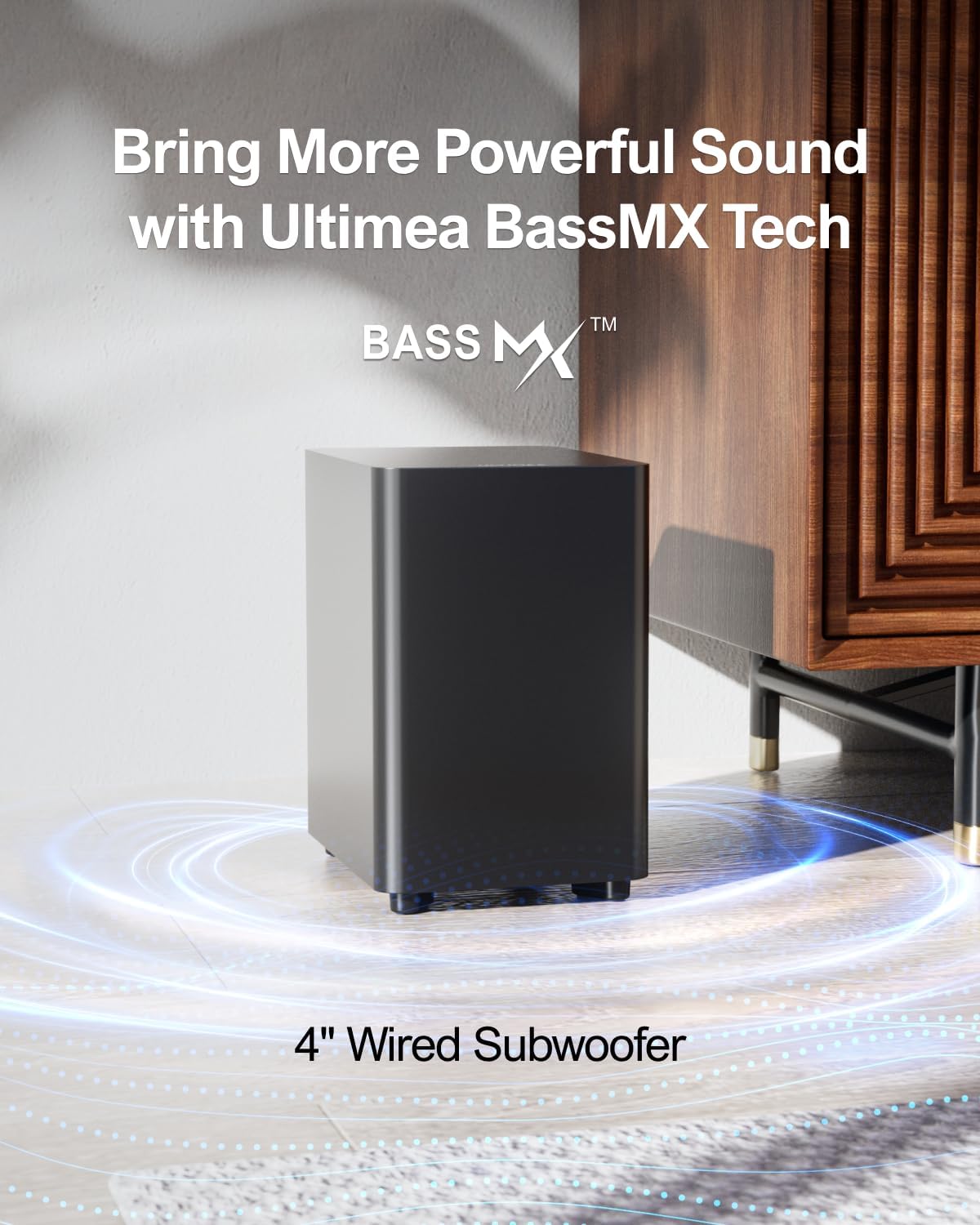
This system utilizes SurroundX technology for highly detailed audio and BassMX technology for powerful, resonant bass. With the Ultimea smart app, you can fine-tune audio settings to your preference.
2. What's in the Box
- 1 x Soundbar
- 1 x Subwoofer
- 2 x Surround Speakers
- 1 x Remote Control (Battery not Included)
- 1 x User Manual
- 1 x Surround Cable (6m)
- 1 x Digital Optical Cable
- 1 x Power Adaptor for Soundbar
- 1 x Power Adaptor for Surround Speaker
- 8 x Wall Mount Kit
- 4 x Wall Bracket
- 4 x Mounting Screw on Speakers
3. Setup Guide
Follow these steps to set up your ULTIMEA Aura A30 sound system for optimal performance.
3.1 Component Placement
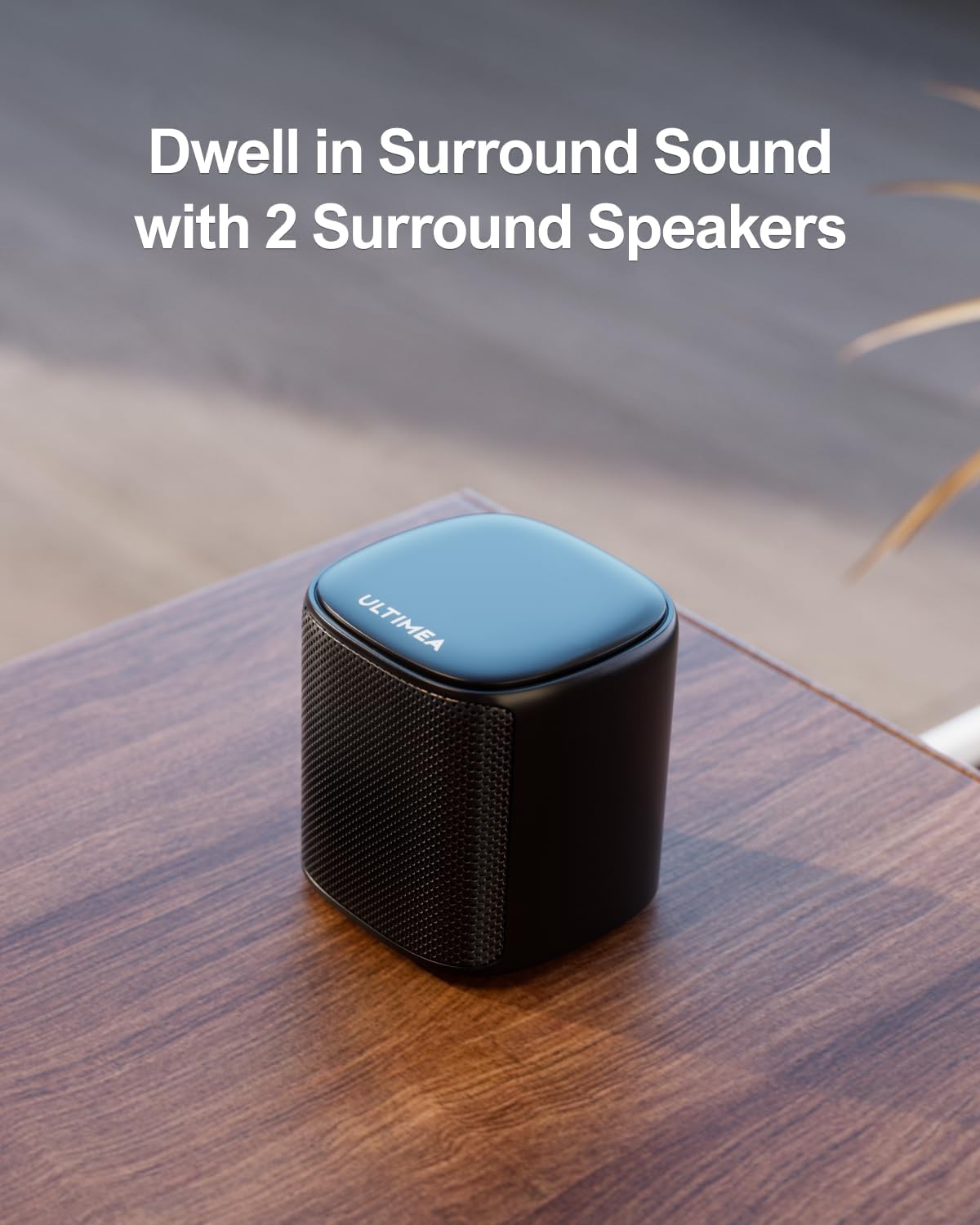
Position the soundbar centrally below your TV. Place the wired subwoofer in a suitable location, typically near the soundbar. The two surround speakers should be placed behind your listening position for the best virtual surround sound experience. Ensure all components are within reach of power outlets.

3.2 Connecting Surround Speakers
Use the provided 6-meter surround cable to connect the two surround speakers. Power the right surround speaker to establish a wireless link with the soundbar. If pairing fails, ensure the soundbar and two speakers are within 1.5 feet of each other. Hold the SURROUND button on the remote for 5 seconds until “SUR” flashes. Then press the PAIR button on the right speaker for 5 seconds until its light flashes. Once paired, the light will remain on.
3.3 Connecting to Your TV
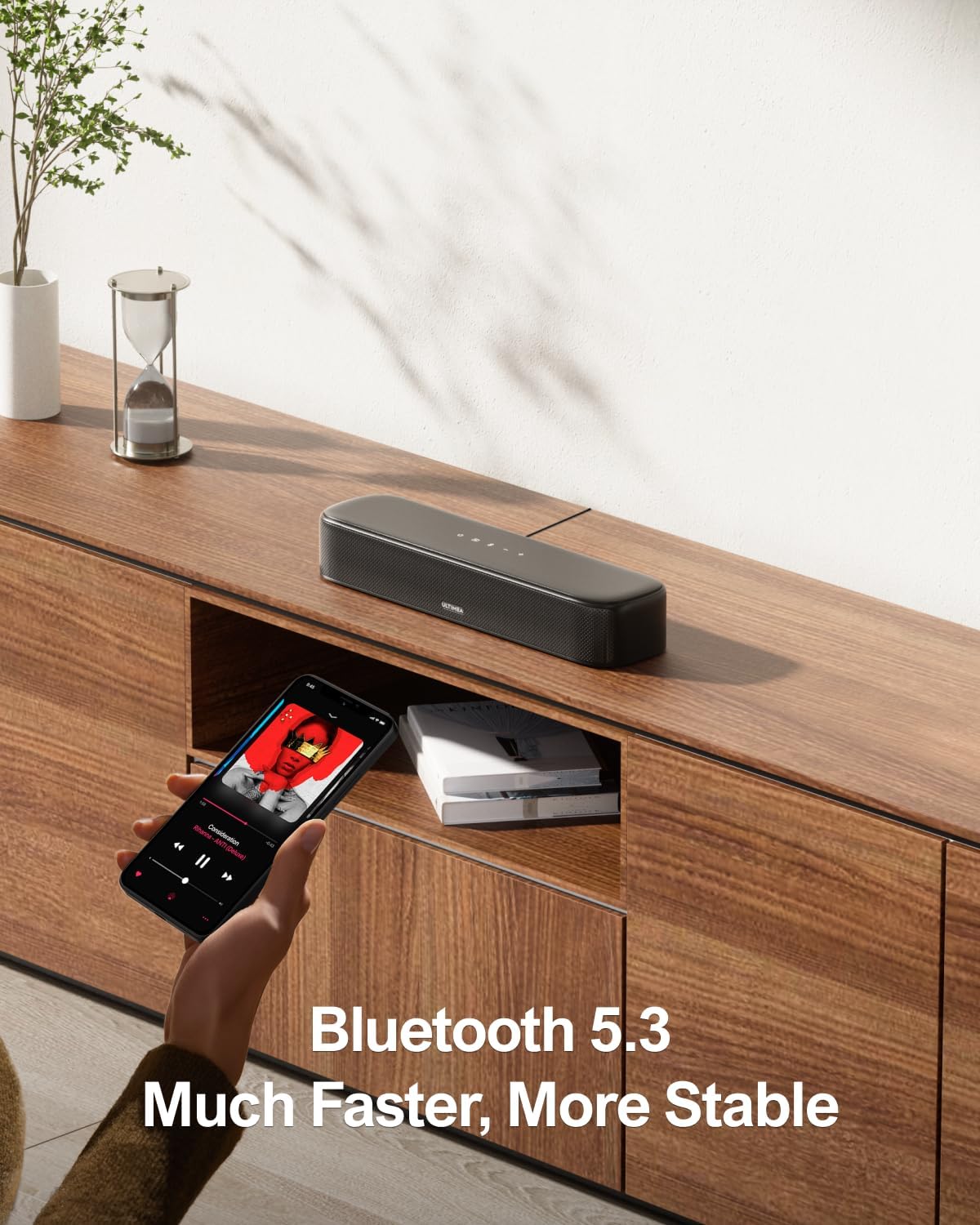
The Aura A30 supports Optical, AUX, and Bluetooth connections. It does not support HDMI ARC.
Optical Connection (Recommended)
- Insert one end of the digital optical cable into your TV's OPT port.
- Insert the other end into the soundbar's OPT port.
- Press the "OPT" button on the remote control to select the Optical input.
AUX Connection
- Insert one end of the 3.5mm AUX cable (not included) into your TV's AUX/Audio Out port.
- Insert the other end into the soundbar's AUX port.
- Press the "AUX" button on the remote control to select the AUX input.
Bluetooth Connection
- Turn on the soundbar and press the "BT" button on the remote control or soundbar to switch to Bluetooth mode. The indicator light will flash.
- On your TV or smart device, search for "Aura A30" in the Bluetooth settings and pair. The indicator light will turn solid blue once connected.
Helpful Video: How to use ULTIMEA Aura A30
This video provides a comprehensive guide on setting up and using the ULTIMEA Aura A30 sound system, covering various functionalities and connections.
4. Operating Instructions
4.1 Basic Operation
- Power On/Off: Press the power button on the soundbar or remote.
- Volume Control: Use the Volume + / - buttons on the soundbar or remote.
- Input Source: Press the SOURCE button on the remote to cycle through Optical, AUX, BT, and USB inputs.
4.2 Audio Customization with Ultimea App
The Ultimea smart app allows for intuitive audio adjustments and advanced customization. Download the app from your device's app store.

10-Band Equalizer Settings
Elevate your audio experience with 6 tailored EQ modes: Movie, Music, Voice, Sport, Game, and Night. Further refine your listening with the Ultimea App's advanced "Customize" feature, allowing you to dial in the perfect personalized sound to match your preferences and environment.
Helpful Video: ULTIMEA Aura A30 - 10-band Equalizer Settings
This video demonstrates how to use the 10-band equalizer settings within the Ultimea app to customize your audio output.
121 Preset EQ Matrices
The Ultimea App caters to the ultimate audio enthusiast with 121 preset equalizer matrices, tailored for four distinct sonic preferences: Bass, Pop, Classical, and Rock. Explore precision tuning and fine-tune your listening experience with dynamic adjustments to achieve your desired effects.

Helpful Video: ULTIMEA Aura A30 - 121 Preset EQ Matrices
This video demonstrates the various 121 preset EQ matrices and how to apply them for different audio experiences.
4.3 Audio Technologies
The Aura A30 incorporates advanced audio technologies for superior sound quality.
- 3 Full Range Drivers: Enjoy crisper sound with the soundbar's integrated full-range drivers.
- BassMX Technology: The 4-inch wired subwoofer with Ultimea BassMX technology enhances low-frequency audio, delivering powerful and resonant bass.

5. Maintenance
To ensure the longevity and optimal performance of your ULTIMEA Aura A30 sound system, follow these simple maintenance guidelines:
- Cleaning: Use a soft, dry cloth to wipe down the surfaces of the soundbar, subwoofer, and surround speakers. Avoid using liquid cleaners or abrasive materials, as they may damage the finish.
- Ventilation: Ensure that the soundbar and subwoofer have adequate ventilation. Do not block any ventilation openings.
- Storage: If storing the system for an extended period, disconnect it from power and store it in a cool, dry place away from direct sunlight and extreme temperatures.
- Cable Management: Periodically check all cables for any signs of wear or damage. Replace any damaged cables immediately to prevent potential issues.
6. Troubleshooting
If you encounter any issues with your ULTIMEA Aura A30 sound system, refer to the following common problems and their solutions.
| Problem | Possible Cause | Solution |
|---|---|---|
| No sound from the system. | Incorrect input source selected, cables not connected properly, system muted, TV audio output settings. | Ensure the correct input source is selected. Check all cable connections. Increase volume. Verify TV audio output is set to PCM or external speakers. |
| Surround speakers not pairing. | Speakers too far from soundbar, pairing process not followed correctly. | Move speakers closer to the soundbar (within 1.5 ft). Re-initiate the pairing process as described in Section 3.2. |
| Bluetooth connection issues. | Device not in pairing mode, interference, device already connected to another speaker. | Ensure soundbar is in Bluetooth pairing mode. Disconnect from other devices. Try re-pairing. |
| Sound distortion or poor quality. | Incorrect EQ settings, audio source quality, cable issues. | Adjust EQ settings via the app. Test with a different audio source. Check cables for damage. |
Helpful Video: Methods for re-pair when no sound
This video provides guidance on how to re-pair components if you experience no sound from your system.
7. Specifications
| Feature | Detail |
|---|---|
| Model Name | Aura A30 |
| Speaker Type | Surround Sound |
| Surround Sound Channel Configuration | 5.1 |
| Speaker Maximum Output Power | 250 Watts |
| Connectivity Technology | Bluetooth, Optical, AUX, USB |
| Subwoofer Connectivity Technology | Wired |
| Bluetooth Range | 15 Meters |
| Control Method | App, Remote Control |
| Product Dimensions | 15.75"D x 3.54"W x 2.76"H |
| Item Weight | 11.11 pounds |
| Manufacturer | ULTIMEA |
8. Warranty and Support
The ULTIMEA Aura A30 sound system comes with a limited warranty. For detailed warranty information and support, please refer to the official ULTIMEA website or contact ULTIMEA customer service directly. Keep your purchase receipt for warranty claims.