
1. Product Overview
The ORICO Y20M M.2 2280 SATA SSD is an internal solid-state drive designed to enhance the performance of compatible desktop and laptop computers. It utilizes the M.2 SATA III 6Gbps interface, offering faster data transfer speeds compared to traditional hard disk drives.
Important Compatibility Note: This SSD is specifically for systems supporting M.2 SATA (B+M Key) technology. It is NOT compatible with PCIe NVMe motherboards or external enclosures. Please verify your device's compatibility before purchase.
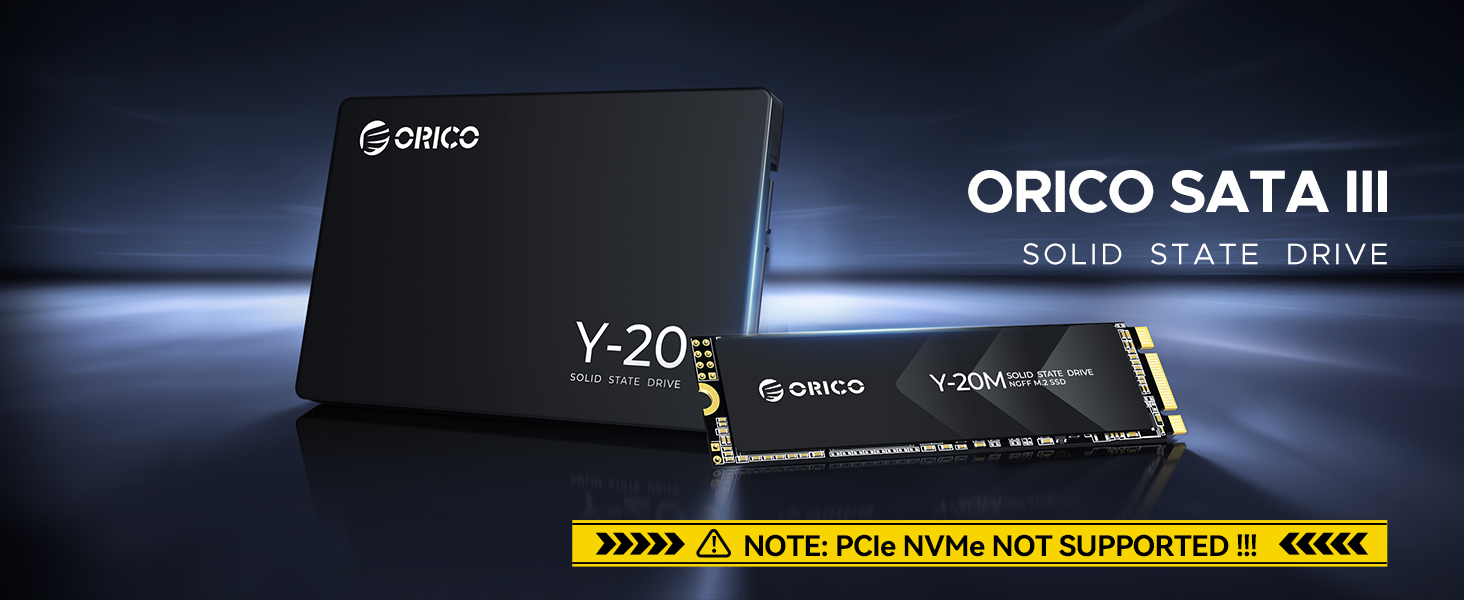
Image: The ORICO Y20M M.2 SATA SSD shown installed in a compatible M.2 slot on a motherboard, emphasizing the B+M Key interface and a warning about PCIe NVMe incompatibility.
2. What's in the Box
- ORICO M.2 SATA SSD (512GB capacity, or other purchased capacity)
3. Compatibility Information
The ORICO Y20M M.2 SATA SSD is designed for broad compatibility with various devices that support the M.2 SATA B+M Key interface. This includes many modern laptops and desktop motherboards.
- Interface: M.2 SATA III 6Gbps (B+M Key)
- Form Factor: 2280 (22mm width, 80mm length)
- Supported Devices: Laptops and Desktops with a compatible M.2 SATA slot.
Ensure your motherboard or device explicitly supports M.2 SATA (NGFF/AHCI) SSDs. This product is not compatible with M.2 slots designed exclusively for PCIe NVMe SSDs.

Image: The ORICO Y20M M.2 SATA SSD shown alongside a desktop computer and a laptop, illustrating its compatibility with both device types.
4. Setup & Installation
Installing the ORICO Y20M M.2 SATA SSD requires careful handling and adherence to your device's specific instructions. Always consult your laptop or motherboard manual for detailed installation steps.
General Installation Steps:
- Power Off: Completely shut down your computer and disconnect it from the power source. For laptops, remove the battery if possible.
- Access M.2 Slot: Open your computer case or laptop chassis to locate the M.2 slot. This may involve removing screws and panels.
- Insert SSD: Gently insert the ORICO Y20M M.2 SATA SSD into the M.2 slot at a slight angle. The B+M Key notch on the SSD should align with the key in the slot.
- Secure SSD: Once fully seated, push the SSD down and secure it with the screw provided by your motherboard or laptop manufacturer.
- Reassemble: Close your computer case or laptop chassis and reconnect all power sources.
After physical installation, the SSD will need to be initialized and formatted before it can be used. Refer to the "Operating Instructions" section for guidance.
5. Operating Instructions: Disk Initialization and Formatting
For a newly installed SSD, it must be initialized and formatted before it appears as usable storage in your operating system. The process varies slightly between Windows and Mac OS.
Video Guide: Formatting New SSD
Video: This official ORICO video demonstrates how to initialize and format a new SSD, addressing common issues like a drive not being recognized by the computer.
For Windows Systems:
- Right-click on the "This PC" icon on your desktop and select "Manage".
- In the Computer Management window, navigate to "Disk Management" under Storage.
- You will see your new ORICO SSD listed as "Unallocated". Right-click on the unallocated space.
- Select "Initialize Disk". Choose GPT (GUID Partition Table) for modern systems and click "OK".
- After initialization, right-click on the unallocated space again and select "New Simple Volume".
- Follow the New Simple Volume Wizard, clicking "Next" through the prompts. Assign a drive letter and choose NTFS as the file system.
- Complete the wizard. Your new volume will now appear in "This PC".
For Mac OS Systems:
- From the Finder menu, click "Go", then "Utilities".
- Open "Disk Utility".
- In Disk Utility, locate and select your external ORICO SSD from the sidebar.
- Click the "Erase" button in the toolbar.
- Provide a name for the drive. For the format, select "ExFat" if you intend to use the drive with both Mac and Windows systems. If exclusively for Mac, you can choose APFS or Mac OS Extended (Journaled).
- Click "Erase" to confirm. Once completed, the drive will appear on your desktop.
6. Performance Characteristics
The ORICO Y20M M.2 SATA SSD is engineered for fast and efficient data handling, significantly improving system responsiveness.
- Sequential Read Speed: Up to 500MB/s
- Sequential Write Speed: Up to 480MB/s
These speeds make the SSD approximately 5 times faster than traditional hard disk drives, reducing boot times, application load times, and file transfer durations.
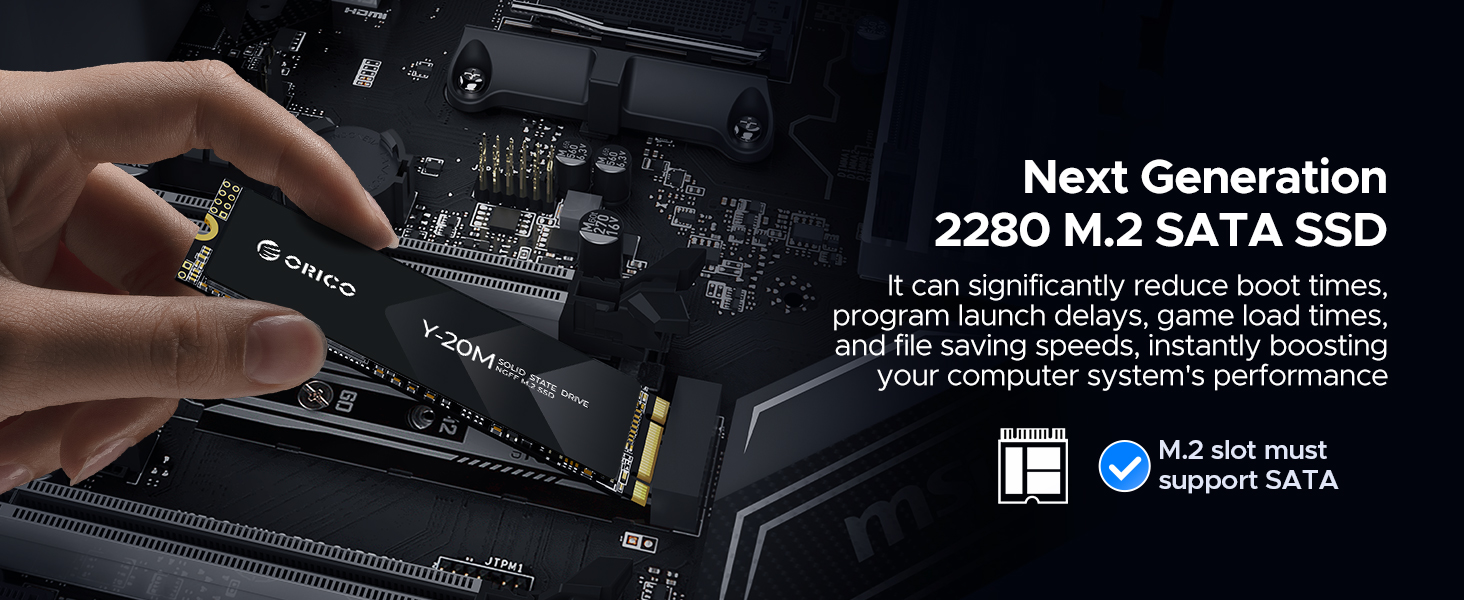
Image: Visual representation of the ORICO Y20M M.2 SATA SSD's enhanced performance, showing read speeds up to 500MB/s and write speeds up to 480MB/s.
7. Maintenance & Longevity
The ORICO Y20M SSD incorporates advanced technologies to ensure optimal performance and extended lifespan.
- TRIM Support: Helps maintain write performance by allowing the operating system to inform the SSD which data blocks are no longer in use and can be wiped internally.
- Garbage Collection: An internal process that reclaims unused data blocks to optimize storage space and performance.
- Bad Block Management: Identifies and isolates faulty memory blocks to prevent data loss and ensure reliability.
- ECC (Error-Correcting Code): Detects and corrects data corruption, enhancing data integrity.
To maximize the lifespan of your SSD, avoid consistently filling it to full capacity. Leaving some free space allows the drive's internal management processes to operate more efficiently.
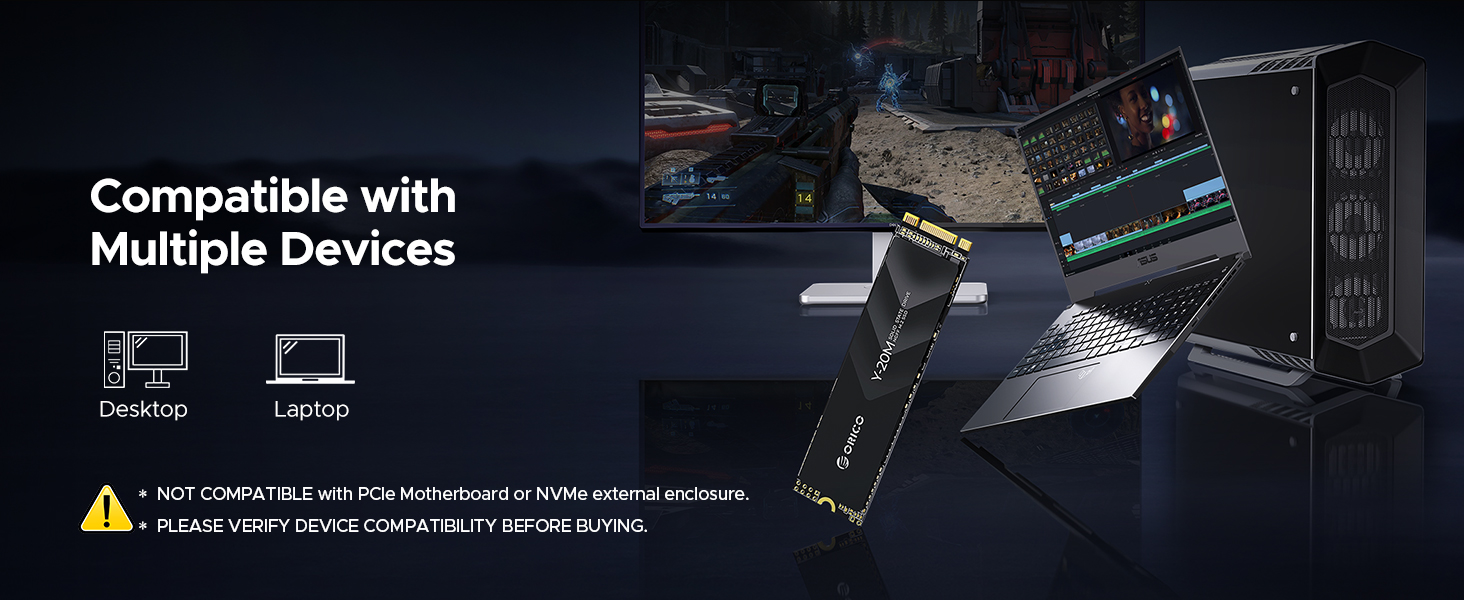
Image: The ORICO Y20M M.2 SATA SSD depicted with a shield icon, illustrating its safe, reliable, and durable design through technologies like NCQ, TRIM, APM, PLP, BBM, and S.M.A.R.T.
8. Troubleshooting
If you encounter issues with your ORICO Y20M M.2 SATA SSD, consider the following troubleshooting steps:
- SSD Not Recognized:
- Ensure the SSD is correctly seated in the M.2 slot.
- Verify that your motherboard's M.2 slot supports SATA SSDs (B+M Key) and not just NVMe.
- Check your BIOS/UEFI settings to ensure the M.2 slot is enabled and configured for SATA mode if applicable.
- For new SSDs, ensure it has been initialized and formatted. Refer to Section 5: "Operating Instructions: Disk Initialization and Formatting".
- Slow Performance:
- Confirm your system's M.2 slot is operating at SATA III (6Gbps) speeds. Older systems or misconfigured BIOS settings might limit performance.
- Ensure TRIM is enabled in your operating system. This is usually automatic for modern OS versions.
- Avoid running the SSD at near-full capacity, as this can impact performance.
- Check for background processes that might be heavily utilizing the drive.
- Overheating:
- While the Y20M is designed for low power consumption, ensure adequate airflow within your computer case.
- If using an external enclosure, ensure it provides sufficient heat dissipation.
Video Guide: Product Overview
Video: An official ORICO overview of the Y20M M.2 2280 SATA SSD, showcasing its features and design.
9. Technical Specifications
Detailed specifications for the ORICO Y20M M.2 2280 SATA SSD:
| Feature | Specification |
|---|---|
| Brand | ORICO |
| Series | Y20M |
| Model Number | Y20M-512GB (varies by capacity) |
| Digital Storage Capacity | 512GB (other capacities available) |
| Hard Disk Interface | Serial ATA-600 (SATA III 6Gbps) |
| Connectivity Technology | SATA |
| Hard Disk Form Factor | M.2 2280 |
| Hard Disk Description | Solid State Drive |
| Compatible Devices | Laptop, Desktop |
| Installation Type | Internal Hard Drive |
| Special Feature | Shock Resistant |
| Item Weight | Approximately 1.41 ounces |
| Color | Black |
Image: A table detailing the product specifications for the ORICO Y20M M.2 SATA SSD, including capacities, read/write speeds, and TBW ratings.
10. Warranty & Support
ORICO provides a warranty for the Y20M M.2 SATA SSD to ensure customer satisfaction and product reliability.
- Warranty Period: 3 years or the specified Total Bytes Written (TBW), whichever comes first.
- TBW for 512GB Model: 150TBW
For technical support, warranty claims, or further inquiries, please visit the official ORICO website or contact their customer service through the platform where the product was purchased.
You can find more information and support resources on the ORICO Store on Amazon.


