
ULTIMEA Aura A50 Pro
ULTIMEA Aura A50 Pro 5.1ch Sound Bar with Dolby Atmos User Manual
Model: Aura A50 Pro (U2523)
Introduction
This manual provides comprehensive instructions for the setup, operation, and maintenance of your ULTIMEA Aura A50 Pro 5.1ch Sound Bar with Dolby Atmos. Please read this manual thoroughly before using the product to ensure proper functionality and to maximize your audio experience. Keep this manual for future reference.

Image: The complete ULTIMEA Aura A50 Pro 5.1ch sound system, including the soundbar, subwoofer, and two surround speakers, positioned in front of a television.
Important Safety Instructions
To reduce the risk of electric shock, fire, or injury, always follow basic safety precautions when installing and using this product. Refer to the detailed safety instructions provided in the included safety sheet.

Image: A page from the safety manual showing important safety instructions in various languages.
Package Contents
Verify that all items listed below are included in your package:
- 1 x Soundbar
- 1 x Subwoofer (with 3m cable)
- 2 x Surround Speakers
- 1 x Remote Control (Battery not included)
- 1 x User Manual
- 1 x Soundbar Power Adaptor
- 1 x Surround Speaker Power Adaptor
- 1 x Surround Cable (6m)
- 1 x HDMI-eARC Cable
- 1 x Digital Optical Cable
- 8 x Wall Mount Kit
- 4 x Wall Bracket
- 4 x Mounting Screw on Speakers
Product Overview
Soundbar
The main soundbar unit features three full-range drivers for clear dialogue and front channel audio. It integrates advanced DSP chips for enhanced sound processing.

Image: An exploded view of the soundbar highlighting its three full-range drivers.
Subwoofer
The 4-inch wired subwoofer utilizes BassMX technology to deliver rich, deep bass, enhancing the impact of movies and music.

Image: The ULTIMEA wired subwoofer, showcasing its compact design and BassMX technology branding.
Surround Speakers
Two compact surround speakers, powered by SurroundX technology, transform 2.0 PCM audio into a 5.1 surround sound signal. The right surround speaker connects wirelessly to the main soundbar, while the two surround speakers are connected to each other via a 6-meter cable.
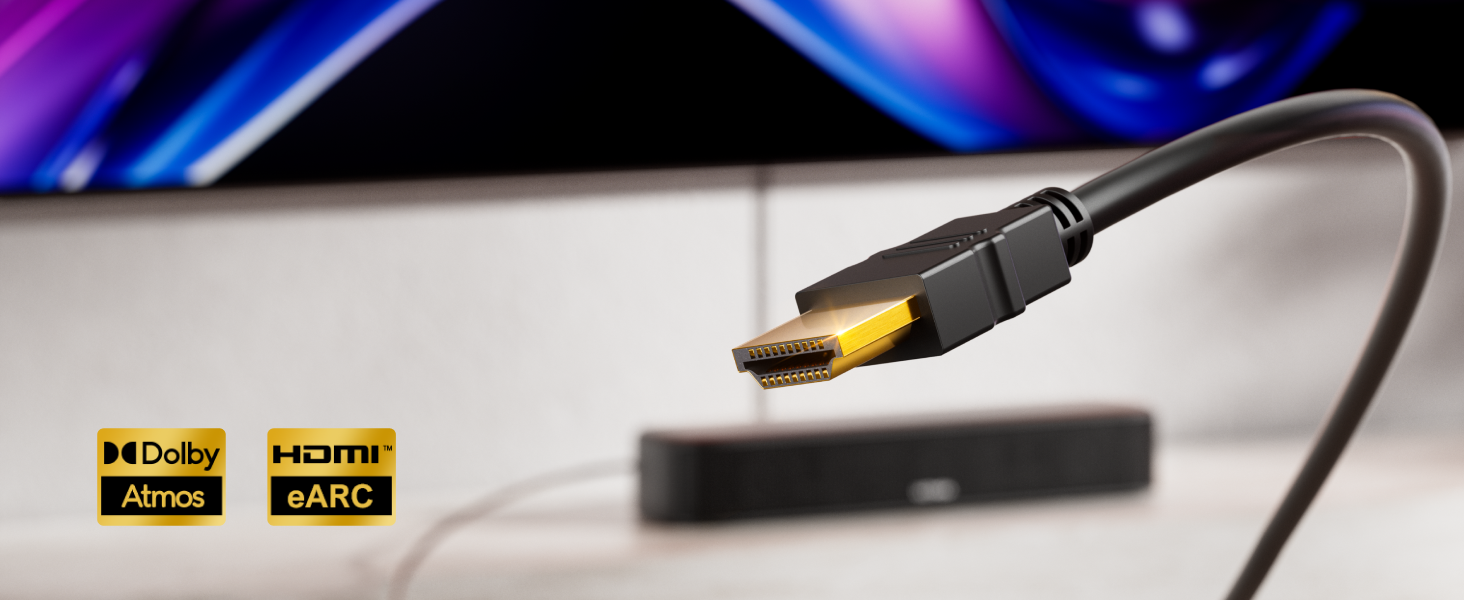
Image: A visual representation of sound waves emanating from the soundbar and surround speakers, illustrating the immersive audio experience.
Setup
1. Placement
Position the soundbar centrally below your TV. Place the subwoofer in a suitable location, ideally near the soundbar, ensuring the cable reaches. The surround speakers should be placed behind your listening position for optimal effect. They can be tabletop mounted or wall-mounted using the included kits.

Image: An example setup of the ULTIMEA Aura A50 Pro system in a living room, demonstrating speaker placement.
2. Connections
The soundbar offers multiple connectivity options. Choose the method that best suits your TV and other devices.

Image: Detailed view of the soundbar's rear panel with labeled input ports.
HDMI eARC Connection (Recommended)
For the highest quality audio transmission and Dolby Atmos support, connect your TV's HDMI eARC/ARC port to the soundbar's eARC port using the provided HDMI cable.

Image: A diagram illustrating the connection of the soundbar to a TV using an HDMI eARC cable.
Optical Connection
If your TV does not have an HDMI eARC/ARC port, use the optical cable to connect your TV's Digital Audio Out (Optical) port to the soundbar's OPTICAL port.

Image: A diagram illustrating the connection of the soundbar to a TV using an Optical cable.
AUX Connection
For devices with an analog audio output, connect the AUX port on the soundbar to the device's audio output using a 3.5mm AUX cable (not included).

Image: A diagram illustrating the connection of the soundbar to a device using an AUX cable.
Bluetooth Connection
To connect a mobile device, select Bluetooth input on the soundbar and pair with 'ULTIMEA Aura A50 Pro' from your device's Bluetooth settings.
3. Speaker Pairing
Connect the subwoofer to the soundbar via its dedicated cable. Connect the two surround speakers to each other using the 6-meter surround cable. The right surround speaker will then wirelessly connect to the main soundbar automatically upon power-up.
Operating
Power On/Off and Input Selection
Use the remote control or the buttons on the soundbar to power the system on or off and to select your desired input source (HDMI eARC, Optical, AUX, Bluetooth, USB).
Volume and Sound Modes
Adjust the master volume using the remote control. The system offers various sound modes (Movie, Music, Voice, Sport, Game, Night) and 121 EQ presets, which can be selected via the remote or the ULTIMEA app.
App Control
Download the ULTIMEA app to your smartphone for advanced control. The app allows you to fine-tune audio settings, including a 10-band equalizer, and customize sound profiles.
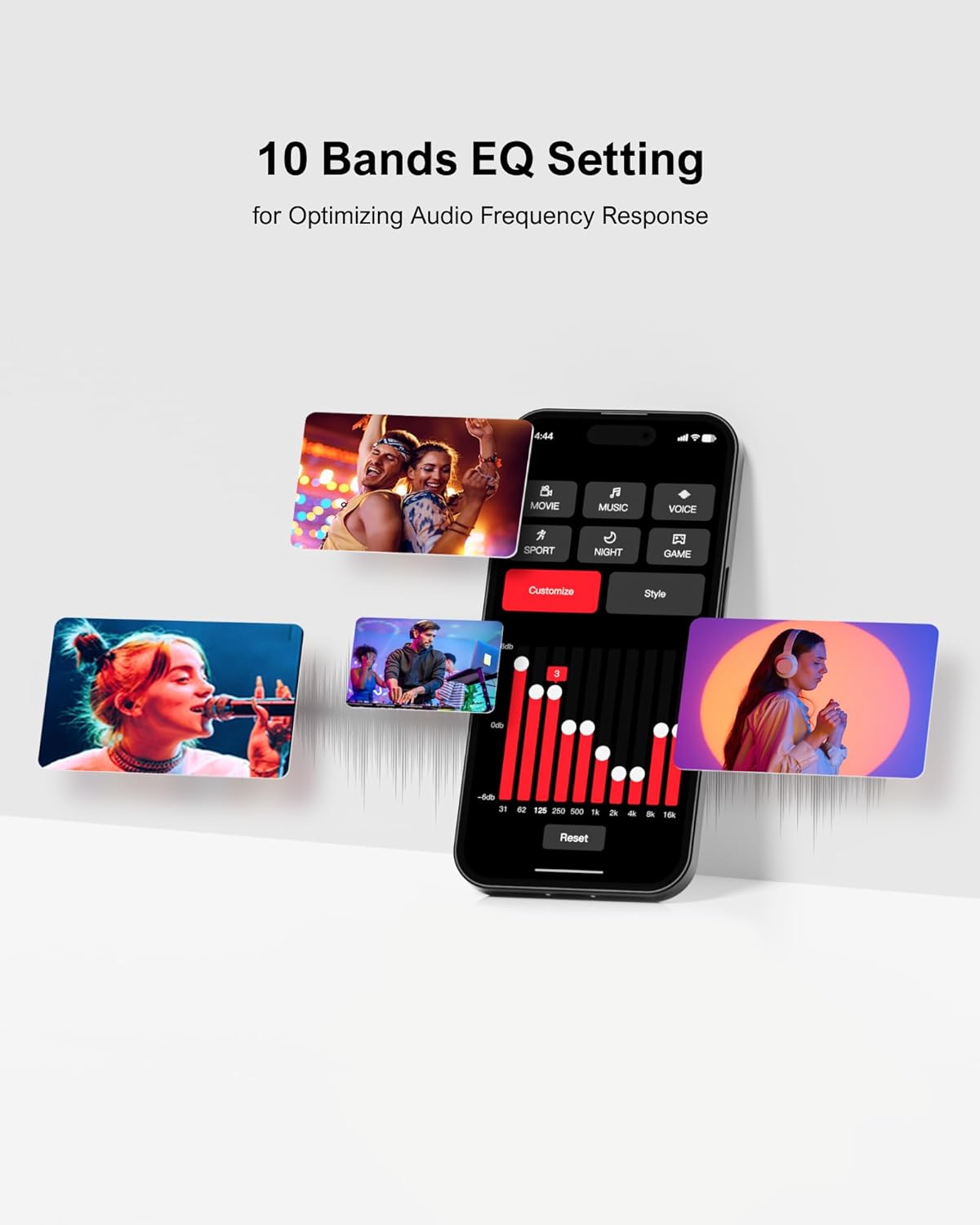
Image: A smartphone displaying the ULTIMEA app interface, showing equalizer settings and various audio modes.
CEC Synchronization
If connected via HDMI eARC and your TV supports CEC, you can control basic functions like power and volume of the soundbar using your TV's remote control.

Image: A screenshot of a TV's audio settings menu, indicating options for digital audio output and Dolby Atmos compatibility, relevant for CEC setup.
Maintenance
To maintain the performance and appearance of your sound system:
- Cleaning: Use a soft, dry cloth to wipe the surfaces of the soundbar, subwoofer, and surround speakers. Avoid using liquid cleaners or abrasive materials.
- Ventilation: Ensure that the ventilation openings on all units are not blocked. Proper airflow prevents overheating.
- Storage: If storing the system for an extended period, disconnect it from power and store it in a cool, dry place.
Troubleshooting
If you encounter issues with your ULTIMEA Aura A50 Pro, refer to the following common problems and solutions:
| Problem | Possible Cause | Solution |
|---|---|---|
| No sound from the system. | Power not connected, incorrect input selected, TV audio settings incorrect, cables loose. | Ensure all power cables are connected. Select the correct input source. Check TV audio output settings (e.g., set to PCM or Pass-Through). Verify all audio cables are securely connected. |
| No sound from surround speakers. | Surround speakers not powered, cable between surround speakers loose, wireless connection issue. | Ensure the right surround speaker is powered. Check the 6-meter cable connecting the two surround speakers. Power cycle the soundbar and surround speakers to re-establish wireless connection. |
| Remote control not working. | Batteries depleted, obstruction, remote out of range. | Replace batteries. Ensure no obstructions between remote and soundbar. Point remote directly at the soundbar's sensor. |
| Bluetooth connection unstable. | Device too far, interference, pairing issue. | Move the Bluetooth device closer to the soundbar (within 15 meters). Avoid placing the soundbar near other wireless devices. Re-pair the Bluetooth device. |
Specifications
| Feature | Detail |
|---|---|
| Model Name | Aura A50 Pro |
| Speaker Type | 5.1ch Surround Sound System with Dolby Atmos |
| Mounting Type | Tabletop Mount, Wall Mount |
| Special Features | 5.1 Channel with Dolby Atmos, 2 Surround Speakers with SurroundX Technology, 4-inch Wired Subwoofer with BassMX Technology, Adjustable Bass, Midrange and Treble, Ultimea Smart App Control, 10-band Equalizer Settings, 121 Preset EQ Matrices, CEC Synchronization, Improved DSP Chip |
| Connectivity Technology | HDMI-eARC, Bluetooth 5.3, Optical, AUX |
| Wireless Communication | Bluetooth |
| Bluetooth Range | 15 Meters |
| Subwoofer Connectivity | Wired |
| Subwoofer Diameter | 4 Inches |
| Speaker Maximum Output Power | 280 Watts |
| Frequency Response | 65 Hz |
| Signal-to-Noise Ratio | 96 dB |
| Product Dimensions | 15.75"D x 3.94"W x 2.56"H |
| Item Weight | 11.29 pounds (5.13 Kilograms) |
| Control Method | App, Remote |
| Color | Black |
Warranty and Support
Warranty Information
This product comes with a Limited Warranty. Please refer to the warranty card included in your package or visit the official ULTIMEA website for detailed terms and conditions.
Customer Support
For technical assistance, troubleshooting, or any product-related inquiries, ULTIMEA offers 7/24 customer service. You can find contact information on the official ULTIMEA website or through the support section of the ULTIMEA app.
For additional resources, visit the ULTIMEA Store on Amazon.
Ask a question about this manual
Ask about setup, troubleshooting, compatibility, parts, safety, or missing instructions. Manuals+ will review the question and use this page’s manual context to help answer it.