
ORICO Y20M
ORICO M.2 2280 SATA SSD (Model Y20M)
User Manual
This manual provides essential information for the installation, operation, and maintenance of your ORICO M.2 2280 SATA SSD. Please read carefully before use.
1. Product Overview
The ORICO M.2 2280 SATA SSD is a high-performance solid-state drive designed to significantly enhance your computer's speed and storage capacity. It features a B+M Key interface and operates on SATA III 6Gbps, offering fast data transfer rates and improved system responsiveness.

Figure 1: ORICO M.2 2280 SATA SSD (Model Y20M)
Key Features:
- Lightning Fast Performance: Sequential read speeds up to 500MB/s and write speeds up to 430MB/s, significantly faster than traditional HDDs.
- Massive Storage Capacity: Available in various capacities, including 4TB, providing ample space for files, photos, and videos.
- Enhanced Longevity: Incorporates advanced technologies such as Garbage Collection, TRIM, Bad Block Management (BBM), and Error Correction Code (ECC) for optimal performance and extended lifespan.
- Wide Compatibility: Designed for laptops and desktops with an M.2 SATA B+M Key interface.
⚠ COMPATIBILITY ALERT: This SSD is specifically designed for systems or devices that utilize M.2 SATA Technology. It is NOT compatible with PCIe NVMe motherboards or external enclosures. Please double-check that your device fully supports M.2 SATA/NGFF/AHCI SSD before purchasing.

Figure 2: Important compatibility information for the M.2 SATA SSD.
2. Setup Guide
Proper installation is crucial for the optimal performance of your ORICO M.2 SATA SSD. Ensure your system's M.2 slot supports SATA (B+M Key) before proceeding.
Installation Steps:
- Prepare Your System: Power off your computer and disconnect all cables. For laptops, remove the battery if applicable.
- Access the M.2 Slot: Open your computer case or laptop's back panel to locate the M.2 slot on the motherboard. Refer to your computer's manual for specific instructions on accessing internal components.
- Insert the SSD: Gently align the notches on the ORICO M.2 SATA SSD with the M.2 slot. Insert the SSD at a slight angle (approximately 30 degrees) until it is firmly seated.
- Secure the SSD: Push the SSD down towards the motherboard. Secure it with the screw provided with your motherboard or computer, typically at the end of the M.2 slot.
- Reassemble and Power On: Close your computer case or reattach the laptop's back panel. Reconnect all cables and power on your system.
- Initialize and Format (New Installation): For a new SSD, you may need to initialize it in Disk Management (Windows) or Disk Utility (macOS) and then format it before use.

Figure 3: Illustrative guide for installing the M.2 SATA SSD into a compatible slot.
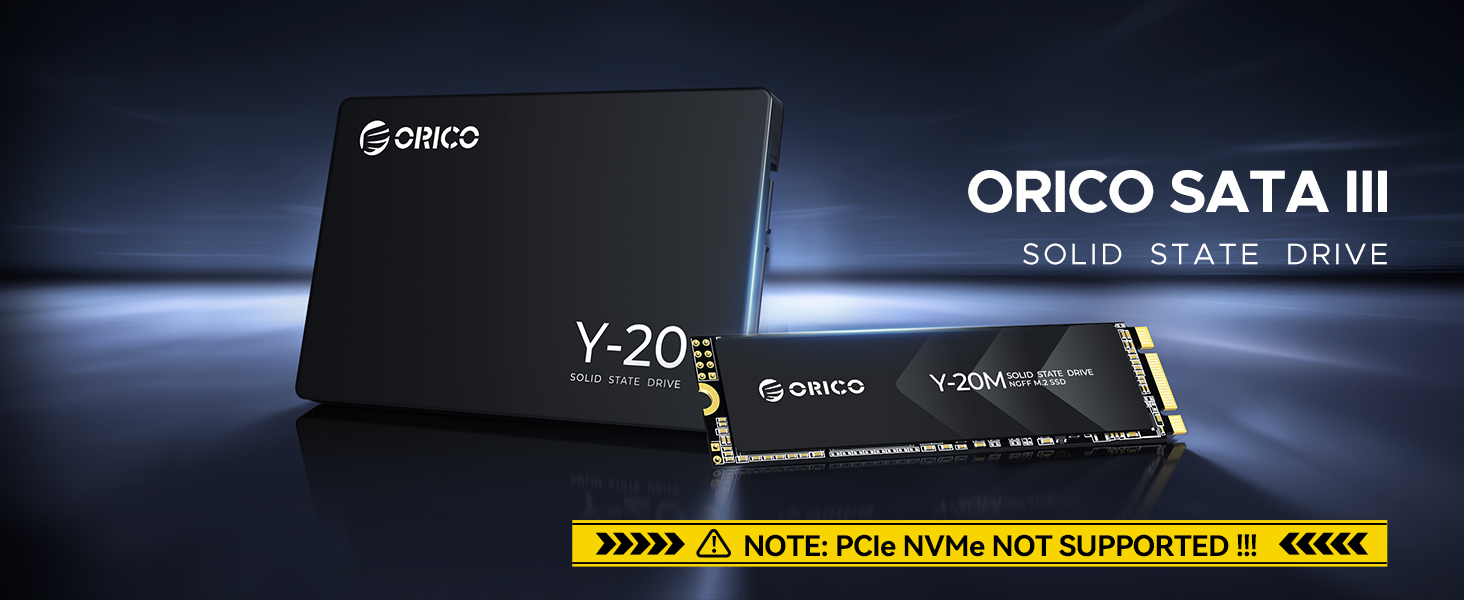
Figure 4: The ORICO M.2 SATA SSD being installed into a motherboard, highlighting its form factor.
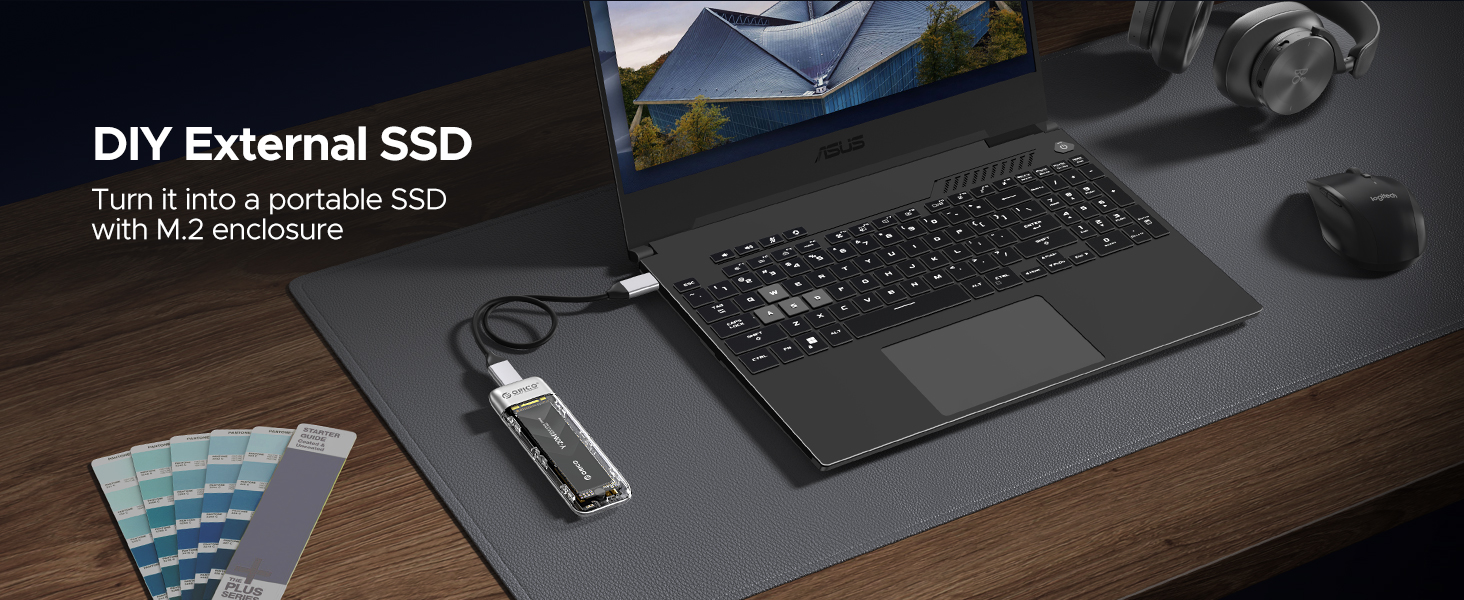
Figure 5: The SSD can also be used in an external M.2 enclosure to create a portable storage device.
3. Operation
Once installed and recognized by your system, the ORICO M.2 SATA SSD functions as a primary or secondary storage device, providing rapid access to your data and applications.
Performance Characteristics:
- Boot Times: Experience significantly reduced operating system boot times.
- Application Loading: Applications and games will load much faster compared to traditional hard drives.
- File Transfers: Enjoy quick file saving and transfer speeds, enhancing overall productivity.

Figure 6: Visual representation of the SSD's enhanced performance with read speeds up to 500MB/s and write speeds up to 430MB/s.
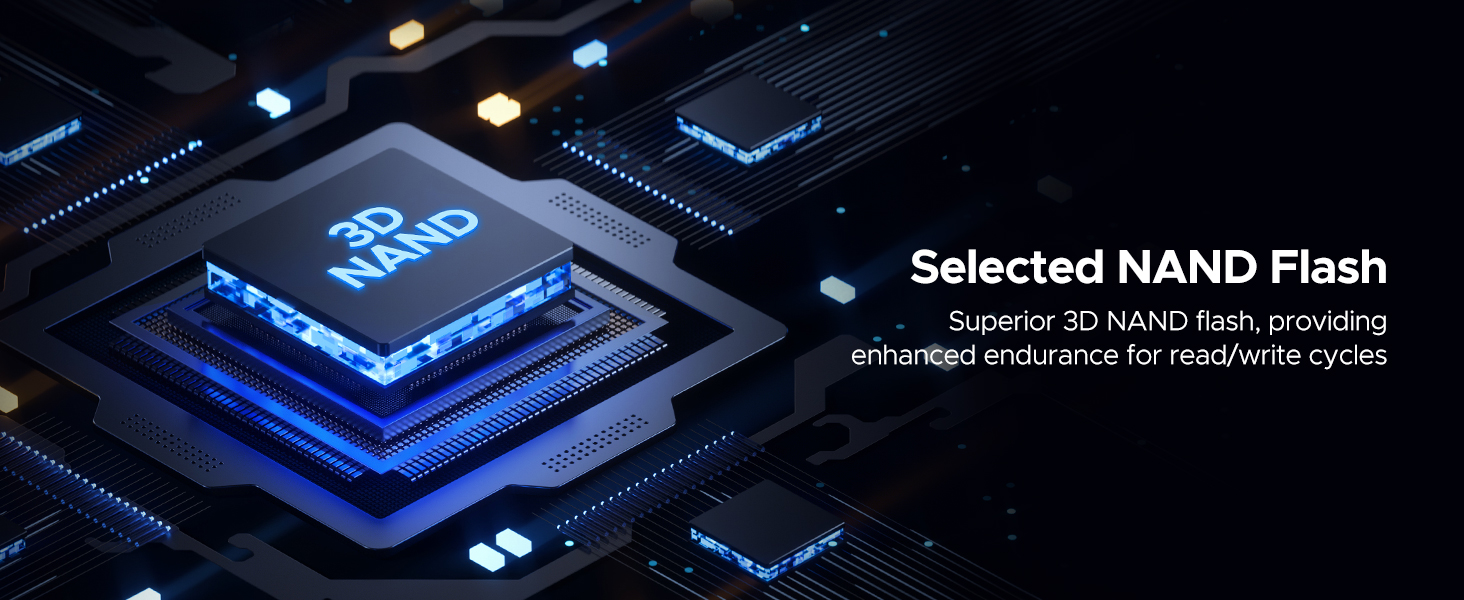
Figure 7: The SSD delivers high efficiency performance, being up to 4 times faster than traditional HDDs.
4. Maintenance and Longevity
The ORICO M.2 SATA SSD is built with advanced technologies to ensure long-term reliability and sustained performance.
Integrated Technologies for Durability:
- TRIM Support: Optimizes performance by allowing the operating system to inform the SSD which data blocks are no longer in use and can be wiped.
- Garbage Collection: An internal process that reclaims unused data blocks to maintain performance and extend the drive's life.
- Bad Block Management (BBM): Identifies and isolates defective memory blocks to prevent data loss and ensure data integrity.
- Error Correction Code (ECC): Detects and corrects data corruption, enhancing data reliability.
- HMB+SLC Cache Strategy: Utilizes Host Memory Buffer and intelligent Single-Level Cell caching to deliver higher transmission speeds and reduce heat generation.

Figure 8: Overview of smart technologies like NCQ, TRIM, APM, PLP, BBM, and S.M.A.R.T. that contribute to the SSD's safe, reliable, and durable operation.

Figure 9: The SSD utilizes superior 3D NAND flash, providing enhanced endurance for read/write cycles.
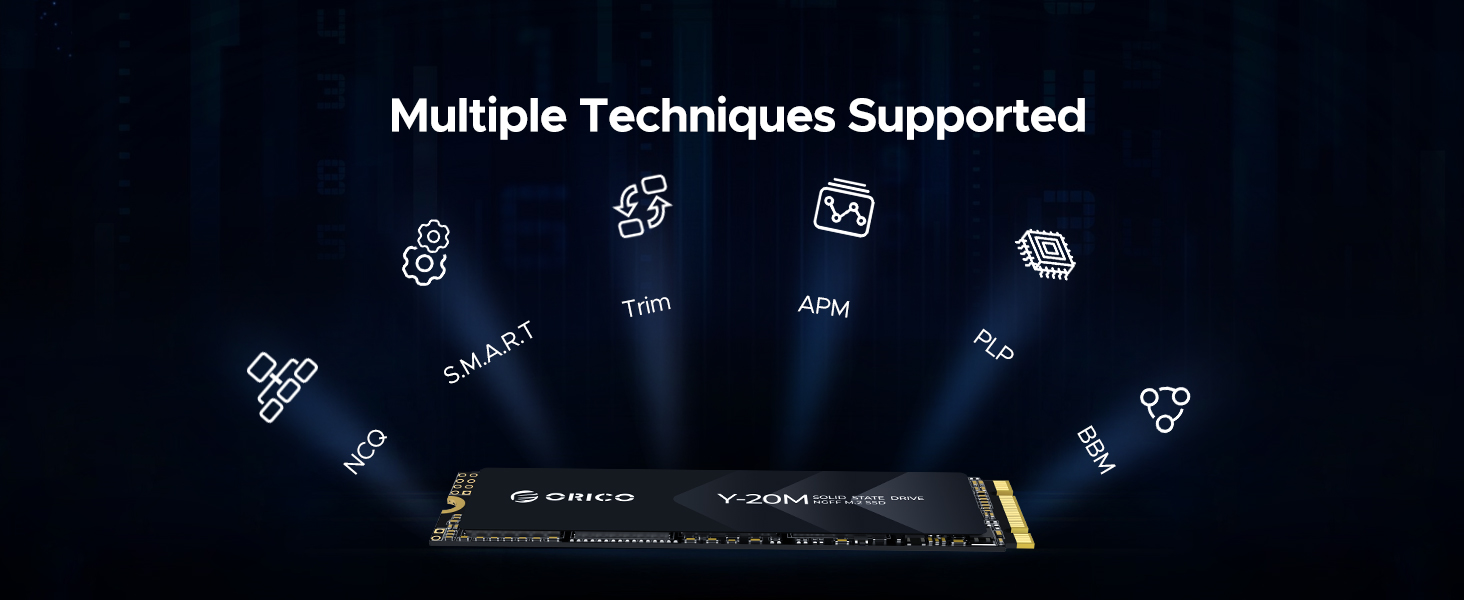
Figure 10: The SSD supports multiple techniques including S.M.A.R.T., TRIM, APM, PLP, NCQ, and BBM for robust performance and data management.
5. Troubleshooting
If you encounter issues with your ORICO M.2 SATA SSD, consider the following common troubleshooting steps:
- SSD Not Detected:
- Check Compatibility: Verify that your motherboard's M.2 slot specifically supports SATA (B+M Key) and not just NVMe. This is the most common reason for detection issues.
- Secure Connection: Ensure the SSD is fully seated in the M.2 slot and the retaining screw is properly fastened.
- BIOS/UEFI Settings: Check your system's BIOS/UEFI settings to ensure the M.2 slot is enabled and configured correctly for SATA mode.
- Disk Management (Windows) / Disk Utility (macOS): For new installations, the SSD may need to be initialized and formatted before it appears in 'My Computer' or 'Finder'.
- Slow Performance:
- SATA III Connection: Ensure the SSD is connected to a SATA III (6Gbps) compatible M.2 slot for maximum speed.
- TRIM Enabled: Verify that TRIM is enabled in your operating system. This helps maintain SSD performance over time.
- Driver Updates: Ensure your motherboard's chipset drivers are up to date.
- System Instability/Crashes:
- Firmware Update: Check the ORICO website for any available firmware updates for your SSD model.
- Power Supply: Ensure your system's power supply is adequate and stable.
- Temperature: Monitor the SSD's temperature using system monitoring software. Excessive heat can lead to performance throttling or instability.
If these steps do not resolve your issue, please refer to the Warranty and Support section for further assistance.
6. Technical Specifications
Below are the detailed specifications for the ORICO M.2 2280 SATA SSD (Model Y20M):

Figure 11: Detailed product specifications including capacities, speeds, and TBW ratings.
| Specification | Detail |
|---|---|
| Brand | ORICO |
| Model Series | Y20M |
| Form Factor | M.2 2280 |
| Interface | SATA III 6Gbps (B+M Key) |
| Digital Storage Capacity | 4 TB (as per current model) |
| Max Sequential Read Speed | Up to 500 MB/s |
| Max Sequential Write Speed | Up to 430 MB/s |
| Item Weight | 2.88 ounces |
| Package Dimensions | 4.96 x 3.54 x 0.75 inches |
| Included Components | 4TB M.2 SATA SSD |
7. Warranty and Support
ORICO stands behind the quality of its products. The ORICO M.2 2280 SATA SSD (Model Y20M) comes with a manufacturer's warranty.
Warranty Information:
This product is covered by a 3-year protection or up to the specified Total Bytes Written (TBW) for its capacity, whichever comes first. For specific TBW values per capacity, please refer to the product specification table in Section 6.
Customer Support:
For technical assistance, warranty claims, or any product-related inquiries, please contact ORICO customer support through their official website or the retailer where the product was purchased. Please have your product model number (Y20M) and purchase details ready when contacting support.
Related documentsY20M


Ask a question about this manual
Ask about setup, troubleshooting, compatibility, parts, safety, or missing instructions. Manuals+ will review the question and use this page’s manual context to help answer it.