
Introduction
This manual provides comprehensive instructions for the setup, operation, maintenance, and troubleshooting of your BPXX D463B Bluetooth Thermal Label Printer. Please read this manual thoroughly before using the printer to ensure proper function and longevity of the device.
Safety Information
- Use only the original power adapter provided with the printer.
- Do not expose the printer to water or excessive humidity.
- Avoid placing the printer in direct sunlight or near heat sources.
- Keep the printer away from dust and debris to prevent internal damage.
- Do not attempt to disassemble or repair the printer yourself. Contact customer support for assistance.
- Ensure proper ventilation around the printer during operation.
Package Contents
Verify that all items listed below are included in your package:
- BPXX D463B USB & Bluetooth Printer
- USB Cable
- Power Adapter
- Power Cord
- U Disk (USB flash drive with drivers and guide)
- OTG Adapter
- Labels (sample roll)
- Quick Start Guide

Image: Contents of the BPXX D463B Thermal Label Printer package.
Product Overview
The BPXX D463B is a compact and efficient thermal label printer designed for various labeling needs, including shipping labels, product labels, and more. It features both Bluetooth and USB connectivity for versatile use across different operating systems.

Image: Front view of the BPXX D463B Thermal Label Printer in operation.
Key Features:
- High-Quality Printing: 203dpi resolution for clear images, text, and barcodes.
- Dual Connectivity: Supports Bluetooth for iOS, Android, and Windows, and USB for Windows, Mac OS, Linux, and ChromeOS.
- Wide Compatibility: Works with major e-commerce and shipping platforms like Amazon, Shopify, eBay, UPS, USPS, FedEx, and more.
- Fast Printing Speed: Up to 152mm/s (72 sheets of 4x6 labels per minute).
- Automatic Label Detection: Automatically identifies label size for ease of use.
- Durable Print Head: Features an aluminum alloy print head with smart temperature control for prolonged service life.
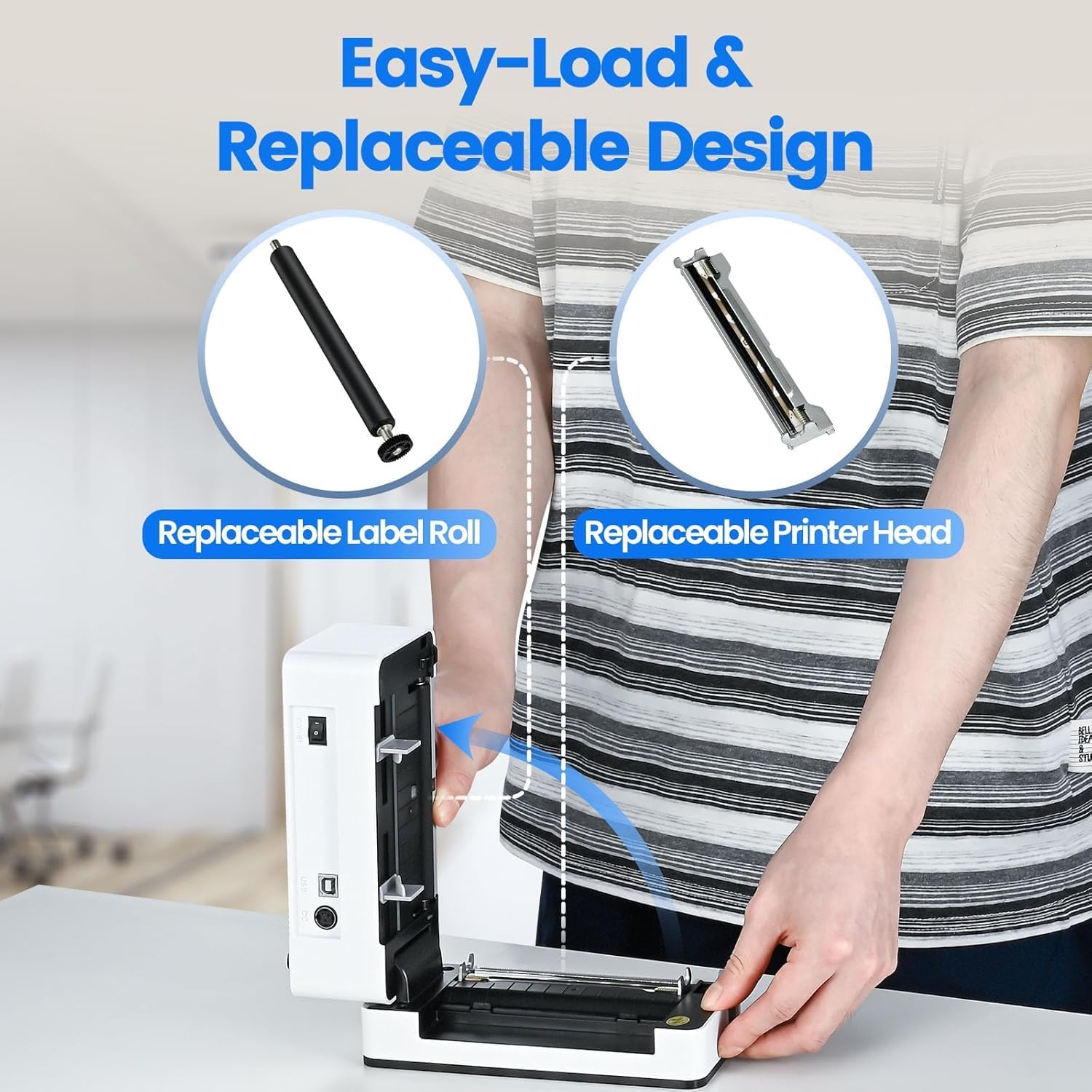
Image: The printer's aluminum alloy print head, designed for durability and extended service life.
Setup
1. Loading Labels
- Open the top cover of the printer.
- Insert the thermal labels into the label compartment, ensuring the printable side is facing up.
- Adjust the label guides to fit the width of your labels snugly.
- Close the top cover. The printer will automatically detect the label size and feed a few labels to calibrate.

Image: Illustration of the easy-load label mechanism.
2. Connecting to Your Device
The D463B printer offers both Bluetooth and USB connectivity.

Image: Connectivity options for the BPXX D463B printer.
Bluetooth Connection (iOS, Android, Windows):
- Ensure the printer is powered on. The indicator light should be blue.
- Download the "4Barcode" APP from your device's app store (iOS/Android) or install the driver for Windows from the provided U Disk.
- Enable Bluetooth on your mobile device or computer.
- Open the "4Barcode" APP or the printer driver software.
- Search for available Bluetooth devices and select "D463B" or a similar name.
- Pair the device. Once paired, you can begin printing wirelessly.
USB Connection (Windows, Mac OS, Linux, ChromeOS):
- Connect one end of the USB cable to the printer and the other end to your computer.
- Insert the provided U Disk into your computer.
- Follow the instructions on the U Disk to install the appropriate printer drivers for your operating system. A detailed installation guide video is included on the U Disk.
- Once drivers are installed, the printer will be recognized by your computer and ready for use.
Operating the Printer
Printing Process
After successful setup and connection, you can print labels from various applications and platforms.

Image: Demonstrating the printer's high-speed and high-definition printing capabilities.
- Open the document or label file you wish to print (e.g., a shipping label PDF).
- Select the print option within your application.
- Choose the "BPXX D463B" printer from the list of available printers.
- Ensure the correct label size is selected in the print settings (e.g., 4x6 inches). The printer supports various label sizes up to 4.1 inches in width.
- Confirm print settings and initiate printing.

Image: The printer's maximum 4.1-inch label width capability and auto-detection feature.
Platform Compatibility
The BPXX D463B is compatible with a wide range of e-commerce and shipping platforms, streamlining your workflow:
- Amazon
- Shopify
- eBay
- Shopee
- UPS
- USPS
- Shippo
- FedEx
- Etsy
- ShipStation
- PayPal
- And many more.

Image: The printer's compatibility with major e-commerce and shipping platforms.
Maintenance
Cleaning the Printer
Regular cleaning ensures optimal print quality and extends the life of your printer.
- Turn off the printer and unplug it from the power source before cleaning.
- Use a soft, lint-free cloth lightly dampened with isopropyl alcohol to clean the print head. Allow it to dry completely before use.
- Wipe down the exterior of the printer with a dry, soft cloth.
- Remove any dust or label debris from the label compartment.
Replacing Components
The BPXX D463B is designed for easy replacement of key components to maximize its lifespan.
Image: Easy-load and replaceable design for label roll and printer head.
Replacing the Label Roll:
Follow the "Loading Labels" instructions in the Setup section to replace an empty label roll.
Replacing the Printer Head:
While the aluminum alloy print head is designed for durability, it is replaceable if needed. Refer to the detailed instructions provided on the U Disk or contact customer support for guidance on replacing the print head.
Troubleshooting
| Problem | Possible Cause | Solution |
|---|---|---|
| Printer not powering on. | Power cable not connected; power outlet issue. | Ensure power cable is securely connected. Try a different power outlet. |
| Cannot connect via Bluetooth. | Bluetooth not enabled; incorrect app/driver; printer not discoverable. | Ensure Bluetooth is on. Use the "4Barcode" APP. Restart printer and device. |
| Poor print quality (faded, unclear). | Print head dirty; incorrect label type; low-quality labels. | Clean the print head. Ensure you are using thermal labels. Try new labels. |
| Labels not feeding correctly. | Labels improperly loaded; label guides not adjusted. | Reload labels, ensuring they are straight and guides are snug. |
| Printer not recognized by computer (USB). | Drivers not installed; faulty USB cable/port. | Install drivers from the U Disk. Try a different USB cable or port. |
Specifications
| Feature | Detail |
|---|---|
| Model Name | D463B |
| Printing Technology | Thermal |
| Connectivity Technology | Bluetooth, USB |
| Print Resolution | 203 DPI (Dots Per Inch) |
| Max Print Speed (Monochrome) | 152mm/s (72 sheets 4x6 labels/min) |
| Max Label Width | 4.1 inches |
| Compatible Label Sizes | 4"x6", 3"x2", 3"x1", 2"x1", 2-5/16" x 4" inches |
| Compatible Devices | Laptops, PCs, Tablets, Smartphones |
| Supported OS | iOS, Android, Windows, Mac OS, Linux, ChromeOS |
| Product Dimensions | 3.35"D x 3.35"W x 7.28"H |
| Item Weight | 3.12 pounds |
| Power Source | AC Adapter (included) |

Image: The compact size of the BPXX D463B printer.
Warranty
The BPXX D463B Thermal Label Printer comes with a one-year warranty from the date of purchase. This warranty covers manufacturing defects and malfunctions under normal use. It does not cover damage caused by misuse, accidents, unauthorized repairs, or natural disasters.
Please retain your proof of purchase for warranty claims.
Customer Support
For any questions, technical assistance, or warranty claims, please contact BPXX customer support through the following channels:
- Email: Refer to the contact information provided in your product packaging or on the official BPXX website.
- Online Support: Visit the BPXX official website for FAQs, drivers, and support resources.
When contacting support, please have your printer model (D463B) and purchase information ready.


